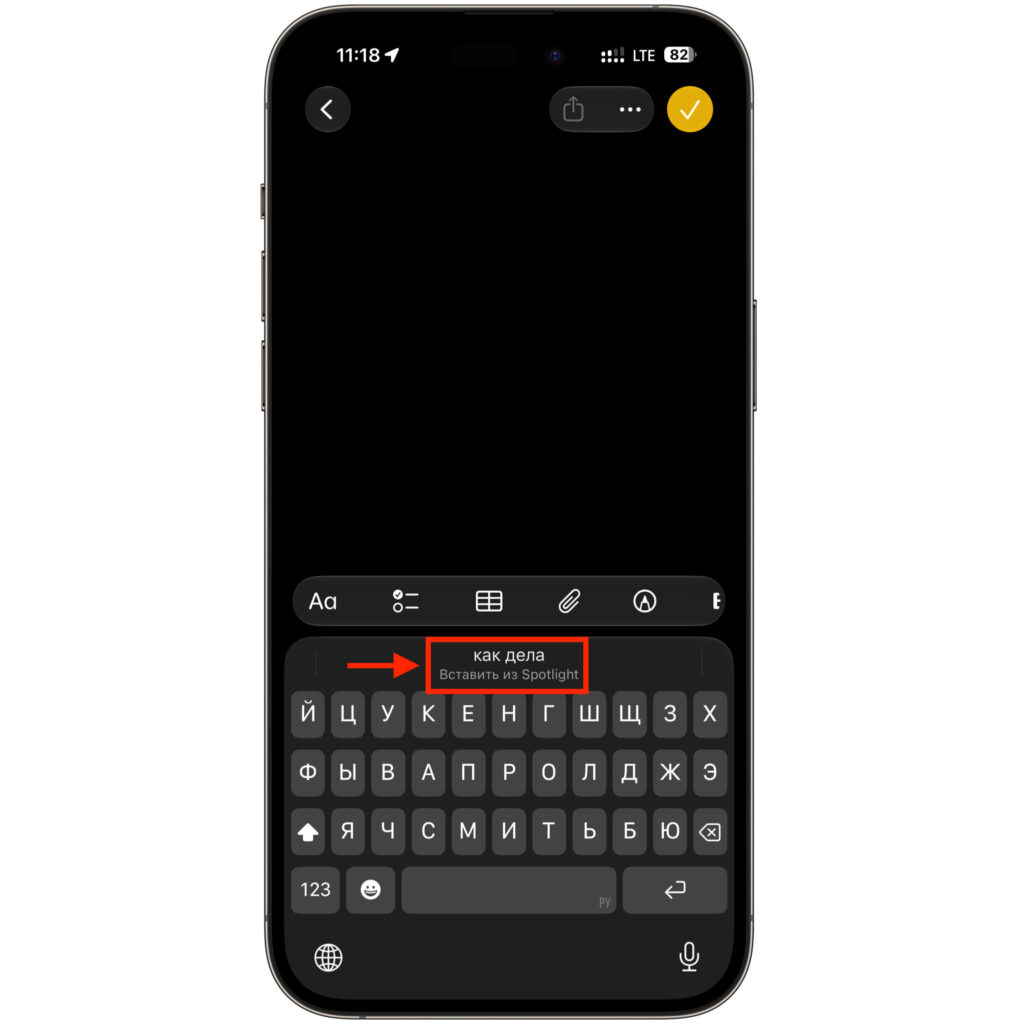
All the headlines about iOS 27 right now are about Siri with artificial intelligence and Apple Intelligence. I installed the beta on my main iPhone a week ago and realized that every day I actually use completely different things: small details that Apple didn’t even show at the presentation. The first public beta of iOS 27 is already available for installation, meaning anyone can try all the top features of the new OS. I’ve gathered six features that truly changed my day, and I’ll tell you honestly about each one: what works and what’s still rough.
Found some truly top features for myself
What Changed in iCloud Shared Albums in iOS 27
For many years I’ve avoided iCloud shared albums for one reason: they killed quality. Now shared albums transfer photos and videos in full resolution, and this is the first change in iOS 27 that I noticed without any hints. I shared a trip album with my wife, she opened it on her iPhone, and the photos didn’t turn into a blurry mess. Previously, to get normal detail you had to separately send originals via cloud storage or a messenger.
The difference is especially visible in shots with details: text on signs, faces in crowds, evening photos with noise. Now the family album works as a full-fledged storage, not as a gallery of thumbnails. The only caveat: iCloud storage gets used up faster, so keep an eye on your plan.
How to Save a Frame from Video on iPhone
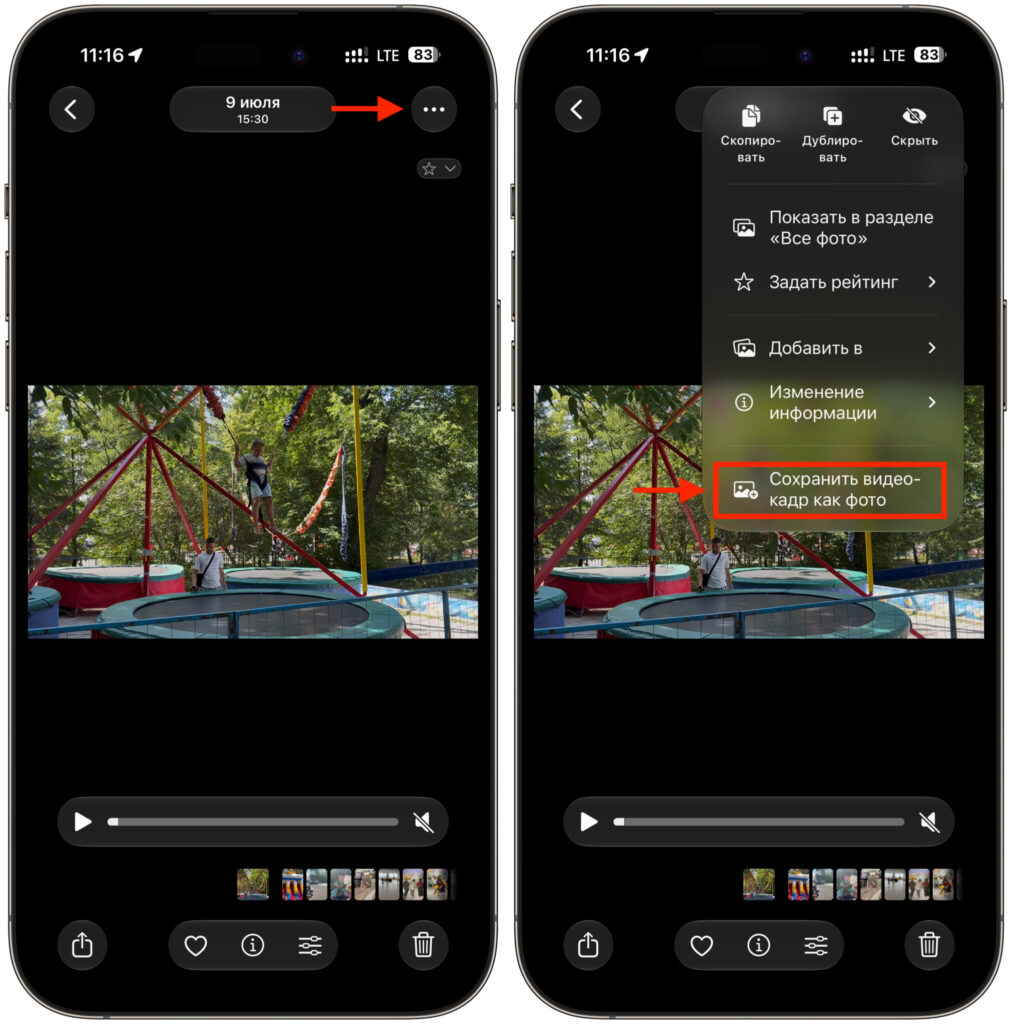
Two taps and a frame from video is saved as a photo
The second change in Photos I appreciated at my kid’s swimming class. Before, the process was clunky: pause, screenshot, crop out the interface, and the output is a frame at screen resolution. Now any frame from a video can be saved as a regular photo right from the player, without intermediate steps. The quality comes from the video itself, not from the display, and that’s a fundamentally different result.
This replaced half of my shooting scenarios. I simply record video where I used to nervously try to catch the moment with burst mode, and pull out the right frame later. Sports, kids, and animals are no longer a lottery.
Separate Alarm Volume on iPhone
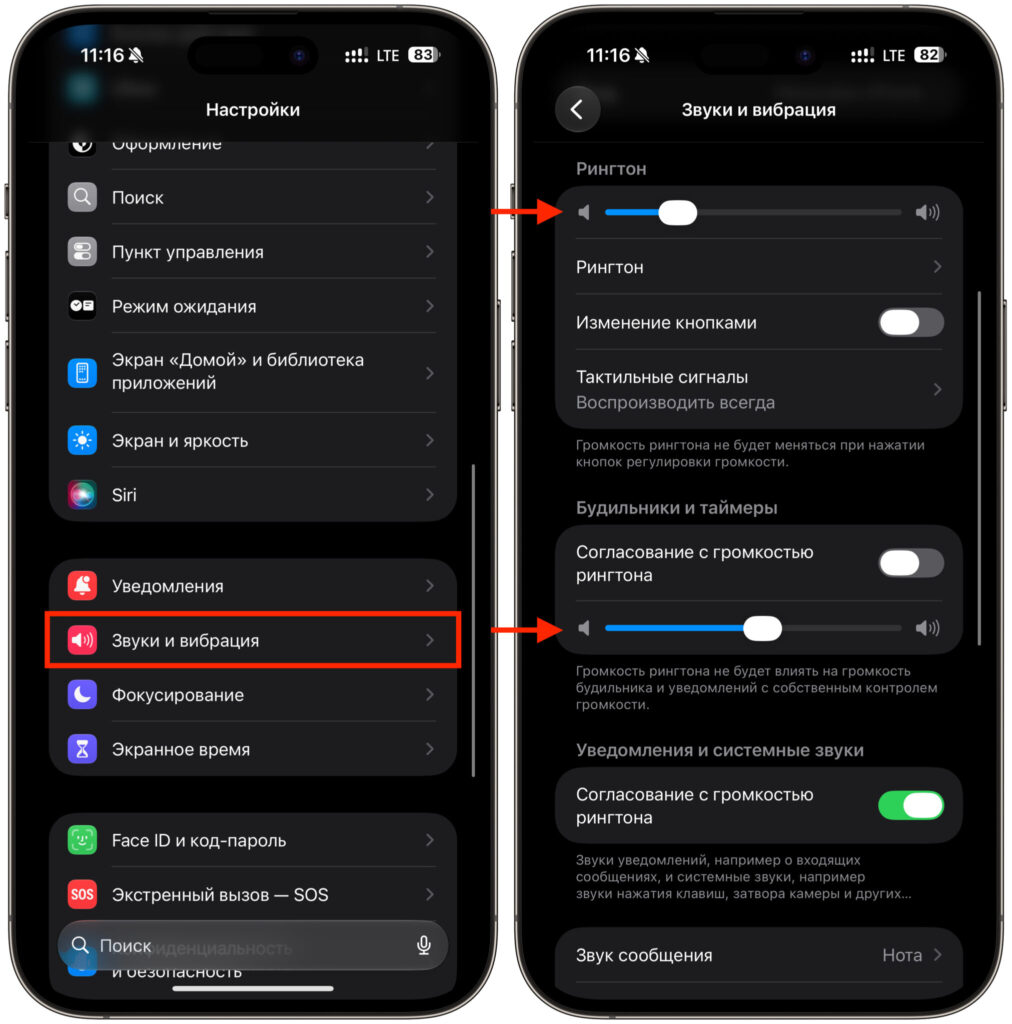
Separate volume for ringtone and alarm — that’s awesome
I’ve been waiting for this setting literally for years. Alarm volume is now set separately from ringtone volume, and it lives in Settings — Sounds & Haptics. Before iOS 27, you had to choose: either the phone doesn’t blast through the whole office on an incoming call, or in the morning you simply can’t hear it. I ended up keeping the ringtone louder than I wanted for years.
Now my ringtone is set to about a third, while the alarm is cranked almost to maximum. A quiet day and a loud morning no longer conflict with each other. Tested for a week — not a single overslept morning.
New Full-Screen Widgets in iOS 27
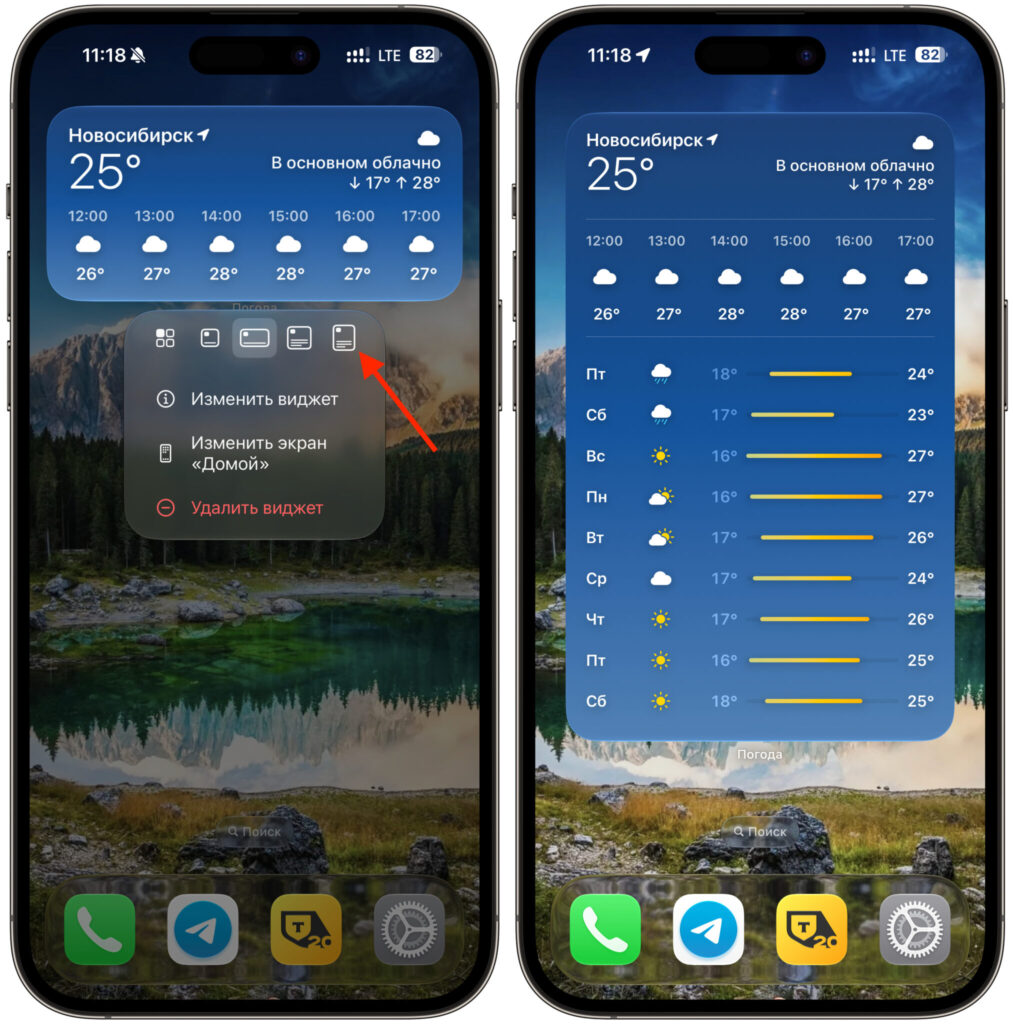
A widget can be stretched to fill the entire screen and app icons can be removed
iOS 27 introduced a new full-screen widget size. Music, Photos, Weather, and Calendar already have support. My old iPhone lives on a stand by the bed, and the full-screen Weather widget turned it into a proper desktop panel. No more third-party apps with ads needed for this.
Additionally, more apps now support landscape orientation: Music, Reminders, Weather correctly rotate when the phone is in a dock. Previously, half of the system apps simply refused to rotate, which looked odd compared to the iPad. Now an iPhone on a charger works as a small information screen on your desk during the day.
What Changed on the iPhone Lock Screen
Lock screen settings have noticeably increased. First, the clock can be moved to the top widget row, so it stops covering the wallpaper. I keep a vacation photo on my lock screen, and the huge clock face used to eat up half the image. Now the composition stays intact.
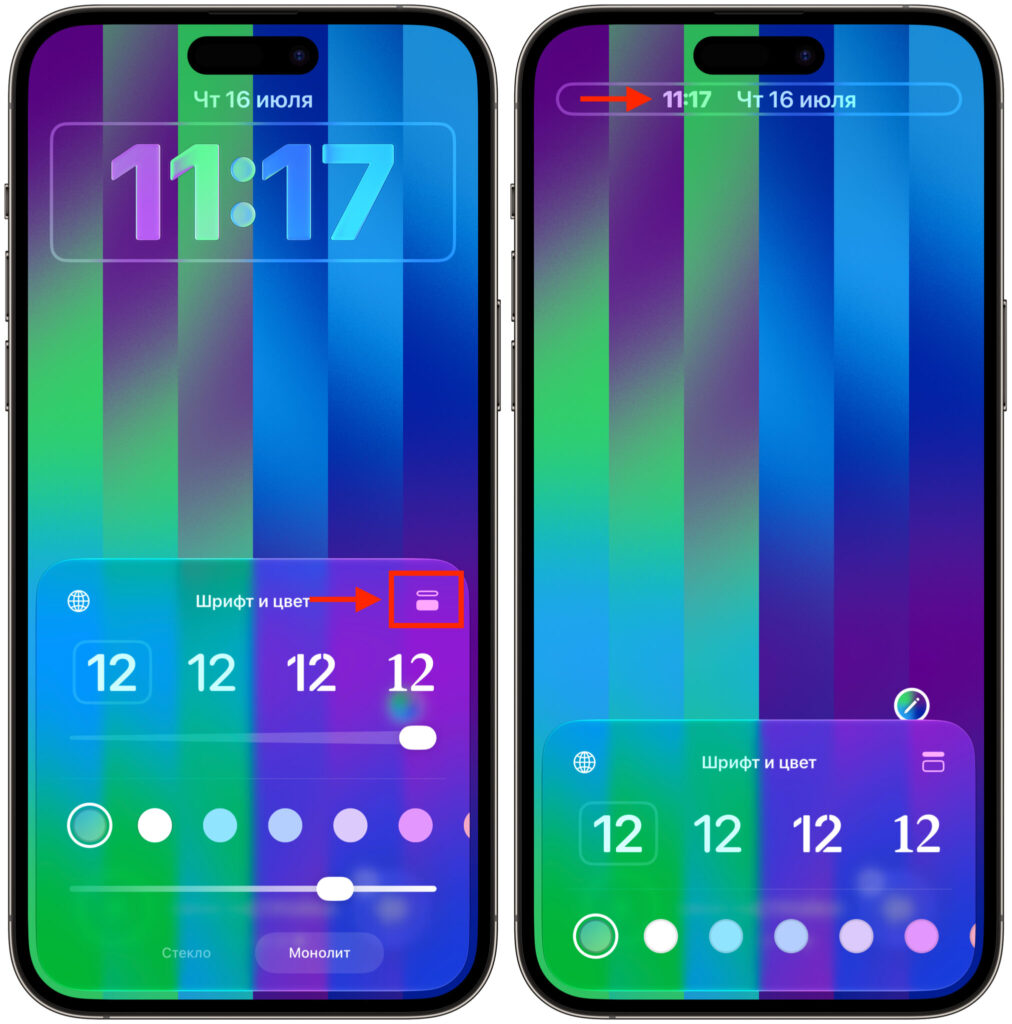
The clock can now not only be enlarged but also made smaller
Second, the “Now Playing” widget can be swiped away from the lock screen. Music is playing on my phone almost all the time, and the player was permanently occupying the bottom part of the screen along with the flashlight and camera buttons. One swipe, and it’s gone.
How Quick Paste Works in iOS 27
A small thing I use about twenty times a day. After copying text, a link, or an image, a paste button appears above the keyboard in the next text field. No need to long-press on the input field, wait for the menu, and aim at the “Paste” option. One tap and everything is in place.