It’s been over a month since WWDC 2026, and testers are still finding changes in the system that Apple kept quiet about. The company mentioned some features only in passing, while others weren’t mentioned at all, and that’s normal: in an hour-long presentation, it’s impossible to show every small improvement across several operating systems. Especially since the first public beta of iOS 27 has been released, which means it’s time to talk about the features that make it worth installing beyond Siri AI.

Some features were not mentioned on stage
Landscape Mode in iPhone Apps in iOS 27
The iPhone has a long and strange history with landscape orientation. Rotating the home screen hasn’t been possible since the iPhone X launched in 2017, and in iOS 27 it’s still not possible. However, Apple has allowed many more of its apps to be rotated sideways, so the phone no longer needs to be held strictly upright.
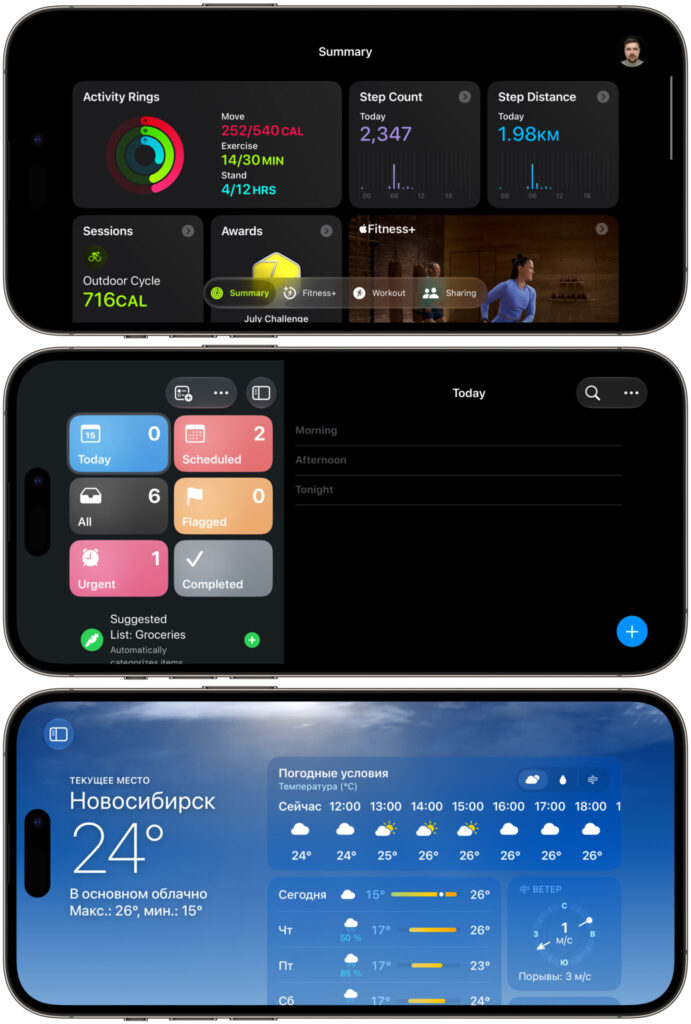
Now more apps support landscape mode
The list includes Music, Fitness, Health, Podcasts, Reminders, Home, Shortcuts, Find My, Voice Memos, Weather, and even the Apple TV remote. You rotate the phone, and the interface restructures for the wide screen: some apps slide out a sidebar with sections on the left, while the main content fills the entire width. In Weather, it’s more convenient to view the hourly chart, and in Home, you can see all rooms at once without scrolling.
There’s a theory that the mode is being prepared for a future iPhone Ultra with a large iPad-style screen, but this is still just testers’ speculation. The practical benefit is noticeable already: you can lay the phone on its side on a table during a workout or cooking. However, on older models, the interface rearrangement sometimes lags.
How to Draw in Messages on iPhone with iOS 27
Messages now has a dedicated drawing tool. Previously, freehand doodles lived inside iMessage apps and were accessed through a non-obvious panel that half of users never even opened once. Now it’s a full-fledged canvas with a set of brushes, an eraser, and a palette, and the result is sent to the chat as a regular attachment.
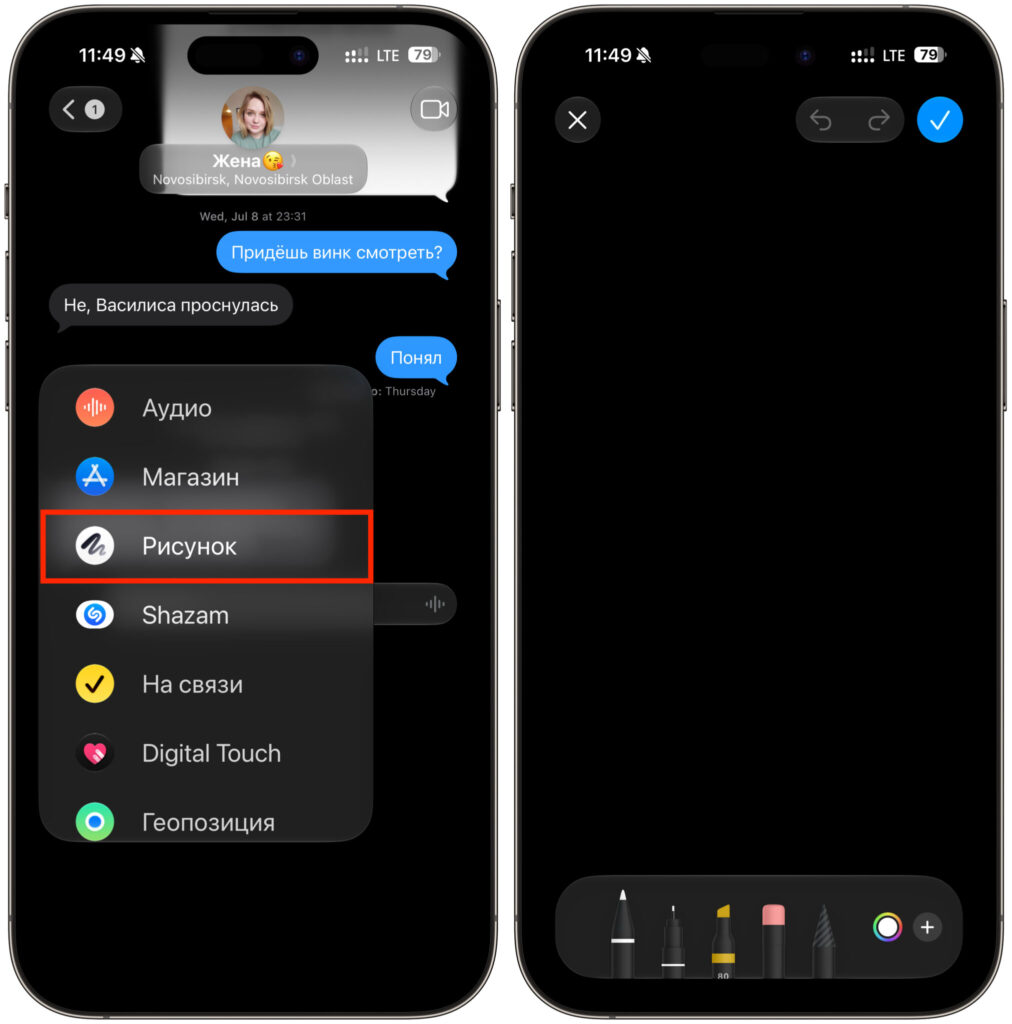
New drawing tool in messages
It’s a niche feature, but for quick annotations it’s more convenient than a screenshot: circle the needed spot on a diagram, write a couple of words with your finger, and send it. Owners of iPhones with Apple Pencil support clearly have an advantage here; everyone else will have to make do with their finger.
Separate Alarm and Ringtone Volume in iOS 27
Now this is a small thing people have been waiting for for years. In iOS, alarm volume and ringtone volume were always linked: turn down the ringtone in the evening so as not to wake anyone, and in the morning you’d oversleep along with it. Users worked around this with third-party apps and workarounds like wake-up playlists.
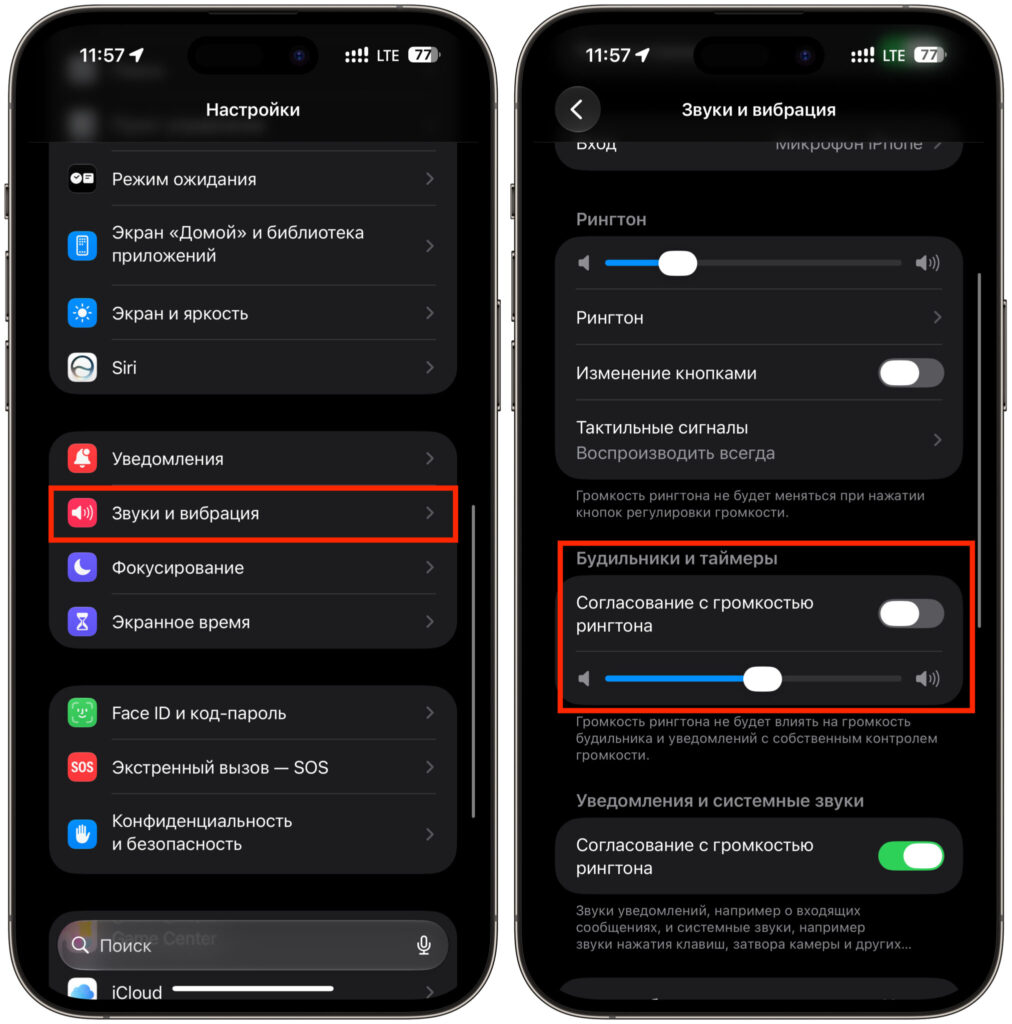
Separate volume is the best
In iOS 27, the sound settings sliders have been separated. The alarm now has its own volume control that doesn’t depend on how low the ringtone is set. You can set the ringtone to minimum and leave the alarm at maximum, and the system will no longer override your choices.
How to Quickly Paste Text on iPhone
Pasting copied text in iOS has always been a separate adventure. You need to precisely tap the cursor with your finger, wait for the pop-up menu, and not miss the right option. Now the paste button lives above the keyboard, in the same strip where word suggestions are shown.
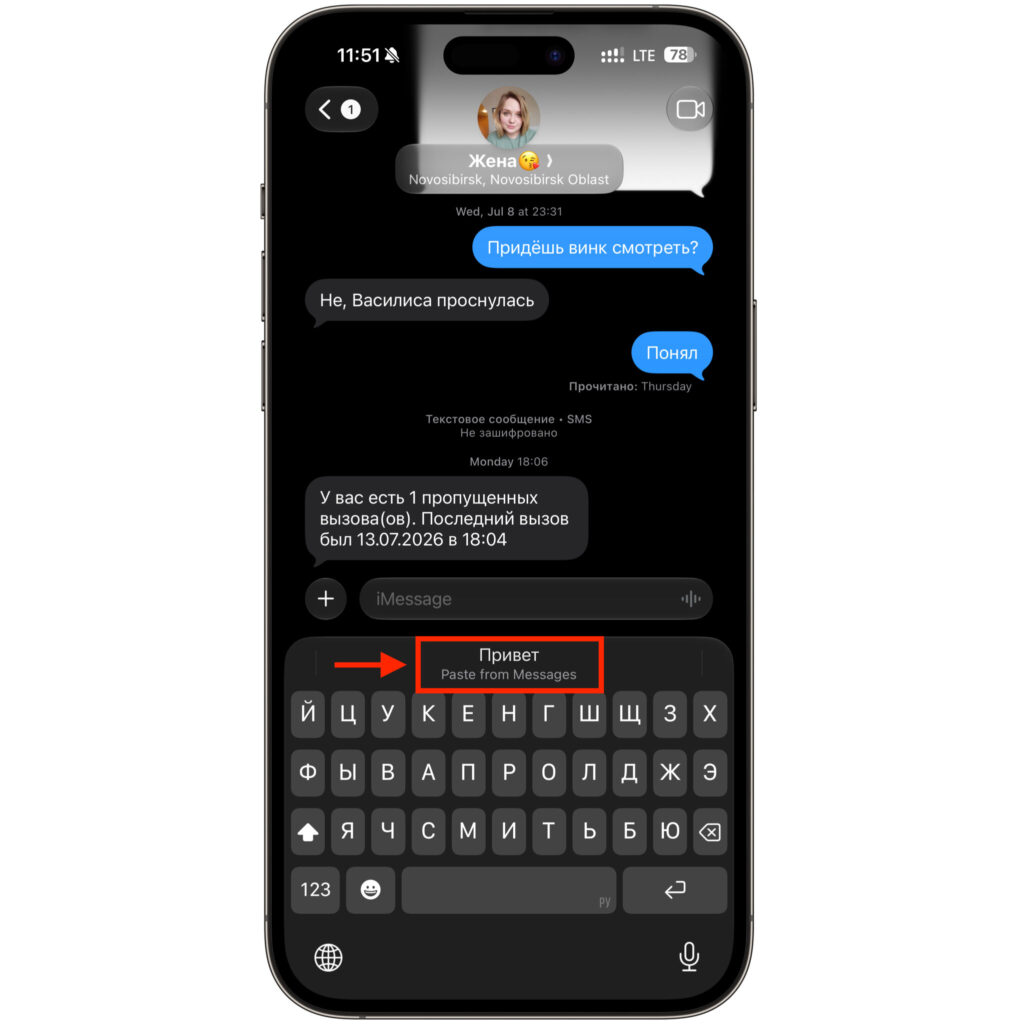
Pasting is now done with a single button
It works contextually: the button only appears when there’s something in the clipboard and disappears as soon as you start typing. An added privacy bonus — pressing it doesn’t prompt for clipboard access permission, because you’re initiating the paste yourself.
This small thing saves seconds, but those seconds add up significantly throughout the day. Especially if you’re constantly sharing links and verification codes.
How to Enable Two Cameras in FaceTime
FaceTime has learned to show the feed from two cameras simultaneously: the front camera broadcasts your face, while the main camera shows what’s happening in front of the phone. The other person sees both streams in one window — no switching needed.
The idea isn’t new — Snapchat and BeReal have had something similar for a long time, but in a system-level call, this works without third-party apps. It’s useful when showing renovations to your parents or explaining something with your hands. The processor load is noticeable though, so the mode may be unavailable on older models.
What’s New with AirPods After Updating to iOS 27
At the presentation, Apple showed maybe a couple of points for the headphones, even though the update brings more changes.


