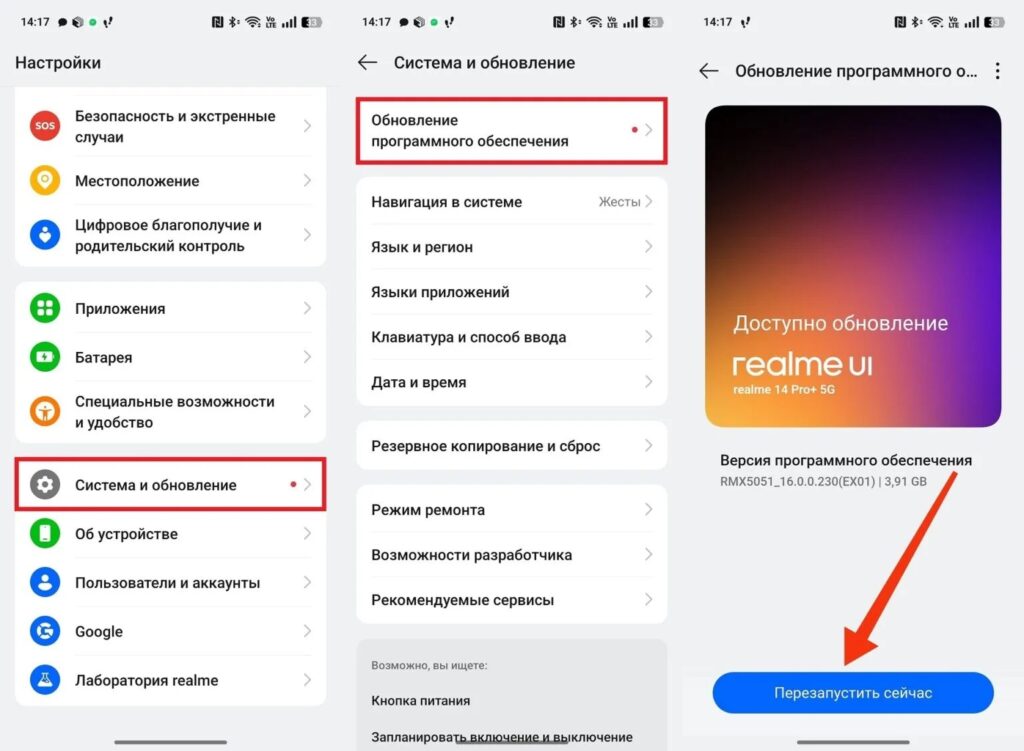
I recently wrote about which apps I delete on a new smartphone right after purchase. But a one-time cleanup is just the beginning. A smartphone requires regular maintenance, otherwise after a few months you start experiencing lag, fast battery drain, and storage shortages. I have five things I do every month, and after each iteration, the phone runs noticeably faster. Here’s my list.
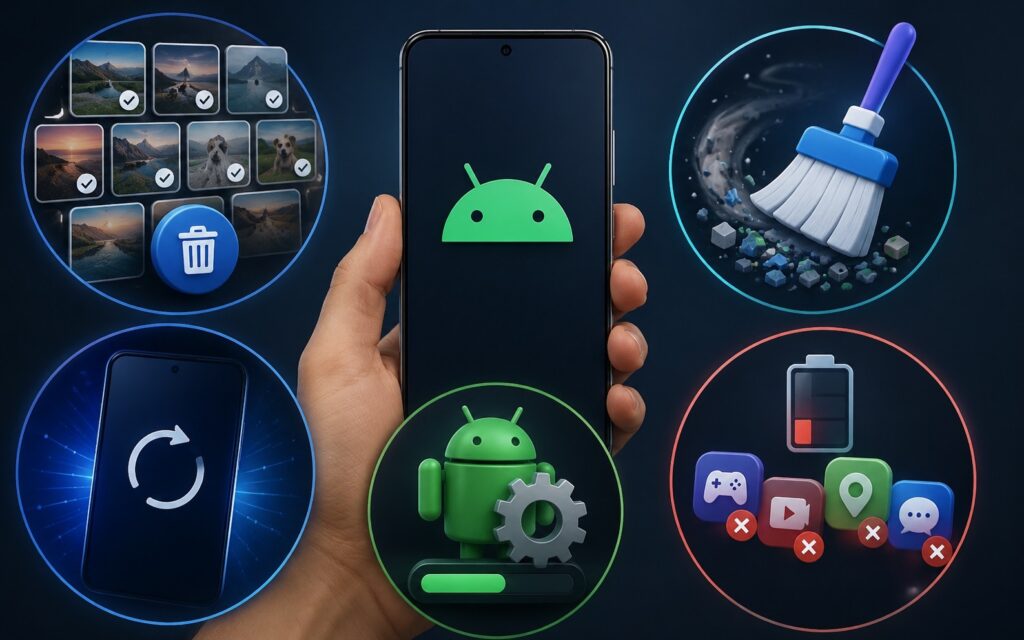
5 simple actions that will make your smartphone better
Deleting Unnecessary Files on Android
Junk on your phone accumulates faster than you think. Screenshots you took and forgot about. Photos of food you already ate. Voice messages that downloaded automatically. Documents from messengers. All of this quietly takes up space and slows down your smartphone.
Screenshots and downloads are the main memory hogs.
Once a month, I open “Settings — Storage” and look at what exactly is taking up space. Usually the picture is the same: photos and videos are the main memory hogs, followed by downloads and app cache. What I specifically do:
- I open the gallery and delete screenshots: I always accumulate several dozen of them.
- I go to “Downloads” through the file manager and clear the folder: it usually contains long-unneeded PDFs and archives.
- In Telegram, I open “Settings — Data and Storage — Manage Local Storage” and delete media files from inactive chats.
- I review the list of apps and delete those I haven’t used for more than a month.
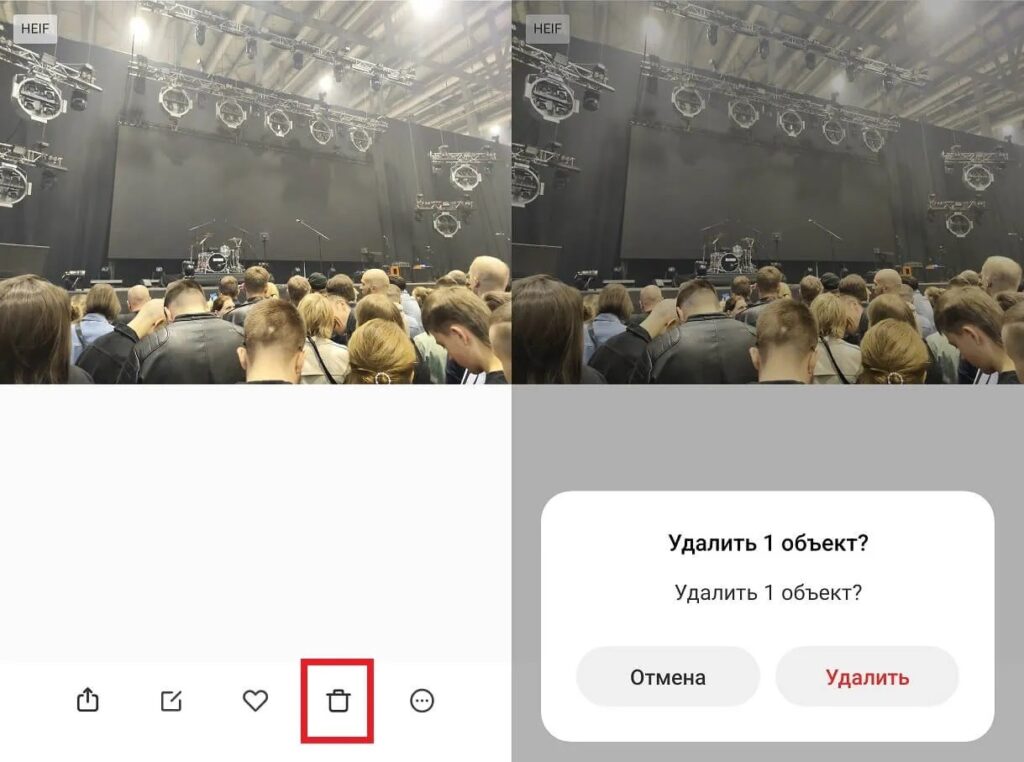
I also regularly delete unnecessary photos
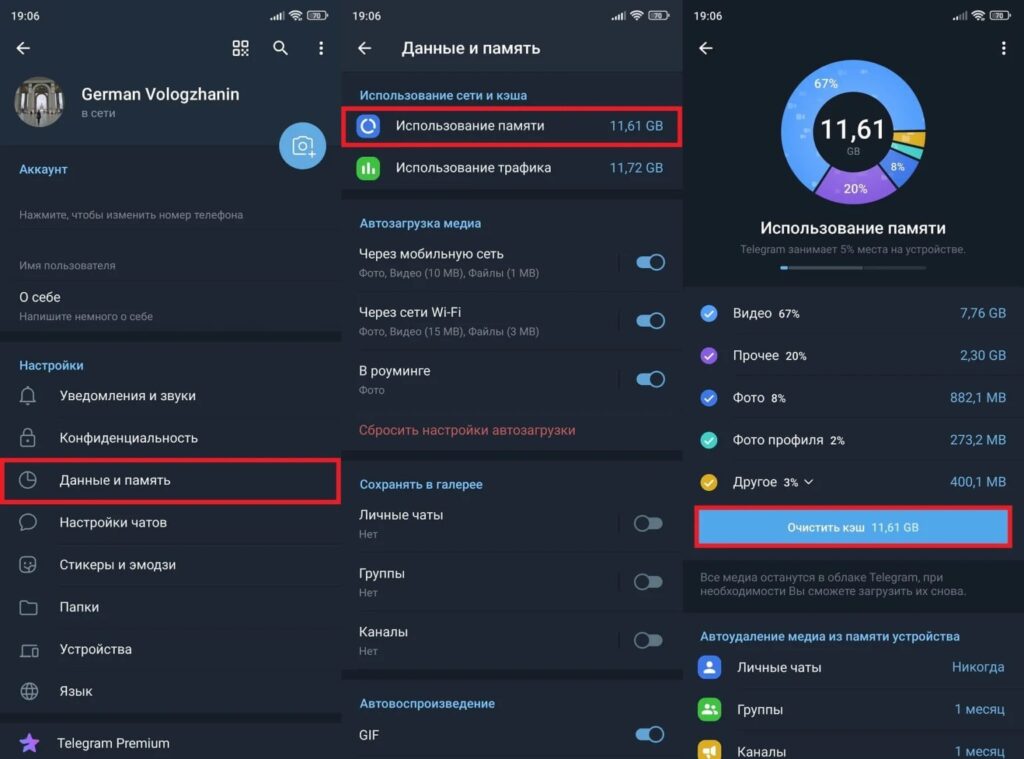
Telegram traditionally takes up a lot of space on my phone
After this procedure, I usually free up 2 to 5 GB depending on how actively I used the smartphone.
Clearing Cache on Your Phone
Clearing cache is one of the most underrated operations. Cache consists of temporary files that apps save for faster performance. In theory it’s convenient, but in practice after a few months the cache grows to several gigabytes and starts slowing down apps instead of speeding them up. Deleting junk on your phone in the form of cache is easiest to do app by app:
- Open “Settings — Apps.”
- Select an app that takes up a lot of space — usually this is the browser, Telegram, VKontakte, or TikTok.
- Tap “Storage.”
- Tap “Clear Cache” — not “Clear Data,” otherwise you’ll lose settings and history.
- Repeat for other heavy apps.
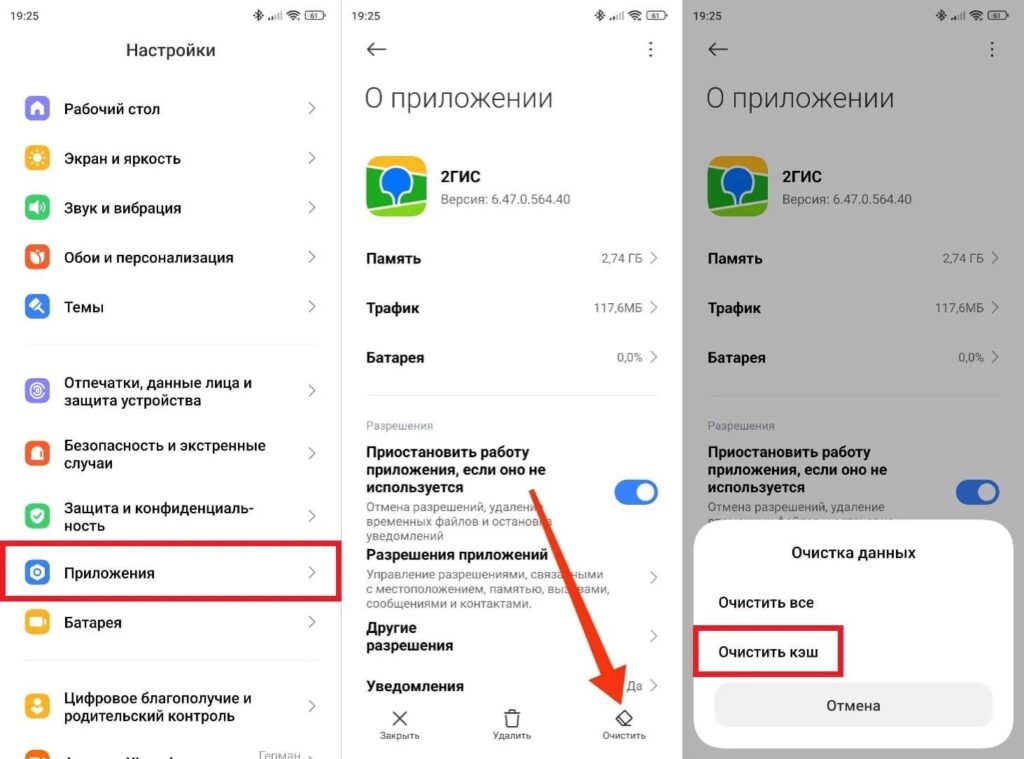
This is what I do with every app
On MIUI and HyperOS, there’s a built-in “Cleaner” in the quick access menu. It deletes the cache of all apps at once. On Samsung, a similar function is called “Device Care.” I use them once a month as a quick option, and once every three months I go through heavy apps manually.
Which Apps Drain Your Battery
Phone dying fast is one of the most common complaints. And almost always the cause isn’t the battery itself, but a specific app running in the background that won’t let the smartphone rest properly. Once a month, I go to “Settings — Battery — Battery Usage” and check who’s consuming the most charge. Social networks, news aggregators, and messengers with aggressive background activity usually end up at the top. What I do with the power hogs:
- I tap on the suspicious app in the battery usage list.
- I select “Battery Usage” or “Restrict Background Activity.”
- I switch from “Unrestricted” to “Optimized.”
- For the most aggressive ones — I choose “Restricted.”

I only restrict the least important apps
Phone lagging happens for the same reason: background processes overload the processor. Restricting background activity helps on two fronts at once: the battery lasts longer and the interface runs smoother.
Updating Apps and the Android System
Updating Android and apps is something many people put off indefinitely. I understand: updates take time, sometimes change the interface, sometimes break things. But regularly not updating apps on Android is a bad idea for two reasons. First — security. Most updates patch vulnerabilities that attackers can use to access your data. Outdated apps are an open door for attacks. Second — performance. Developers regularly optimize code, fix memory leaks, and reduce battery consumption. A fresh version of an app almost always works better than an old one. Once a month I do the following:
- I open Google Play and tap the profile icon in the upper right corner.
- I select “Manage apps & device.”
- I tap “Update all” — all available updates are installed at once.
- I separately go to “Settings — System Update” and check for an Android update.
- If an update is available — I install it at a convenient time when the smartphone is charged and connected to Wi-Fi.
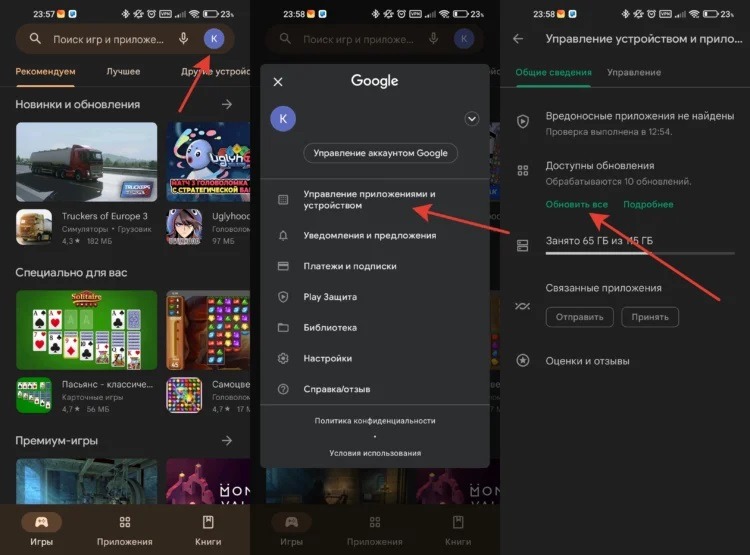
You can update all apps at once