Samsung’s One UI shell contains many useful features that I always change when setting up a new Samsung Galaxy out of the box. Some settings either get in the way, slow down the device, or simply don’t match how I use my phone every day. Below are five Samsung settings you should change right after the first power-on, even before transferring data and installing apps.
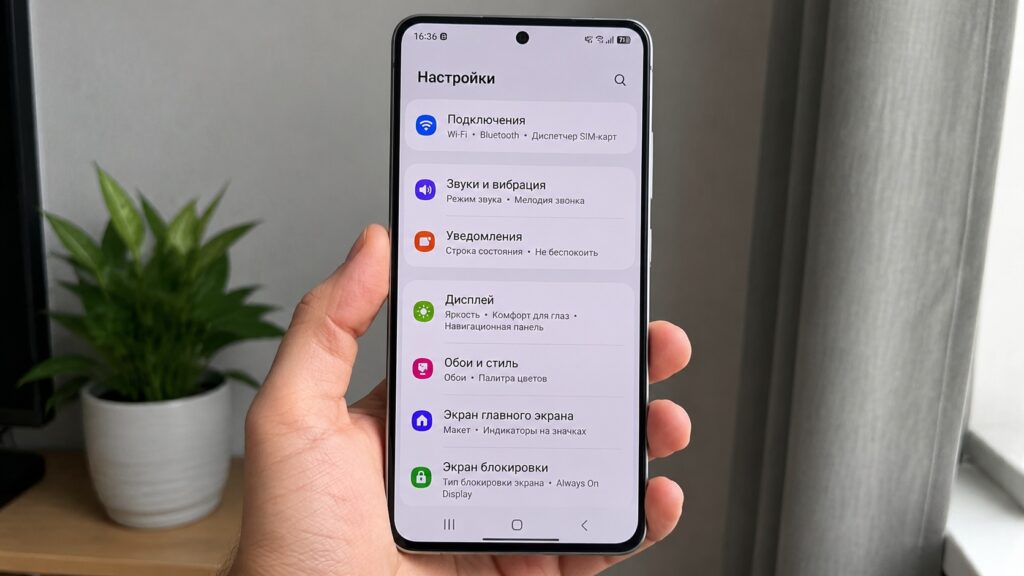
5 settings you should change right after buying a Samsung
Maximum Samsung Screen Resolution — How to Enable It
The first thing worth changing on a flagship Galaxy is the screen resolution. Many premium Samsung models default to FHD+ mode, even though you paid for a QHD+ panel. Simply put, the expensive screen isn’t working at full capacity.
To fix this, do the following:
- Open “Settings.”
- Go to the “Display” section.
- Select “Screen resolution.”
- Move the slider to QHD+.
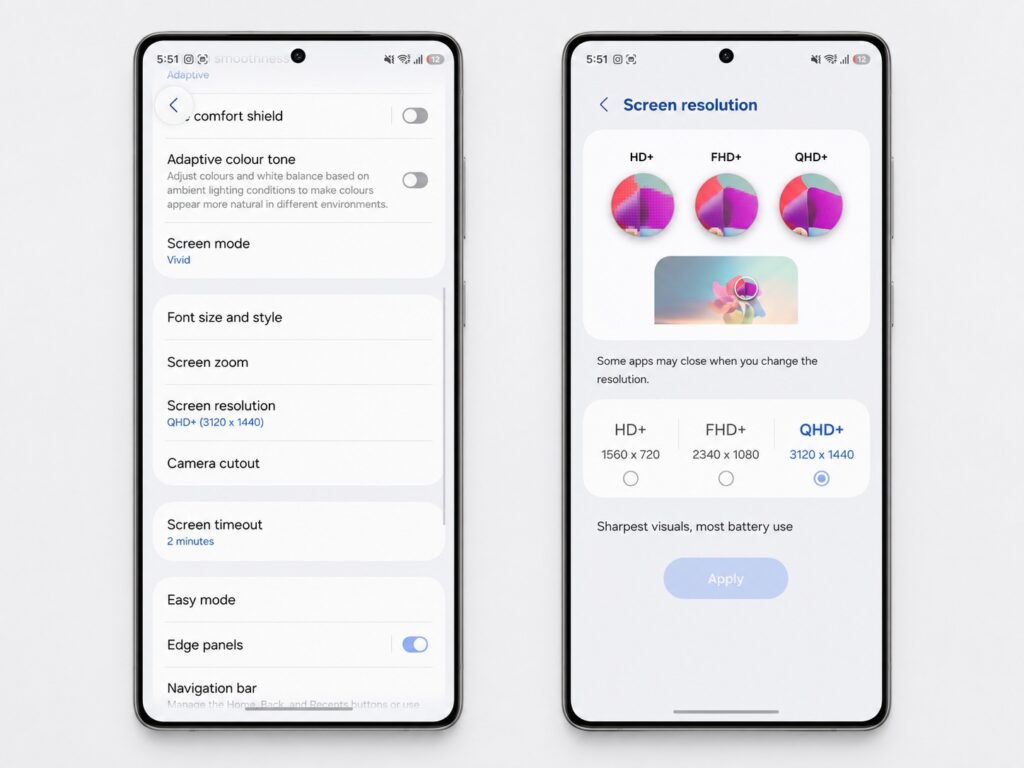
I always increase the screen resolution
After this, text becomes sharper, fine details are easier to distinguish, and reading articles and viewing photos looks neater. There’s a caveat: higher resolution uses slightly more battery. Exactly how much depends on the model and usage scenarios — no exact figures are provided. If battery life matters more to you, leave it at FHD+; if you want maximum sharpness — QHD+ is worth it.
Notification Settings in One UI
The next setting is hidden by default — notification categories. Without it, you can’t choose which specific types of alerts an app is allowed to send, leaving you to either block it entirely or endure a flood of unwanted alerts:
- Open “Settings.”
- Go to the “Notifications” section.
- Select “Advanced settings.”
- Enable notification category management for each app.
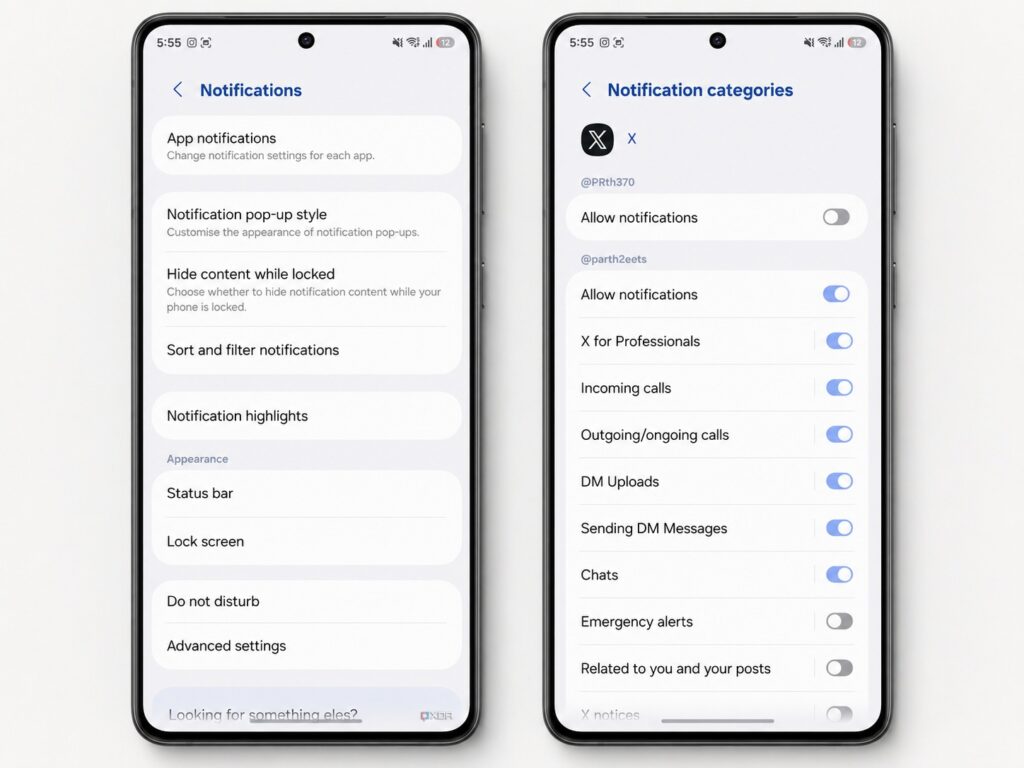
Set up notifications properly
After this, you can disable specific notification types in any app’s properties. A good example is social networks and messengers. You can keep important alerts, replies, and direct messages but turn off news, trends, and promotional categories. The same trick works for TikTok, Telegram, and others. While you’re in this menu, also enable the feature that adds a “Snooze” button under each notification — handy when you can’t dismiss an alert right away.
How to Extend Your Galaxy Battery Lifespan
Battery protection is another setting worth enabling almost immediately. Modern phones charge quickly, but keeping the battery at 100% all night is harmful to its health in the long run. If you plan to use your phone for more than a year, it’s better to preserve battery life rather than chase after the last few percent of charge:
- Go to “Settings.”
- Navigate to “Battery,” then “Battery protection.”
- Select the “Maximum” mode (it limits the charge to around 90%).
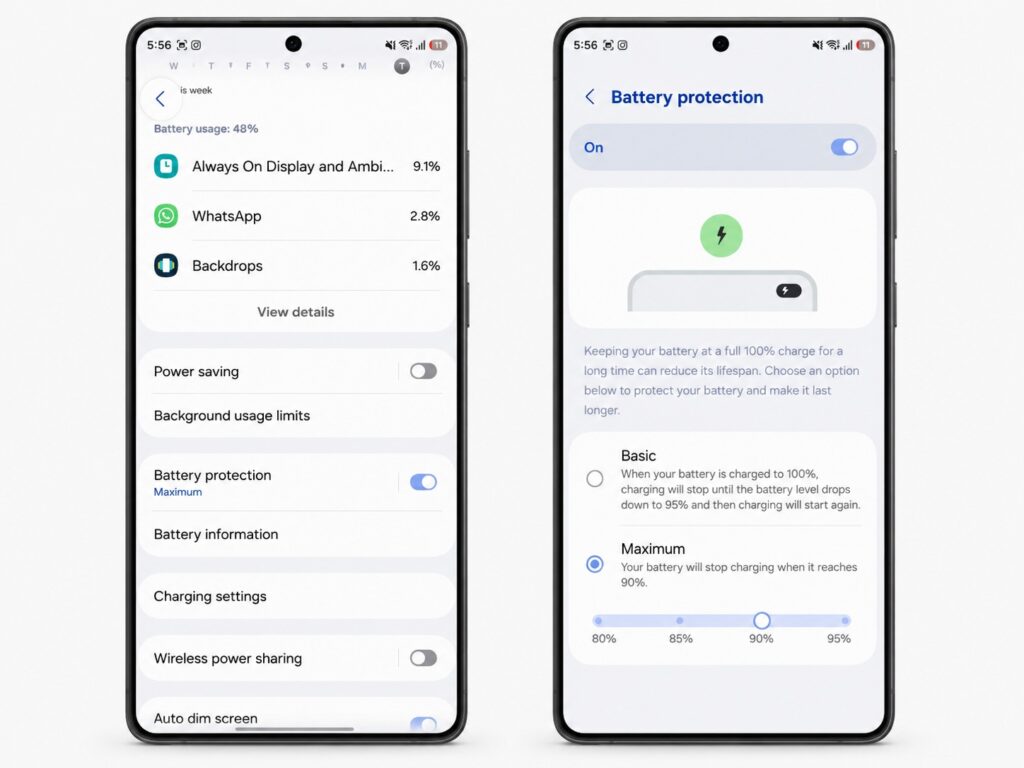
Make sure to enable battery protection
This is a convenient compromise. On days with trips or long walks, the limit can be temporarily disabled to fully charge the phone, and then you can re-enable the protection.
How to Hide Notification Content on the Lock Screen
Another setting concerns privacy — hiding content on the lock screen. When your phone is sitting on a table, mounted in a car holder, or charging near other people, it’s better to keep others’ messages private until the phone is unlocked:
- Open “Settings.”
- Go to the “Notifications” section.
- Enable “Hide content when locked.”
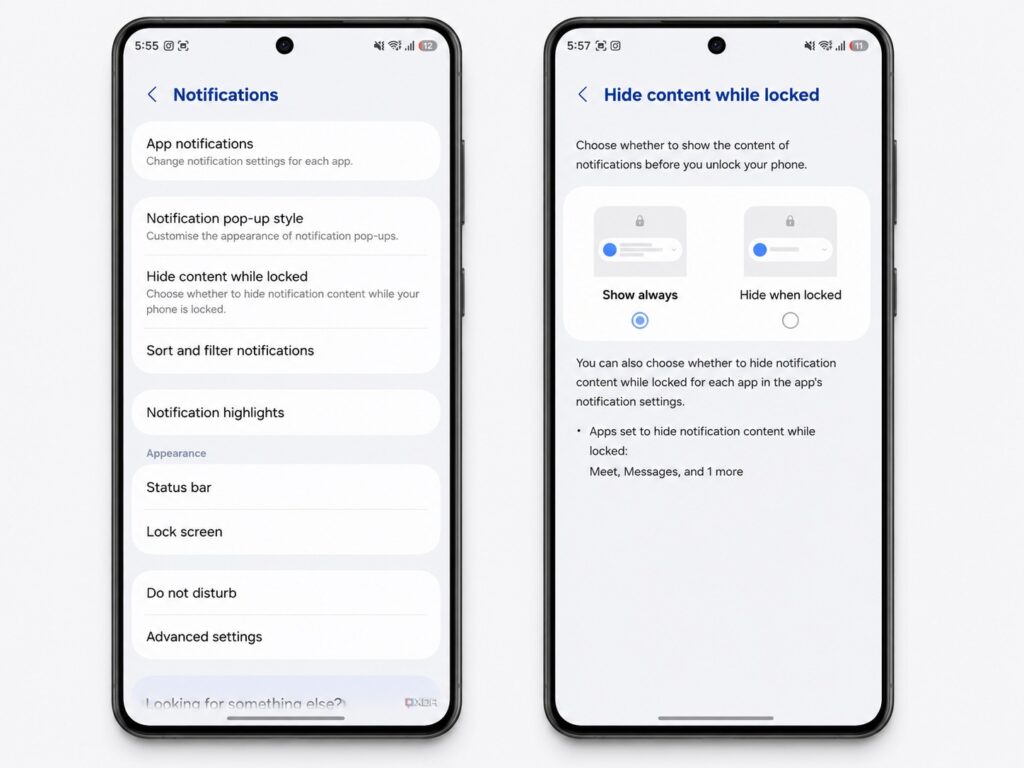
Hide notification content for better privacy
After this, Galaxy still shows that a notification has arrived, but hides the actual text inside it. Now a message or a banking alert can’t be read with a quick glance from the side. It’s a small setting, but in everyday life it noticeably increases peace of mind.
Vertical App Menu and Disabling Samsung Wallet Gestures
Many people prefer a vertical app list instead of the horizontal pages that Samsung sets by default:
- Open the app menu.
- Tap the three dots at the top.
- Select “Sort.”
- Enable alphabetical order.
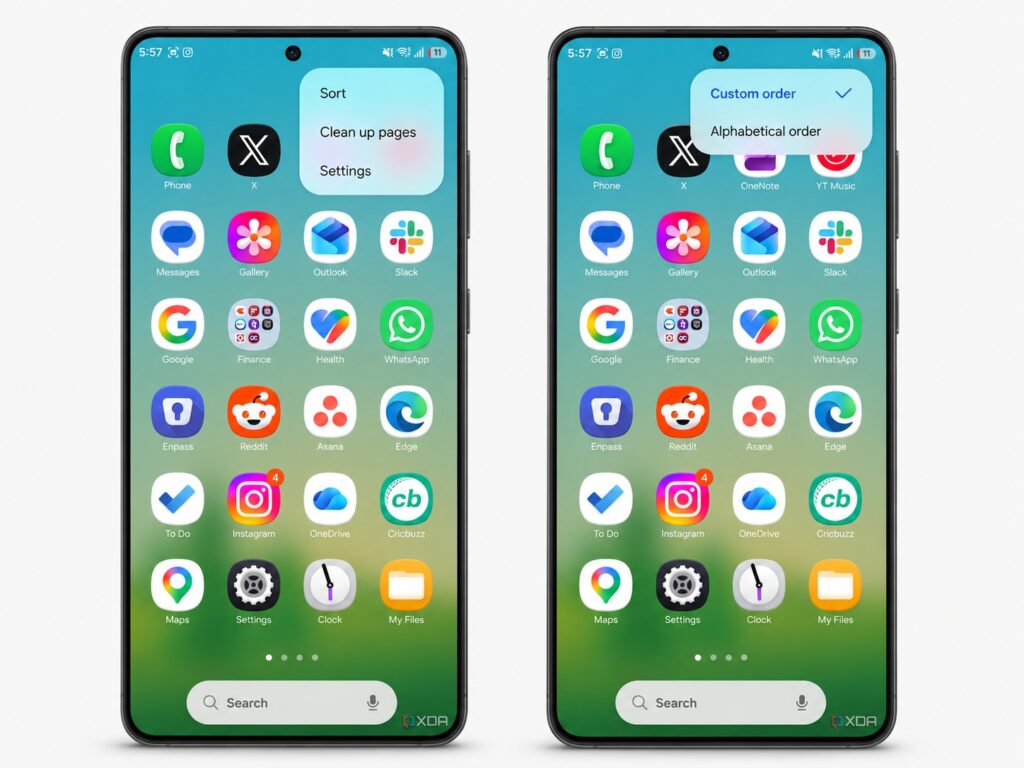
The app menu will be more convenient
This way the list will scroll vertically and finding apps will be easier. But you should also deal with gestures. By default, Samsung Wallet can pop up when swiping from the bottom up, and it’s easy to trigger accidentally — when trying to go to the home screen, open the app menu, or use navigation gestures. Instead of helping, it just gets in the way. The solution is simple: go to Samsung Wallet settings and disable the swipe gestures.