iOS 27 is already available in the developer beta. The public version is promised in July, and the full release is expected in September alongside the new iPhones. But you don’t have to wait until fall: Apple has already released the second beta version, and you can install it on your iPhone right now. The major changes were announced at the presentation, but half of the most useful stuff is hidden in small details that are easy to scroll past. I’ve gathered five such features. You’ll use them more often than the headline-grabbing innovations, because they change not the picture at a presentation, but your everyday actions throughout the day.
There are really a lot of new features in iOS 27
Landscape Mode on iPhone: What Changed in iOS 27
iOS 27 enables landscape orientation in a much larger number of built-in apps. The list includes Apple Music, Podcasts, Fitness, Health, Reminders, Home, Shortcuts, the Apple Watch app, Find My, Weather, Voice Memos, and the Apple TV Remote. In Apple Music and Podcasts, landscape mode is currently limited to the player only; other screens open as before.
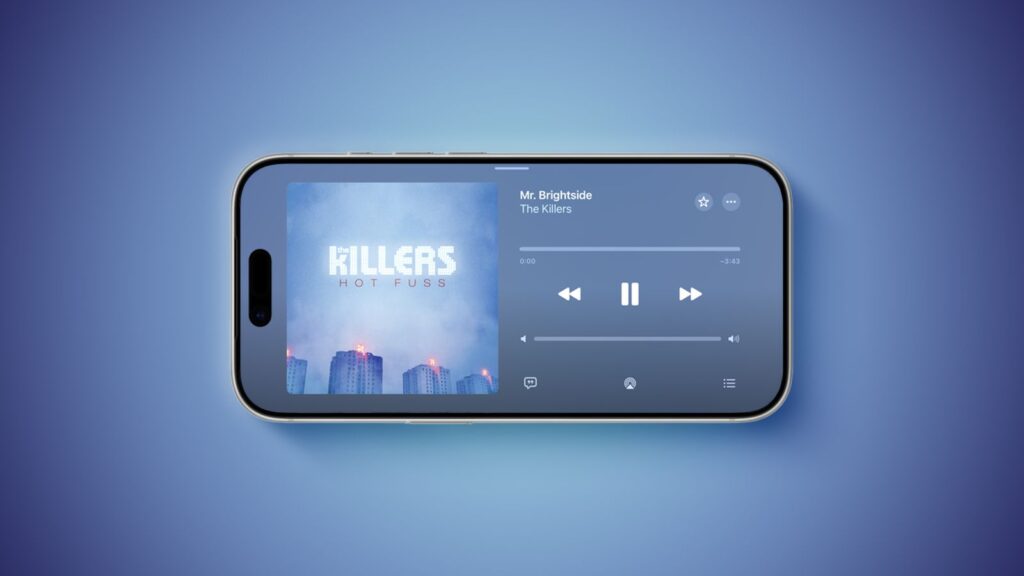
A ton of apps now support landscape mode
In most apps, rotating the device reveals a sidebar on the left. In Messages, which already supported rotation before, you can now collapse this panel to just names and avatars so the conversation takes up more space.
Landscape mode already existed in iOS 26: in Maps, Calendar, Files, Notes, and Mail. But it was in iOS 27 that the list grew dramatically. It seems Apple is laying the groundwork for the foldable iPhone Ultra, since apps with landscape support will benefit greatly from a wider screen. Additionally, Live Activities in the Dynamic Island also gained landscape mode.
To try it out, simply turn your iPhone sideways. The main requirement: orientation lock must be turned off in the Control Center.
An interesting detail for those who remember older models. The home screen used to rotate horizontally too — the iPhone 6 Plus, 6s Plus, 7 Plus, and 8 Plus could do that. With the release of iPhone X, the feature was removed, and now years later Apple is rotating the interface again. It’s nice when an old idea comes back in an updated form.
How Dual Camera Works in FaceTime on iPhone
The iPhone 17, 17 Pro, 17 Pro Max, and iPhone Air have a Dual Capture feature. It records video from the front and rear cameras simultaneously, meaning both you and what’s in front of you appear in the frame.
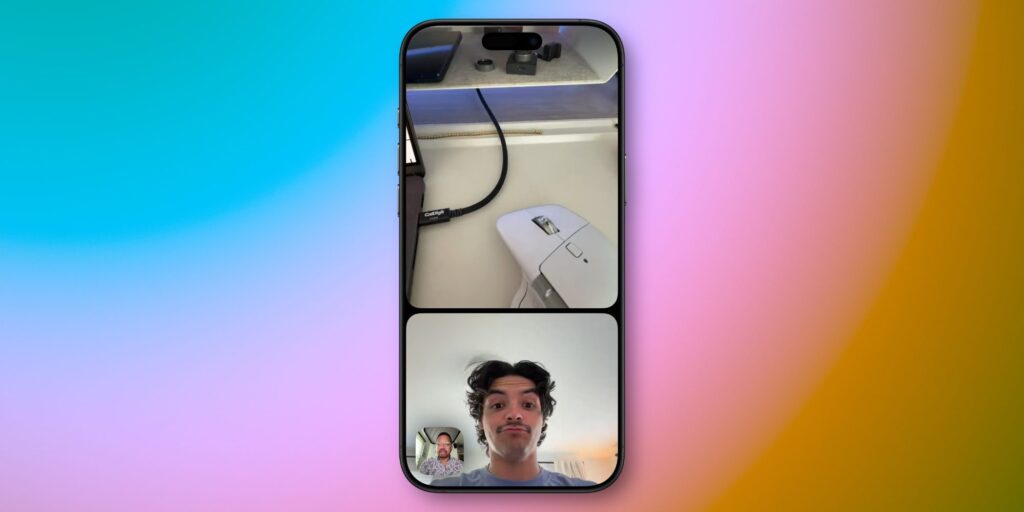
You can enable both cameras at once in FaceTime
In iOS 27, this feature has arrived in FaceTime. During a video call on the listed models, you show your conversation partner the image from both cameras at once. It’s convenient when you want to keep your face visible while also showing what’s happening around you: the view from a window, a new puppy, or assembling furniture in real time. Previously, you had to manually switch between cameras; now the image from both cameras will be on screen simultaneously.
Unfortunately, the list of supported devices is narrow. If you have an iPhone 16 or an older model, dual camera in FaceTime won’t be available to you. Apple ties it to newer hardware, so the upgrade here is not just in words but in the camera specifications.
New Drawing Editor in Messages in iOS 27
Open the attachments menu in Messages (the plus icon in the lower left corner) and you’ll see a new option called “Drawing”. Inside, you’ll find the full set of Markup tools — the same ones you use to edit screenshots and PDFs.
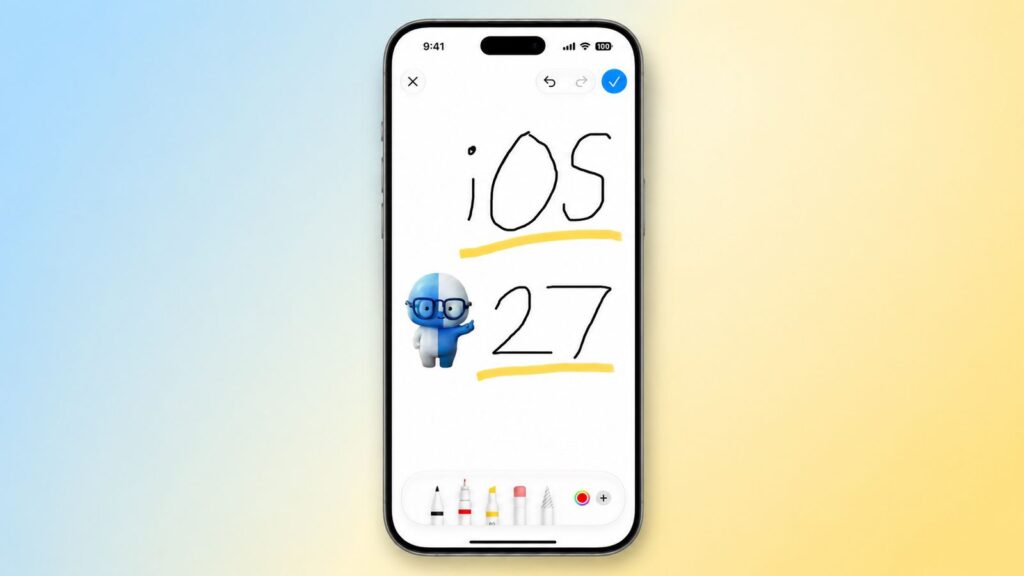
Messages now has a new drawing tool
Drawing in Messages was possible ten years ago, but that feature was hidden on the keyboard in landscape mode and could do very little. Now it’s a full-fledged canvas with brushes, colors, and shapes. A quick sketch, an arrow on a driving directions map, or a funny doodle will reach your conversation partner in seconds — no third-party apps or screenshots needed.
There’s also a nice bonus for those who draw with a stylus or finger over photos. Markup brings along a ruler, magnifier, and fill tool, so right within the conversation you can circle a detail on a photo. Essentially, Apple has brought the same editor into Messages that exists in Photos.
How to Paste Copied Text with a Single Tap
The keyboard in iOS 27 has learned to display what you just copied. In the bar above the keys, the last copied fragment appears: text, a link, sometimes even a screenshot. You copy an address in the browser, open Notes or a messenger, and the needed snippet is already waiting. Tap once, and it’s in place.
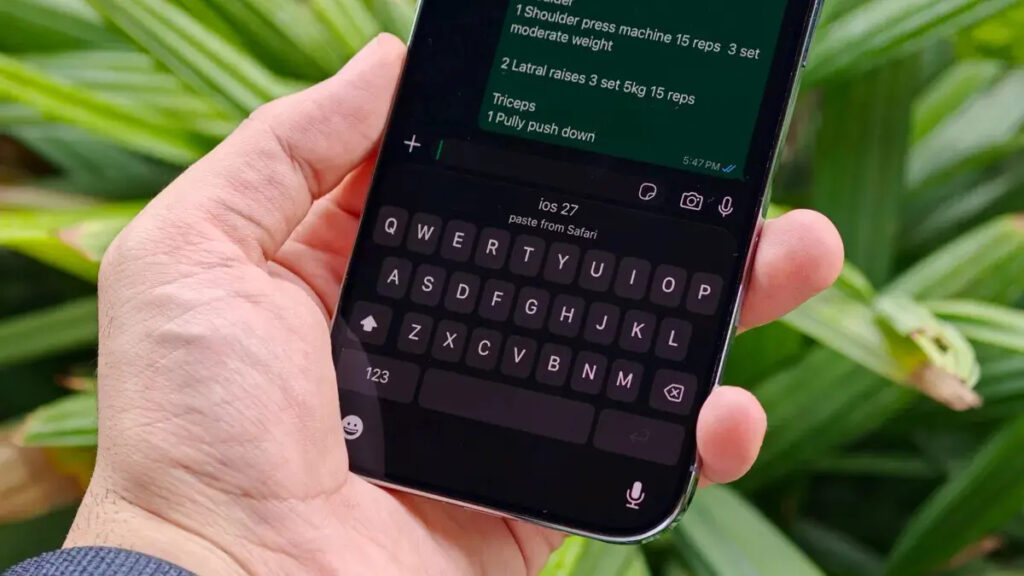
Copied text is now visible above the keyboard and can be pasted with one touch
Previously, only SMS codes and short links were suggested in a similar way. Now Apple has extended this logic almost everywhere, and the familiar copy-paste routine takes a couple fewer gestures. It’s a small thing, but your hands instinctively reach for it after just one day.
It’s also nice that the suggestion doesn’t linger and doesn’t hang around as dead weight. Copy something new, and the bar updates with the new fragment. No unnecessary clutter — everything works exactly as you’d expect from a system-level feature.
How to Set a Custom Duration for Location Sharing on iPhone
Find My has gained two nice refinements. First, you can now share your location for a custom duration. Not just “indefinitely” or “for an hour,” but for exactly as long as you need — for example, four days and six hours. Or set a specific date and time when access will automatically expire.