The One UI shell, which recently received an update to version 9.0 with a bunch of new features, hides dozens of useful little things that many Galaxy owners don’t use simply because they don’t know they exist. Most of them aren’t buried deep in menus and don’t require installing modules — they’re available in standard settings and apps. Let’s break down five such features and explain who needs them and who can skip them.

Interesting Samsung features you didn’t know about
Tools on the Edge Side Panel
The Edge side panel (that drawer that slides out when you swipe from the screen edge) is often disabled along with other features because it opens accidentally. Because of this, it’s easy to miss that it contains ready-made tools, including a built-in compass.
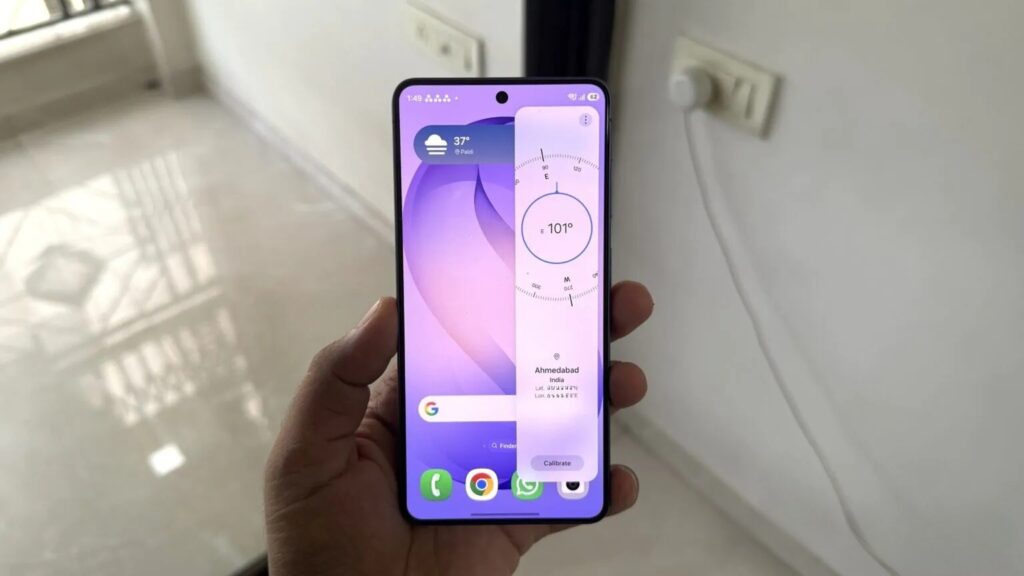
Tools are available right from the side panel. Image: androidauthority.com
To enable the panel you need, go to settings and activate the “Tools” panel. After that, the compass can be accessed from almost any screen:
- Open “Settings,” then “Display” and “Edge panels.”
- Go to the “Panels” section and enable the “Tools” panel.
- Open the side panel and select the compass — it will show direction and coordinates.
- To get the ruler, tap the three-dot menu and select “Ruler.”
The compass shows not only cardinal directions but also your current coordinates, and the ruler turns the right edge of the smartphone into a measuring scale with switching between centimeters and inches and the ability to calibrate. You won’t get precise measurements this way, but estimating the size of a small object at hand works just fine.
Document Scanner via Galaxy Camera
Standalone scanner apps usually work fine, but almost always push ads and subscriptions. On Galaxy devices, you can do without them: a document scanner is built into the Camera app.
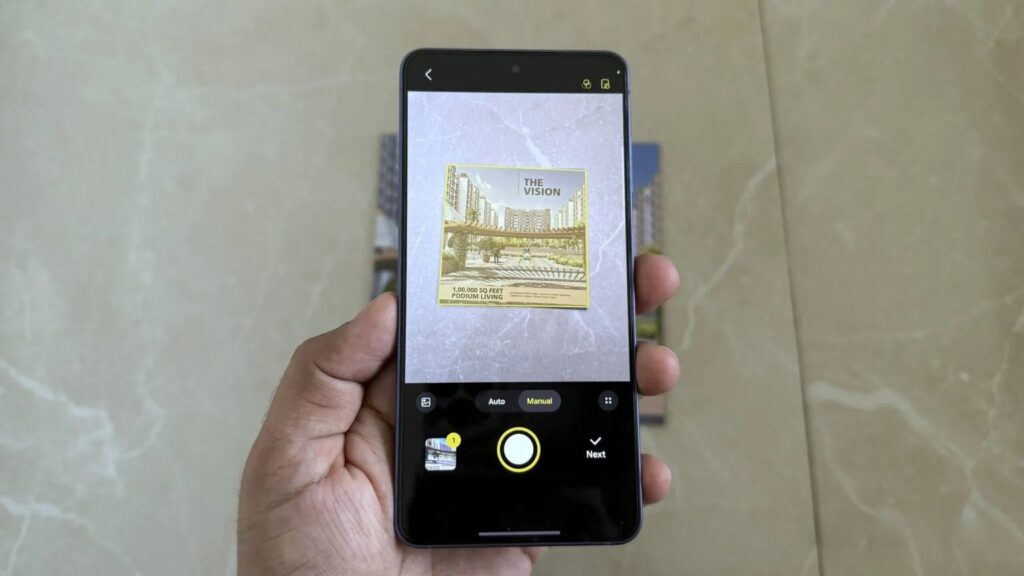
Documents can be scanned directly through the camera app. Image: androidauthority.com
Simply point the main camera at a sheet — the smartphone will automatically detect the document boundaries. Then press the scan button and the page will be saved. There’s also an editor: you can adjust corners, apply filters, and remove extras like a finger that accidentally got in the frame or a bent corner. The finished result is saved as an image or PDF.
An important limitation to note. Scanning multiple pages in a row and editing them is currently only available on the Galaxy S26. On other models, you’ll only be able to scan single-page documents — at least until Samsung expands the feature with an update.
Internet Check via Wi-Fi on Samsung
Where your router is placed directly affects how well the internet works in distant rooms. Choosing a spot by eye is difficult: walls, furniture, and appliances get in the way. Galaxy devices have a Wi-Fi analysis tool for this that builds a signal strength map of your home.
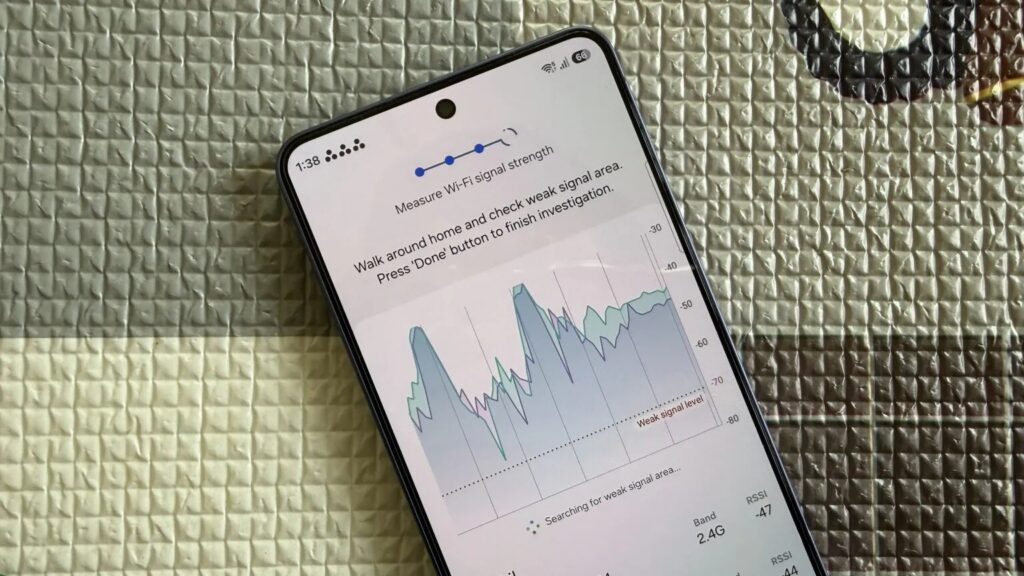
Samsung lets you check internet quality. Image: androidauthority.com
It’s hidden behind a sort of “secret code” in the engineering section called Connectivity Labs. To get there, you’ll need to tap on one item several times:
- Open “Settings” and go to the Wi-Fi section.
- Tap the three-dot menu and select “Intelligent Wi-Fi.”
- Scroll down and tap “Intelligent Wi-Fi” several times until the Connectivity Labs option appears.
- Inside, select “Home Wi-Fi network check,” choose your network, and walk around your apartment.
During the walkthrough, the smartphone records signal strength in real time and builds a graph by rooms. You can check multiple networks at once and, for example, compare the 2.4 GHz and 5 GHz bands to understand where each works better. This is the kind of feature worth diving into hidden menus for — especially if your connection constantly drops in one of the rooms at home.
Photo Search via Bixby
Many people ignore the Bixby voice assistant, but it has a couple of tools that sometimes come in handy. They’re hidden in Bixby Vision and can be accessed from the camera or the app list. In camera mode, you need to open the “More” tab and tap the eye icon.
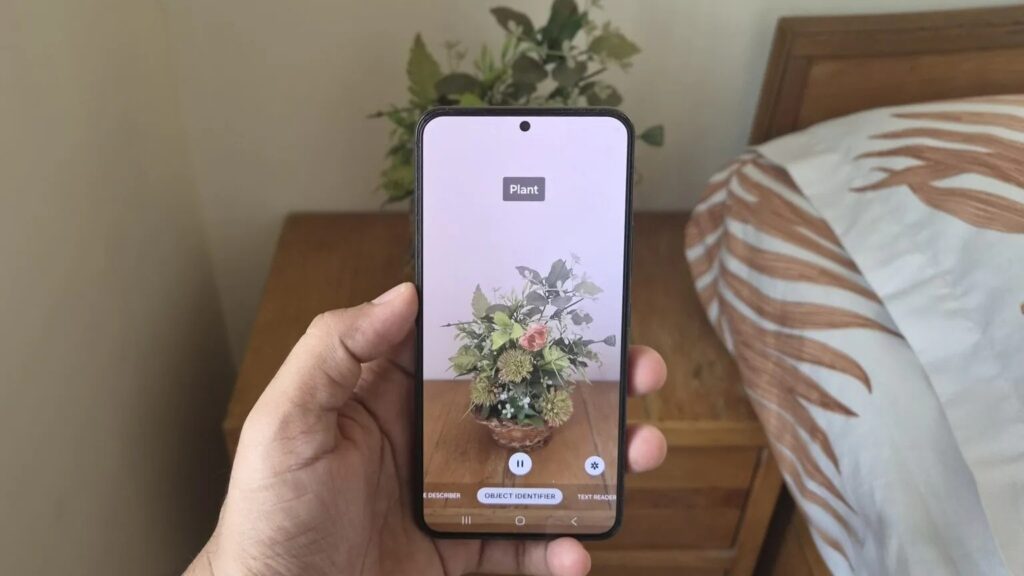
Samsung doesn’t need Google Lens. Image: androidauthority.com
Several modes are available inside:
- object recognition: point the camera and the smartphone identifies what’s in front of it;
- color identification: instead of the object’s name, it shows its color;
- text reading: magnifies and reads aloud small text on labels or receipts.
Just don’t have inflated expectations: this isn’t an equivalent of Circle to Search from Google. If you point it at a keyboard, the assistant will simply say it’s a keyboard but won’t identify the specific model. The most practical mode here is reading small text, which is convenient when you don’t have glasses handy.
Built-in Ruler on Android with One UI
This is perhaps the most unexpected feature. Almost all Galaxy devices can measure distance, area, volume, and even a person’s height using the camera and augmented reality. You just need to install the free Quick Measure app from the Galaxy Store.
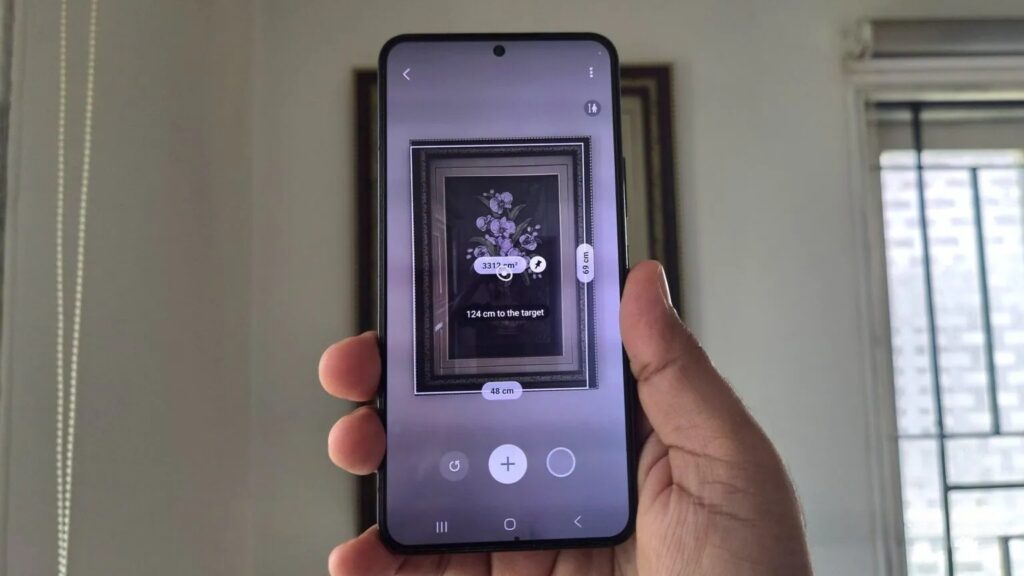
A ruler for measuring objects is also included. Image: androidauthority.com