After the messenger disappeared from the App Store, many started installing the web version on their iPhone’s home screen and using it like a regular app. The icon is on the screen, the chat opens, and it seems like there’s no difference. In reality, the web version is noticeably stripped down. I opened both versions side by side on the same iPhone, went through the chats and settings, and compiled five differences that are immediately visible. In the screenshots below, the web version is always on the left, and the app is on the right.
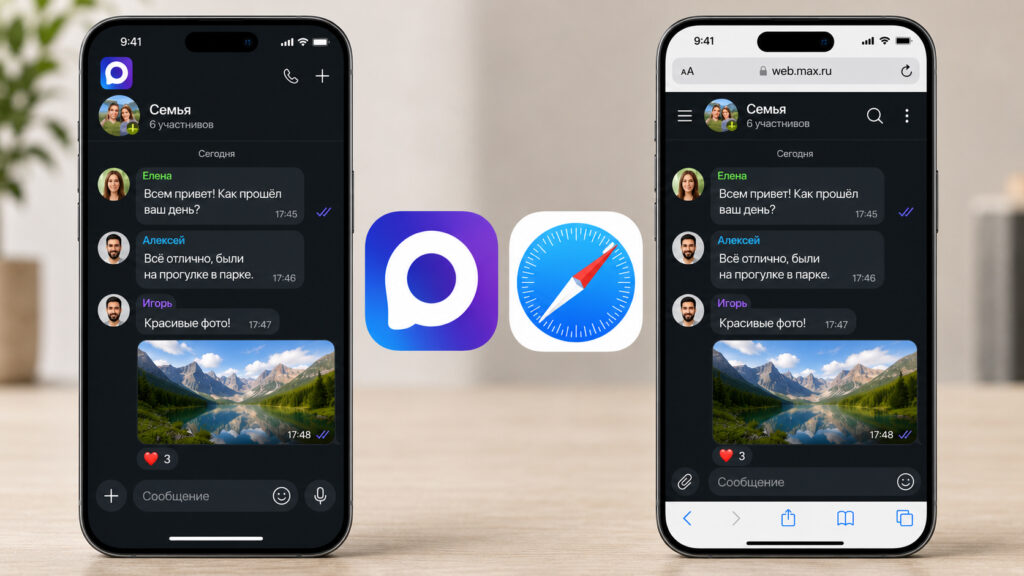
Comparing MAX web version and app
Why the Web Version of MAX Doesn’t Have Voice Messages
Open any chat in the browser, and in the input field you’ll see a minimum of buttons. On the left, a paperclip for files; on the right, a smiley face and a blue send arrow. That’s it. Recording a voice message directly from the browser isn’t possible.
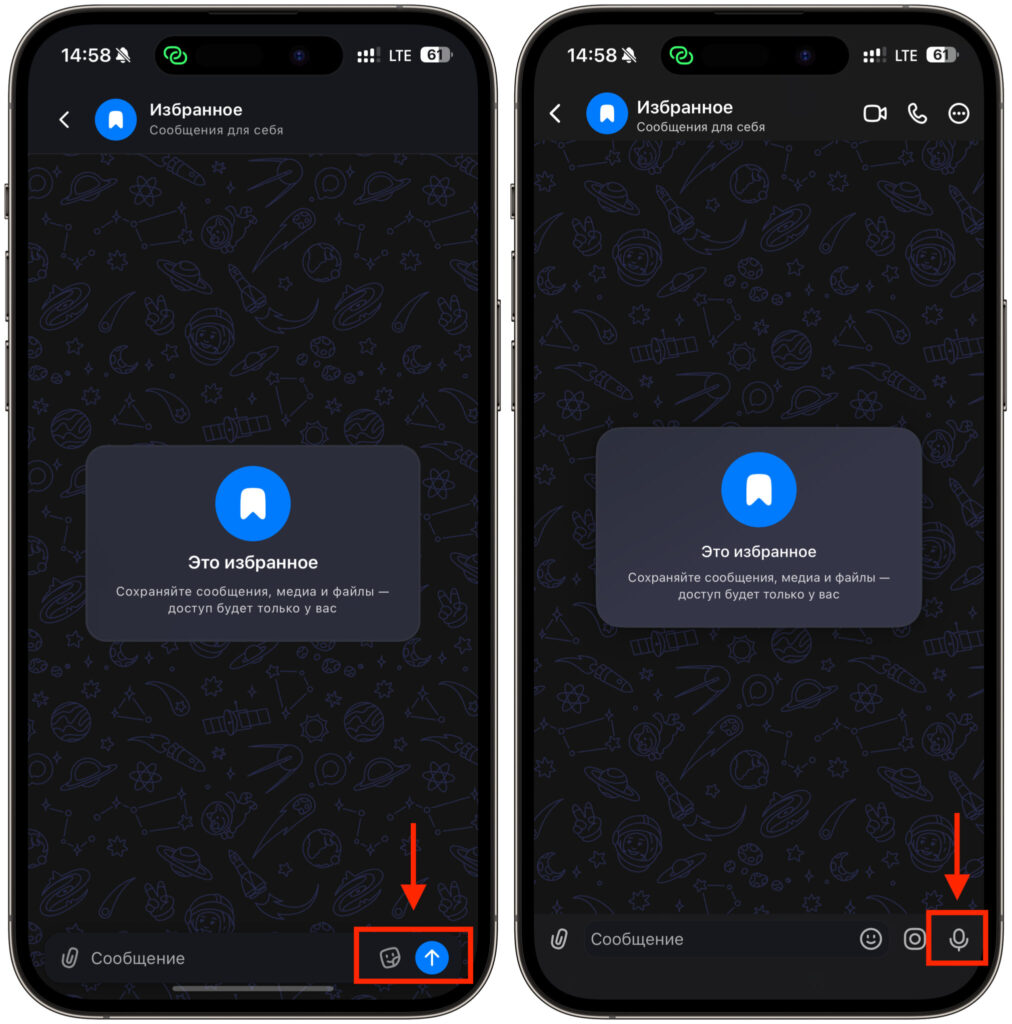
As you can see, recording a voice message in the web version isn’t possible (web version on the left)
In the app on iPhone, it’s a different story. Next to the input field, a microphone icon appears. Tap it, speak, release, and the message is sent. For me, this is a basic feature without which the messenger feels incomplete. When your hands are busy, you’re driving, or you just don’t feel like typing a long reply, voice messages are a lifesaver.
So if you’re used to dictating messages on the go, the web version will disappoint. This feature exists only in the mobile client.
How to Record a Video Message in MAX on iPhone
Video messages — those circular clips — were also given exclusively to the app. In the browser, they don’t exist at all. In the web version’s input field, you won’t find a button for recording video; at most, you can send a pre-recorded file via the paperclip.
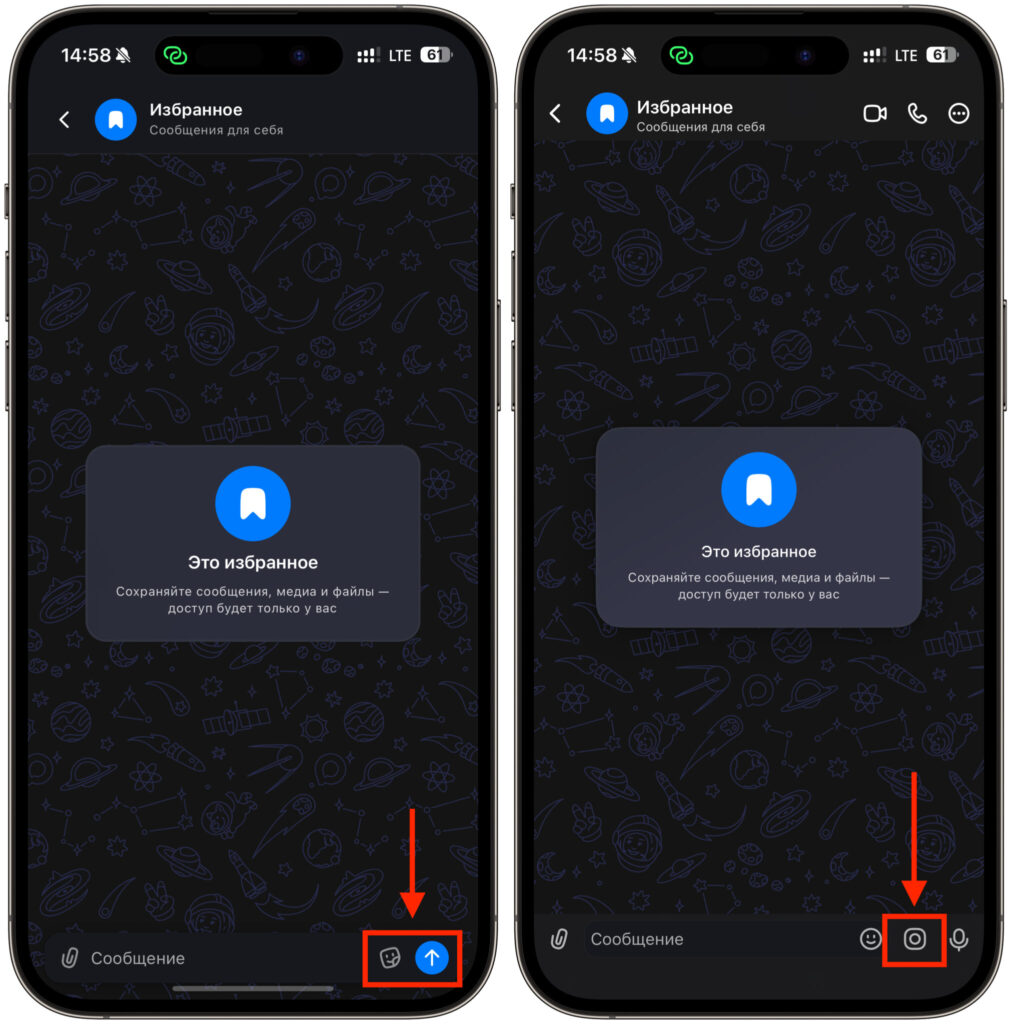
You can’t record a circle video either (web version on the left)
In the mobile version, everything is in place. Next to the microphone, there’s a separate circle icon. One tap starts recording with the front camera, and a second tap sends the clip to the chat. It’s convenient when you want to quickly show something live rather than writing out a half-screen explanation.
The logic is clear. Circle videos are tied to the camera, and it’s easier to work with it from a smartphone. You can’t record such video from a computer — you’ll need to pick up your phone.
Where to Find Digital ID in the MAX App
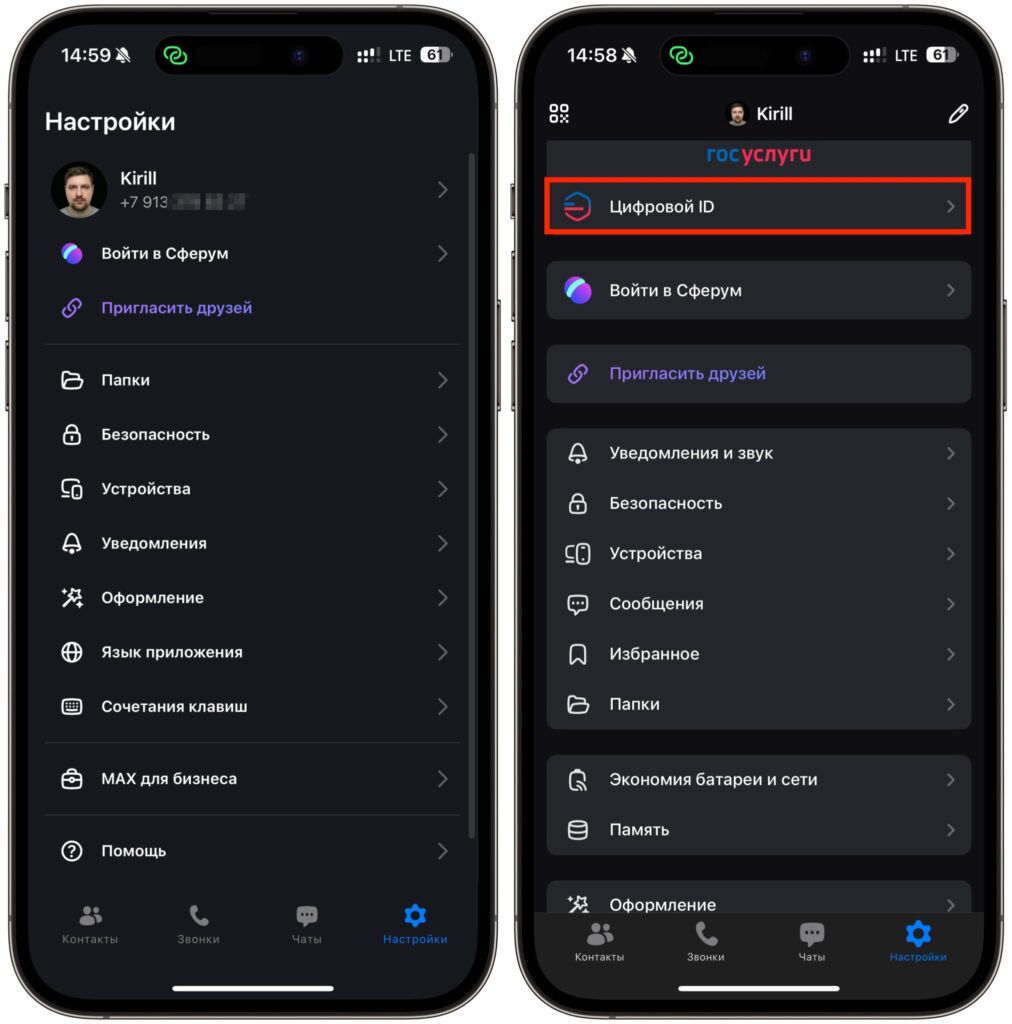
Digital ID isn’t in the web version either (web version on the left)
This difference goes deeper than just a missing button. In the app’s settings, at the very top of the profile, there’s a Digital ID option. It’s linked to Gosuslugi (Government Services) and allows you to verify your identity directly within the messenger.
You open settings, see a large block with the Gosuslugi logo, and below it a Digital ID line with an arrow. In the web version, this option doesn’t exist. The settings list in the browser is shorter, and you simply won’t find an identification section there.
For a Russian messenger, integration with Gosuslugi seems like a logical step. A verified profile protects against fakes and spam, plus it lays the groundwork for the future. Setting up Digital ID is currently possible only from the phone.
Where to Find Your Profile QR Code in MAX
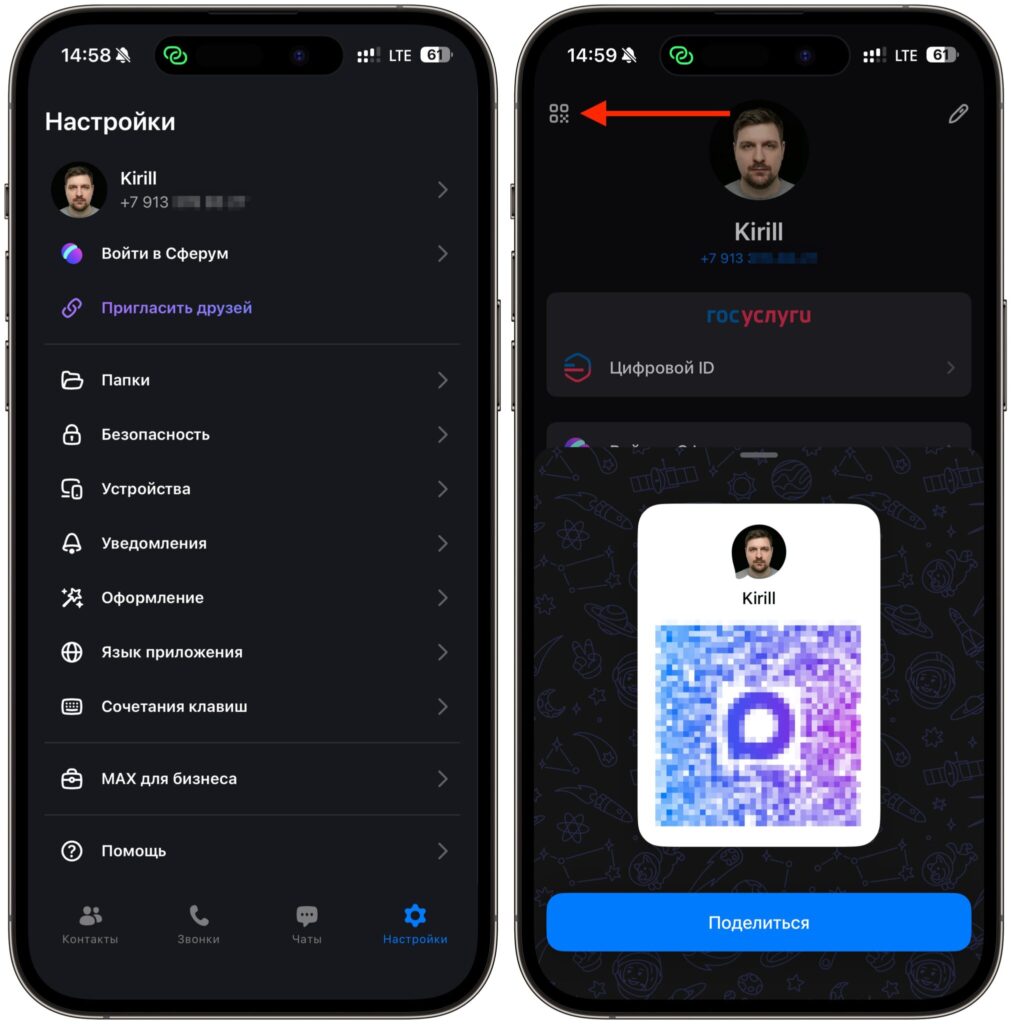
You can’t even share your account’s QR code (web version on the left)
Another nice little feature that’s missing in the browser. In the app, at the top of the profile, there’s an icon with a square pattern. Tap it, and your personal account QR code appears on the screen.
From there, it’s simple. The other person points their camera, scans the code, and adds you without manually searching by phone number. At the bottom, there’s a blue Share button to send the same code in a conversation or save it as an image and post it on your profile on another platform.
This feature is especially handy during in-person meetings. No need to dictate your number or search for each other in contacts. One scan and you’re connected. The web version doesn’t have this option.
How to Change Notification Sounds in MAX on iPhone
The notification settings section differs significantly between the two versions. In the browser, it’s modest. You can enable all notifications, check boxes for message preview and sound, and separately configure groups and channels. That’s where the list ends.
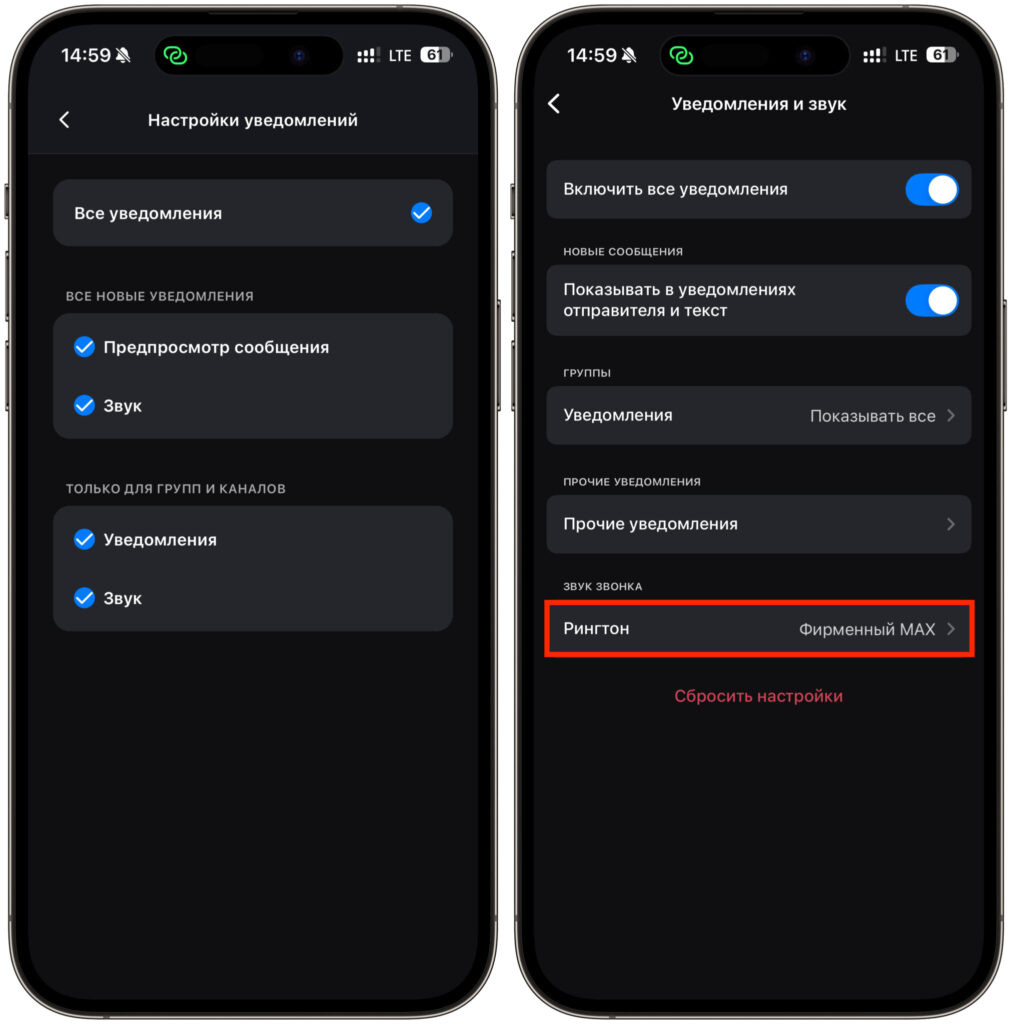
The app also has more notification settings (web version on the left)
The app offers more options. It has a master toggle for all notifications, separate settings for showing the sender and text, blocks for groups and other notifications. And at the very bottom, there’s a hidden Call Sound section with a Ringtone option.
This is where you choose the melody for incoming calls. The default is Branded MAX, but you can change the sound to your preference. In the web version, there’s nowhere to change the ringtone.
So it turns out the web version of MAX on iPhone is suitable for basic messaging, but it’s far from the app. Voice messages, circle videos, Digital ID, QR codes, and ringtone selection remain privileges of the full-fledged app. The web version serves as a workaround while MAX is unavailable in the App Store and you need at least some access. But the core feature set lives in the app, and if you have the option to install it, it’s better to use that instead.