After a major update like One UI 8.5, most people rush to explore the new features. But I do the opposite: I immediately open settings and change the same set of options that affect convenience, privacy, and security every day. These aren’t hidden tricks or commands through a computer — just built-in Samsung settings toggles that take a couple of minutes.
Just 4 settings that I changed
Protection Against App Installation on Samsung
The first thing I enable after an update is the Auto Blocker feature. After installing One UI 8.5, it turned out to be disabled, even though it’s one of the few settings I use intentionally.
In simple terms, Auto Blocker is an enhanced version of the old “Install unknown apps” toggle. Even if an app has permission to install from third-party sources, Auto Blocker still blocks installation from anywhere except Galaxy Store and Play Store. Additionally, the feature covers what the old toggle didn’t: blocking commands via USB, preventing unauthorized USB updates, and protecting against malicious images in messages.
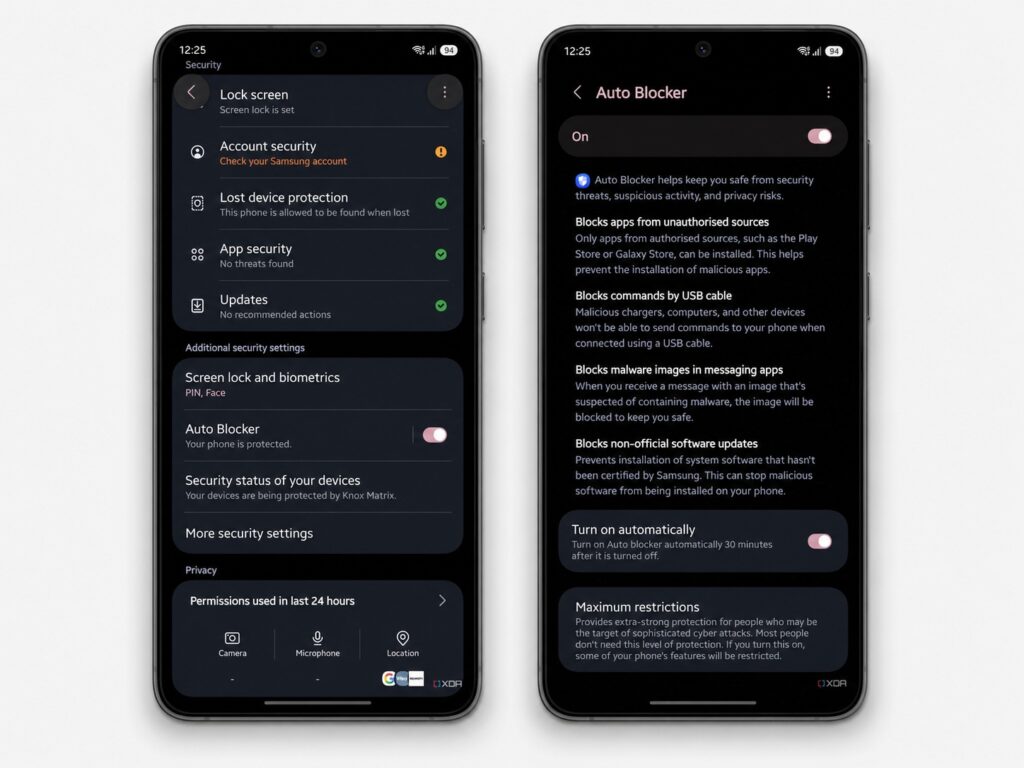
I don’t use Samsung without Auto Blocker
There’s also a maximum restrictions mode that protects against almost everything: apps with device administrator rights, 2G networks, auto-connecting to unsecured Wi-Fi, and more. A separately useful feature is the automatic re-enable mode: if you turn off Auto Blocker, it reactivates after 30 minutes. Who needs this: if you don’t install apps from third-party sources and don’t do debugging, Auto Blocker is simply an additional layer of protection that won’t break anything in daily use. But those who install APK files manually should keep in mind: the feature will interfere, and you’ll need to disable it.
How to Customize the One UI Quick Settings Panel via Good Lock
Samsung changes something in the quick settings panel — the one that opens with a swipe from the top — with every update. I don’t like such drastic changes and return the panel to its familiar look after every major update. Samsung still doesn’t give full control: for example, on the Galaxy S24, the brightness and volume sliders remain locked to horizontal view. To get more freedom, I use not the settings themselves, but the official Good Lock app — a set of Samsung modules for deep interface customization that many Galaxy owners don’t even know about.
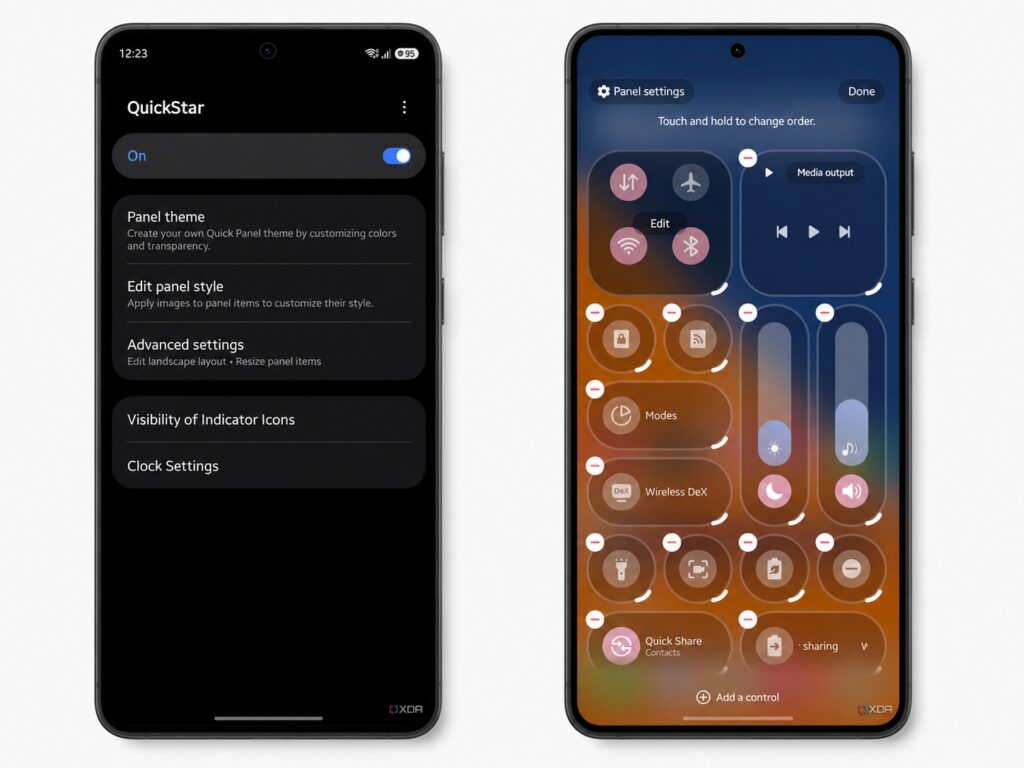
I customize the quick settings panel through Good Lock
Inside Good Lock, there’s a QuickStar module responsible for the quick settings panel. With its help, I rebuilt the panel to my taste and removed unnecessary elements.
Disabling Unnecessary Galaxy AI Features in One UI 8.5
Over the years, Samsung has added numerous Galaxy AI tools to its smartphones. Depending on the model, there are more than ten of them, and on older devices — eight. Yet I personally use only one. The only feature I actually use is Call Assist: it helps decide whether to answer a call from an unknown number. I keep the rest of the tools disabled. I also recommend that those who don’t want to share personal data for AI training use the built-in “Process data only on device” toggle — you just need to enable it once.
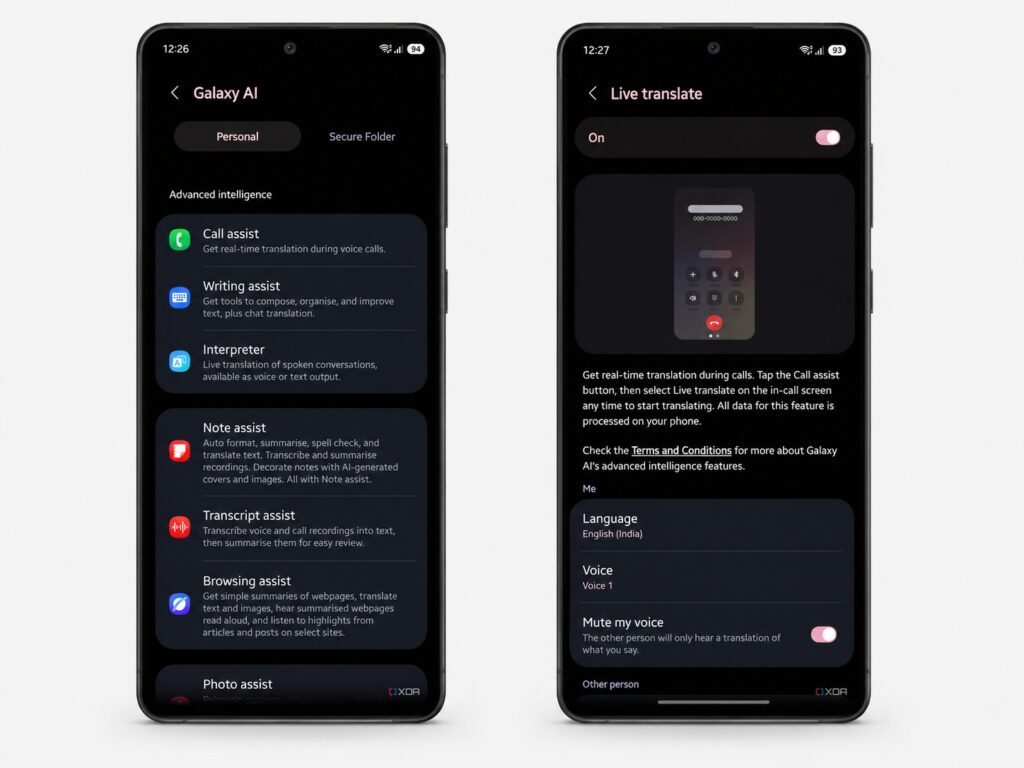
I disable unnecessary Galaxy AI features, but don’t touch the auto-translator
If you don’t use specific AI features, disabling them won’t make the phone worse, but it will remove unnecessary clutter and reduce the amount of data sent to servers. This is a case where less is truly more convenient.
Samsung Battery Settings: Battery Protection and Charge Limit
I work at a desk, and the phone is almost always lying on the desk connected to a charger or to a computer for testing — 8–10 hours a day. Under such conditions, following classic rules like charging in the 20–80% range is unrealistic, so I rely on built-in settings. After updating, I take several steps in a row:
- Enable Battery Protection.
- Switch it to Maximum mode.
- Set the charge limit to 90–95%.
- Disable fast wired and fast wireless charging so the phone heats up less during use.
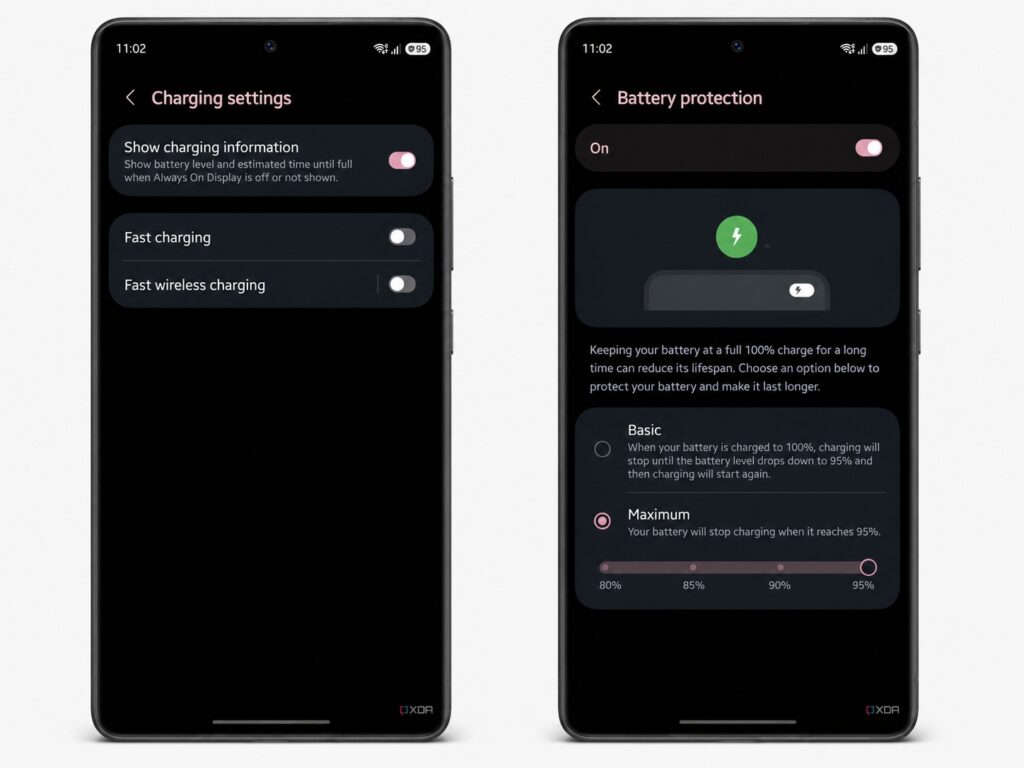
I always turn battery protection to maximum
When the charge reaches the set threshold, the device stops charging but remains connected to the power source. The purpose of these actions is to preserve battery health during constant connection to power and eliminate overheating if you use the phone while it’s charging. This feature is primarily useful for those who keep their phone on the charger most of the day. If, on the other hand, you’re often on the go and charge your device quickly on the run, there’s no point in disabling fast charging — you’ll simply lose charging speed.