Most AirPods owners use them as regular wireless earbuds: pop them in, listen to music, answer a call. But the system hides at least three features that can be enabled with just a couple of taps and significantly change how you use them. Let’s take a closer look at each one, and you’ll see for yourself how useful they are.
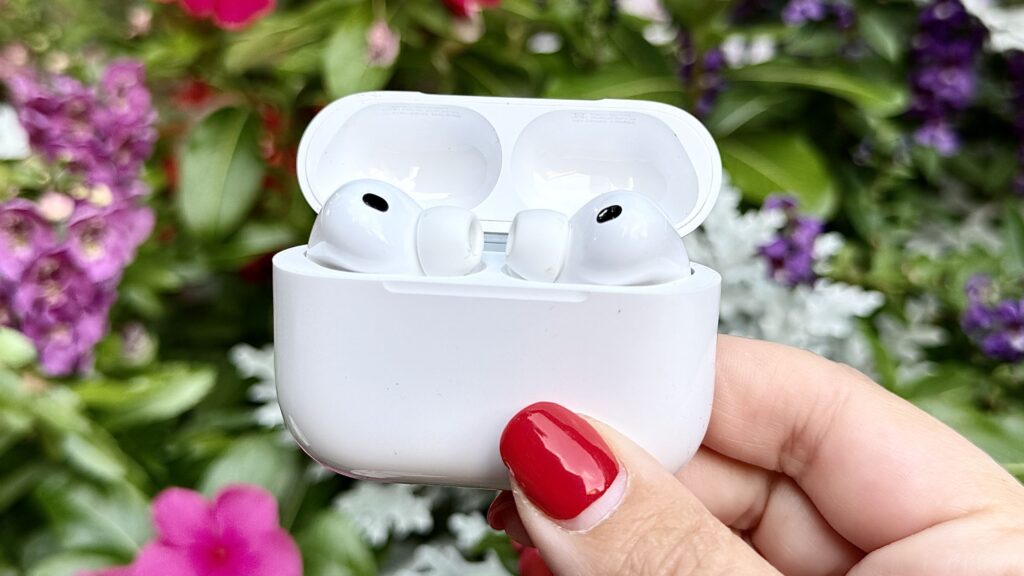
Stop using AirPods as regular earbuds: 3 features you’re probably missing
iPhone as a Microphone for AirPods
The first feature is useful in noisy places: restaurants, cafés, on the street. Live Listen turns your iPhone into a directional microphone: you place the phone closer to your conversation partner, and their voice is streamed directly to your AirPods, drowning out background noise.
Simply place your iPhone next to the person you’re talking to, and the device transmits their voice directly to your AirPods, cutting through the surrounding noise. It feels like the person is speaking right into your ear — even though they might be sitting at the other end of the table.
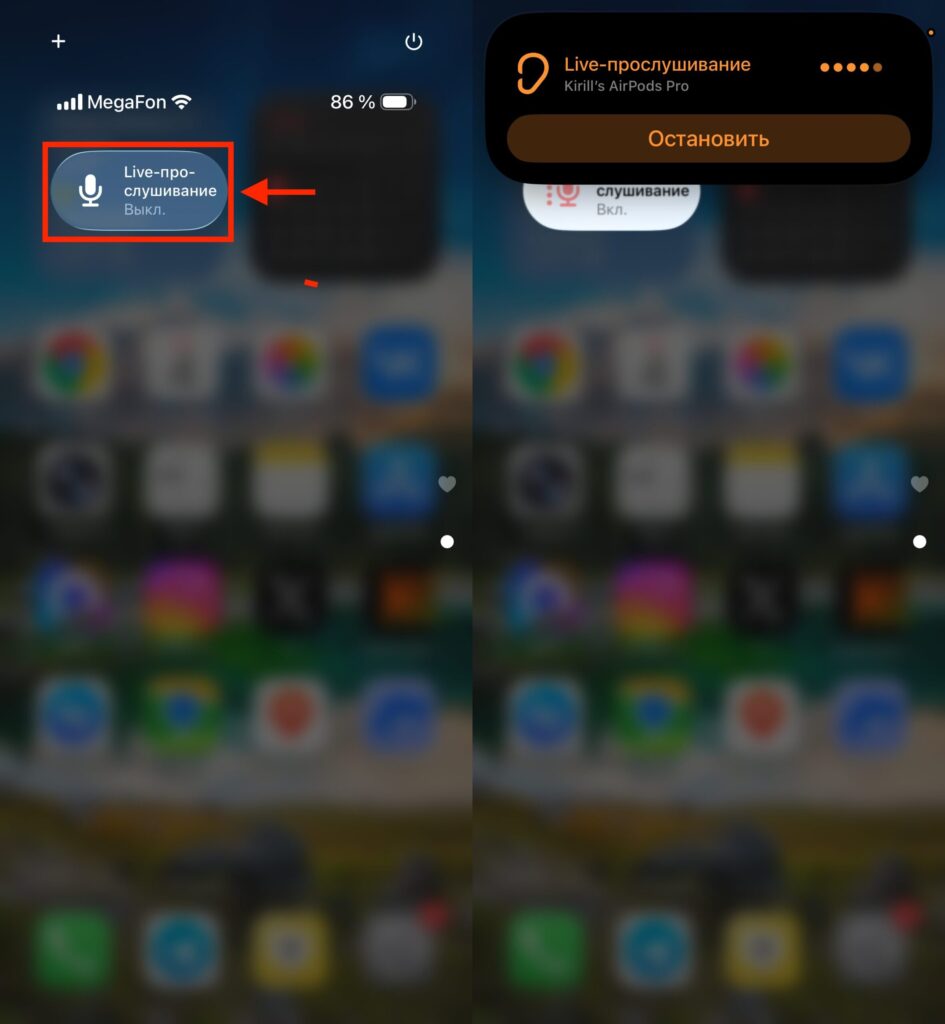
Just tap this button and your iPhone becomes your microphone
Enable it through Control Center: swipe down, tap the hearing icon, and select Live Listen. If the icon isn’t there, add it via Settings — Control Center. Find the “Hearing” option and tap “+”. After that, the icon will appear in Control Center and will be accessible with a single tap.
The feature works at a distance of up to 50 feet — that’s about 15 meters. You can leave the phone near the sound source and freely move around the room without losing the connection. In a noisy office or conference hall, this is a real lifesaver — especially if you’re sitting far from the speaker.
It’s useful not only in noisy places but also for people with mild hearing difficulties — as a simple alternative to expensive hearing aids.
How to Connect Two Pairs of AirPods to One iPhone
A classic situation: a long flight or a train ride, and you want to watch a movie together from one screen. The Share Audio feature solves this without splitters or cables — sound goes to two pairs of earbuds simultaneously. Connect your AirPods and start playback. Open Control Center, tap the AirPlay icon, and select Share Audio. Bring the second pair close to the iPhone and open the case — a connection request will appear on the screen.
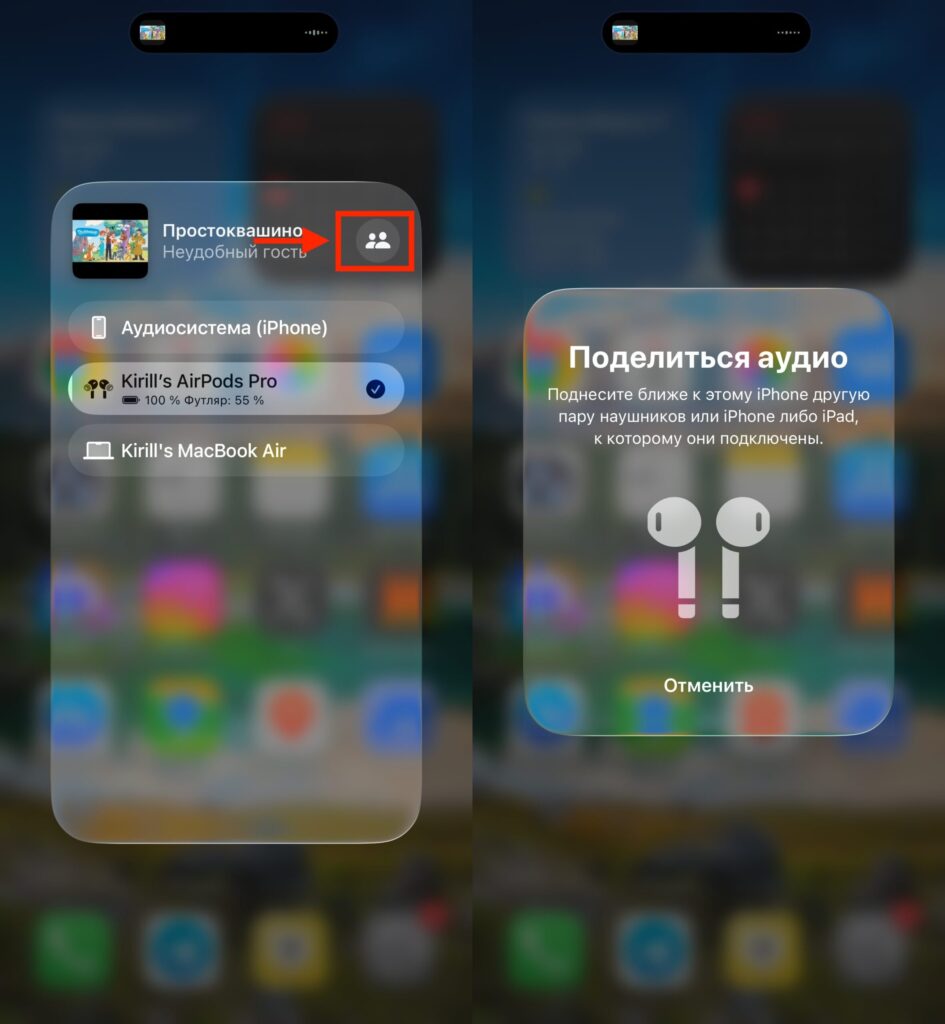
This feature is especially helpful on a plane or just while traveling
Both listeners hear the same audio independently of each other — no splitting one pair between two people, nobody is stuck with just the left channel. Plus, each person can adjust the volume separately without affecting the other.
It works with any combination of AirPods and compatible Beats headphones. The only limitation is that both devices must support Bluetooth 5.0 or higher, but all current AirPods and Beats models meet this requirement.
Head Gestures on AirPods: How to Accept or Decline a Call
The third feature is call management using head movements. A nod — accept the call, a shake from side to side — decline. AirPods detect the movement using built-in sensors and execute the command automatically — without touching the earbuds or the phone.
Here’s how to enable it: open Settings, tap your AirPods name at the top of the screen, select “Head Gestures,” and toggle the switch on. Then choose which movement answers and which declines a call.
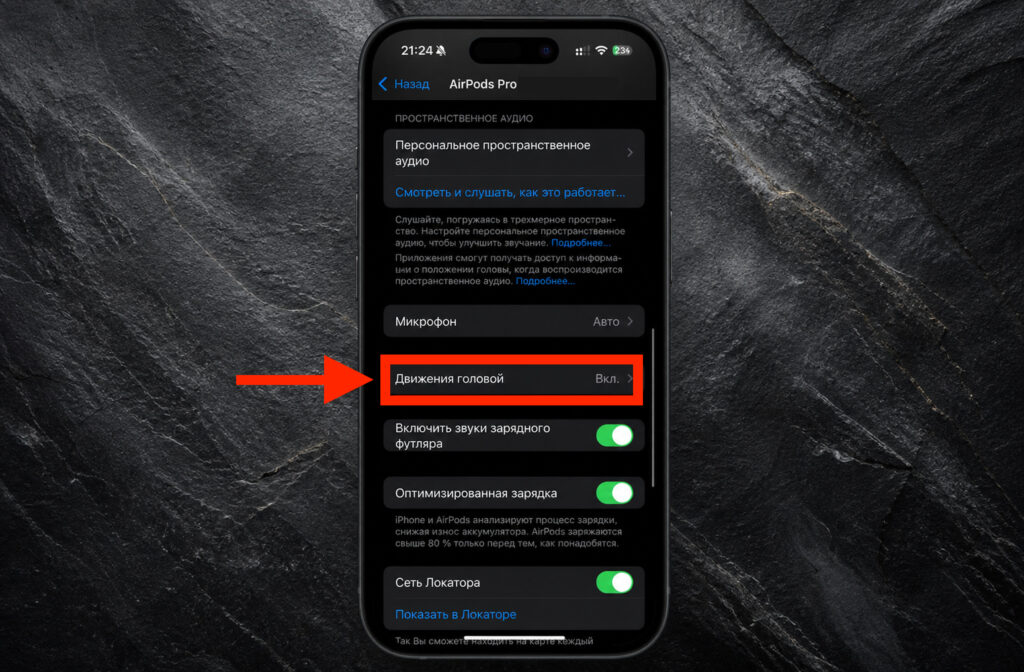
Head gestures are a relatively new feature and not everyone knows about it yet
It works not only with calls — a nod or shake also responds to Siri announcements, message replies, and other notifications. Siri can read an incoming message, and you can confirm the reply with a nod without pulling the phone from your pocket. The main use case is when your hands are busy: cooking, working out, cleaning, or doing repairs.
Note: the gestures work quite accurately, but while in motion — running or on public transport — they may trigger false positives. So for outdoor workouts, it’s better to test the feature in advance.
Which AirPods Support These Additional Features
These three features don’t turn AirPods into a new device, but they address specific everyday situations:
- Live Listen — for noisy meetings and people who struggle to understand speech in a crowd
- Share Audio — for watching together on the go and at home
- Head Gestures — when your hands are busy and the phone is ringing
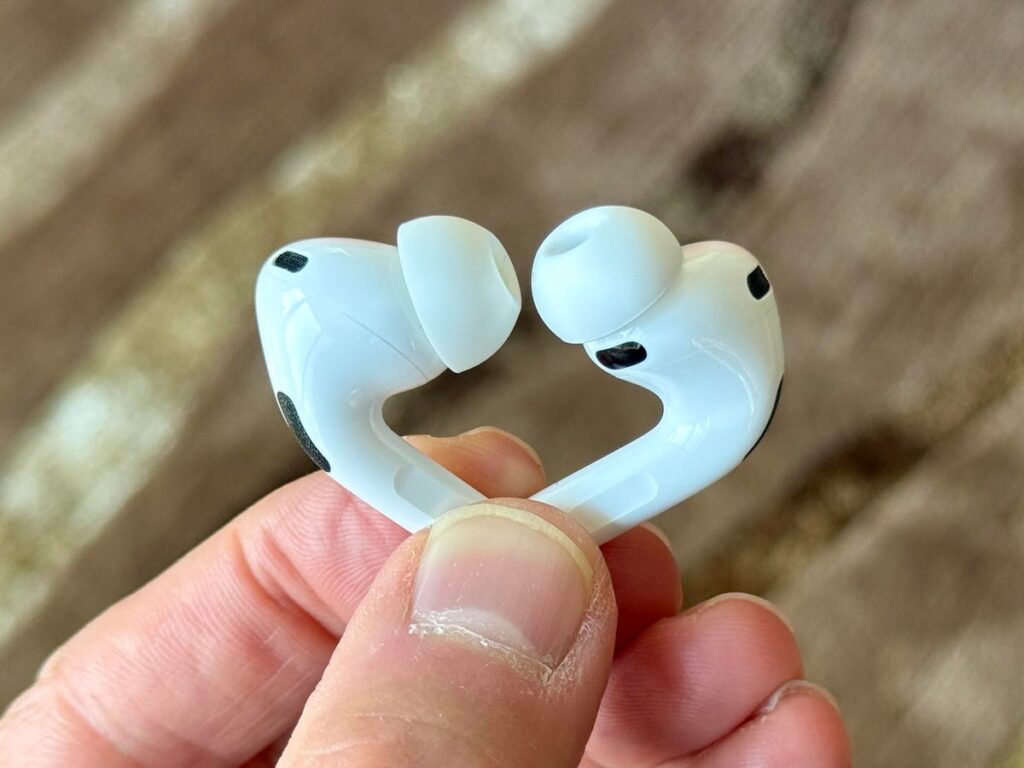
Make sure the features you need work with your earbuds
An important compatibility note: Live Listen and Head Gestures are not available on all AirPods generations and require an up-to-date version of iOS. If you don’t see the required option in your AirPods settings, your model most likely doesn’t support it — it’s not a bug, but a limitation of that specific pair of earbuds. Live Listen works starting from first-generation AirPods, while Head Gestures are only available starting from AirPods Pro 2 and AirPods 4.
Setting Up AirPods Right After Connecting to iPhone
All three features can be enabled in under a minute and require no subscriptions or additional accessories. If at least one of the situations described sounds familiar — a noisy restaurant, sharing a movie on the road, or a call when your hands are busy — it makes sense to set things up in advance so you’re not digging through menus when the moment comes.
Essentially, Apple has built far more into AirPods than most people actually use. Spend five minutes activating these features — and the next time you find yourself in a noisy place or want to share music, you’ll thank yourself.


