iOS auto-update sounds convenient — iPhone downloads and installs the new version by itself overnight. But in practice, this feature regularly lets you down. It’s enough to remember that installing iOS 26.4.1 turns some iPhones into bricks, and everything becomes clear. Here’s why it’s better to update your iPhone manually and how to set it up.
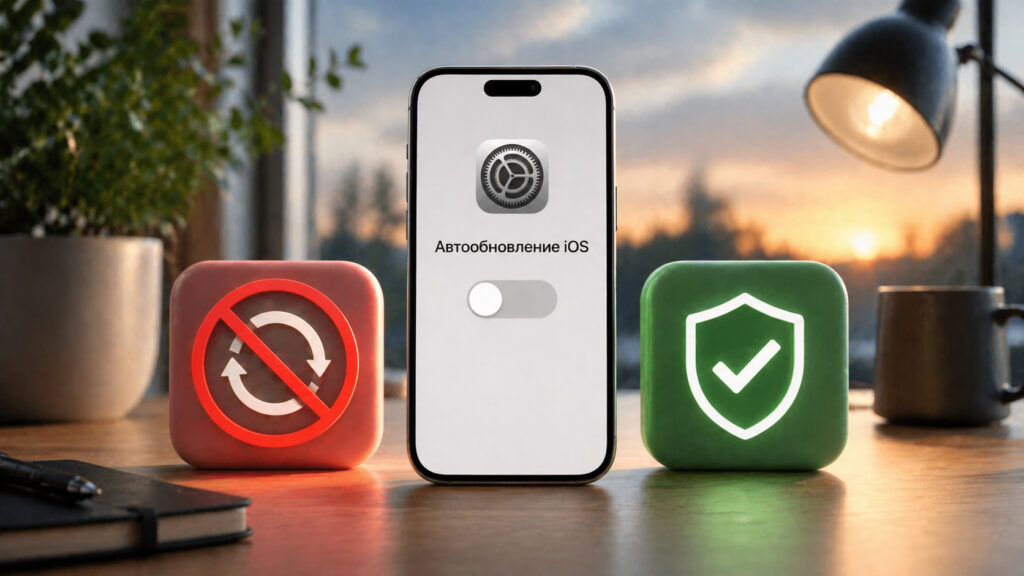
iOS auto-updates are a dangerous thing and it’s better to avoid them
What Is iOS Auto-Update
By default, every iPhone has the automatic update feature enabled. It works like this: when Apple releases a new version of iOS, your smartphone automatically downloads it over Wi-Fi and installs it at night while you sleep. The conditions are simple — the iPhone must be connected to a charger and Wi-Fi.
Sounds convenient. No need to track updates, no need to press anything. You wake up — and you already have the latest iOS. But it’s precisely this “automaticity” that hides the problem.
Problems That Arise with Automatic iOS Updates
The main argument against auto-updating is that you lose control. The update is installed without your knowledge, and if something goes wrong, you’ll only find out in the morning. When it’s already too late.
And what can go wrong? Practically everything. Remember the story with iOS 26.4.1, which happened literally in April 2026. The update was mass-bricking iPhones — smartphones were freezing on the Apple logo and refusing to boot. Standard recovery methods didn’t help. People had to bring their devices to a service center and do a complete reflash. And that means losing all data if there was no recent backup in iCloud.
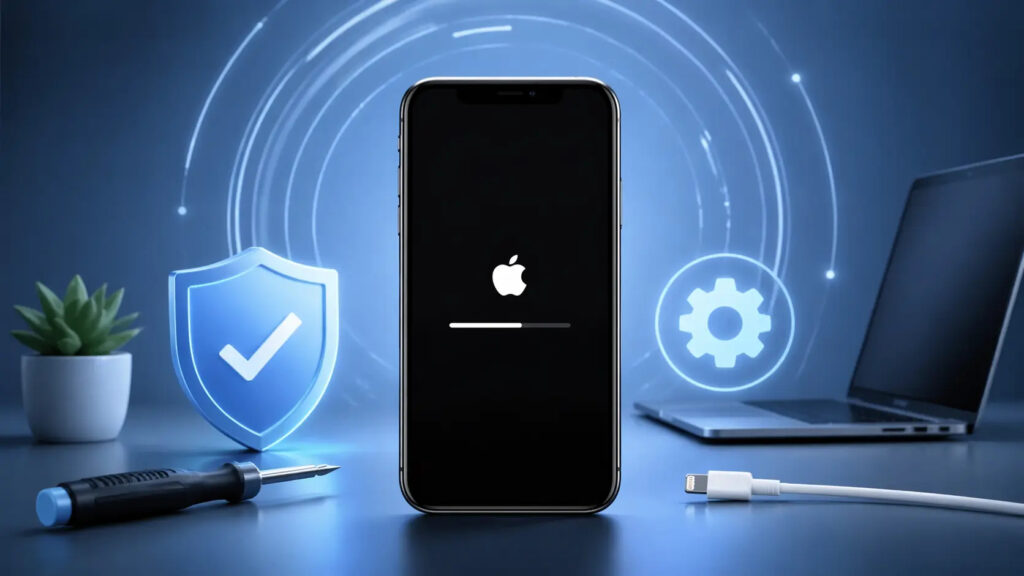
iOS 26.4.1 simply freezes during installation and that’s it
Imagine: you go to bed peacefully, and in the morning instead of a working iPhone you see a “brick.” And this wasn’t your choice — auto-update “took care” of you overnight.
A similar situation occurred with iOS 26.2.1 in January. Users complained about a sharp drop in battery life and lag after installing the update. On the Apple forum, one of the posts was literally titled — “iOS made my phone unusable.” Hundreds of people confirmed the battery life issue.
If you think the case with iOS 26.4.1 is an exception, you’re wrong. Problematic updates from Apple come out with enviable regularity. Almost every major iOS version brings bugs that the company then hurriedly fixes with “point” updates.
Here are just a few examples from 2026. After iOS 26.2.1, battery problems started. After iOS 26.4.1 — mass bricking. Apple had to urgently release iOS 26.4.2 to fix the critical installer bug. Moreover, two whole weeks passed between the problematic update and the fix. Two weeks during which people with auto-update enabled risked getting a non-working smartphone.
When you update manually, you can wait a few days after a new iOS release and check the reviews. If everything is fine — you install it. If not — you wait it out. With auto-update, you don’t have that luxury.
Should You Immediately Install a New Version of iOS
Many will say: “But updates close vulnerabilities! You need to install them as quickly as possible!” And they’ll be partially right. Apple does regularly release security patches. For example, at the end of April 2026, iOS 26.4.2 was released, which eliminated a serious vulnerability that allowed access to a user’s push notifications.
But here’s the thing. Between the release of an update and the moment when hackers start massively exploiting the vulnerability, there’s usually enough time. A one or two day delay while you read reviews won’t make a difference. But a bricked iPhone — that’s a real problem right now.
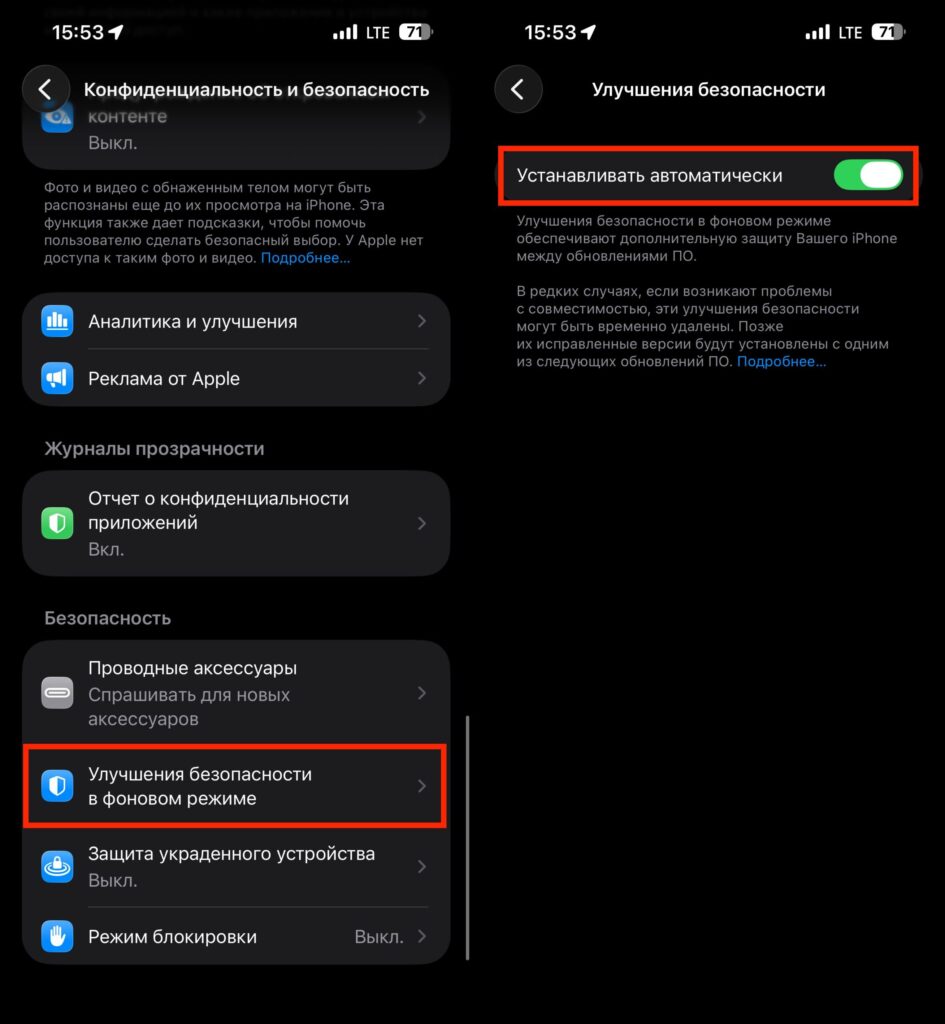
This is the only type of updates that can be installed automatically
Moreover, critically important security updates are highlighted separately by Apple — they’re called Rapid Security Response. These are small patches that install quickly and virtually never cause problems. You can leave them in automatic mode.
How to Disable Auto-Update on iPhone
You can do this in a few seconds. Open Settings — General — Software Update — Automatic Updates. Here you’ll see several toggles.
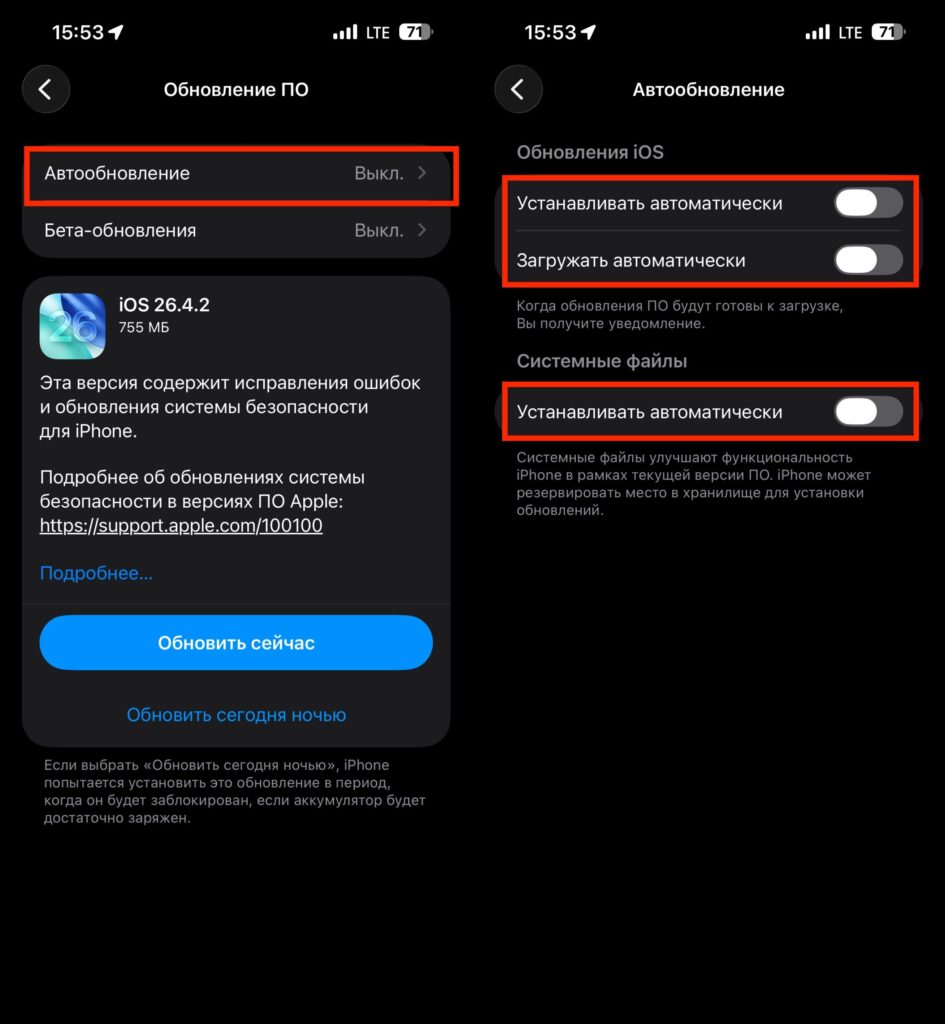
You can leave the download on, but I recommend turning everything off
Disable the “Install iOS Updates” option. If you wish, you can leave the update download enabled — then the iPhone will download the file in advance but won’t install it without your permission. This is a convenient compromise: when you decide to update, you won’t have to wait for the download.
I also recommend leaving the “Security Responses & System Files” option enabled — these are the Rapid Security Response updates I mentioned above. They’re small, safe, and truly important.
How to Properly Update iPhone Manually
Here’s a simple algorithm that I follow myself and recommend to everyone:
- Wait for the update to come out and don’t install it on the first day. Wait at least 2–3 days
- Read reviews in dedicated chats, Apple forums, and tech channels. If there are mass complaints — wait longer
- Before installing, make a backup via iCloud or Finder on Mac
- Make sure your iPhone has enough free space — at least 5–6 GB
- Put your iPhone on the charger and start the update manually through Settings — General — Software Update
Yes, this requires a bit more attention. But at least you know exactly what you’re installing and are prepared for possible consequences.
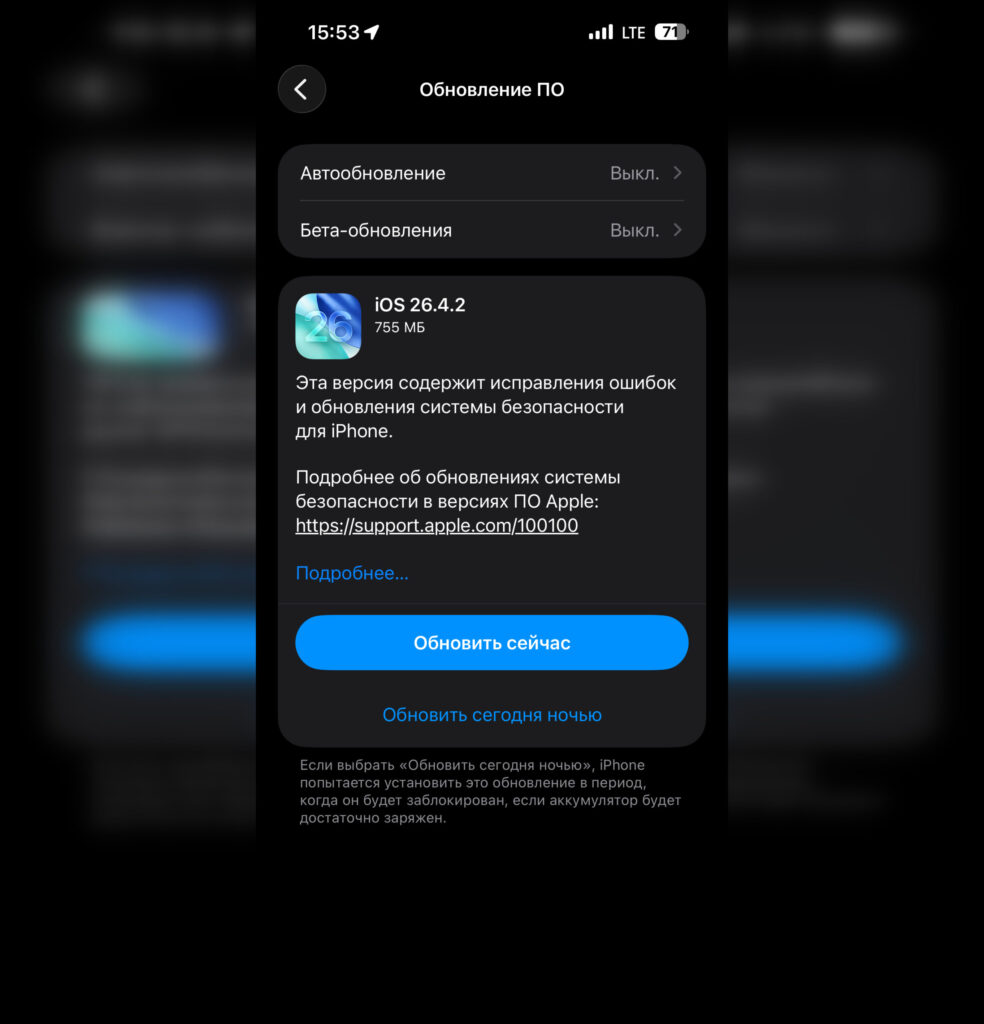
Install updates manually after reading reviews
To be fair, there are situations where auto-update is justified. For example, if you don’t follow Apple news at all and forget to update for months. In that case, an old iOS with unpatched vulnerabilities is also a risk.
But if you follow tech news, you’ll likely learn about a new update the same day it comes out. And you’ll be able to make an informed decision — to install or to wait.