You were working away as usual, and then you noticed your Mac has become noticeably slower at opening apps, heating up for no apparent reason, and lagging even in Safari. Don’t rush to start saving for a new one. In 9 out of 10 cases, three things are to blame: a full disk, some resource-hogging background app, and a system that hasn’t been updated in a long time. I recently freed up system data on my MacBook and was surprised how much junk had accumulated. Below is a short monthly checklist that keeps my aging Mac in working shape.

Sometimes MacBook lag can drive even the calmest person crazy
Mac Running Slowly: What’s the Cause
The main cause of everyday slowdowns isn’t “old hardware” but accumulated junk and background processes. When the disk is more than 85–90% full, macOS has a harder time managing files, and the system noticeably slows down. Add to that programs running in the background eating up the processor, plus old versions of apps that perform worse than updated ones.

Macs rarely lag, but it’s better to know in advance how to fix the problem
The good news: all of this can be fixed with built-in macOS tools. You don’t need to install any “optimizers” from the internet — they usually do more harm than good.
What to Do If Your MacBook Freezes and Takes Forever to Open Apps
The simplest and most underrated way to bring your Mac back to life is a regular restart. When you restart, the system clears temporary files, frees up RAM, and terminates frozen background processes that may have been accumulating for days. Many people keep their Mac in sleep mode for weeks, and during that time all sorts of junk builds up in memory.
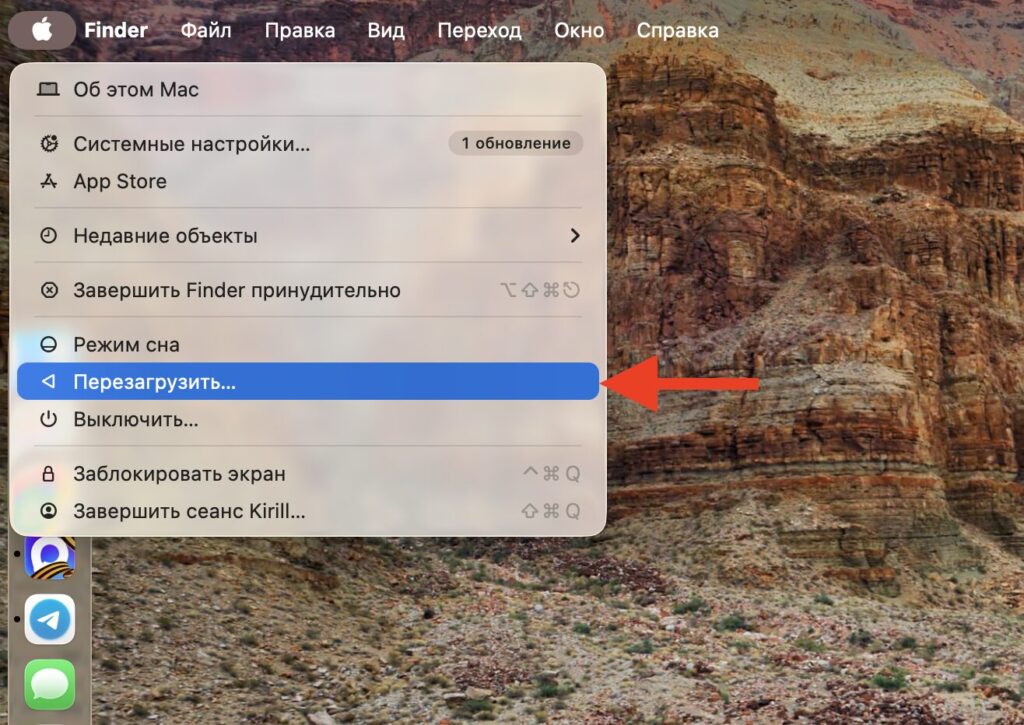
A restart actually helped me recently
Click the Apple logo in the top-left corner and select “Restart.” If your Mac is so frozen that the cursor barely moves, hold the power button for 10 seconds for a forced shutdown, then turn it on again.
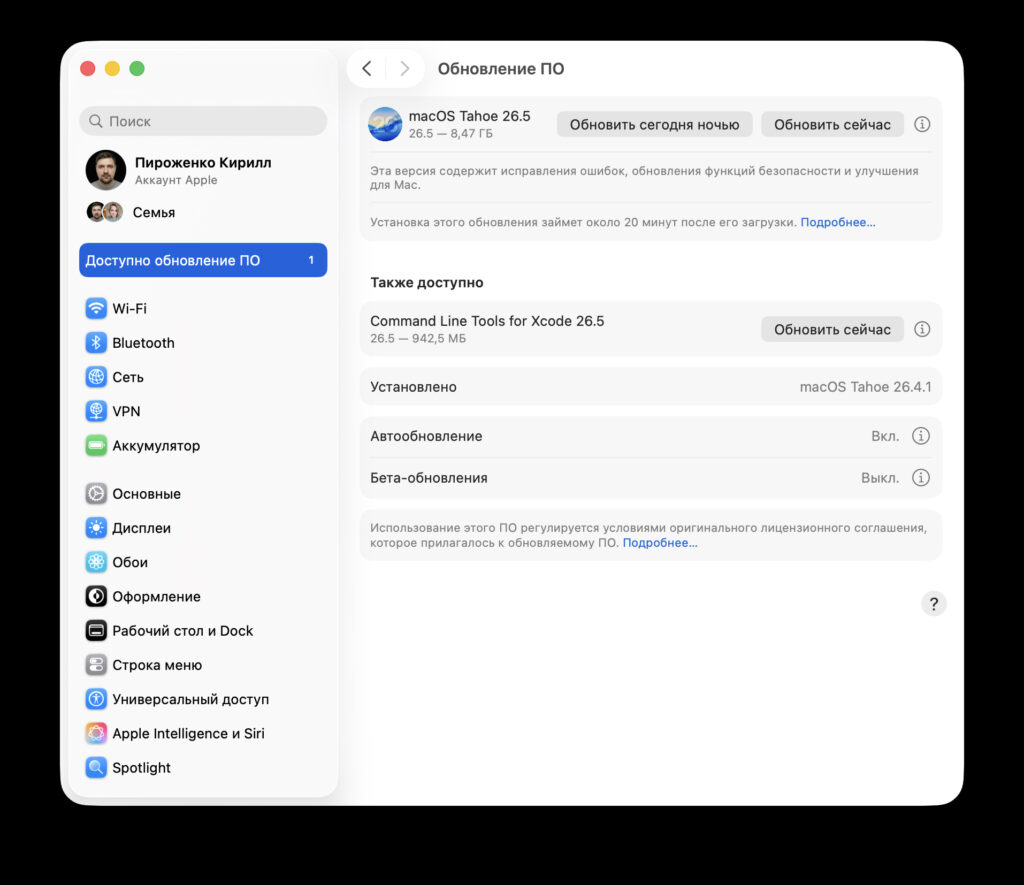
I recently updated my MacBook Air M2 to macOS 26.5, after which the system started noticeably lagging. I restarted a couple of times — and everything worked like it should. So before diving into settings, just reboot your Mac.
Check Mac Storage and Delete Unnecessary Files
macOS has a built-in storage optimizer that shows you what’s taking up space and suggests what to do about it. This saves you from manually going through folders.
To open it, do the following:
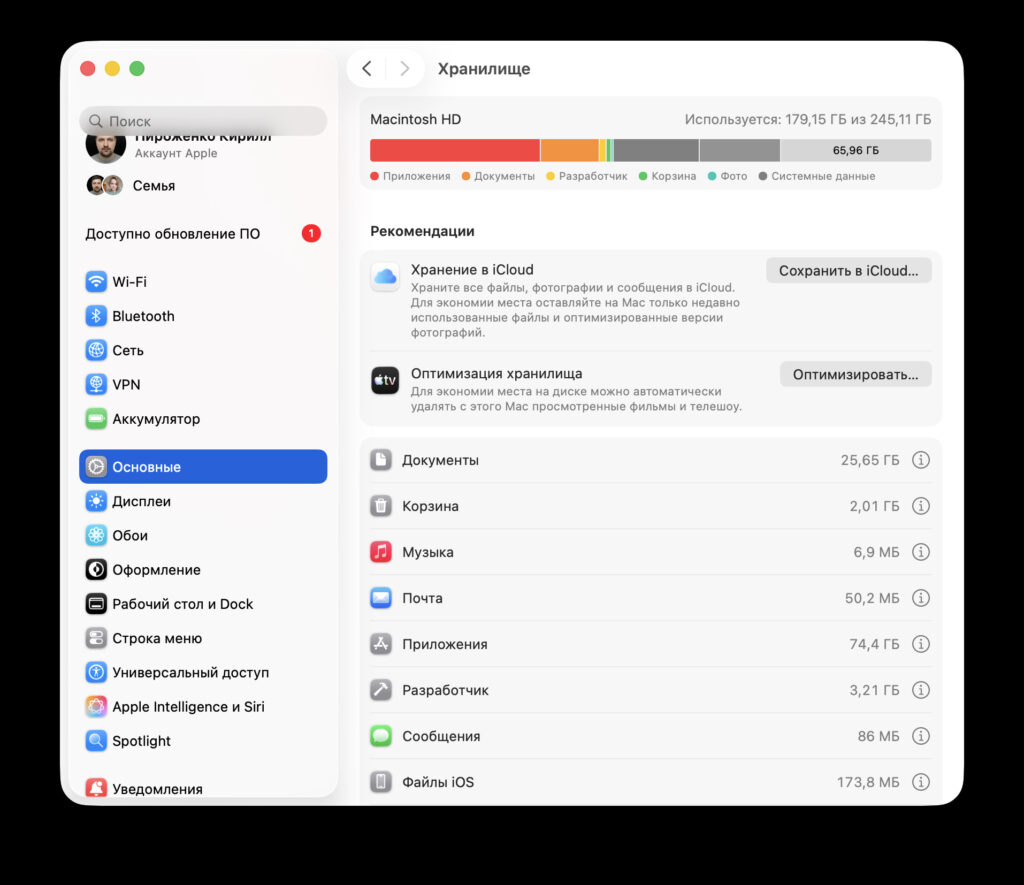
Keep at least 10% of your drive’s total capacity free, and you won’t have problems
- Click the Apple logo in the top-left corner and select “System Settings.”
- Go to “General,” then “Storage.”
- Hover your cursor over the colored bar at the top — it will show you exactly what’s taking up space: apps, documents, system data, photos.
- In the “Recommendations” section, enable the appropriate options one by one.
Among them, on almost every Mac you’ll usually find “Store in iCloud” — old files move to the cloud, and only previews remain on the Mac. And “Optimize Storage” — it automatically deletes already-watched movies from Apple TV and email attachments. Both options quietly work in the background.
The catch with iCloud is obvious: the free 5 GB is barely enough, and with active use you’ll need to get a paid iCloud+ plan. Don’t want the cloud? Clean up manually through the same “Storage” section: you can immediately see the heaviest apps and old downloads.
Activity Monitor on Mac: How to Find Out What’s Loading the Processor
A single misbehaving app can slow down your entire Mac. “Activity Monitor” shows in real time what’s loading the processor, memory, and battery. To open it, go to Finder, then “Applications,” then “Utilities,” and launch “Activity Monitor.” Then work through the tabs:
- “CPU” tab — sort by the “% CPU” column. Anything consistently staying above 80–100% is suspicious.
- “Memory” tab — at the bottom there’s a “Memory Pressure” graph. If it’s green, everything is fine. Yellow or red means there’s not enough RAM, and the Mac starts lagging.
- “Energy” tab — shows which apps are draining the battery and heating up the case the most.
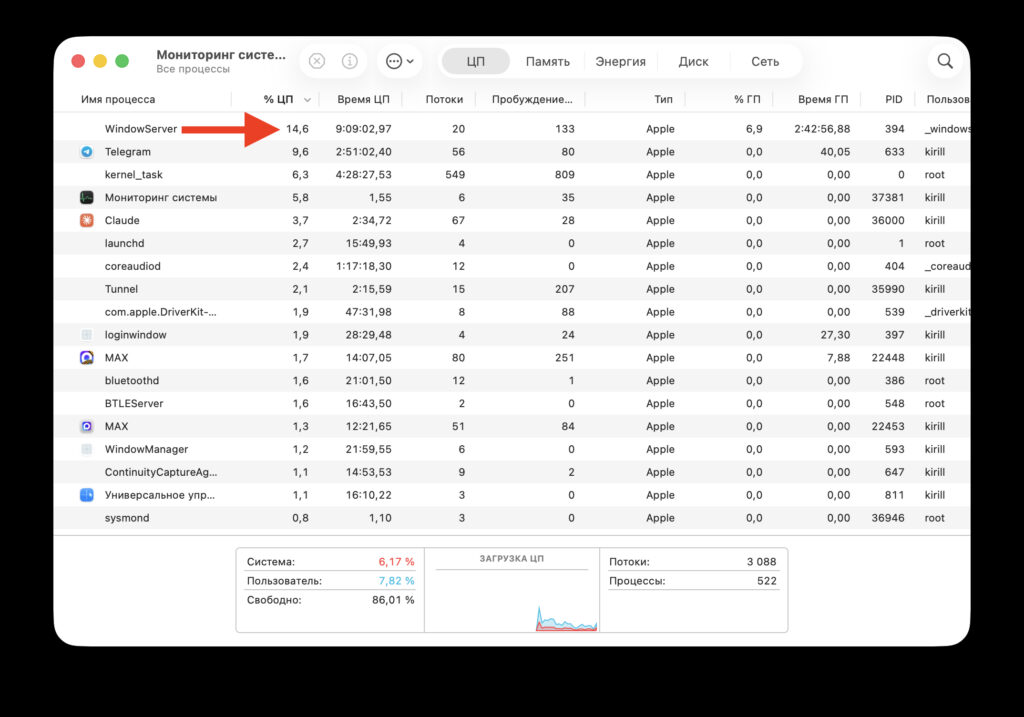
Check this section periodically to immediately see which app is consuming resources
Found the culprit? Select it in the list and click the X button on the top toolbar — the process will be force-closed.
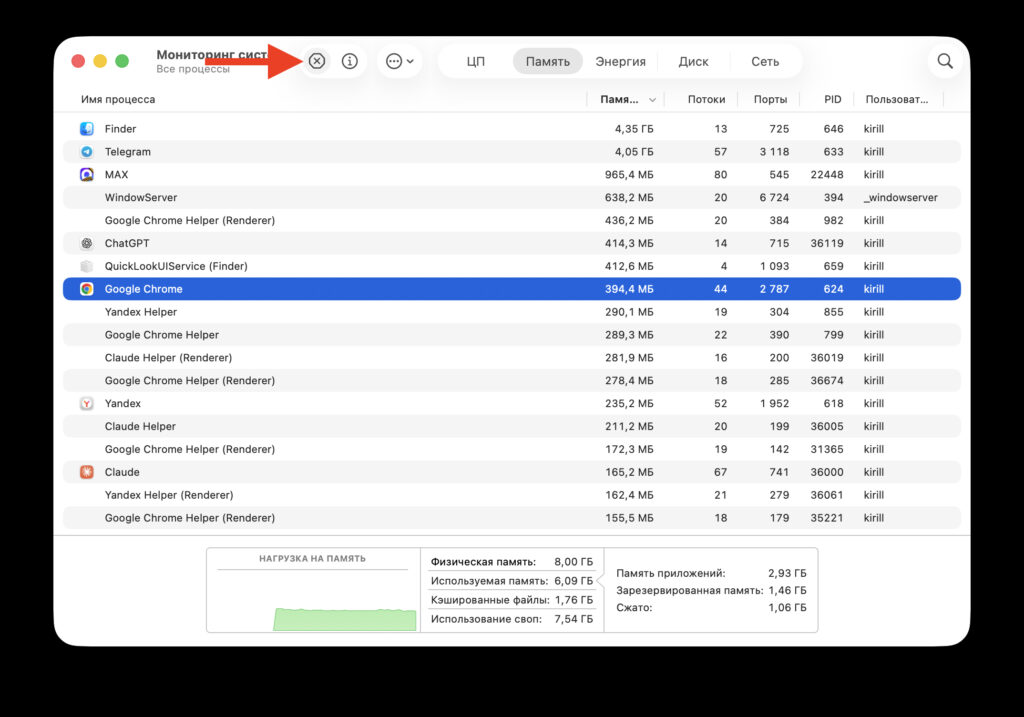
If you found the culprit, just select it and close it if needed
The usual suspects are typically browsers with dozens of open tabs, messengers, and cloud storage clients.
How to Check for macOS Updates If Your Mac Started Lagging
Outdated software almost always runs slower than the latest version. Updates often contain performance optimizations and bug fixes, including for older Mac models.