Half a year ago, I honestly switched from iPhone to Android — I got the Nothing Phone 3a and left a review after six months of use. The experience was interesting, but I still returned to iPhone — and now I’m looking at the same story from the other side. Switching from Android to iOS sounds like a simple plan: buy it, turn it on, use it. In reality, it’s like moving into someone else’s ecosystem — with its own rules, habits, and losses: from notifications to multitasking. I’ve compiled five main problems when switching OS. Let’s go through each one — through the eyes of someone who’s been on both sides.
Switched from Android to iPhone. What came of it, and what I don’t like
Problems with Transferring Data from iPhone to Android
Apple has a separate app for migration, although starting with iOS 26.3, a new built-in data transfer to Android feature appeared. The idea is to eliminate unnecessary hassle, but in reality, things are different. With large volumes of data, it regularly freezes: the indicator stops, and you can stand there for a couple of hours without any progress.
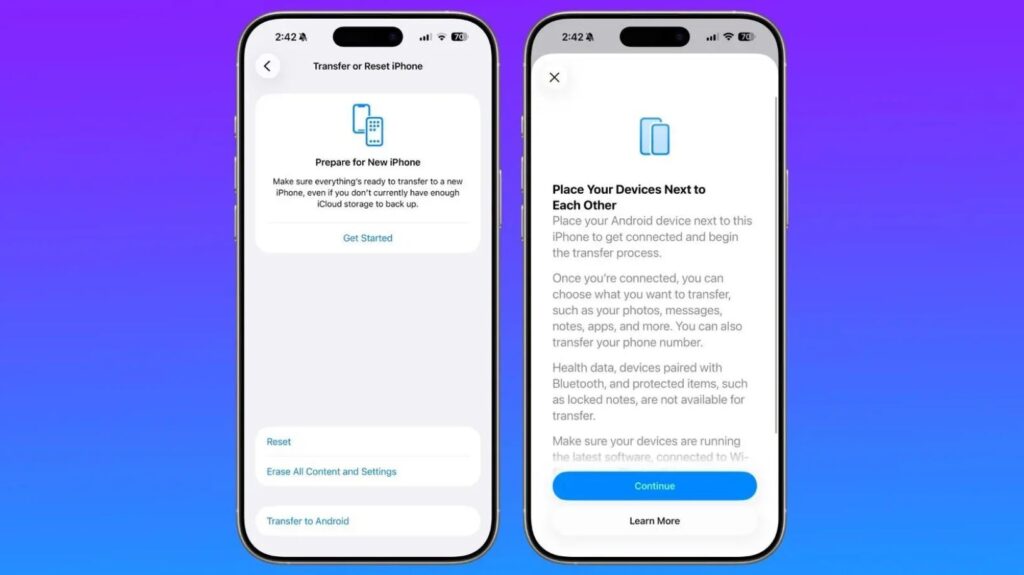
Transferring data from iPhone to Android works very inconveniently
Photos, videos, and contacts usually transfer without issues. But Android apps — Move to iOS doesn’t transfer them at all — each one needs to be downloaded again from the App Store and logged into manually. If you have a dozen banking apps on your phone that can’t even be found in the Russian App Store, prepare for a separate quest.
A separate story is chat history. iMessage chats don’t transfer to Android at all. WhatsApp formally supports migration from Android, but it works unstably and without guarantees. As a result, the move feels like tedious routine rather than a “seamless transition” from advertising slogans.
Tip: if you’re planning to switch, make sure in advance that there’s enough free storage on the iPhone. Charge both devices to at least 50%, connect to stable Wi-Fi, and don’t use the phones during the transfer. I had failures several times.
Drawbacks of iPhone Notifications After Android
iPhone notifications are probably the most noticeable disappointment for those coming from Android. On iPhone, alerts from the same app don’t always stack into one group, and the notification center itself is noticeably less logically organized.
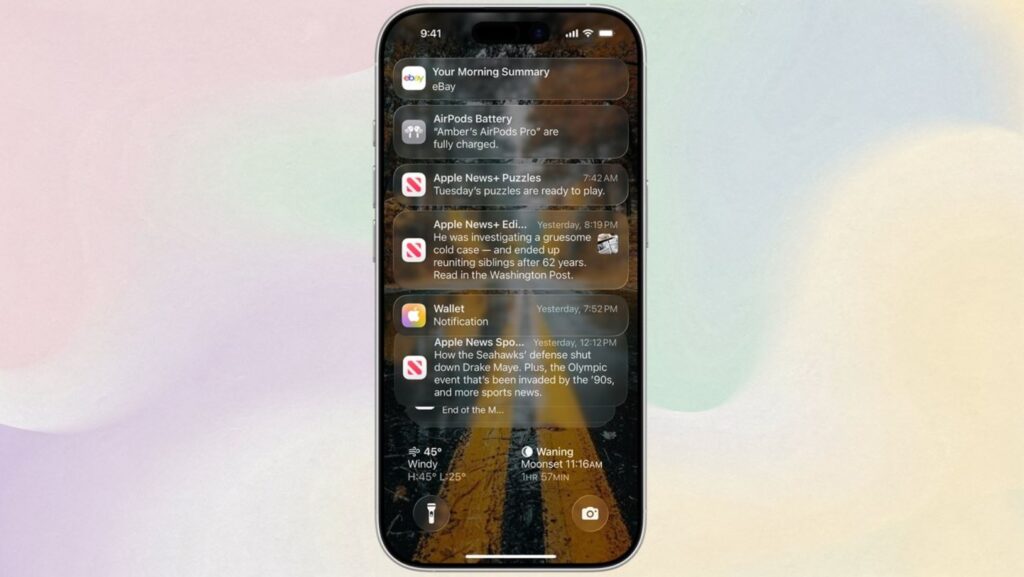
Notification settings on iPhone aren’t as flexible as on Android
The main pain point — there’s no flexible notification customization in iOS. On Android, within an app, you can disable only certain types of notifications: mute, for example, promotional pushes from a delivery service while keeping order status updates. Sometimes it even feels like there are too many options — you don’t know which to choose, but it’s a matter of habit. On iPhone, the choice is sparse: either all notifications from an app are enabled, or all are disabled.
Moreover, iPhone notifications are a mess. Some support quick replies right from the notification shade, while others force you to open the app. On Android, by comparison, notification history is saved — an accidentally swiped notification can be found in the log. On iPhone, if you swipe it away — it’s lost forever. This is especially important when some promo code for a discount pops up.
Which Is More Convenient — iPhone or Android
Google once copied navigation gestures from iPhone, but in one aspect implemented them better — the “back” gesture on Android works the same across the entire system and in all apps. Swiping from the edge of the screen always takes you one step back in navigation. Moreover, it works from both the left edge and the right. You get used to this quickly.
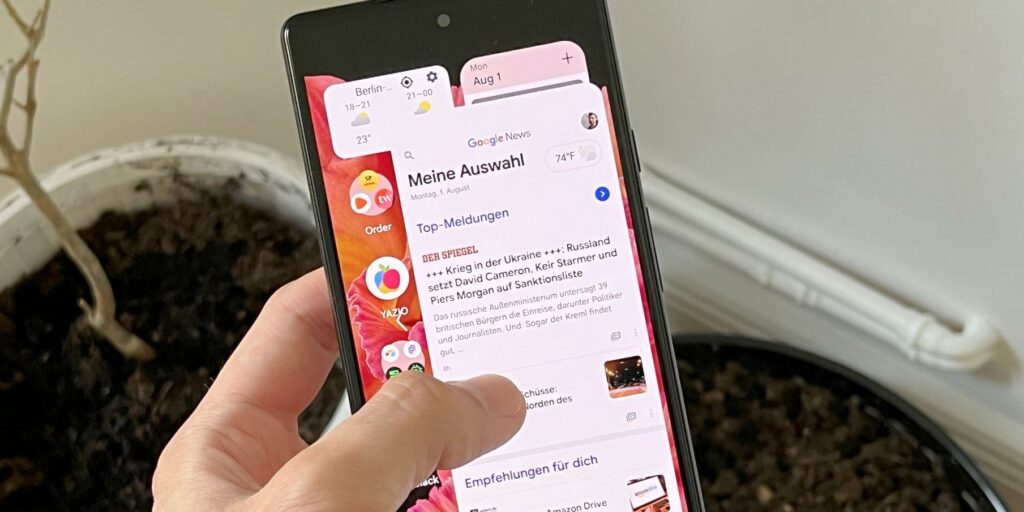
The “Back” gesture on Android works in any app
On iPhone, there’s no universal rule. In some apps, you need to swipe from the left edge; in others, you need to tap a button in the upper left corner of the screen. Imagine how frustrating that is when you’re using an iPhone with a large screen. It’s a small thing that irritates you every day! And there are plenty of such moments — system navigation is just the tip of the iceberg.
Multitasking on iPhone After Android
Android smartphones have long been able to run two apps in split-screen mode or display one of them in a floating window. It’s convenient: you can watch a video while simultaneously replying to messages or read a website while taking notes. On the Nothing Phone, you can easily tuck a window behind the edge of the screen, creating a floating bubble. It’s convenient and doesn’t get in the way.
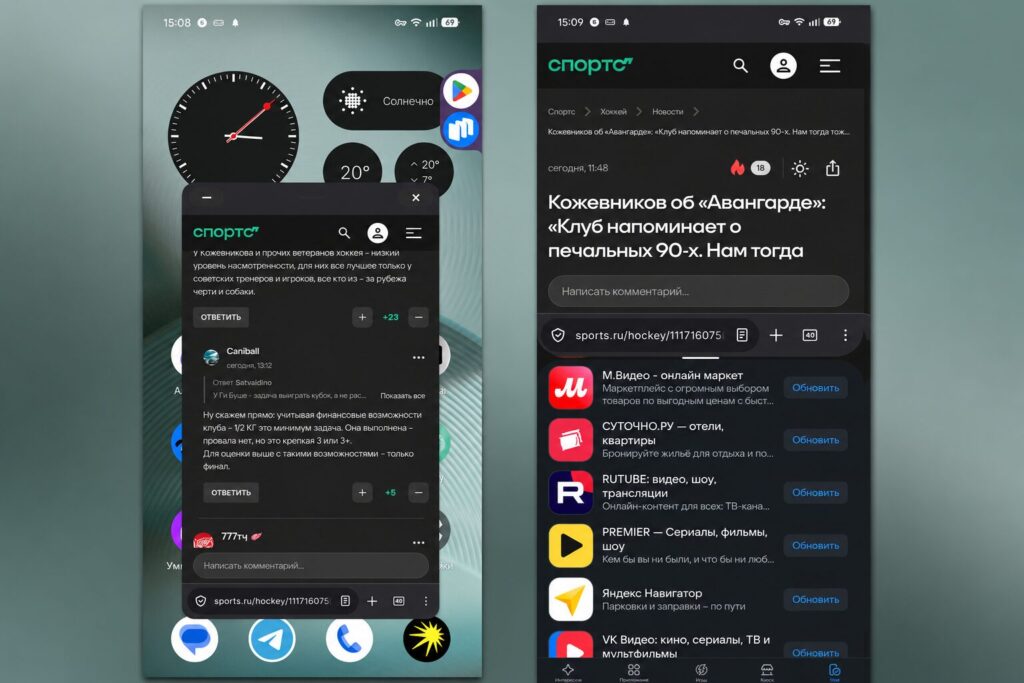
Multitasking on iPhone is far inferior to Android
There’s essentially no multitasking on iPhone — only one app works at a time. If you’re used to multitasking on Android, the transition will noticeably disrupt your workflow. You’ll have to constantly switch between apps, which breaks focus and reduces productivity. For example, calculating in the calculator without being able to see the needed amounts in a photo. Or chatting in Telegram while simultaneously keeping MAX open. Apparently, split-screen on iPhone won’t appear anytime soon.
App Store on iPhone — Drawbacks
Apple strictly controls which apps make it into the App Store. Moreover, they also need to stay there, otherwise moderators will remove them. On one hand, this ensures higher software quality. On the other hand, some types of apps simply don’t exist on iPhone: system utilities, advanced tools, and programs with deep hardware access (for example, full NFC functionality beyond Apple Pay). In Russia, this is especially relevant, since Android has Mir Pay and other bank alternatives. And you can install RuStore from the official website and forget about Google Play.


