Tracking workouts on Apple Watch has quirks that can cause it to miss some of your actual activity. Below are three proven workout tips for Apple Watch owners that will help you track activity more accurately and feel less frustrated when your watch “doesn’t notice” your efforts. These tips aren’t about cheating your stats — they’re about helping your watch correctly understand what you’re doing. I wear mine every day and have had plenty of time to test these tips in practice.
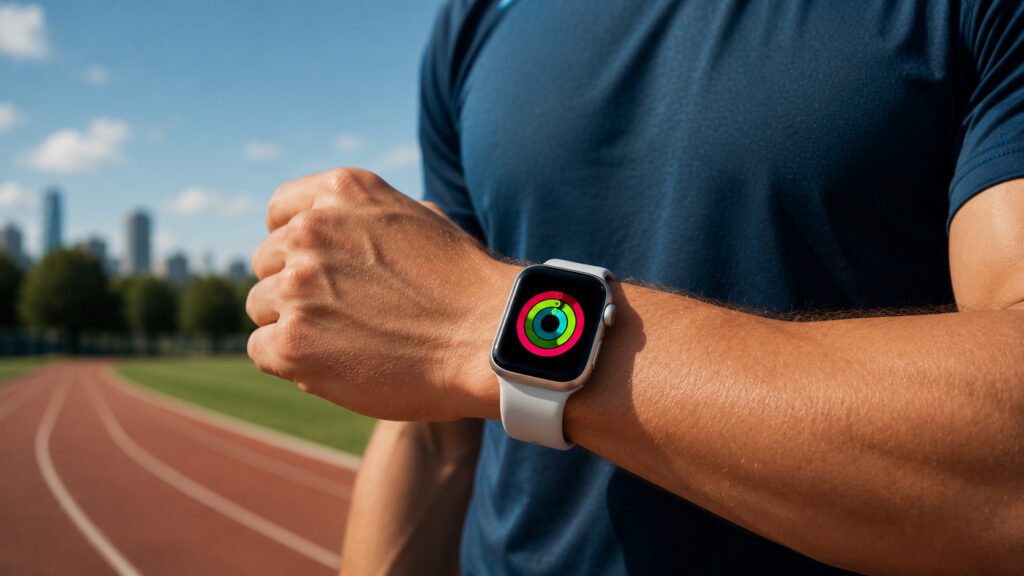
Several tips that will help you close your rings more easily
What Do the Activity Rings on Apple Watch Mean and How Do They Work
First, a quick overview of the rings themselves. Apple Watch has three activity rings: “Move” (calorie burn), “Exercise” (minutes of activity), and “Stand” (hours in which you stood up and moved for at least one minute). To close your daily goal, you need to meet the target for each one.
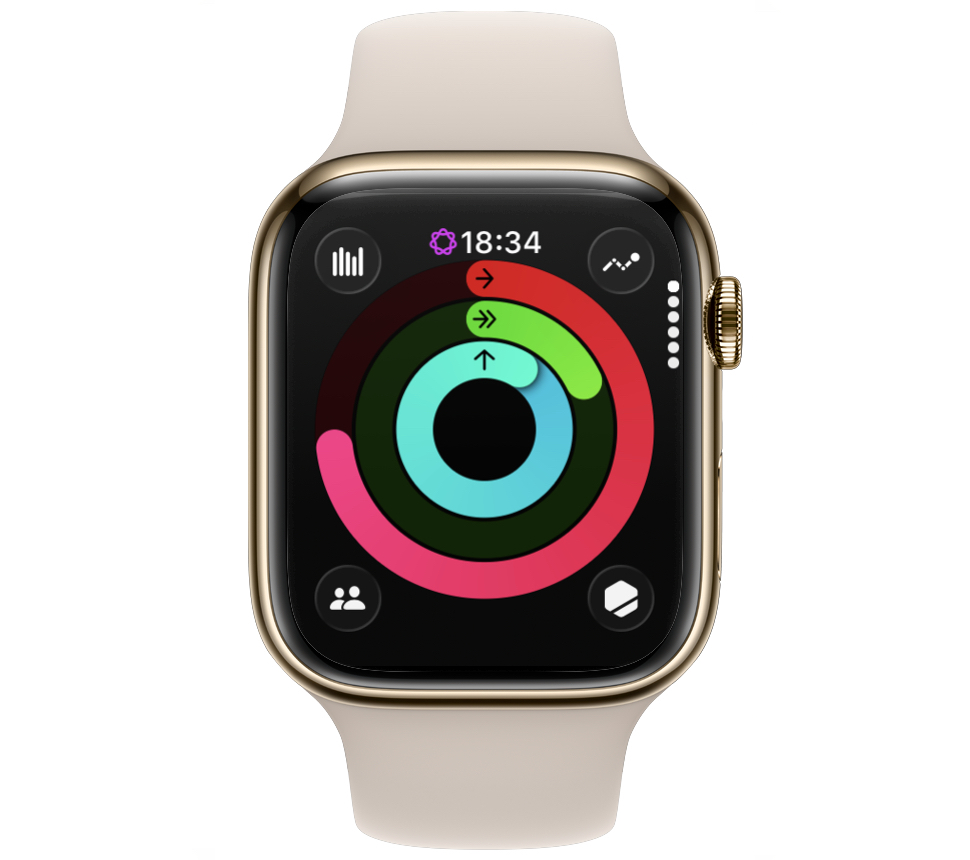
The rings can be closed more easily than you think
The main difficulty is that the watch can’t see your whole body. It evaluates arm movement, heart rate, and wrist position — and draws conclusions based on that. Sometimes those conclusions are inaccurate: you were actively moving, but the ring didn’t budge. The three tips below address exactly these situations.
If you’re just starting to understand the metrics, it’s helpful to first learn what each ring means and how to customize goals for yourself.
Why Apple Watch Doesn’t Count Your Stand Minutes
A familiar situation: you spent 20 minutes cooking dinner or washing dishes, you sit down to rest — and immediately get a reminder that you still need to stand up and move. It’s frustrating, because you were on your feet the whole time.
The thing is, the watch is a poor tool for determining whether you’re standing or sitting. It doesn’t have a sensor that understands body position. Instead, Apple uses a workaround: the watch checks whether you’re holding your arm horizontally or it’s hanging freely down.
The logic is this: the watch assumes that your arm hangs freely in a vertical position only when you’re standing. But if you’re standing and washing dishes, your arms are in a horizontal position — and the Apple Watch mistakenly concludes that you’re sitting.
So when you consciously want to earn a stand minute, simply stand up and let your arm hang freely at your side for a minute. The watch will correctly register that you’re standing and moving.
Technically, this trick works in reverse too: you can lower your arm while still sitting in a chair, and the watch will count the minute. But the point of the rings is to become healthier, not to trick the gadget. If you didn’t actually stand up, such a “credit” doesn’t benefit your body.
How to Start an “Other” Workout on Apple Watch
Sometimes by evening you’re exhausted, but the “Exercise” ring still hasn’t closed. It’s worth asking yourself: what exactly wore you out, and could it have been counted as a workout?
Many types of physical activity aren’t in the standard list of the “Workout” app. For example, yard work or gardening isn’t listed, even though digging beds and raking leaves is serious exercise. There’s a solution: for anything involving active movement, use the “Other” category.

How to close activity rings on Apple Watch without unnecessary hassle
Before cleaning the yard, rearranging furniture, carrying boxes at work, or changing bed linens, start a workout in the “Other” category. Apple Watch will track your heart rate and energy expenditure and count the activity toward your exercise ring.
To start such a workout on your watch:
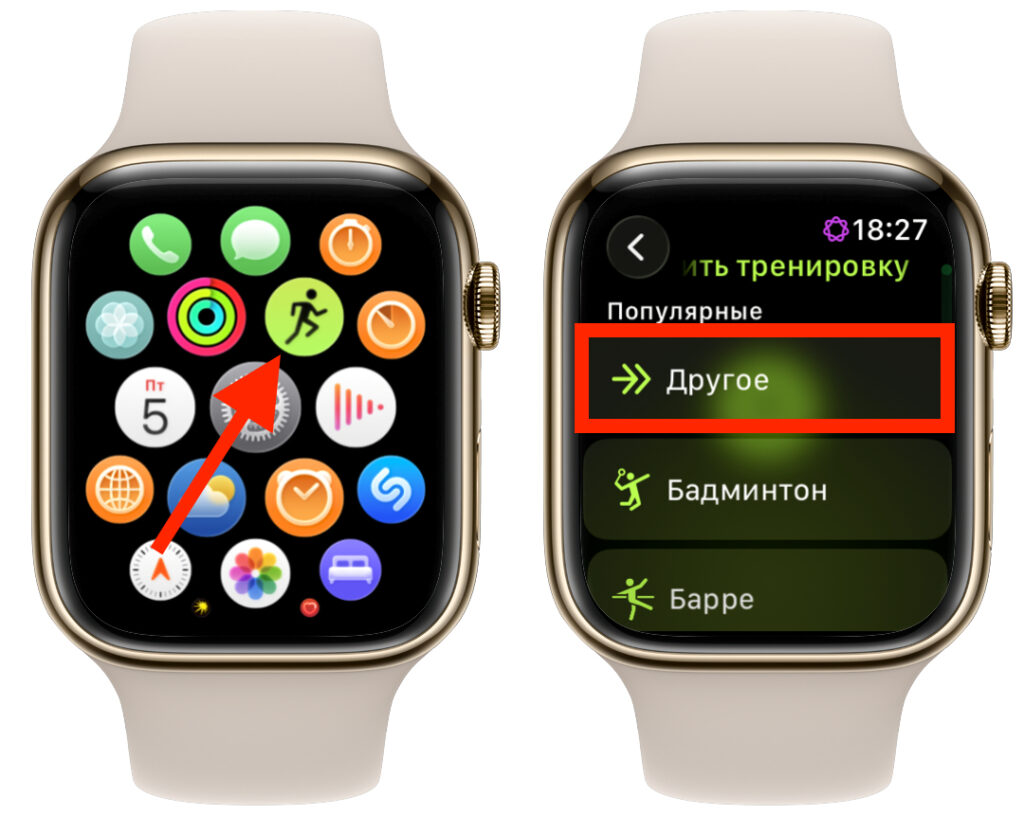
The “Other” workout is activated here
- Open the “Workout” app on your Apple Watch.
- Scroll to the bottom of the workout types list and select “Other.”
- Wait for the countdown and start your activity.
- When finished, swipe right and tap “End,” then save the workout.
How to Manually Add a Workout to Apple Watch
If you forgot to start a workout, you can add it later manually through the “Health” app on iPhone. This is convenient when the activity already happened but the watch didn’t record it.
Here’s how to do it step by step:
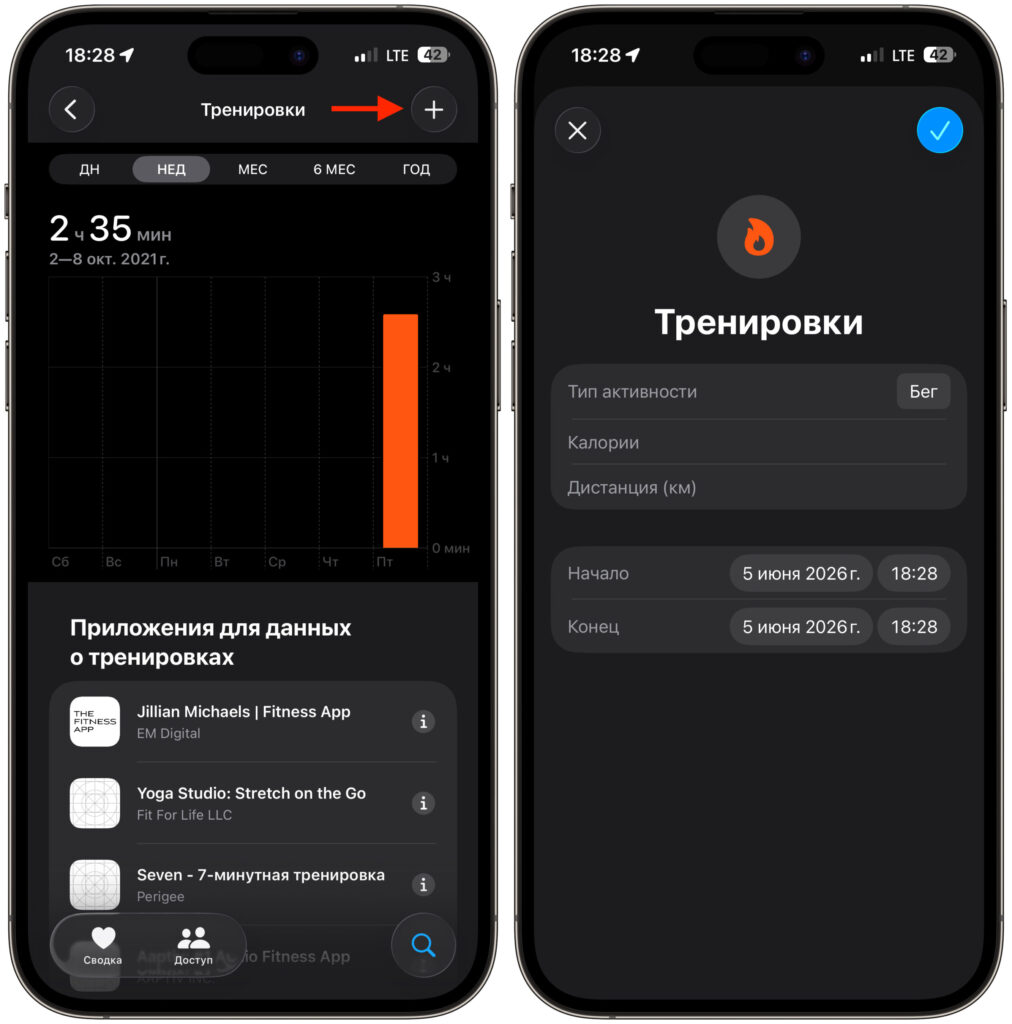
You can add workouts manually. In case you forgot to start one
- Open the “Health” app on your iPhone and go to the “Browse” tab.
- Find the “Workouts” section and tap on it to open the list of your sessions for the day, week, or month.
- Tap the plus icon in the upper right corner of the screen.
- Select the workout type — for example, strength training, running, or walking.
- Enter the date, start and end time, and if needed — distance and approximate calories burned.
- Save the entry.
After this, the missed workout will appear in your history and will be counted toward closing the “Exercise” ring. This is a lifesaver in cases when you remember the workout the next day.
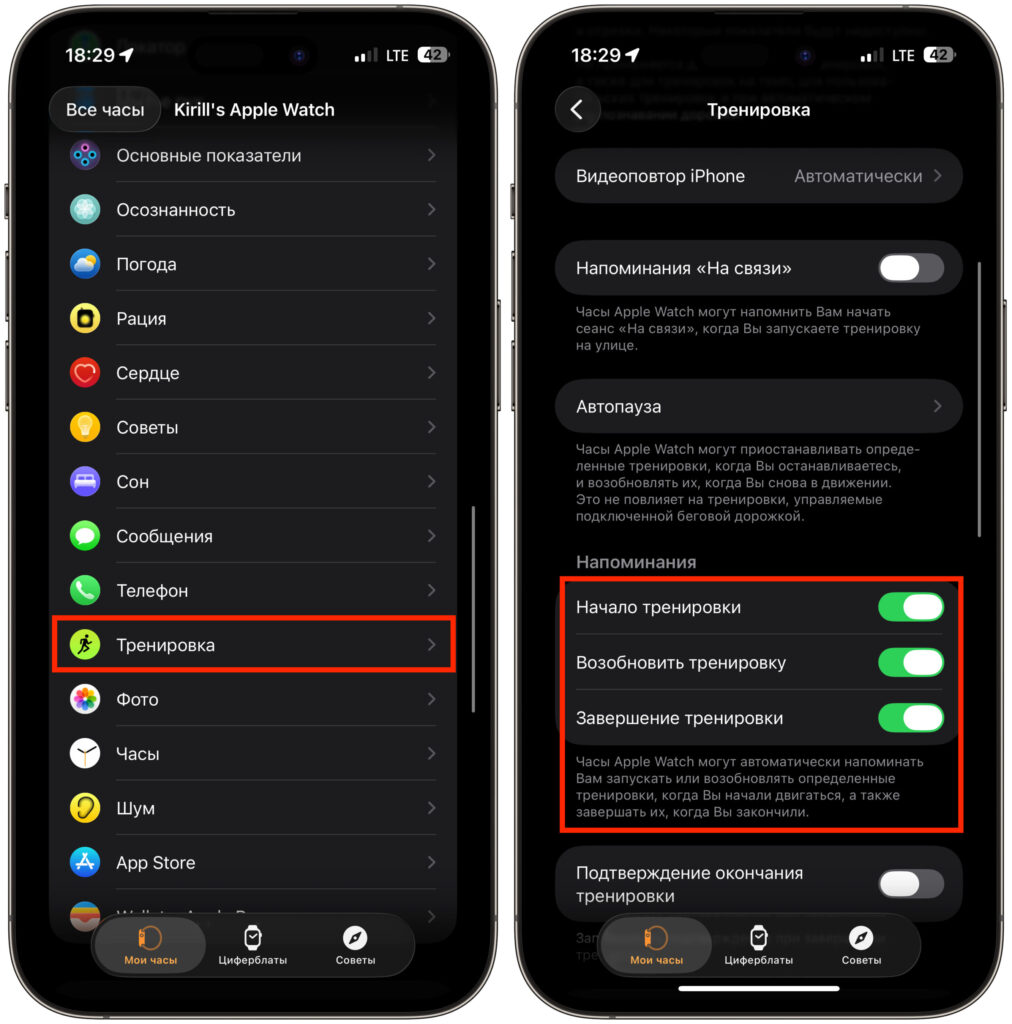
Auto-Detection of Workouts on Apple Watch: How to Enable It
The third tip isn’t a separate feature but rather a habit of trusting automatic workout detection. Modern Apple Watch can recognize the start of activity: if you’re walking briskly, running, or pedaling, the watch asks if you’d like to record a workout.