Apple’s WWDC 2026 presentation has finally concluded, which means all the showcased operating systems — and iOS 27 in particular — are now officially available. This is exactly the moment many Apple event viewers stayed glued to their screens for all evening — to be the first to try the new iOS 27. And the best part: you can install it too, even without developer status. If you’ve already prepared your iPhone for the iOS 27 installation, you can jump straight to the process — you just need to follow a couple of simple steps.
The OS is now available for developer installation. You can become one if you want
Which iPhones Support iOS 27
We won’t jump straight into installing iOS 27 on iPhone — first, let’s give you a fair warning. You shouldn’t install the first developer beta versions on your primary smartphone — wait at least for the public testing phase. Early firmware is full of errors, bugs, and untranslated menu items, and some apps simply won’t launch due to lack of optimization.
So think twice before downloading the update. And if you’ve decided to go ahead, make sure to create a backup on your computer so you can restore all your data in case you need to roll back.
This year Apple seriously surprised everyone by not dropping support for devices with the A13 Bionic chip. This means iOS 27 will be available even for iPhone 11, iPhone 11 Pro, and iPhone 11 Pro Max.
If your iPhone is newer, look for it in the list of supported devices:
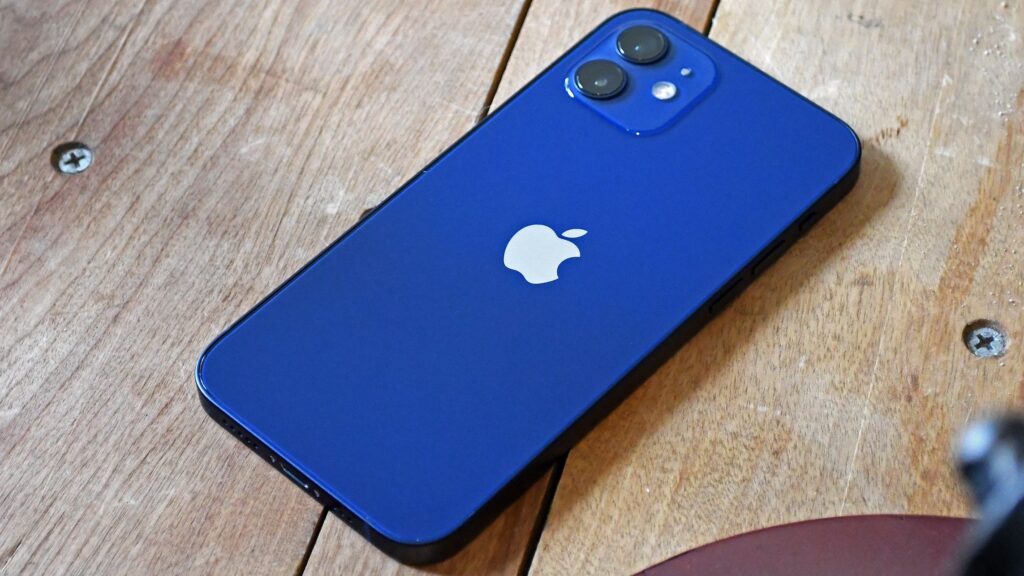
For the legendary iPhone 12, iOS 27 will most likely be the last update
- iPhone 11;
- iPhone 11 Pro;
- iPhone 11 Pro Max;
- iPhone 12 mini;
- iPhone 12;
- iPhone 12 Pro;
- iPhone 12 Pro Max;
- iPhone 13 mini;
- iPhone 13;
- iPhone 13 Pro;
- iPhone 13 Pro Max;
- iPhone 14;
- iPhone 14 Plus;
- iPhone 14 Pro;
- iPhone 14 Pro Max;
- iPhone 15;
- iPhone 15 Plus;
- iPhone 15 Pro;
- iPhone 15 Pro Max;
- iPhone 16e;
- iPhone 16;
- iPhone 16 Plus;
- iPhone 16 Pro;
- iPhone 16 Pro Max;
- iPhone 17;
- iPhone Air;
- iPhone 17 Pro;
- iPhone 17 Pro Max;
- iPhone 17e;
- iPhone SE 2020;
- iPhone SE 2022.
What’s New in iOS 27
Apple has already laid out all the key features of iOS 27 in detail — here we’ll cover the most notable highlights.
The star of the update is a completely redesigned Siri. Apple promises to transform it from a set of templated commands into a true conversational assistant that understands context and maintains the thread of a dialogue. Rumor has it that third-party capabilities now power it under the hood, but these claims are better tested on the final firmware rather than early leaks.
The design isn’t standing still either. The signature Liquid Glass style, which debuted a year earlier, has become more refined: less unnecessary transparency, better readability, and smoother animations. This is exactly the kind of case where Apple polishes last year’s idea rather than rolling out a revolution for revolution’s sake.
Apple Intelligence capabilities have been expanded separately, and the Camera app has been improved with more flexible settings. However, keep an important caveat in mind: the proprietary AI features still require at least an iPhone 15 Pro. On older models, iOS 27 will install, but without the smart features.
This year has been calmer than usual. After the problematic launch of iOS 26 with crashes and battery drain, Apple bet on stability and performance. So for owners of older iPhones, this is a potentially pleasant update — no interface reinvention, but with a focus on speed.
How to Update Your iPhone to iOS 27
Found your device in the list above? Excellent. Now you can proceed directly to installing iOS 27 on your iPhone:
- Go to this link to the Apple developer portal;
- Sign in with your Apple account;
- Accept the license agreement and wait for the “Tools and resources” page to load;
- Go to your iPhone Settings and select the “General” section;
- Tap “Software Update” and go to “Beta Updates”;
- Check the box for “iOS 27 Developer Beta” and go back one step;
- Wait for your smartphone to detect the update and install it like a regular firmware update.
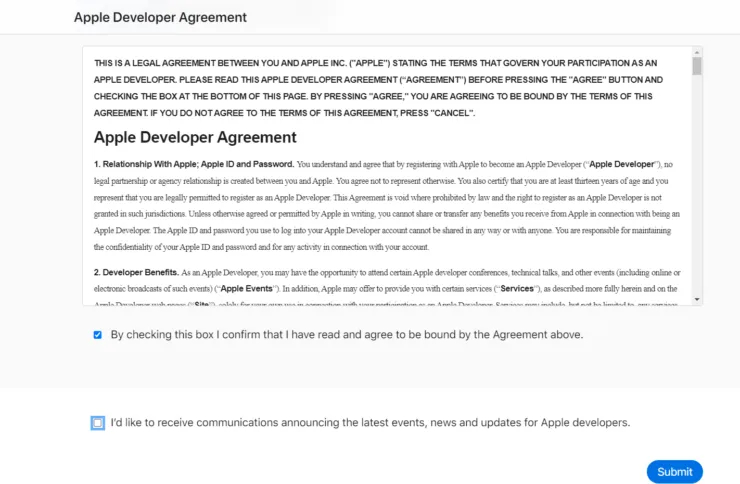
Accept the license agreement upon signing in
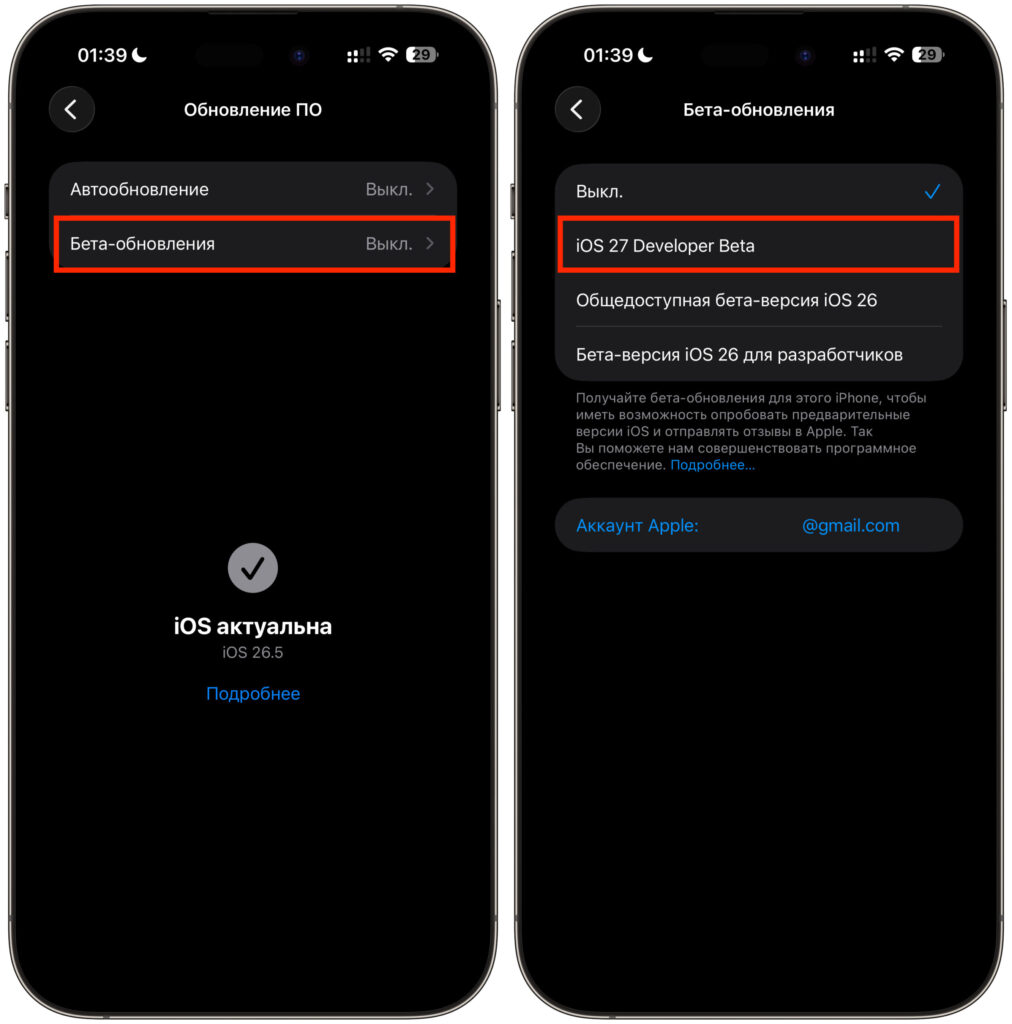
Select iOS 27 from the list and wait for your smartphone to detect it
The entire procedure takes a few minutes, not counting the download time itself. The firmware downloads over the air — no cable or computer needed. The main thing is a stable Wi-Fi connection and at least 50% battery charge, otherwise the installation won’t start.
If the required option doesn’t appear in “Beta Updates,” restart your iPhone and verify that you’re signed in with the same Apple ID you used to accept the agreement on the website. Sometimes the list takes a little while to populate.
Should You Install the iOS 27 Beta?
Let me caution you once more: at this point, iOS 27 exists only as a developer beta version and is intended for testing and bug finding. You definitely shouldn’t install it on your primary device — otherwise you risk dealing with battery drain and a host of other bugs you won’t be able to fix on your own.
The ideal scenario is to find a second, spare iPhone and test the new release on that. If you don’t have one, you have two reasonable options. The first is to wait for the public beta version, which usually comes out in July and runs noticeably more stable. The second is to hold out until fall and install the final build that Apple will release alongside the new iPhones.
So weigh all the pros and cons before making a decision about installing iOS 27. Curiosity is great, but a working smartphone matters more.