Safari on iPhone is designed so that most useful features are hidden behind a long press or a gesture that nobody tells you about. You might think everyone knows Apple’s browser inside and out — but dig a little deeper, and it turns out that even experienced users miss tricks that genuinely save time. By the way, if you have an iPhone with a 120 Hz screen, be sure to enable smooth scrolling in Safari — the difference is immediately noticeable. Below are several useful tricks that will definitely come in handy.
Did you know about all these iPhone tricks?
Preview a Link in Safari on iPhone Without Opening It
A classic situation: you’re reading an article, you see a link, and you have no idea where it leads. Tapping feels risky — you’ll lose your place in the text and then have to find where you left off. The solution is a long press on the link. A thumbnail of the page will appear, letting you decide whether it’s worth visiting or not. This is especially handy when a link is disguised as short text like “here” or “learn more” — you immediately see what’s behind it.
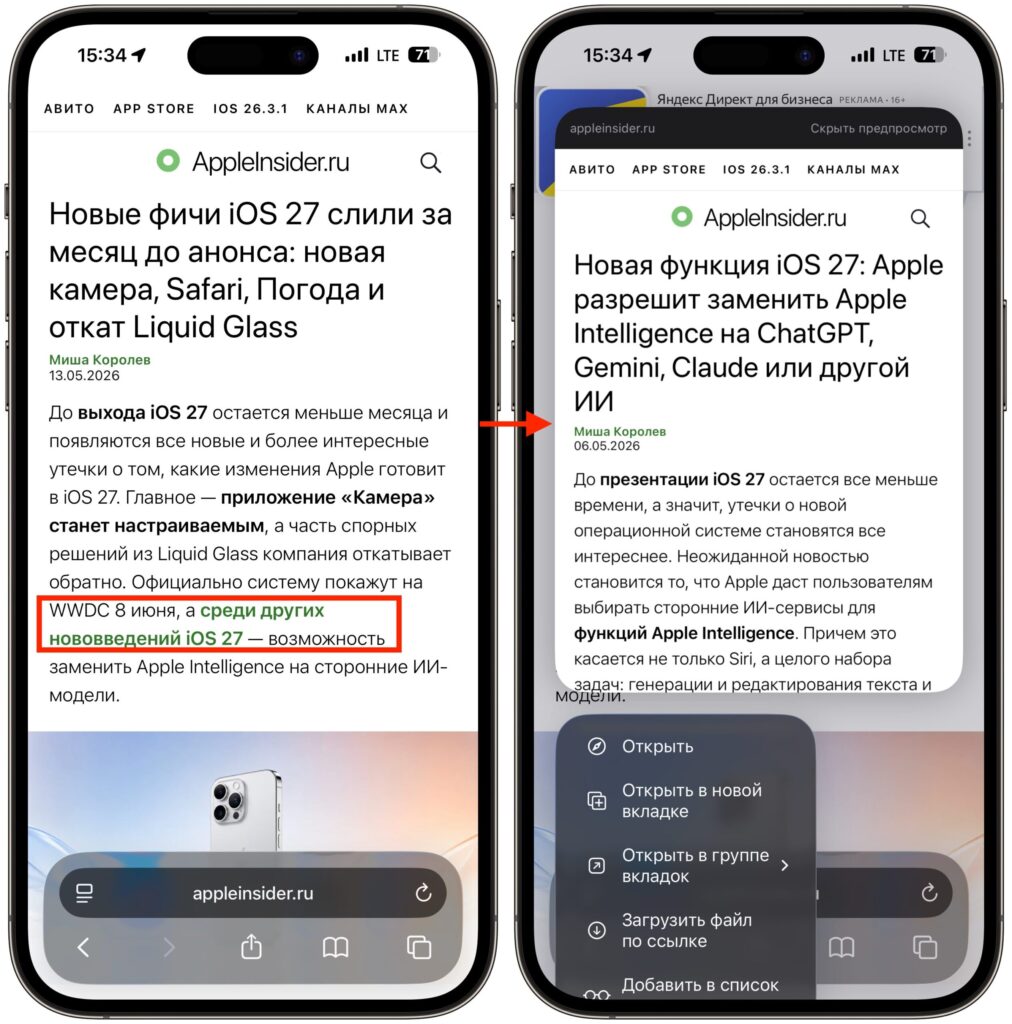
Just hold your finger on the link and it will open in a small window
To close the preview, simply swipe down or tap nearby — you’ll stay on the original page. Below the preview, two more useful options are hidden: Copy Link copies the address without navigating, and Open in Background opens the page in an adjacent tab so you can return to it later.
Quickly Scroll Back to the Top of a Page on iPhone
If you’ve scrolled far down through a feed, there’s no need to scroll back up manually. A tap on the top status bar — where the clock and battery indicator are — instantly scrolls the page back to the very top. One tap instead of ten swipes — saving several seconds every time.
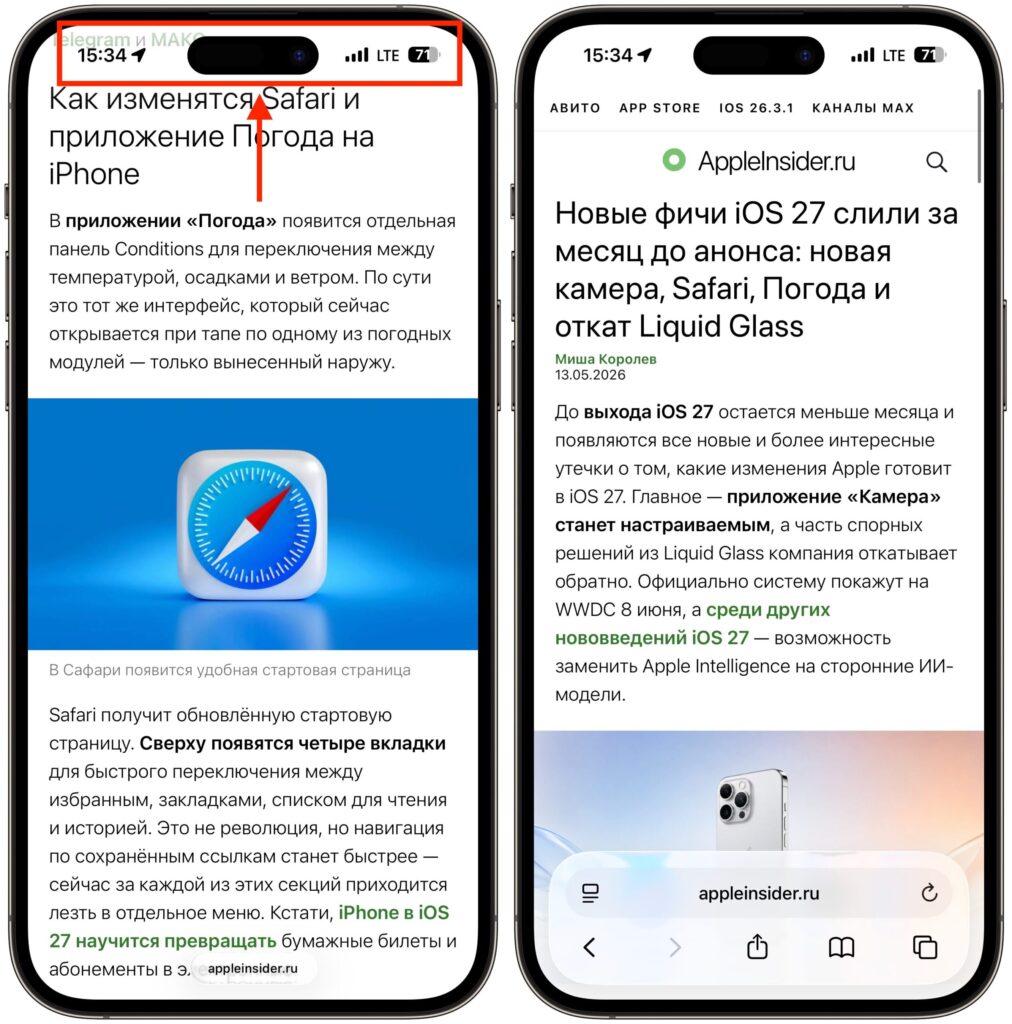
A fantastic gesture I use almost every day
The main bonus: this gesture works almost everywhere in iOS, not just in Safari. You can also use it to return to the beginning of an album in Photos, to the latest emails in Mail, or to the top of a list in Settings. This is a system gesture that Apple built into iOS itself, so it’s supported in the vast majority of apps — both built-in and third-party.
On iPhones with Dynamic Island, you need to aim slightly to the side of the cutout, otherwise it will activate instead of scrolling. It’s best to tap closer to the right or left edge of the status bar — that way you won’t miss. On older models with a notch, there’s no issue — you can tap anywhere.
Closed a Tab in Safari on iPhone: How to Restore a Page
Closed the wrong tab — and can’t remember what was on it? Safari has a quick way to bring it back, and you don’t need to dig through your history.
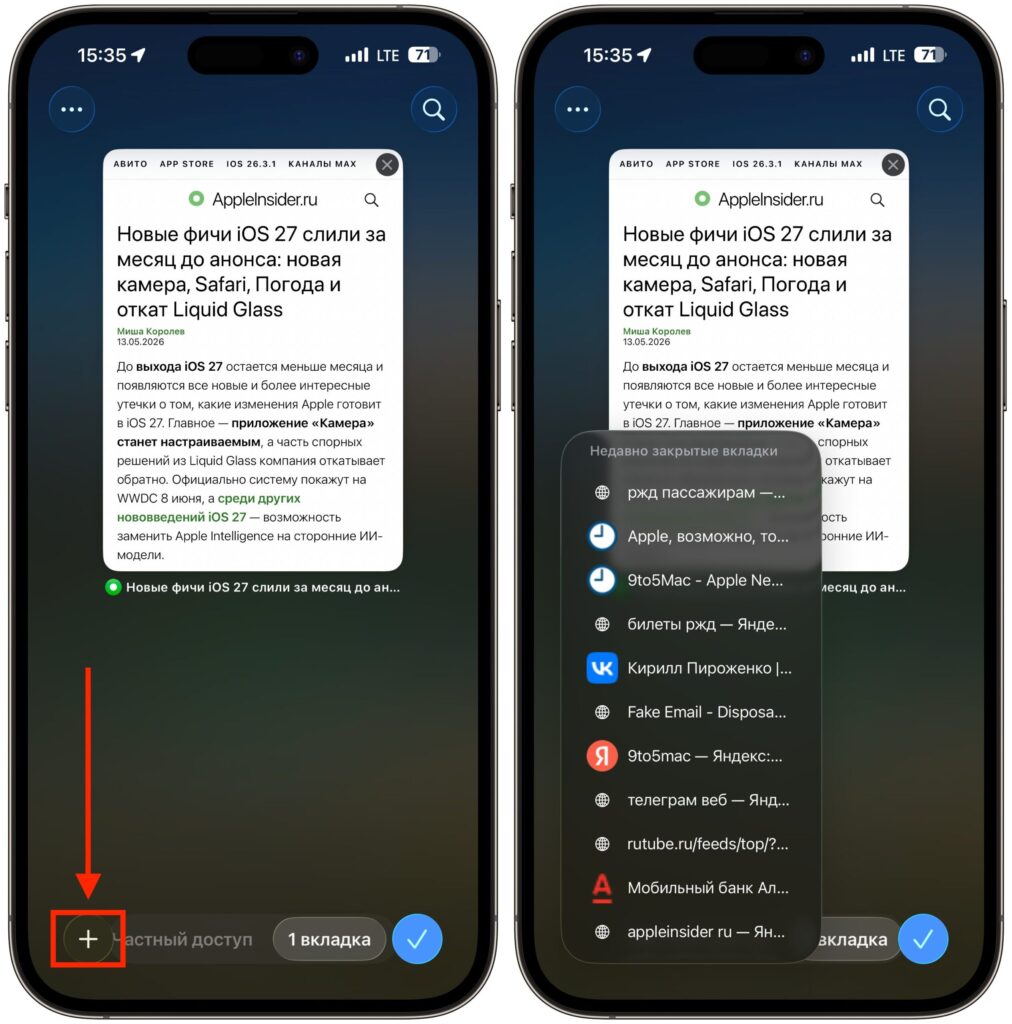
All recently closed tabs are right in front of you
- Open the tab overview screen (the icon with two squares).
- Press and hold the + button at the bottom.
- A list of recently closed tabs will appear — select the one you need.
Safari will restore not only the page itself but also the navigation history within the tab — the back and forward buttons will work as if the tab was never closed. On Mac, the gesture is the same: click and hold the “+” button. The list is stored for some time, but it’s best not to wait too long — after a few days, the oldest entries will disappear.
Finding a Word on a Page in Safari on iPhone
When you need to find a specific word or phrase in a long article, the Find on Page function helps. The quickest way is to open the Share menu and scroll down to the page search option. It’s not immediately visible, which is why many people don’t even know it exists.
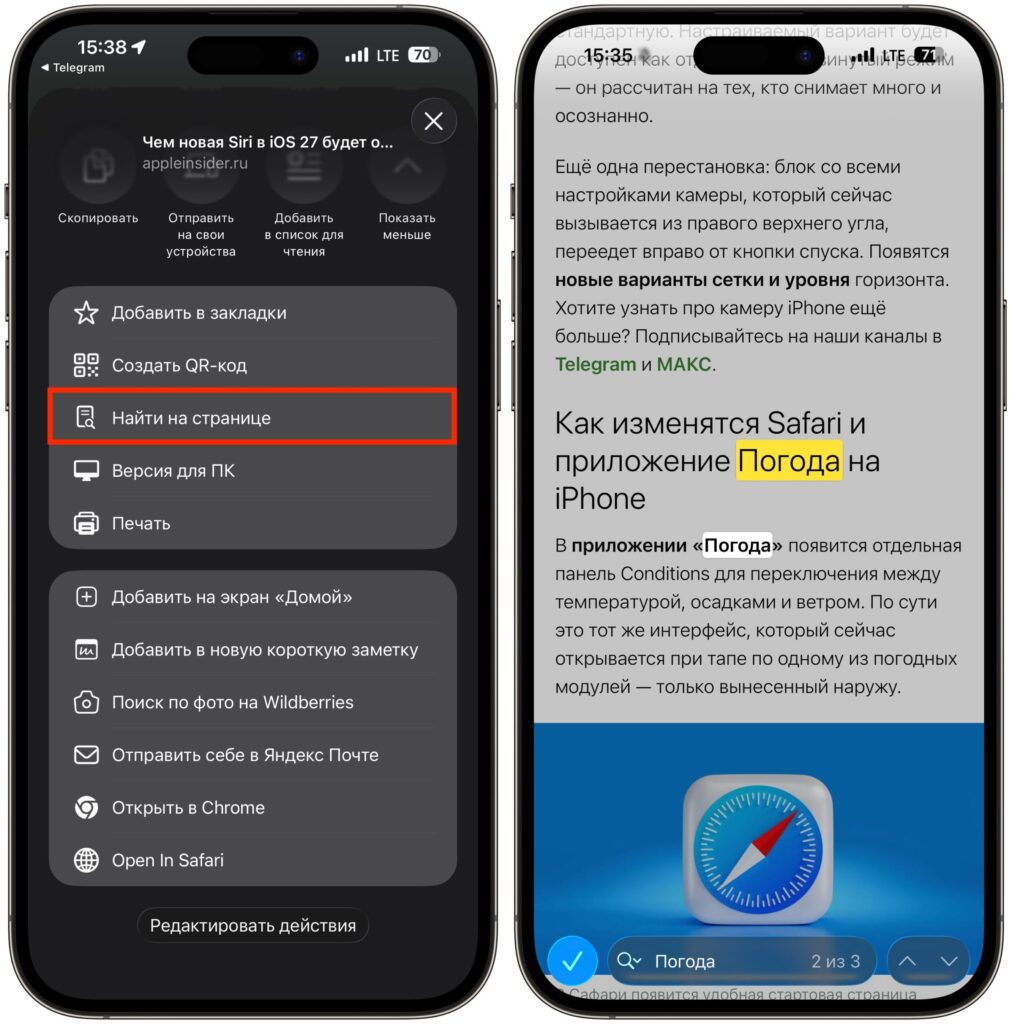
Sometimes this is much faster than searching with your eyes
There’s an even faster option: select a word in the text and in the pop-up menu choose Find Selection. Safari will immediately show how many times the phrase appears on the page and highlight all matches in yellow. You can use the arrows to jump between them — handy for quickly scanning a long document.
This trick is useful not just for reading. If you’re editing your own text right in the browser, you can check whether you’re overusing a certain word or punctuation mark. For example, searching for commas will show whether your text has turned into one endless sentence.
Opening a Link from an App Directly in Safari
Sometimes you need to copy the link to something you’re viewing in an app, but the developers didn’t include a button for that. The content opens in a built-in WebView, and there’s no “Copy Link” option anywhere. For situations like this, there’s an Open in Safari shortcut — a short command that opens the current content in the browser, from where you can properly copy the address.
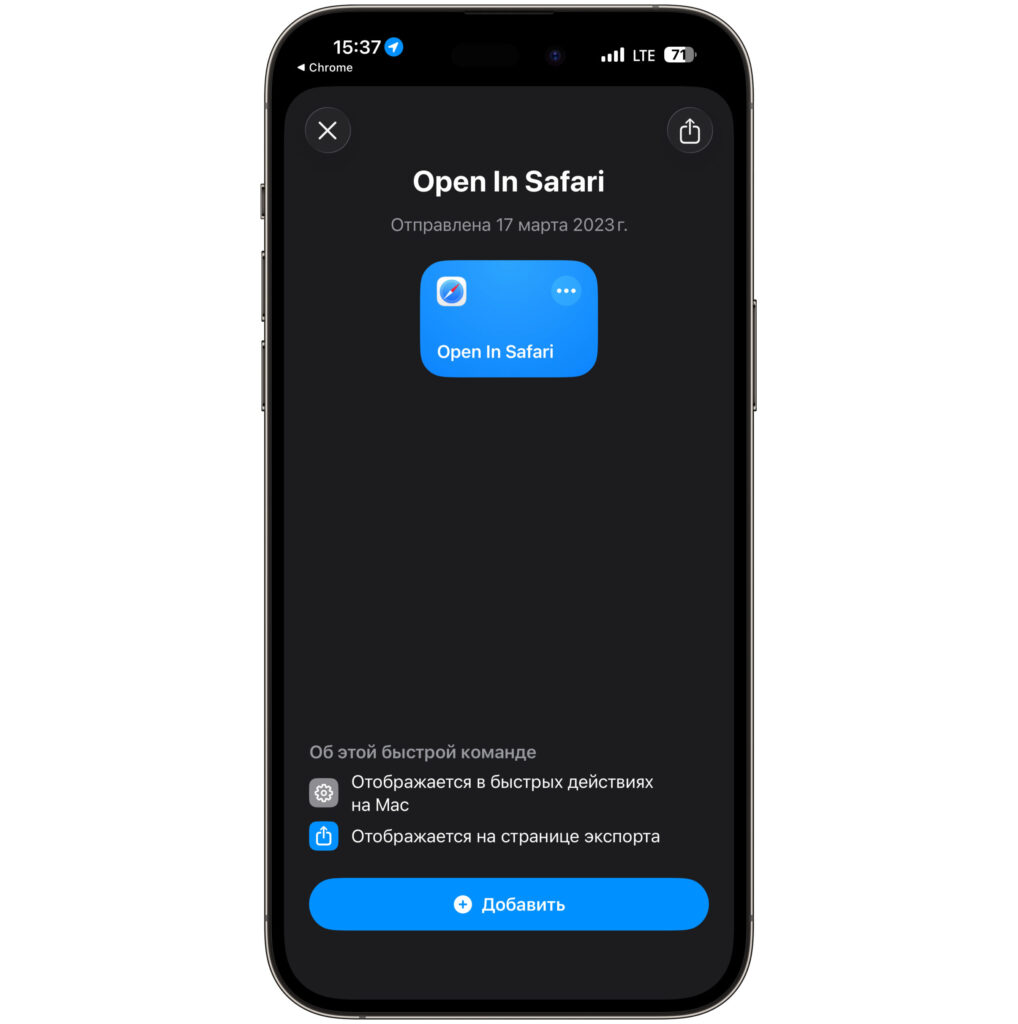
Add the shortcut via the link
After adding it, it appears in the Share menu. You won’t need it every day — but when you do, it’s invaluable.


