Spyware has long ceased to be a threat only for intelligence agencies and movie hackers. Attacks on journalists and activists through iMessage and WhatsApp are regularly documented, and some of them work without any action from the victim at all — simply receiving a message is enough. In response, major companies have added special enhanced protection modes to their products, which are enabled manually and genuinely hinder spyware.
iPhone has additional security settings
Why You Should Enable Hack Protection on iPhone
Spyware attacks on journalists, human rights defenders, and political figures are no longer rare or exotic. In early 2025, WhatsApp notified about 90 users — many of them journalists and civil society representatives in Europe — that they had been attacked by the Israeli company Paragon Solutions. Later, Apple sent similar notifications to iPhone owners, stating that two of them, both journalists, had been infected with Paragon Graphite spyware through a “zero-click” attack — meaning they didn’t even have to click on a link.
iPhone has features to protect user data
What this means in practice: spyware gives operators nearly full access to the victim’s device and data. Government agencies can record calls, steal messages, access photos, and turn on the camera and microphone to record ambient sound and nearby conversations. Plus real-time location tracking.
Important caveat: these features don’t make the phone invulnerable. Spyware manufacturers find new hacking methods, developers respond, and so on in circles. But these features are free, easy to enable, and today offer the best protection against advanced spyware, says security researcher Runa Sandvik, who has worked with journalists and at-risk groups for many years.
Lockdown Mode on iPhone — What It Disables
Apple calls its feature Lockdown Mode. It’s available on all Apple devices, including iPhone. Apple honestly warns: when enabled, the device won’t work as usual. In exchange, the phone becomes significantly more protected against targeted attacks.
There’s evidence that it works. Citizen Lab discovered that Lockdown Mode stopped one of the attacks by NSO Group’s Pegasus spyware. And in March, Apple stated that it had never recorded a successful attack on an Apple device with Lockdown Mode enabled.
Here’s what changes on iPhone after enabling the mode:
- attachments in iMessage, except for some images, videos, and audio, are blocked by default
- links and previews in iMessage are disabled and displayed as plain text
- in Safari, fonts, some images, and certain web technologies are blocked
- incoming FaceTime calls are blocked if you haven’t communicated with that person before or in the last 30 days
- Screen Sharing, SharePlay, and Live Photos are unavailable
- geolocation data is removed from shared photos
- to connect an accessory or computer, the phone needs to be unlocked
- automatic connection to open and public Wi-Fi is disabled
- the phone won’t be able to connect to 2G and 3G networks
- configuration profiles cannot be installed, and the device cannot be connected to an MDM system
To enable the mode, open “Settings,” then “Privacy & Security,” scroll down to “Lockdown Mode.” After activation, the iPhone will restart.
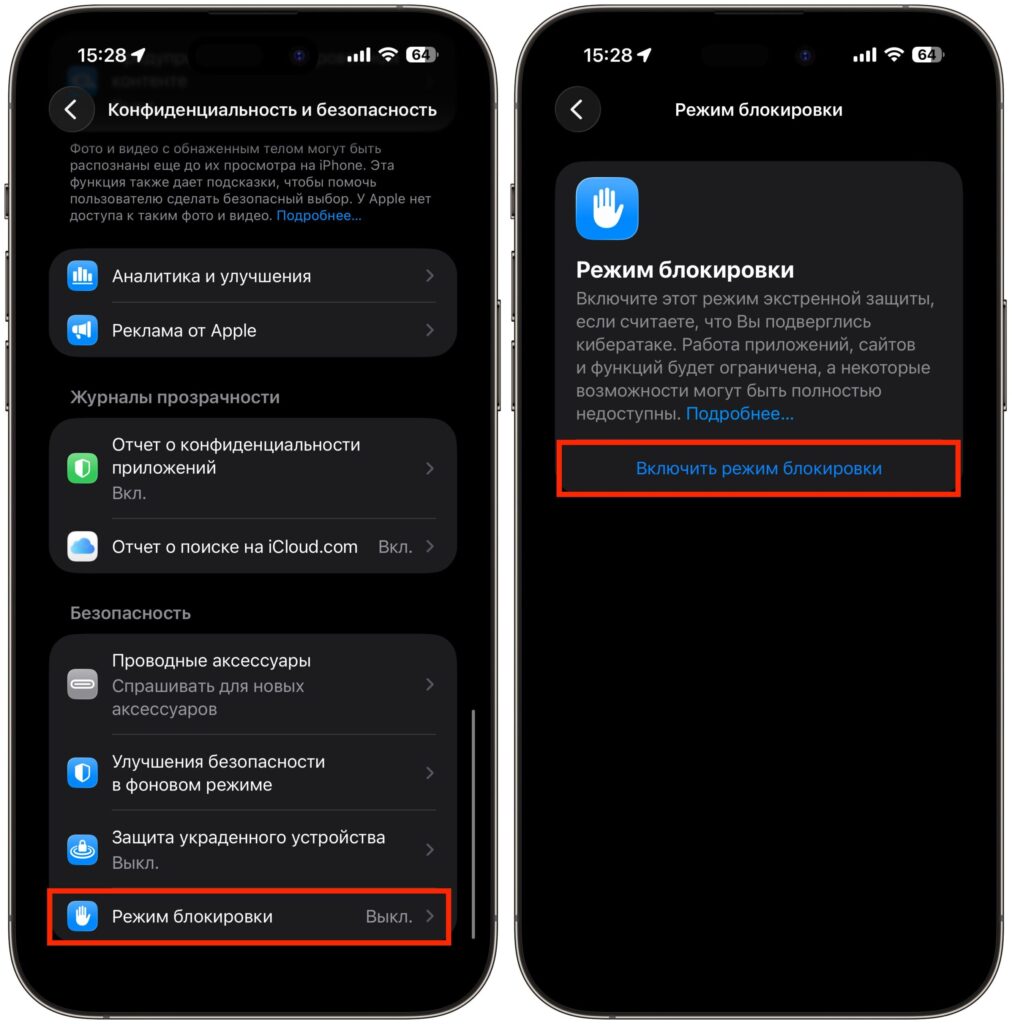
The mode is enabled here
In practice, the mode is tolerable: the original article’s author has been using it for a long time and hasn’t experienced any serious inconveniences. Some websites may initially work poorly, but Lockdown Mode can be selectively disabled for specific websites and apps without turning it off entirely.
Who Needs Lockdown Mode on iPhone
Lockdown Mode is not a “checkbox for the paranoid,” but it’s not a feature for everyone either. Apple and security researchers recommend enabling it if you have reason to suspect that you might become a surveillance target — due to your profession or public activities. This applies to journalists, human rights defenders, activists, opposition politicians, and their close ones.
Regular users don’t need to enable the mode. The cost of spyware like Pegasus or Graphite is measured in millions of dollars per single attack, and it’s not spent on random people. But if you want to minimize the attack surface as much as possible, the mode won’t make the iPhone useless — it doesn’t break most everyday tasks.
Privacy Settings in WhatsApp*: How They Protect Against Surveillance
WhatsApp* is a separate sore point. The messenger is used by more than 3 billion people, including those who are in the crosshairs of various agencies and organizations. The demand for WhatsApp* hacking tools is such that exploits cost millions of dollars — and they work. In response, the company launched the Strict Account Settings feature. This is an optional mode that enables a whole batch of protective settings with a single toggle.
What changes in WhatsApp* on iPhone after enabling:
- two-step verification is enabled
- notifications arrive if a contact changes their phone or reinstalls WhatsApp
- attachments and media from unknown senders are blocked by default
- link previews are disabled
- calls from unknown numbers are silenced
- IP address is hidden during calls
- profile photo, “last seen” status, and description are hidden from those not in your contacts
- only contacts can add you to group chats
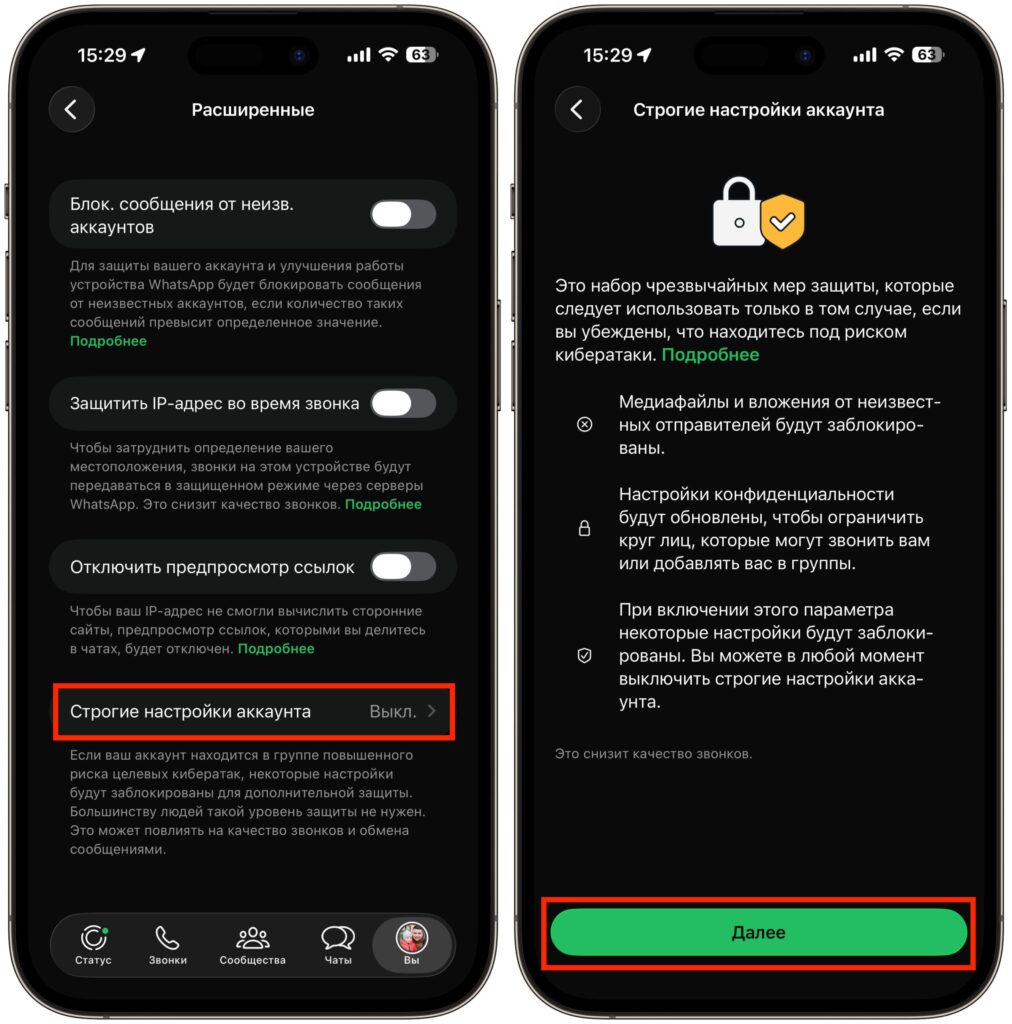
Activate this item and follow the on-screen instructions
To enable the feature, open WhatsApp* on your main device, go to “Settings,” then “Privacy,” scroll down to “Advanced,” and activate the toggle.