You’ve almost certainly pasted a command into Terminal at least once. You found a solution on a forum, copied the line, pressed Cmd+V, and waited for the result. But recently, Mac started showing a warning, and the command simply wouldn’t run. Without any explanation. Attackers are increasingly finding holes in Mac security, so extra caution doesn’t hurt. Now Apple has finally explained what’s been happening all this time.
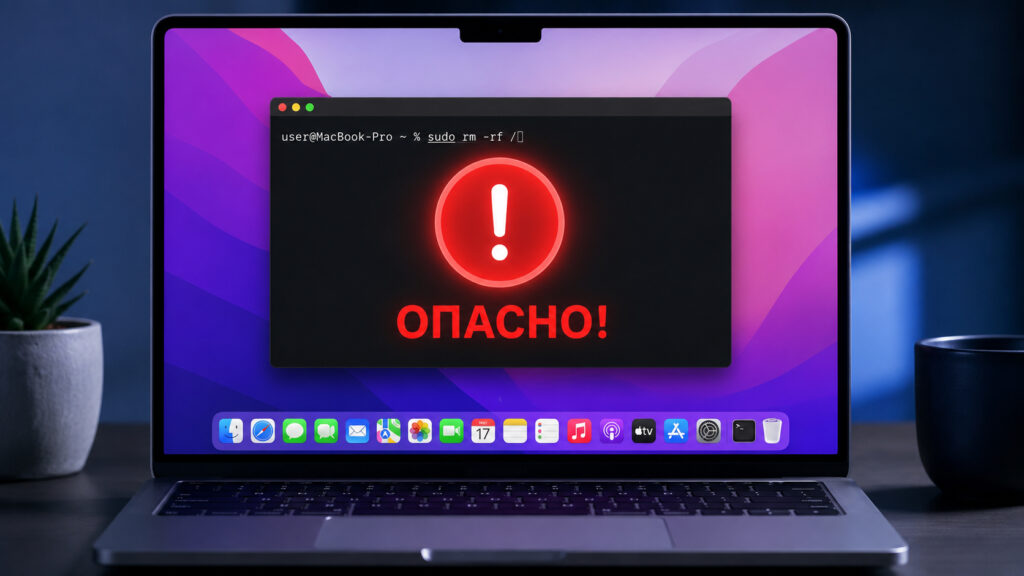
Pasting commands into Terminal without thinking has become simply dangerous
Why Mac Warns You When Pasting Commands in Terminal
The feature appeared back in March with the macOS Tahoe 26.4 update. At that point, Mac started blocking commands pasted into Terminal, but nobody at Apple explained why. On Monday, the company released an official support document and laid everything out clearly.
Sometimes a dangerous attack disguises itself as friendly help. A pop-up window promises to quickly fix your Mac. A stranger in a chat offers a “magic” command that will supposedly solve your problem in a second. All you have to do is copy the line and paste it into Terminal, the macOS command line.
Terminal lets you run various commands that don’t have buttons in menus or toggles in settings
This is where the trap lies. As soon as you paste someone else’s command and run it, you essentially give the scammer access to your computer. Voluntarily, with your own hands.
Apple’s new protection annoys experienced users, that’s true. But it targets a specific and rapidly growing scheme: convincing Mac owners to install malware with their own hands.
What Is ClickFix and Why Is It Dangerous for Mac
This technique has a name — ClickFix. And it has long stopped being a rarity. According to ESET, in the first half of 2025, the activity of such attacks grew by more than 500%. Researchers found that ClickFix accounted for more than half of all Mac infections for the year. This is now the primary method of delivering malware to Mac, not some exotic trick.
The logic is simple. You’re shown a fake page or pop-up window, sometimes a message in a messenger. It says something is wrong with your Mac: a player is broken, a website won’t open, a “prove you’re not a robot” check isn’t passing. And right there they offer a command that will “fix” everything.
Then you copy this command and paste it into Terminal. Done — the attacker has access to your machine. The most unpleasant part is that conventional security tools are powerless. You started the process yourself, of your own free will, so the antivirus doesn’t see a threat. And then your passwords go straight to the scammers.
Apple approached the problem from the other side. The system intercepts the pasted code before it can do anything at all. It doesn’t deal with consequences — it stops the command right at the entry point.
What Warnings macOS Shows When Pasting Commands
In the support document, Apple divided the alerts into three types. Each has its own alert level.
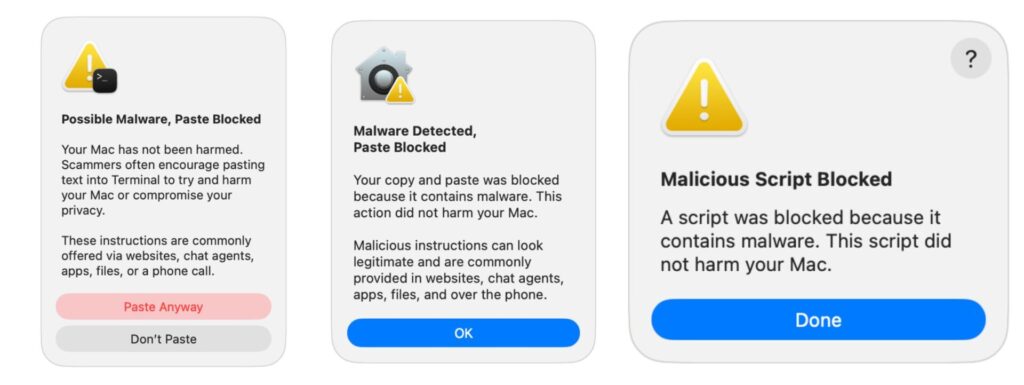
Here are all possible warnings that macOS displays
The first message, “Possible Malware, Paste Blocked”, appears when you copy a command from a website, email, or chat. Apple assumes that the average person doesn’t use Terminal and suggests you stop and think twice. Here you have a choice: click “Don’t Paste” to cancel or “Paste Anyway” if you know exactly what you’re doing.
The other two warnings are more serious. “Malware Detected” and “Malicious Script Blocked” mean that macOS found a match with a known malware signature. The system stops the command on its own, and you cannot disable this block. There’s simply no “paste anyway” button here.
The meaning behind all three messages is the same: your Mac is fine, but running this command is definitely not a good idea.
What to Do If Mac Blocked a Command Paste
First, remember where the command came from in the first place. Most programs, developer tools, and app installers don’t need Terminal at all. If a website, pop-up window, or chat contact sent you there, that’s a red flag.
Developers and system administrators shouldn’t panic. If you work with Terminal every day and see a “Possible Malware” warning on a safe command, it’s nothing to worry about. Apple emphasizes that the alert is designed for beginners and is shown only once per session. When the feature first launched, Apple said nothing about it. But for those who googled a solution and blindly pasted a command, it could prove very useful.
Don’t paste commands into Terminal mindlessly, and that will be your main protection
There’s also a flip side. The protection only covers Terminal, and scammers have already figured this out. A couple of weeks after the update was released, Jamf found a new attack variant: instead of Terminal, the victim is directed to Script Editor via a special link. The command gets there bypassing Terminal, so the warning simply doesn’t trigger.
The practical takeaway is simple. If Mac blocked a paste into Terminal, don’t look for ways to bypass the protection. In nine cases out of ten, the system is right, and you’re one step away from running someone else’s program with your own hands. And remember that one warning window doesn’t make you invulnerable. Commands from unfamiliar websites, emails, and support chats are best not run at all.