You pick up your iPhone from the charger in the morning, and there’s a red badge on Settings with an alarming notification: “iPhone Backup Failed.” Your first thought — everything is lost, data wasn’t saved, you need to do something urgently. In reality, in most cases there’s no need to panic. Let’s figure out why this error appears, how to check that your backup is fine, and what to do if your storage space has actually run out.
iPhone Backup Failed appears most often on free iCloud plans or with poor internet
Why iPhone Doesn’t Back Up to iCloud
Every night, while your iPhone is charging and connected to Wi-Fi, it automatically tries to create a backup in iCloud. This is one of the most useful iOS features — if your phone breaks or gets lost, you can restore all your data to a new device in just a couple of minutes.
The problem is that Apple gives each user only 5 GB of free iCloud storage by default. And those 5 GB are shared not only by backups but also by photos, iCloud Drive documents, app data, and even iMessage conversations. It’s no surprise that storage runs out quickly.
A typical situation looks like this: you have 4–4.5 GB used out of five. iPhone dutifully tries to create a backup, space is tight, and iOS throws a warning just in case. At the same time, if you go into Settings — the backup is fresh, everything is working fine. The system is simply being cautious because next time there might not be enough space.
Sometimes the error appears due to temporary glitches: unstable Wi-Fi, brief issues with Apple servers, or an iOS update. In all these cases, the backup most likely was created — you just need to verify it.
Where to Check the Latest iPhone Backup
Before changing anything, make sure the backup is actually being created. This will take literally thirty seconds:
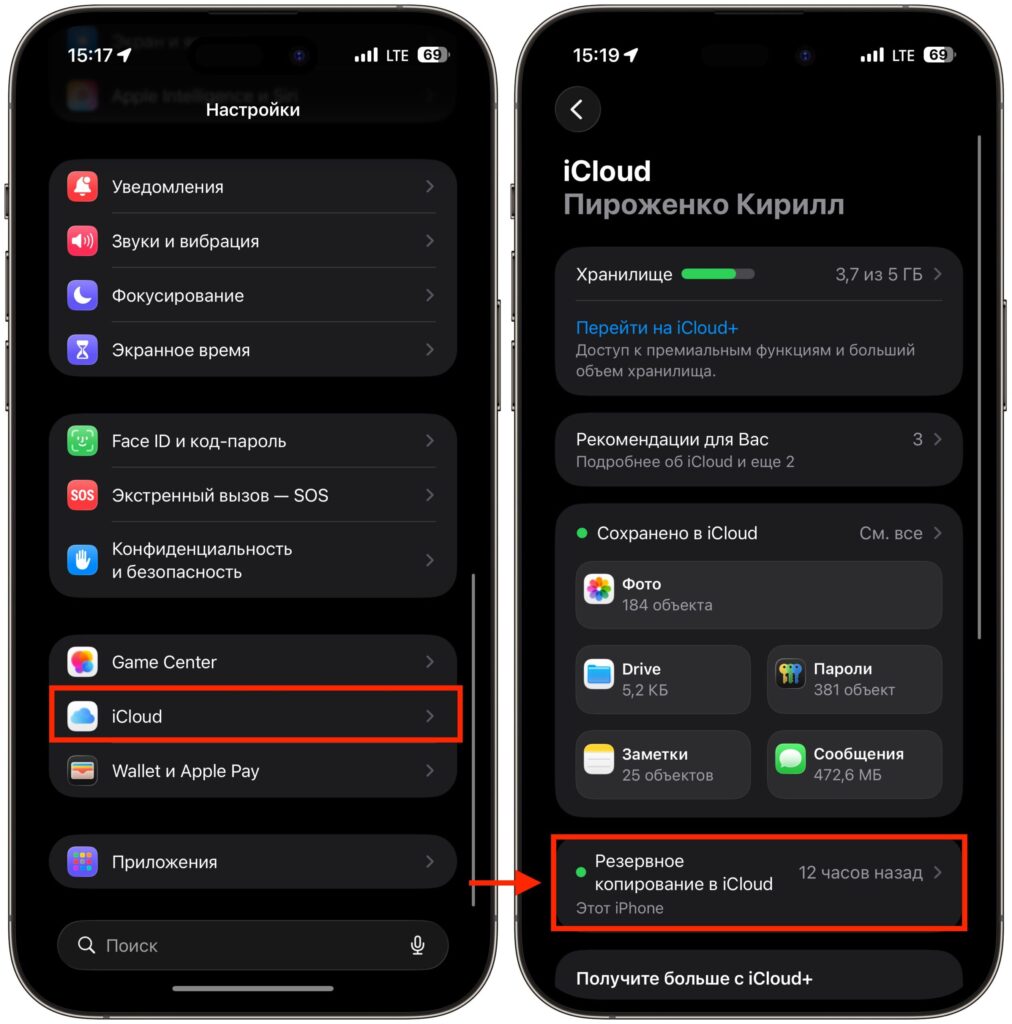
If the green light is on and the backup was created recently, everything is fine
- Open Settings and tap your name at the top of the screen.
- Go to the iCloud section.
- Find the “iCloud Backup” block — there should be a green indicator (toggle turned on) next to it.
- Check the date and time of the last backup.
If the backup was created today or yesterday — everything is perfectly fine. The error was a false alarm, and your data is safe. You can simply swipe away the notification and move on. But if the green indicator is off or the backup date shows last week — it’s worth investigating further.
Manual iPhone Backup: How to Enable It
When the date of the last backup raises doubts, start the process manually. This is also useful because you’ll immediately see whether there’s enough space for a backup or not.
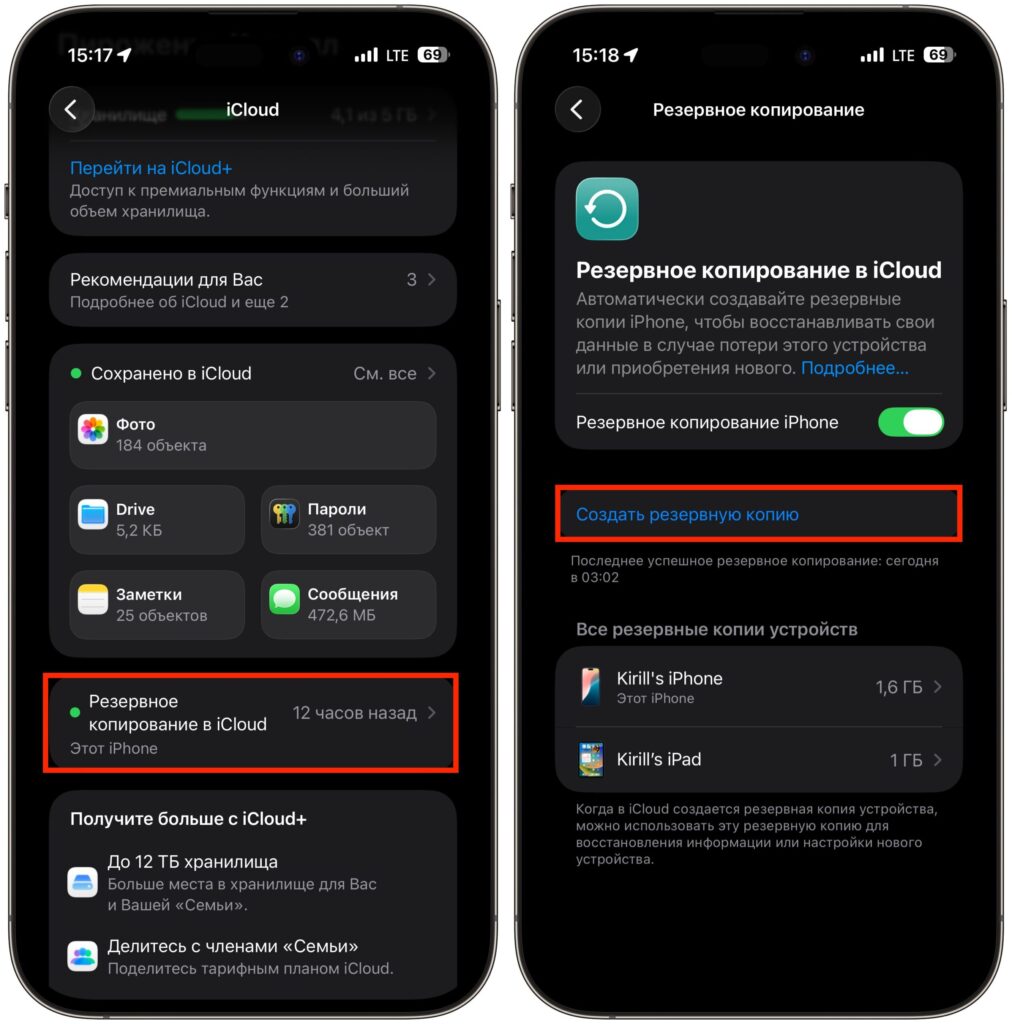
Backup can be started manually
- Go to Settings — [your name] — iCloud — iCloud Backup.
- Tap the “Back Up Now” button.
- Wait for the process to complete — this can take from a couple of minutes to half an hour, depending on the data volume and Wi-Fi speed.
If the backup was created without errors — great, the problem is solved. If the system says there’s not enough space, move on to the next step.
Important: typically iPhone backup requires Wi-Fi, so if there’s an error, first connect to a stable Wi-Fi network. Also make sure your battery level is at least 50% — or plug your phone into a charger.
Apps You Can Exclude from iCloud Backup
One of the most effective methods is to optimize the contents of your backup. The thing is, by default iPhone pulls data from absolutely all apps into the backup. But many of them store information on their own servers, and there’s no point in duplicating it in iCloud.
Here’s how to set this up:
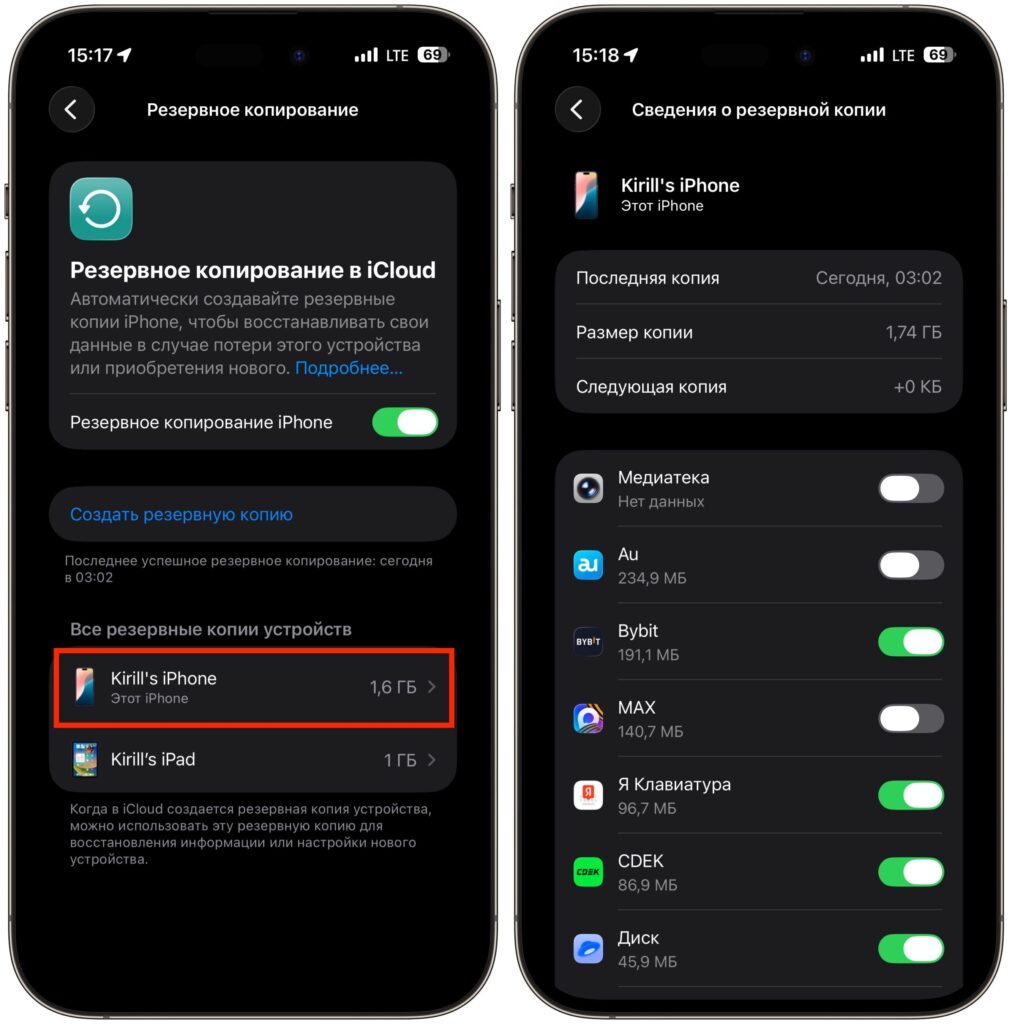
You can safely remove everything unnecessary from the backup
- Open Settings — [your name] — iCloud — iCloud Backup.
- Tap on your iPhone’s backup in the device list.
- You’ll see a list of apps showing the amount of data each one takes up in the backup.
- Turn off the apps that don’t need an iCloud backup.
Apps you can safely exclude from backup:
- Telegram — all chats are stored in Telegram’s cloud; everything restores automatically upon reinstallation
- Social media messaging apps — similarly, data is on the messenger’s servers
- Marketplace apps — listings and messages are tied to your account, not the device
- Social networks — all information is in the social network’s cloud
- YouTube, streaming music and video services — content is pulled from servers
However, these apps are better kept in the backup:
- Notes and Reminders — if you use local storage
- Health — medical data can only be restored from a backup
- Banking apps — settings and authorization tokens may be lost
- Games with local progress — without a backup you’ll start from scratch
After disabling unnecessary apps, try to create a backup manually again. Most likely, it will fit now.
iCloud+ Plans for Those Who Need More Than 5 GB
If after optimization your space is still tight, the simplest solution is to subscribe to iCloud+. This is a paid storage expansion that also gives access to additional features: Hide My Email, Private Relay, and HomeKit Secure Video support.
Here are the current plans for two of the most popular regions:
USA (USD):
- 50 GB — $0.99 per month
- 200 GB — $2.99 per month
- 2 TB — $9.99 per month
- 6 TB — $29.99 per month
- 12 TB — $59.99 per month
Turkey (TRY):
- 50 GB — 39.99 ₺ per month
- 200 GB — 129.99 ₺ per month
- 2 TB — 399.99 ₺ per month
- 6 TB — 1,299.99 ₺ per month
- 12 TB — 2,499.99 ₺ per month
The Turkish region is traditionally cheaper than the American one — even after price increases in 2025, the 50 GB plan converts to just over a dollar. You should look at the prices for the region your Apple ID is linked to.


