Owners of new iPhones have encountered an unpleasant situation: the phone died completely, they immediately connected it to a cable, but the iPhone screen won’t turn on and doesn’t respond to touches. Other users have left similar complaints — and the problem, it seems, isn’t fixed the way everyone is used to.
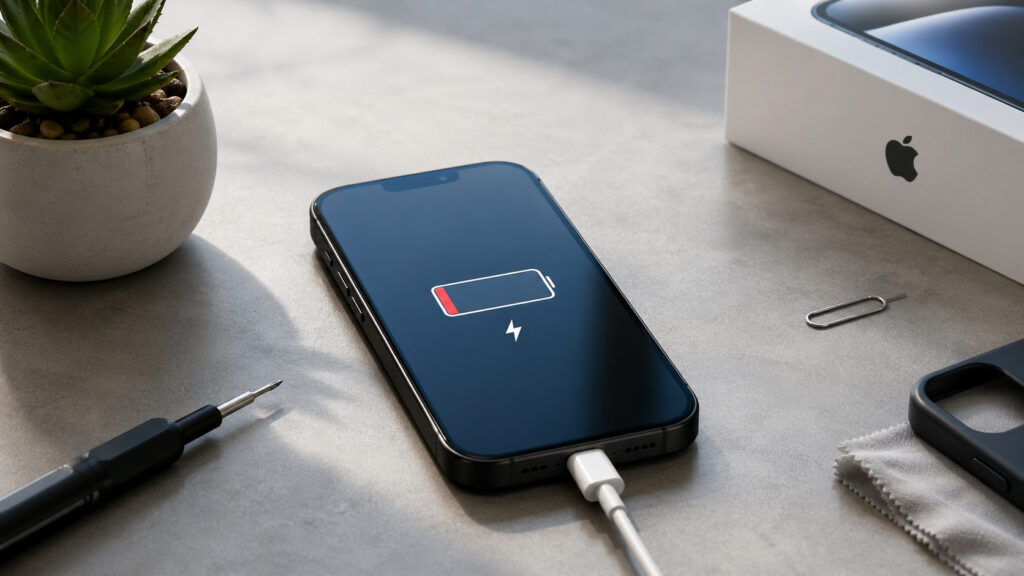
The smartphone can die and not turn on
iPhone Won’t Turn On After Full Discharge
The scenario is roughly the same for everyone: the iPhone battery drops to zero, the owner immediately connects a USB-C cable and waits for the familiar charging icon or Apple logo — but the screen stays black. According to user descriptions, after the discharge, connecting the cable literally seconds after shutdown doesn’t help: no low battery indicator appears, the display simply stays black, as if the phone is dead.
By description, this looks like a “brick,” but in reality the smartphone is alive — it simply won’t come out of deep discharge through a regular cable. The exact cause isn’t entirely clear, but the good news is that it can be resolved on your own.
iPhone Models That May Not Turn On After Discharge
This concerns specifically the new lineup. Similar complaints appear in several discussion threads and apparently affect all models of iPhone 17, iPhone 17 Pro, and iPhone Air.
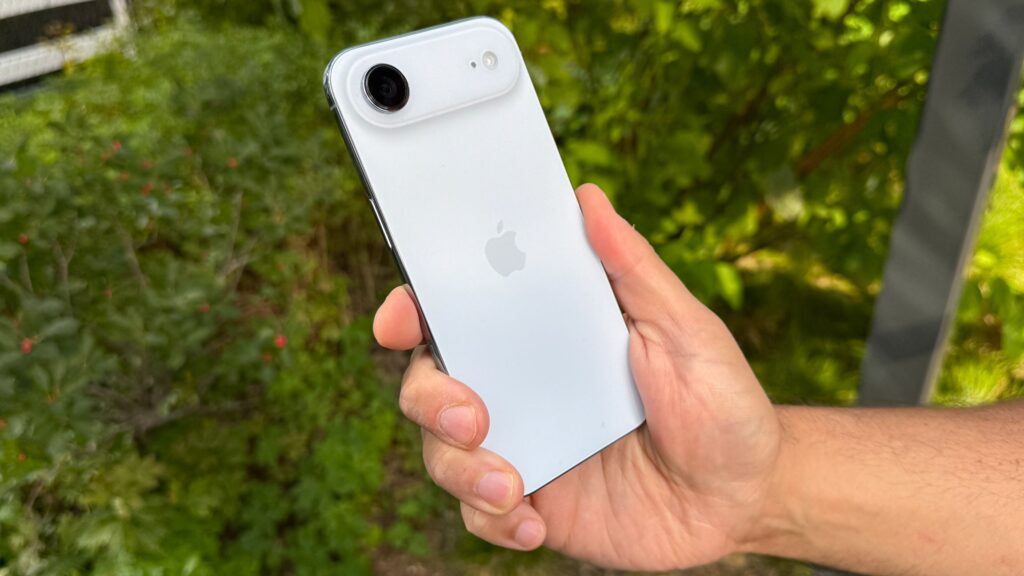
Problems occur in the new iPhone 17, Air, 17 Pro, and 17 Pro Max lineup
It’s important to understand the scale: this isn’t a mass defect that affects every owner. How often it happens is still unclear: the problem doesn’t affect everyone and doesn’t occur every time a specific phone’s battery dies. According to user reviews, over several months of use, this may happen once.
In the discussion comments, owners write that similar behavior has been noticed on Apple Watch Ultra 2 as well — the watch can also “freeze” when trying to charge after a full discharge and only comes back to life after 30–45 minutes on the charger. This means the problem may not be limited to iPhones alone, but there is no direct confirmation from Apple.
iPhone Won’t Charge From Cable
The most frustrating part of this story is that the usual actions don’t work. Users describe how they left the phone on a wired charger, tried a hard restart (press volume up, volume down, hold the side button), changed USB-C cables — the screen still stayed black. Connecting to a Mac didn’t help either — the phone wasn’t recognized in Finder.
It appears that in this state, the iPhone incorrectly draws voltage through the cable — charging is unstable, and the phone can’t get past the boot stage. This explanation comes from discussions, not an official Apple position, so it should be treated as a working hypothesis.
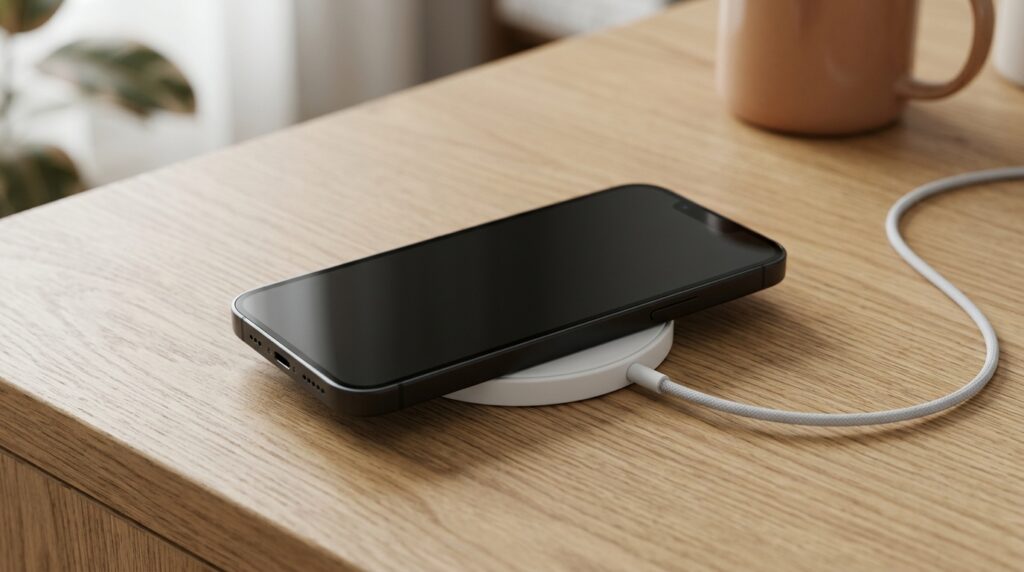
MagSafe charging turns out to be more reliable than a regular cable in this situation
How to Charge iPhone via MagSafe If It Won’t Turn On
The solution that works in most cases looks unusual: instead of a cable — MagSafe wireless charging. The most effective workaround according to discussions is to place the phone on a MagSafe charger and leave it for about fifteen minutes. According to reviews, the phone boots up after approximately ten minutes on wireless charging.
Step by step, it looks like this:
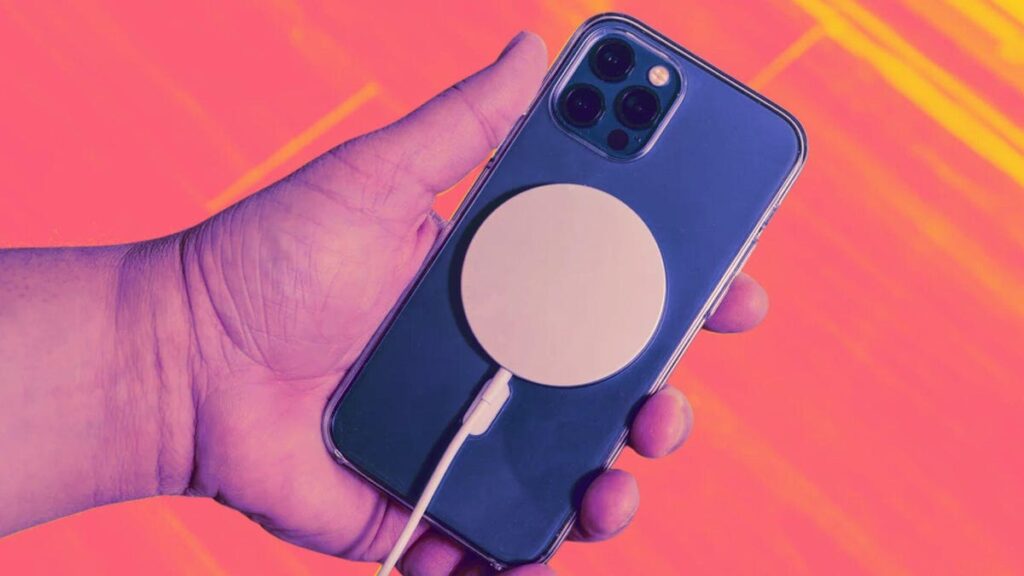
Connect to MagSafe and wait
- Remove the iPhone from the regular cable if it’s connected.
- Place it on a MagSafe charger or compatible wireless charging pad.
- Don’t touch the phone for 10–15 minutes — don’t try pressing buttons or performing a hard restart.
- If the Apple logo appears during this time, let the phone finish booting up peacefully.
According to users in the comments, some brought their “dead” phone to an Apple Store, and the staff there also reached for a MagSafe charger first. This is an indirect sign that the method is familiar to Apple specialists themselves.
Why You Shouldn’t Let Your iPhone Drain to Zero
The main practical takeaway is simple: on new iPhones, it’s better not to let the battery drain to zero, especially away from home. If the phone does die, don’t panic and don’t consider it broken after the first unsuccessful attempt to start it via cable — try MagSafe.
There’s also a more concerning scenario. If this happens on the road, when you need the smartphone for navigation, calling a taxi, or other important tasks, it’s better to get yourself an external battery with MagSafe. It has a built-in cable and magnets. Both charging options will always be at hand.
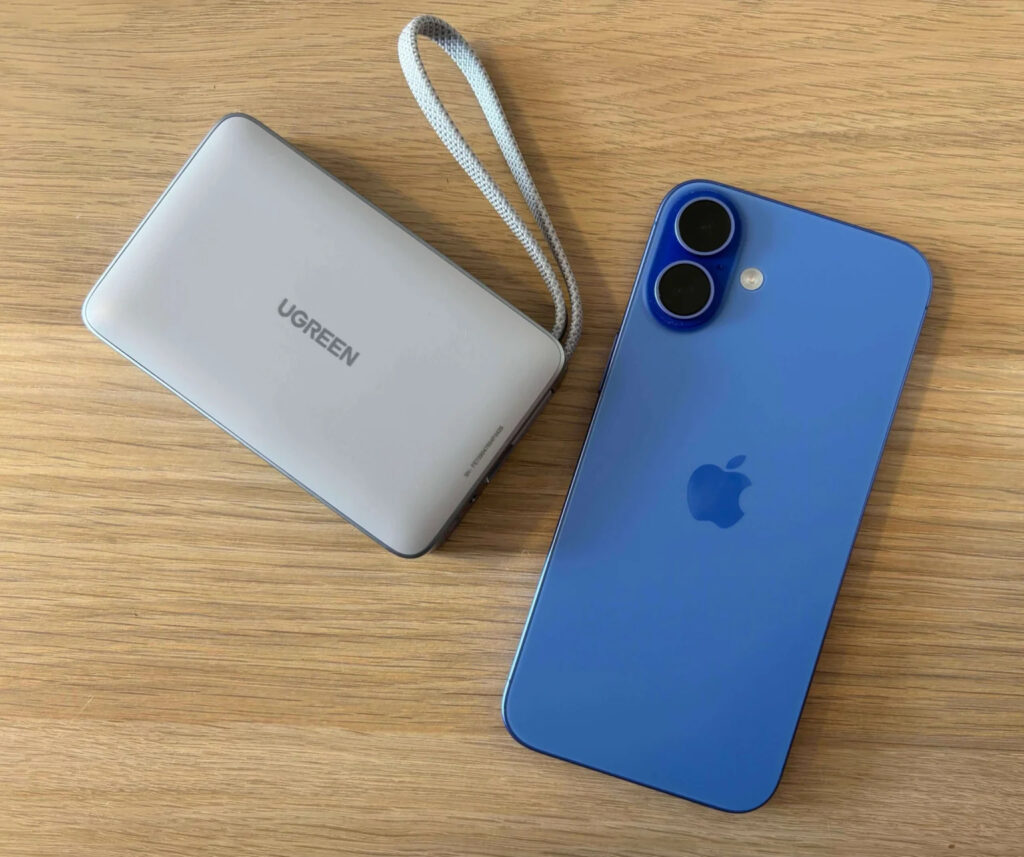
Get yourself a power bank like this and you’ll be all set
Who should pay attention to this issue:
- owners of iPhone 17, iPhone 17 Pro, and iPhone Air, especially those who frequently drain their phone to zero;
- those who depend on their phone during trips;
- travelers who usually only have a cable and a power bank without MagSafe on hand.
For this audience, a compact MagSafe charger or an external battery with MagSafe support becomes not a “convenience” accessory, but insurance against a situation where the phone refuses to turn on.
When to Contact Service If Your iPhone Won’t Turn On
The short answer is — not right away. If your iPhone from the new lineup won’t turn on after a full discharge, it first makes sense to try wireless charging and wait at least 15 minutes. According to user descriptions, in most cases the phone comes back to life on its own.
Apple has not officially commented on the problem yet, so it’s unknown whether this effect is related to firmware and whether a fix can be expected in an iOS update. For now, the only sensible strategy is not to drain your new iPhone to zero unnecessarily and to keep a MagSafe charger at home as a backup option. You should contact service only if the phone shows no signs of life even after prolonged wireless charging — then it looks more like a real hardware problem rather than strange behavior after deep discharge.