For a long time, Google’s presence on Windows was limited to just a browser. Want to search for something? Open Chrome. Want to use the company’s services? Do the same. In 2023, Google Play for PC appeared, allowing users to run mobile games on a computer, and that was the first step toward a full-fledged Google presence on Windows. Now the second step has been taken: on April 14, 2026, the American company released a standalone desktop application with search, a neural network, and screen analysis. It works on top of any open window and can be launched with a single keyboard shortcut.
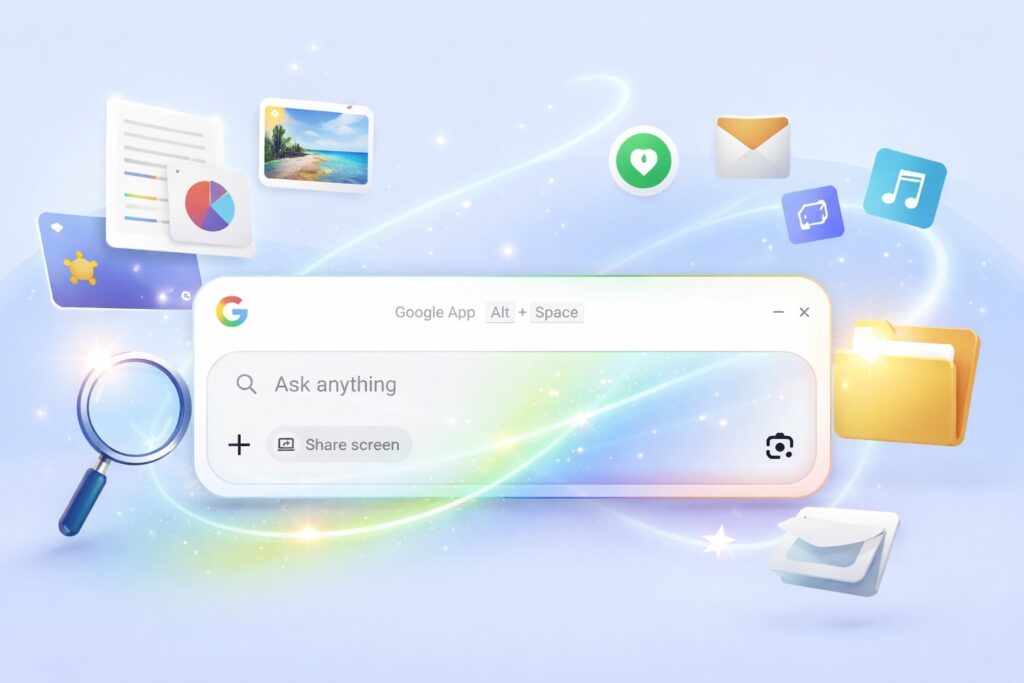
Now Google’s smart search is available on Windows too
What the Google App for Windows Can Do
The Google app for Windows is not a browser and not a search bar in the tray. It’s a full-featured tool that works on top of any application without the need to minimize it. So Microsoft, with its Copilot built into the Windows 11 update with an AI assistant, now has a direct competitor from Google.
Here’s what the Google app on Windows can do:
- Internet search with AI. The app has a built-in AI Mode (the same one available in Google Search). You ask a question, get a detailed answer with sources, and can ask follow-up questions in the same context.
- Screen analysis via Google Lens. You can select any part of the screen (a specific window or the entire desktop) and ask a question about its contents. Translate text, search for products by image, identify a location on a map — all directly from the app without screenshots.
- File search on your computer. The app searches for files and installed programs on your PC, so you don’t need to open File Explorer or try to remember which folder a document is in.
- Google Drive search. If your files are stored in the cloud, the file search on PC extends to Google Drive as well (cloud results appear alongside local ones).
All of this works without switching between applications. You stay in the same window you were working with and simply ask a question on top of it.
Where to Download Google for PC
The official download page for Google on Windows is located at search.google/google-app/desktop. There you’ll also find a “Download the app” button that leads to a page with a direct link to the installer.
General points before installation:
- Windows 10 or Windows 11;
- User must be at least 13 years old;
- A Google account;
- The app is currently available only in English.
The last point is important: the Google app on PC at the time of release works only in English. There is no Russian interface or Russian-language search through AI Mode yet — Google promises to expand the list of languages but hasn’t given specific dates. Lens features and file search work regardless of the language limitation.
How to Install Google on Windows
After downloading the installer, the process is standard:
- Run the downloaded installer file.
- Allow the app to make changes to your device (standard Windows prompt).
- Wait for the installation to complete (takes about a minute).
- After installation, the app will appear in the system tray and will be ready to use.
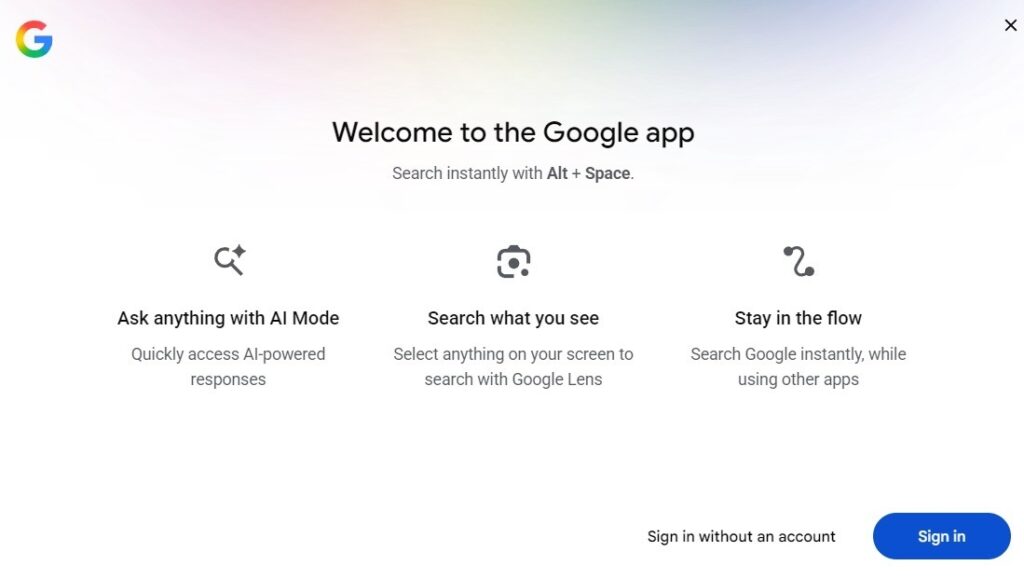
After installation, the app will ask you to sign in to your Google account
You can install Google on Windows without administrator rights, as the installer runs in user mode. After the first launch, the app will prompt you to sign in to your Google account and set up file access.
Setting Up Google on Windows
After installation, you need to complete a few steps to get all features working:
- On the first launch, click “Sign in” and log into your Google Account on PC (without this, AI search and Google Drive won’t be available).
- When the app requests access to files on your computer — allow it. Without this, file search on PC won’t work.
- For Google Drive search, additionally confirm access to cloud storage (the app will open a standard Google authorization window).
- Optionally: in the app settings, you can choose which folders on your PC to index and exclude those you don’t need in search.
- Check that the Alt+Space keyboard shortcut doesn’t conflict with other programs (you can reassign it in settings if needed).
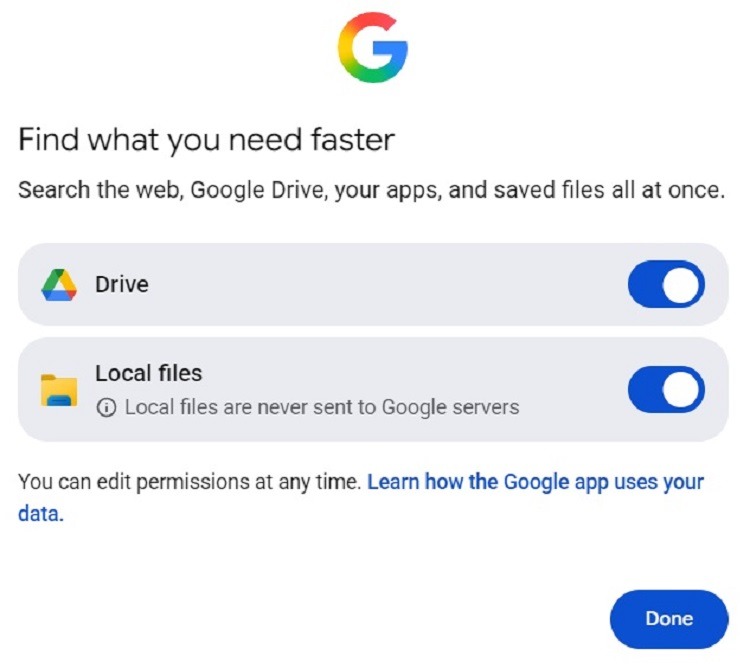
To use all features, you need to allow file access
Setting up Google on PC takes just a few minutes, and after that the app runs in the background, ready to be called up at any moment.
How to Use Google on Your Computer
After setup, using the app is straightforward. Press Alt+Space at any time, and a search bar will appear on top of the current window. Main usage scenarios:
- Regular internet search. Type a query, press Enter — get an answer with AI Mode. You can ask follow-up questions without starting a new search.
- File search. Enter a file name or its contents. Google search on PC will find it both on your local drive and in Google Drive.
- Screen analysis. Click the Lens icon in the app, select the desired area of the screen, and ask a question about what’s there. For example, you can select a table in an open document and ask “what does this mean” or select an unfamiliar interface and ask for an explanation.
- Contextual questions about a window. You can select a specific application and ask questions considering its contents (Google sees what’s open on the screen and takes it into account in its response).

The app works like a search bar, but it’s much smarter
Searching the internet on PC through this app works faster than opening a browser, navigating to google.com, and typing a query. It’s literally Alt+Space, a question, Enter — and the answer is already on screen while your main window stays open.