After the launch of the MAX messenger and rumors about its dangers, hundreds of thousands of people became concerned about the privacy of their data. In particular, they started paying more attention to the games and apps they install. Nevertheless, many continue to be lost in guesses, even though Android has had a tool for several years that shows which apps have accessed the camera, microphone, geolocation, and other sensitive data. Let’s figure out where this panel is hidden, what it actually shows, and how you can use it to revoke permissions from apps that don’t need them in just a couple of minutes.

The dangerous one turned out to be not MAX at all
What Is the Android Privacy Dashboard
You can view app permissions in regular settings, but there they’re scattered across separate menus. The Android Privacy Dashboard (Permissions Dashboard) gathers everything in one place and shows which apps most frequently access your data in a clear diagram.
The main advantage of this section is that it doesn’t just list permissions but shows how often an app accesses them and at what time. Each access has a timestamp, so you can see whether an app was accessing the microphone or geolocation while you weren’t using it.
Where to Find the Android Privacy Dashboard
The exact path depends on your phone brand, but the easiest way is to type “Privacy Dashboard” or “Privacy” in the settings search and select the appropriate option. But you can always navigate manually:
- Open your phone’s settings.
- Go to the “Security and Privacy” section.
- Open the “Permissions Dashboard” tab.
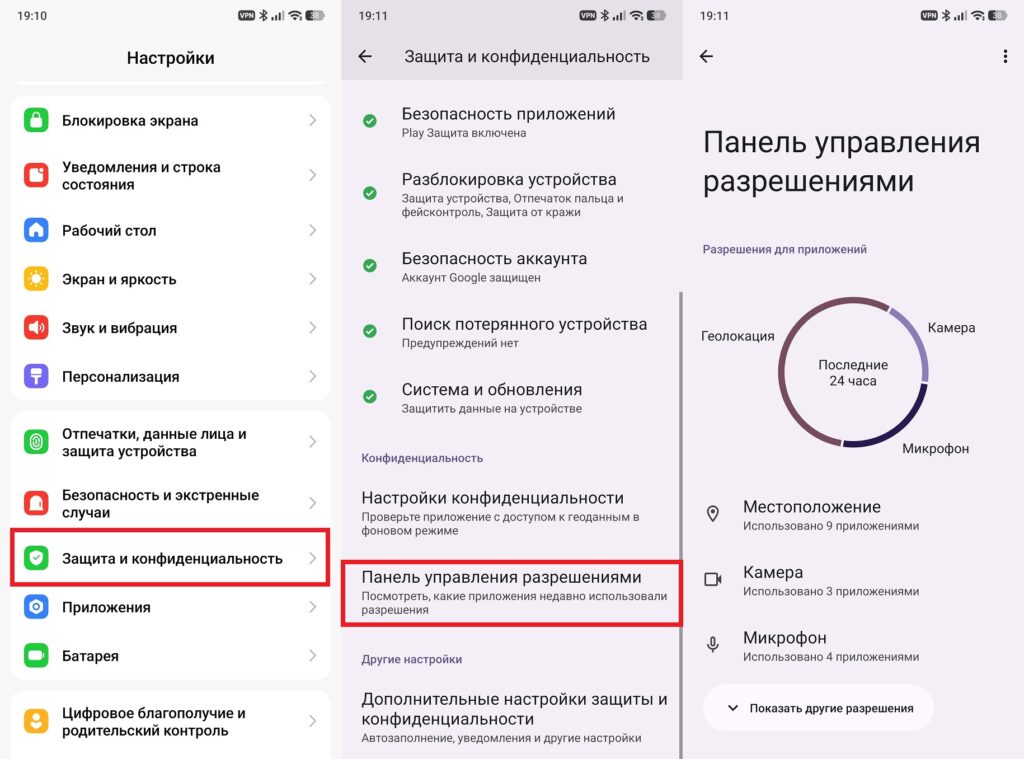
This panel can be found on almost any Android smartphone
On Samsung smartphones with One UI, the panel looks slightly different from other brands. On Galaxy devices, you need to go to “Settings” and open the “Security and Privacy” section — from there you’ll get to the same permission data.
Checking Apps for Tracking
In practice, most apps in the geolocation list turn out to be expected: weather, maps, games, and services where geolocation is genuinely needed. But the panel helps you notice exceptions that you usually never get around to checking manually.
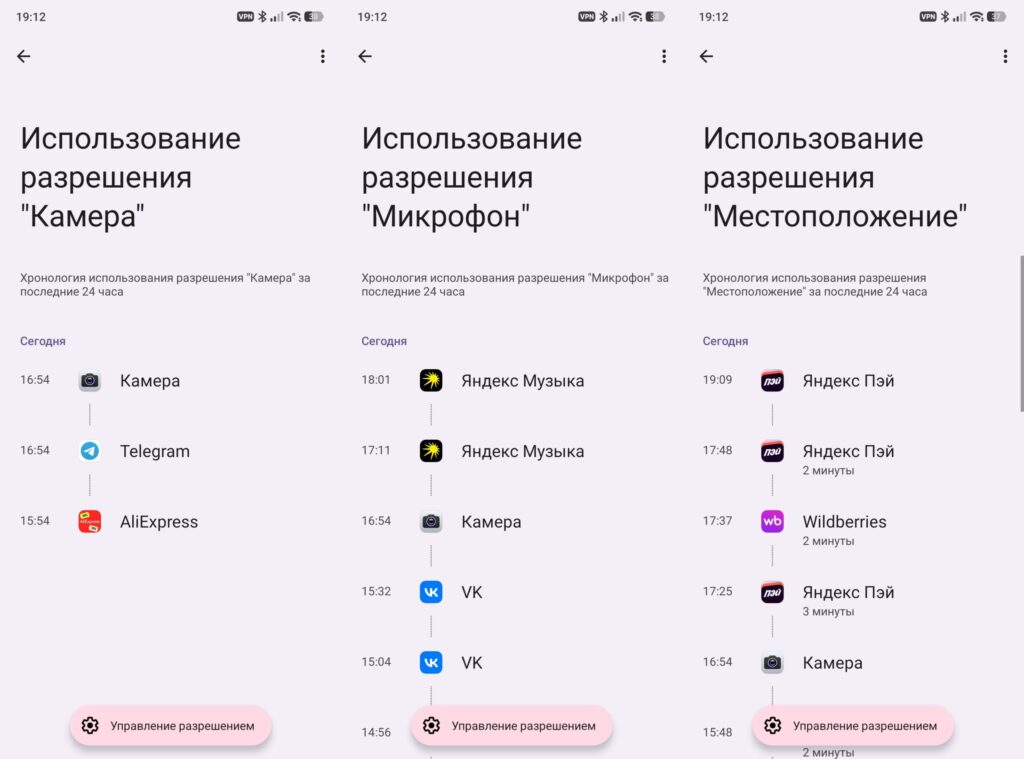
Everyone will have their own apps listed here
I found Telegram, AliExpress, VK, and even Wildberries. Meanwhile, the MAX messenger, which has actually lost its spyware label, doesn’t appear in the list. That means it’s not tracking you. If you notice something suspicious, there’s a “Manage Permission” button right in the panel, through which you can revoke access for a specific app in just a couple of taps.
How to Protect Your Android
The panel works well in combination with other built-in tools. If an app frequently accesses data, it’s also worth checking battery usage — frequent background updates don’t always mean a problem; sometimes they barely consume any charge.
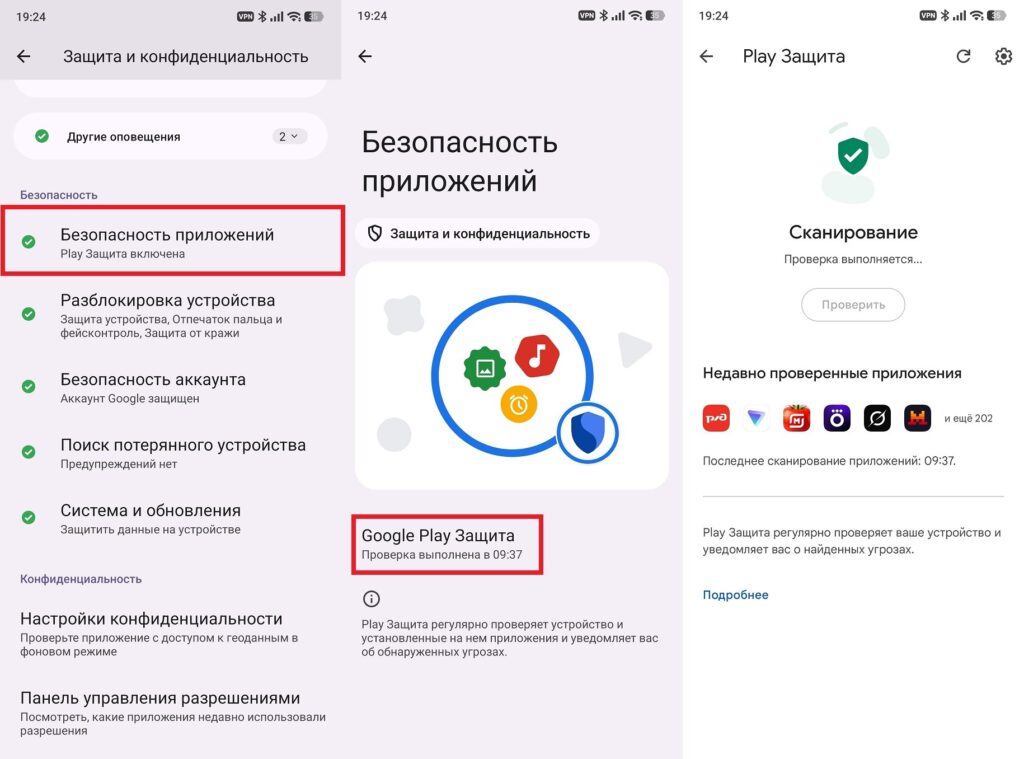
It’s important to regularly check apps for security
If you’re worried about unnecessary permissions and potential malware, run a Google Play Protect scan. It’s located in the “Security and Privacy” section under app protection, or you can search for “Play Protect” in settings.
Android Permissions — Should You Check Them?
The Android Permissions Dashboard isn’t a one-time cleanup but a way to quickly check every couple of weeks who is accessing your data and why. Even attentive users accumulate permissions over time that they never intended to grant, and it’s exactly these cases that the panel helps identify without lengthy digging through settings.
No third-party apps, subscriptions, or VPNs are needed for this — everything is already built into the system. Open the panel today, revoke access from a couple of apps that clearly don’t need it, and consider your basic privacy hygiene taken care of.