Many iPhone users store their phone book not in iCloud, but in Google. The reasons vary: some switched from Android and don’t want to lose their familiar database, some use Gmail for work, and some are simply used to having contacts in one place along with email and calendar. The setup works — until one fine day you discover that new numbers from Gmail aren’t appearing on your iPhone. Or, conversely, a contact added on the iPhone has disappeared somewhere and never made it to Google. Let’s look at how to sort out the contacts issue.
Some iPhone users face problems when syncing Gmail contacts
Why Gmail Contacts Don’t Sync with iPhone
Before diving into settings, it’s useful to understand where this problem comes from in the first place. There aren’t actually that many causes, and almost all of them are trivial.
The most common one is a disabled “Contacts” toggle in the Google account settings on iPhone. iOS allows you to selectively sync mail, calendars, notes, and contacts, and it only takes accidentally flipping one toggle for the entire address book to get “stuck.”
The second most popular reason is an incorrectly selected default account. If iCloud is set as the default, new contacts created directly on the iPhone simply don’t go to Gmail. They’re neatly saved in Apple’s cloud and don’t go anywhere else.
Next comes the classics: unstable internet connection, disabled background app refresh, outdated iOS version, SSL connection issues with Google servers, and authorization failures when the access token has simply expired and the account needs to be reconnected.
It’s also worth mentioning the limitations of the protocol Apple uses to communicate with Google. According to Google Workspace help, synchronization supports no more than three email addresses per contact, a limited number of phone numbers, and doesn’t transfer custom field labels. So if you’re not seeing some data — it’s not a bug, it’s a feature.
How to Enable Gmail Contacts in iPhone Settings
Let’s start with the most obvious step. Open Settings — Apps — Contacts — Accounts (on iOS 17 and older the path is shorter: Settings — Contacts — Accounts). Find your Gmail account and tap on it.
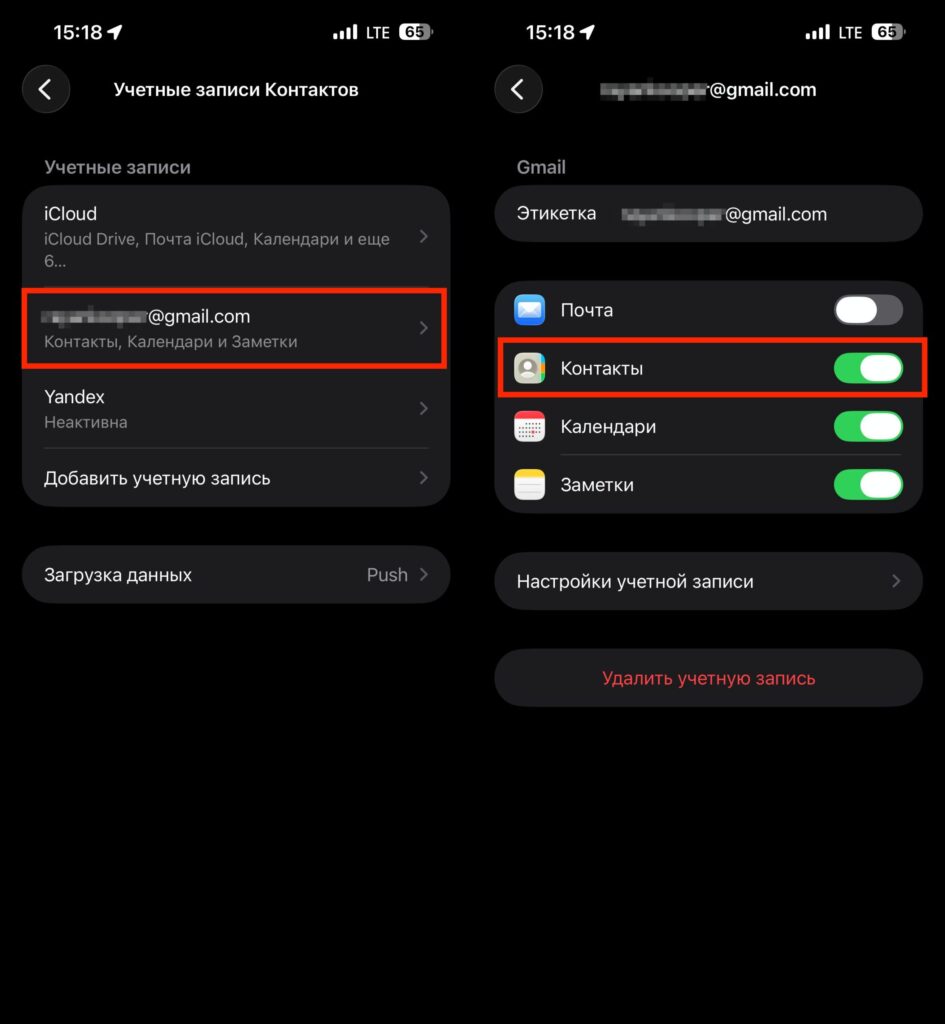
Toggle this switch — most of the time this helps
Make sure the “Contacts” toggle is in the active position. If it’s already on — turn it off, agree to delete contacts from iPhone (don’t worry, the originals are still in Google), wait about ten seconds, and turn it back on. This sync restart trick works in most cases. Many users on the Apple Community forum confirm that after this toggle “reset,” contacts sync back to all devices — iPhone, iPad, and Mac.
How to Save New Contacts on iPhone to Gmail
If you create contacts directly on your iPhone and want them to automatically go to Google, check which account is set as the primary one. Go to Settings — Apps — Contacts — Default Account and select Gmail instead of iCloud.

The Gmail account must be selected as default
After this, all new numbers added through the Phone or Contacts app will immediately go to Google. Keep in mind: previously created contacts already stored in iCloud won’t automatically migrate to Gmail. You’ll need to transfer them manually via vCard.
Why iPhone Doesn’t Update Google Contacts
iOS knows how to save data and battery, and sometimes it saves too aggressively. Open Settings — General — Background App Refresh and make sure background refresh is enabled. Also check that you’re not in Low Power Mode — it often blocks background account syncing.
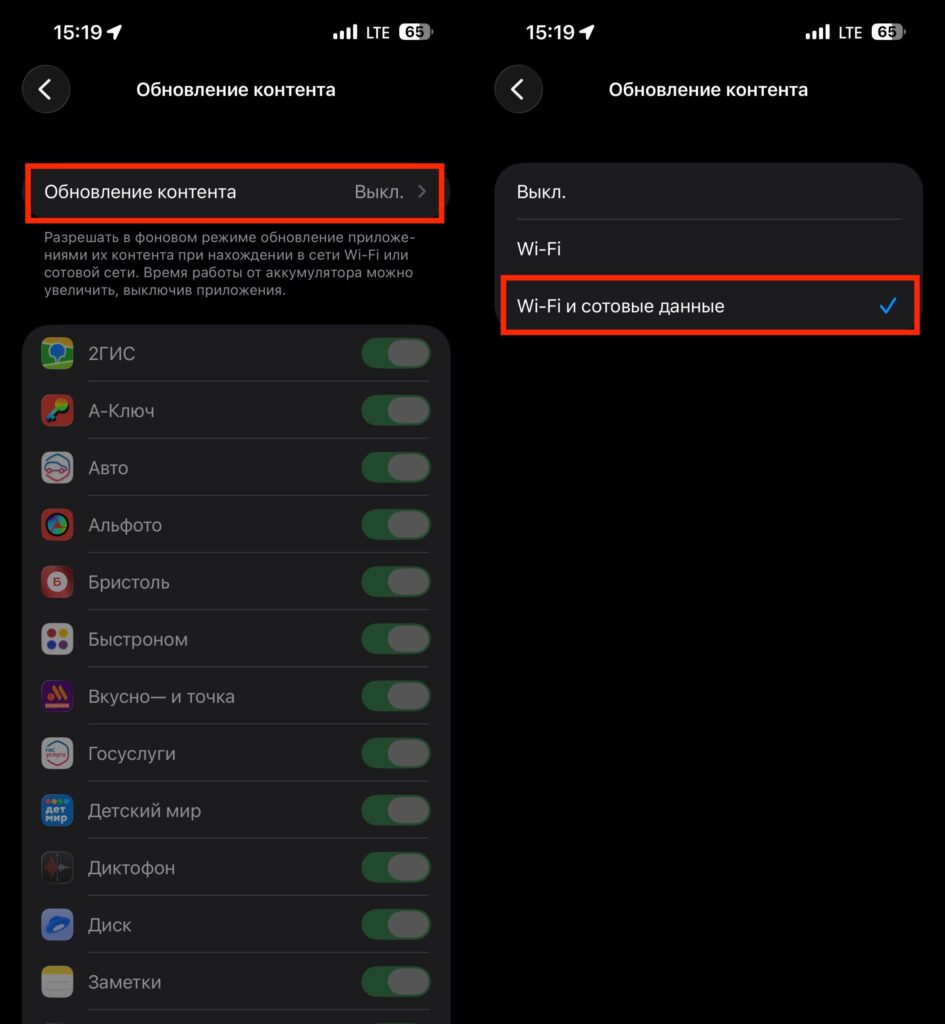
Restricting background content refresh can affect syncing
If you’re connected to Wi-Fi in a café or hotel, try switching to mobile data. Public networks often block service connections to Google servers, and from the outside it looks exactly like a sync failure.
How to Reconnect Gmail on iPhone
If nothing above has helped — the authorization token has likely expired. This is fixed by reconnecting the account. Go to Settings — Mail — Accounts, select Gmail, tap “Delete Account” and confirm.
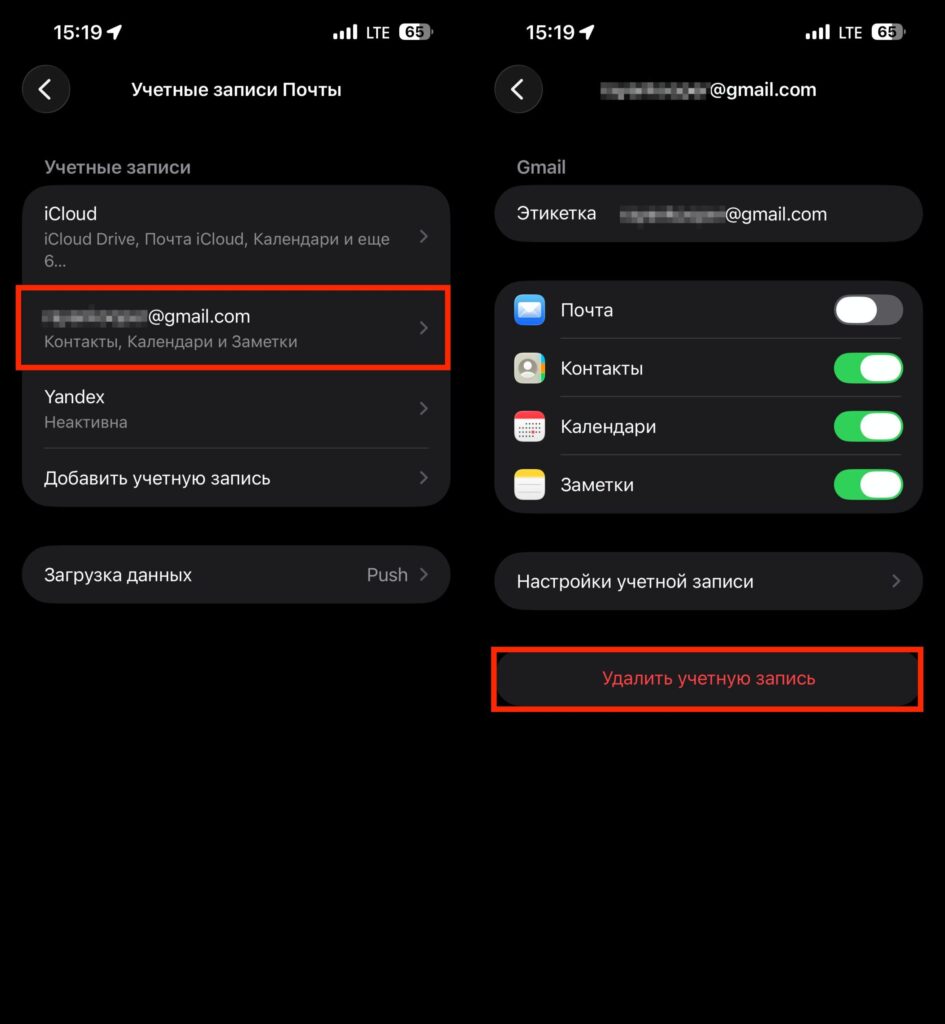
Delete the account and add it again
Don’t worry: your emails, contacts, and calendars will remain in Google’s cloud — only the link to your iPhone is being removed. After that, add the account again via “Add Account” — Google, complete the authorization, and enable the “Contacts” toggle. In a minute or two, your entire address book will be back in place.
How to Transfer Google Contacts to iPhone
If for some reason direct sync stubbornly refuses to work, there’s a manual method. Go to contacts.google.com from a computer, select the contacts you need, click “Export” and choose the vCard format for iOS. Import the resulting file into iCloud via the web interface — and from there the contacts will automatically spread to all your Apple devices.
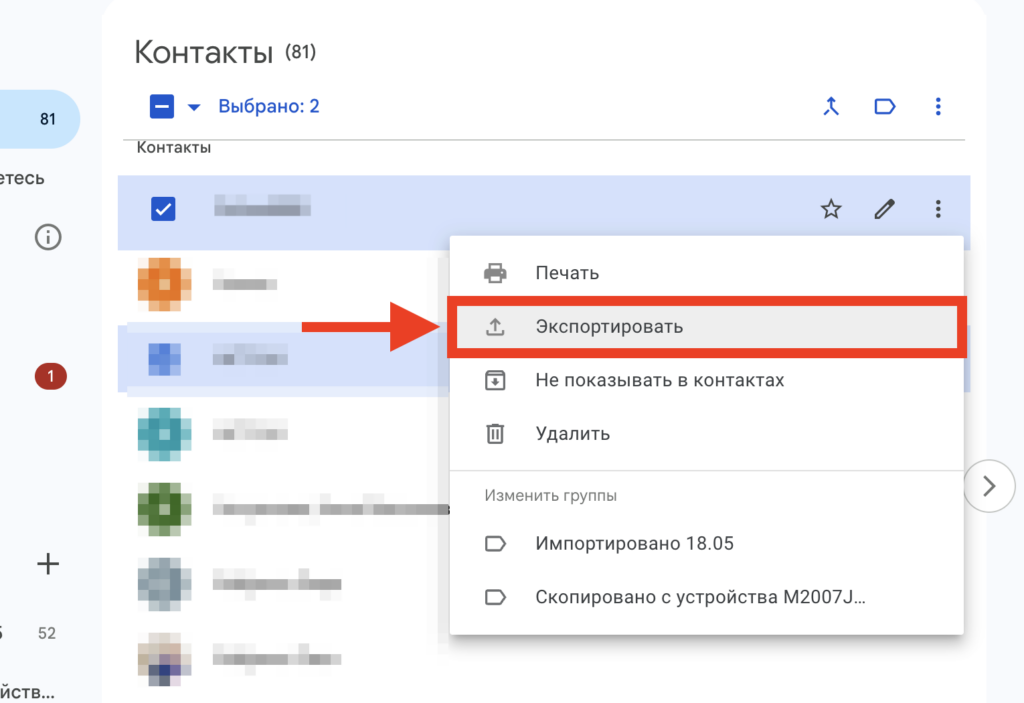
Export the contacts you need from Gmail
The method is a bit rough, but it’s foolproof. It’s especially useful if you want to permanently move from Google to iCloud and forget about sync problems like a bad dream.