I’ve already covered how to turn on an Android phone — you’d think the reverse operation would be simpler. But no. Smartphone manufacturers have been so aggressively reassigning the power button to voice assistants and quick launches in recent years that simply turning off an Android phone has become a tricky task. Let’s go through all the methods in order so you don’t get confused and can power down your device when you really need to.
Learning how to properly turn off Android
Where Is the Power Button on a Phone
The power button on a phone for the vast majority of Android smartphones is located on the right side edge. This is the standard for Samsung, Xiaomi, REDMI, POCO, vivo, realme, HONOR, and most other brands.
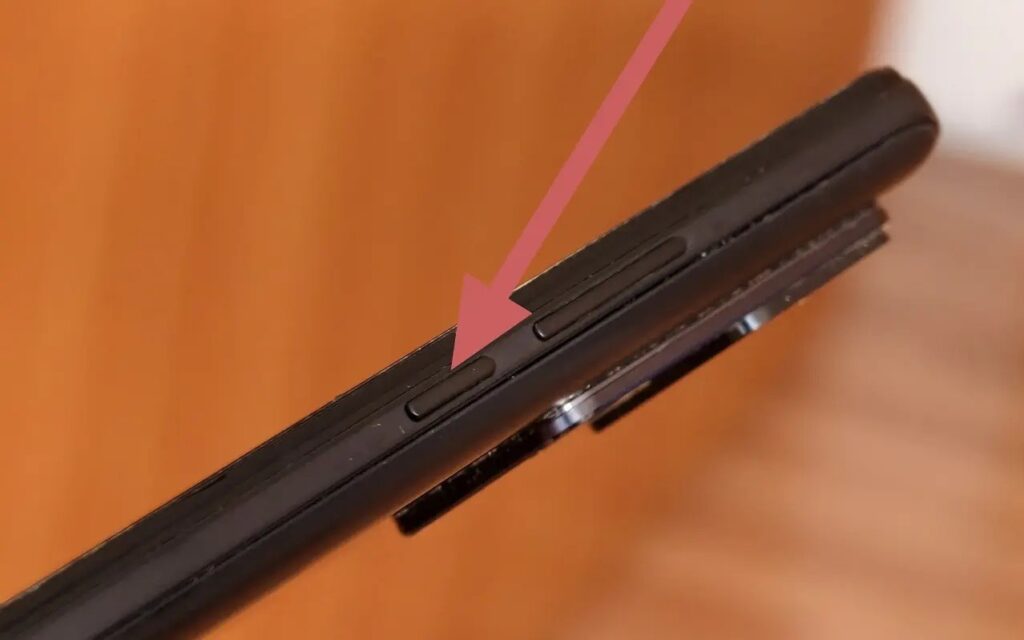
This is that very power button
Exceptions exist but are few: on some older Sony and Nokia models, the button was located on top. On certain budget phones, it’s combined with a fingerprint scanner and sits slightly below the middle of the right edge. Next to the power button, you’ll almost always find volume buttons: a pair of keys slightly above or below. Don’t mix them up: the interaction between the power button and one of these is exactly what we’ll need later.
How to Turn Off a Phone Using the Android Power Menu
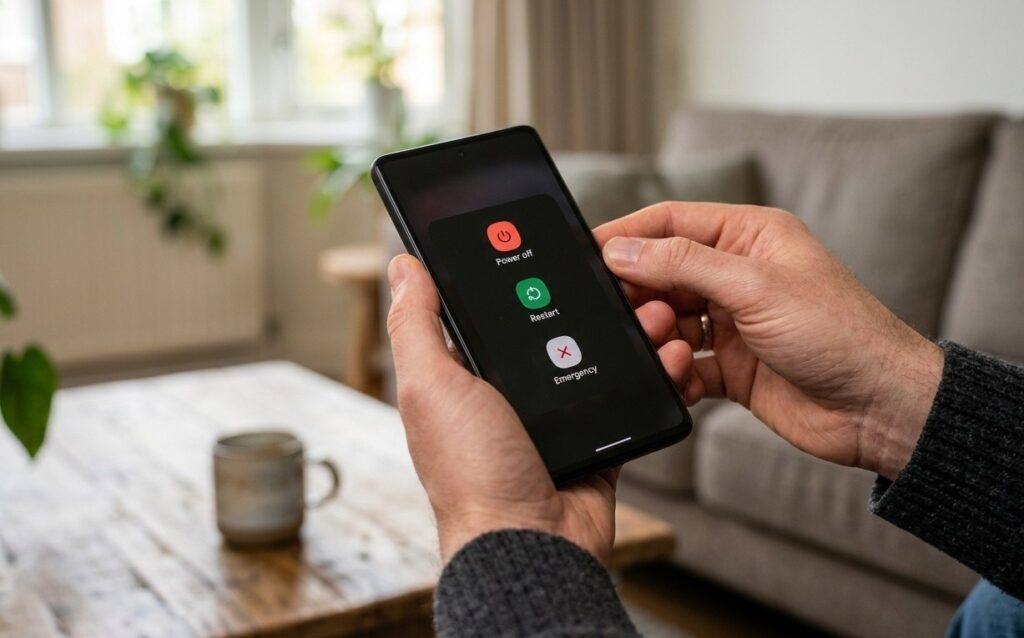
On most current Android smartphones, the power menu is called up by pressing and holding the power button. Hold it for 1-2 seconds, and a menu will appear on screen with options:
- Press and hold the power button for 1-2 seconds.
- The power menu will appear on screen (usually “Power off,” “Restart,” and “Emergency call”).
- Tap “Power off.”
- If the system asks for confirmation, tap “OK” or “Power off” again.
- The screen will go dark and the phone will shut down.
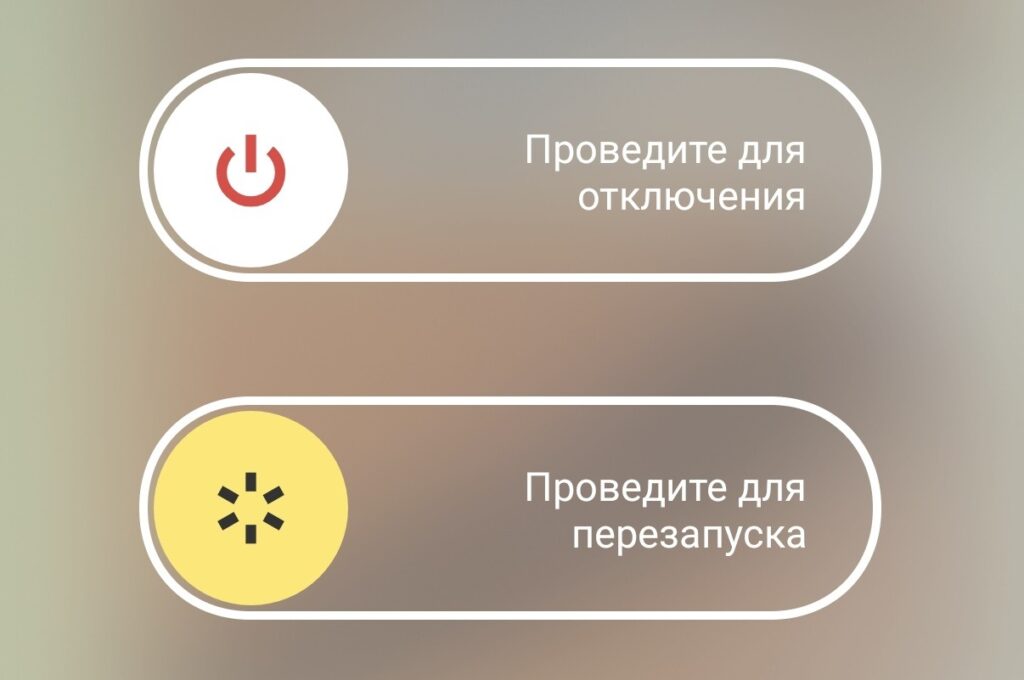
On your smartphone, you may need to swipe the screen instead of tapping
This is how most modern smartphones work. But if these actions bring up something other than the power menu — read the next section.
Why the Assistant Appears When Pressing the Power Button
If holding the Android power button launches Google Assistant, Bixby, or the Yandex voice assistant — it’s not a malfunction. Manufacturers intentionally reassigned a single long press of the power button to call up the assistant. Their logic is, of course, their own.
In this case, to turn off the phone, use the “Power” + “Volume Up” combination. This works on OriginOS, realme UI, and many other skins. The combination is intentionally left in place and is always available as a backup method.
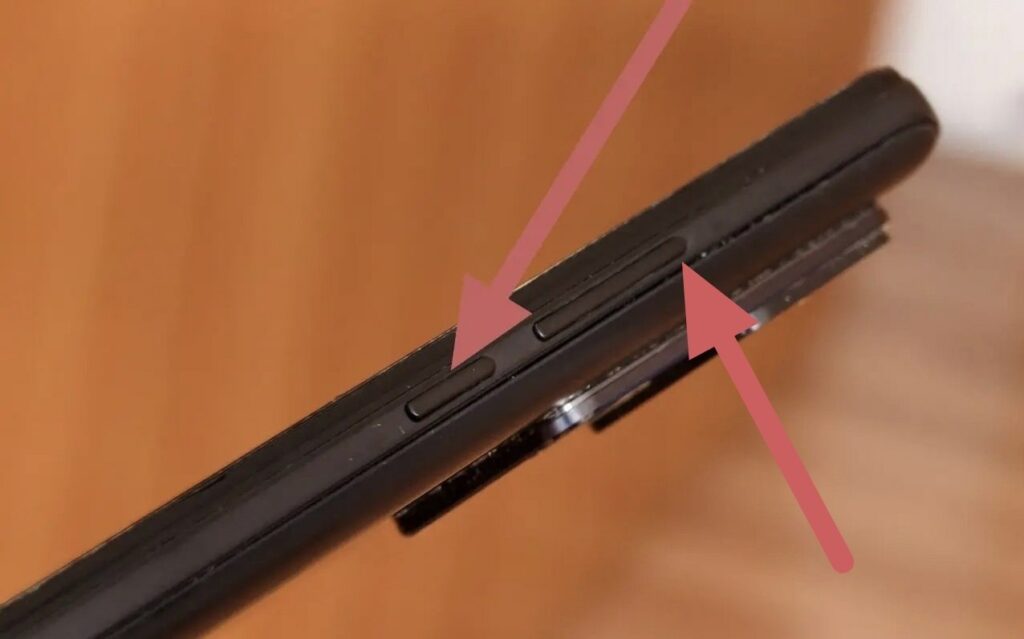
Sometimes you need this combination
By the way, the power button can do much more than just turn the phone on and off. We’ve separately covered all the hidden functions of this button that few people use.
How to Configure the Phone’s Power Button
If you want to turn off Android with a single button the old-fashioned way (without a combination) — this can be configured:
- Open “Settings” — “Shortcuts and accessibility.”
- Select “Button.”
- Check the box next to “Power menu.”
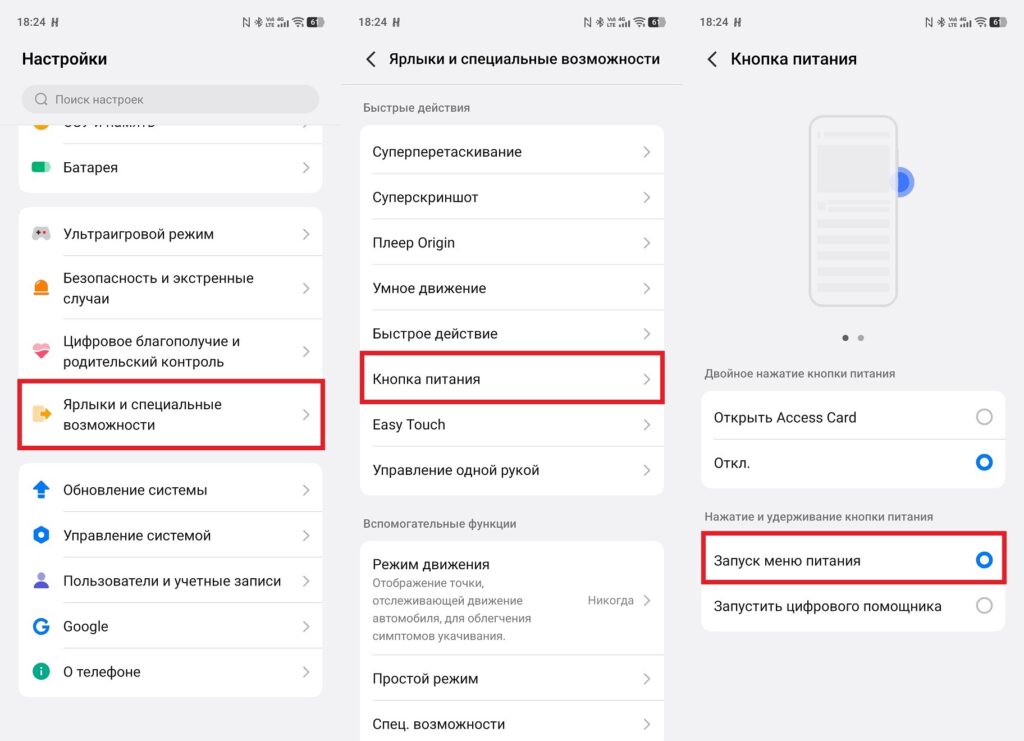
This is the setup on my smartphone
This is how it works on my vivo X300 smartphone. But on devices from other brands, the setup process may differ, so let’s go through all the options.
Samsung One UI:
- Open “Settings” — “Advanced features.”
- Select “Side button.”
- Under “Press and hold,” choose “Power off menu” instead of “Wake Bixby.”
Xiaomi HyperOS / MIUI:
- Open “Settings” — “Additional settings” — “Power button.”
- Switch the power button hold action from launching the assistant to showing the power menu.
Stock Android (Pixel and others):
- Open “Settings” — “System” — “Gestures.”
- Find “Press and hold power button.”
- Switch to “Power menu.”
After changing the setting, a regular long press of the power button will open the shutdown menu — just like it always used to work. By the way, while you’re in settings, check out useful Android features, many of which are also hidden right there.
What to Do If Your Phone Is Frozen and Won’t Turn Off
If your phone is frozen and won’t turn off the standard way (neither the button nor the menu responds), use a forced shutdown:
- Press and hold the power button for 10-15 seconds.
- Don’t let go, even if nothing happens for the first few seconds.
- The phone will forcefully restart or shut down (without any menu or confirmations).
On Samsung, you can additionally try holding the power button and the volume down button simultaneously for 10 seconds (this is guaranteed to restart the device during a complete freeze). A forced shutdown is safe in most situations. Data that wasn’t saved at the moment of the freeze may be lost, but otherwise, it doesn’t harm the phone.
The Phone’s Power Button Doesn’t Work — What to Do
If the power button on your phone doesn’t work physically (won’t press or doesn’t respond), you can turn off the device in several ways:
- Through the notification shade. On many firmware versions, the shade has a power button or restart button — look among the quick toggles.
- Through settings. “Settings” — “System” — “Reset options” — “Power off.”
- Through ADB. If you connect the phone to a computer