While everyone debates whether plastic SIM or digital profiles are more convenient, an unpleasant story is gaining traction online. iPhone owners are experiencing mass failures of their cellular module after installing eSIM, and most complaints point to one carrier. Let’s look at what’s known and what you can do before heading to a repair shop.
Using T-Mobile? Get ready to lose connectivity
Why eSIM Stops Working on iPhone
The scenario is almost identical for all affected users. First, the eSIM network drops out, then the physical card also loses connectivity, even though the phone appears perfectly fine externally. Standard steps like airplane mode, restarting, and reinstalling the SIM card don’t help at all.
In one telling case, the affected user had an iPhone 13 Pro Max with a “Rostest” marking, purchased officially, without any reflashing or third-party modifications. The network dropped on both lines, and the physical card only started working after the owner completely disabled the digital profile.
This story is far from isolated. According to Kommersant, in January 2025 alone the Pedant.ru service network received about ten similar requests, and across Russia there were approximately forty total complaints. The most complaints are about “T-Mobile,” formerly “Tinkoff Mobile.” The carrier itself insists the issue is in the iPhone’s software and that the same thing could happen with any company’s profile. Isolated reports of failures also come from iPhone owners in the US and China, so it’s too early to blame everything on one market player.
How to Tell That Your iPhone Has Lost Connectivity
The story escalates from there. The same owner had an iOS update install overnight, and in the morning the phone was stuck on the “Verifying Update” screen with an endless loading indicator. Simply pressing the power button didn’t help — the device had essentially become a brick, and the person missed a work call.
A hard restart helped recover the device from this state:
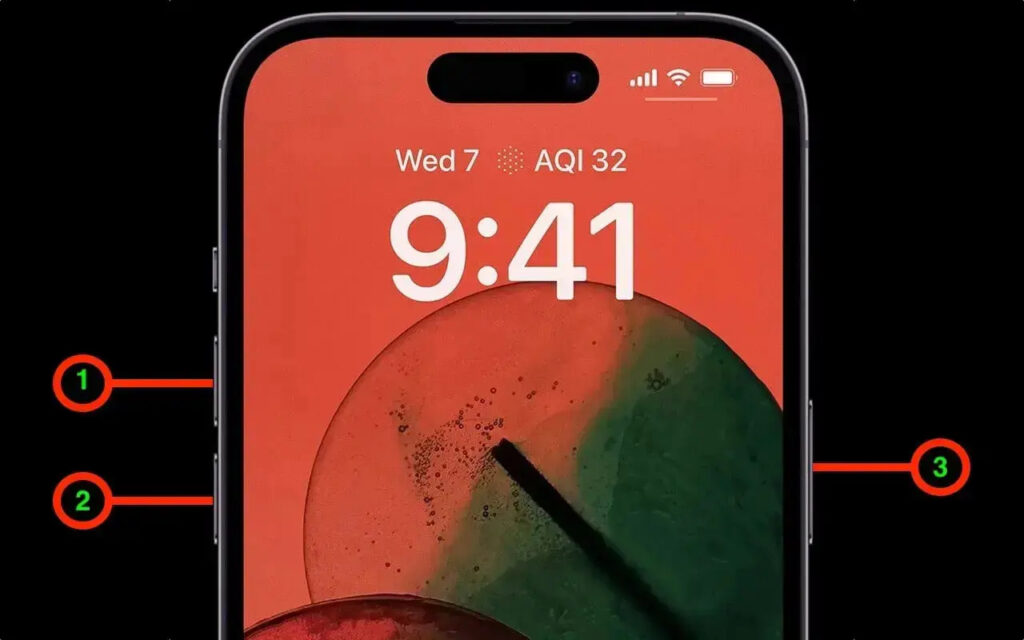
Here’s how it’s done
- Quickly press and release the volume up button.
- Quickly press and release the volume down button.
- Press and hold the side button until the Apple logo appears.
Then new surprises began. Transferring the profile to a second phone didn’t work — the system simply wouldn’t complete the activation. Attempting to delete the old eSIM resulted in an endless animation on the “Deleting SIM Card” screen. Interestingly, on a backup device, a new profile from support installed without a single error, meaning the problem was with the specific device.
A separate issue awaited on vacation: the phone refused to install local tourist eSIMs, and the owner hadn’t brought a second smartphone, leaving them without connectivity for the entire trip. Only flashing through DFU mode finally allowed the stuck SIM to be deleted. But then the physical card stopped working too.
How to Restore Connectivity on iPhone Using Shortcuts
In dedicated chat groups, affected users share a simple workaround. It turns out the physical SIM isn’t broken — it’s been forcibly disabled by the system, and you can’t re-enable it in Settings. However, the Shortcuts app can do it.
Here’s how to build such a shortcut:
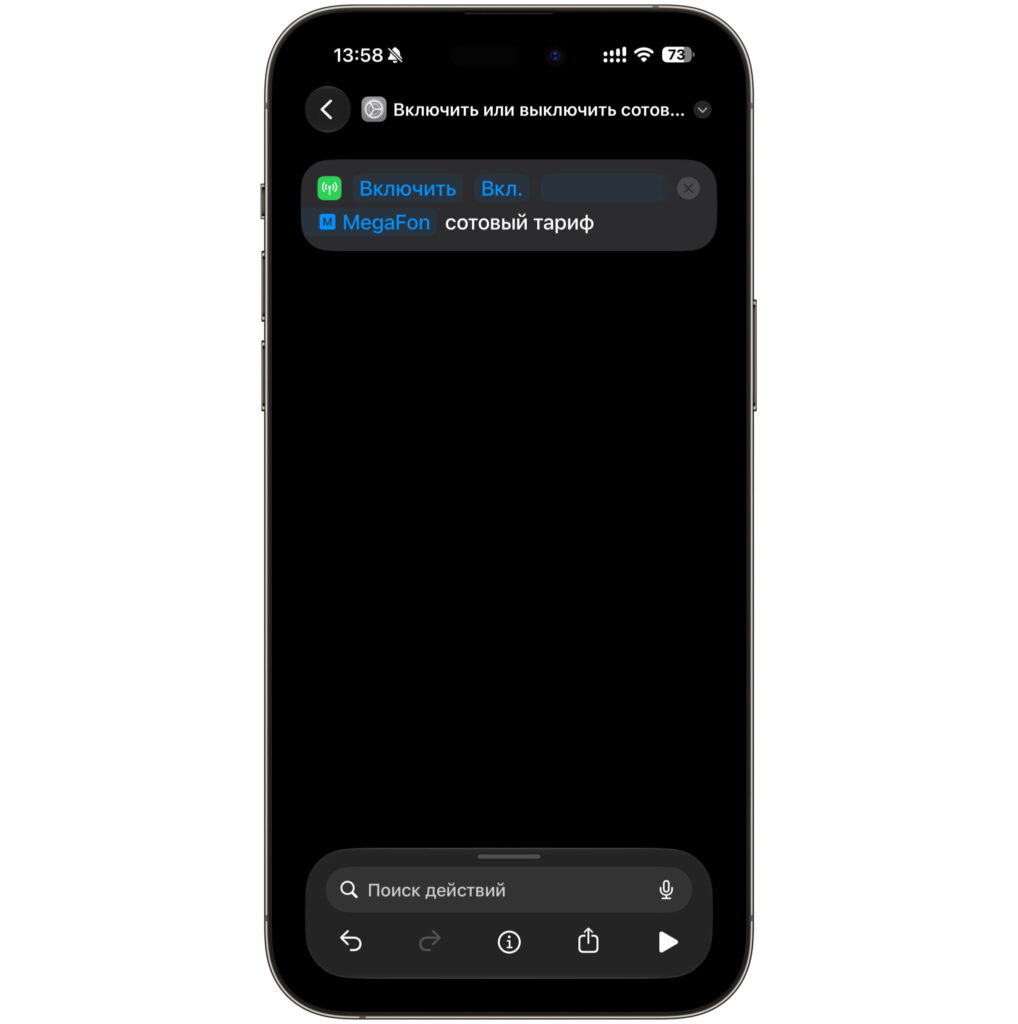
The shortcut will have just one action
- Open the Shortcuts app on your iPhone.
- Tap the plus sign in the upper right corner to create a new shortcut.
- In the action search bar, type “cellular plan.”
- Select the action “Turn Cellular Plan On or Off.”
- In the action parameters, specify the desired line and set the value to “On.”
- Give the shortcut a clear name, such as “Restore Connectivity,” and save it.
- Add the shortcut to your home screen so you can launch it with a single tap.
After running, the shortcut forcibly activates the cellular plan, and connectivity returns. For some users, the same method also allows them to finally delete the stuck digital profile. However, this doesn’t last forever: the author of the story reported that after some time the shortcut started returning the error “One of arguments is invalid,” and connectivity was lost for good.
If you want to take precautions in advance, there are simple rules. Don’t change your profile before a trip, keep a second phone handy, and don’t enable automatic overnight iOS updates if you’ve already noticed network issues.
How Much Does iPhone Cellular Module Repair Cost
When workarounds stop working, a repair shop is the only option. Apple doesn’t officially operate in Russia, so there’s no warranty repair available — you have to go to independent service centers and pay out of pocket. The iPhone 13 Pro Max owner had technicians confirm the malfunction and was told it could only be fixed by replacing the module on the lower board. The phone was returned working, and the bill came to 13,990 rubles. Other reports mention even higher amounts, up to several tens of thousands of rubles depending on the model.
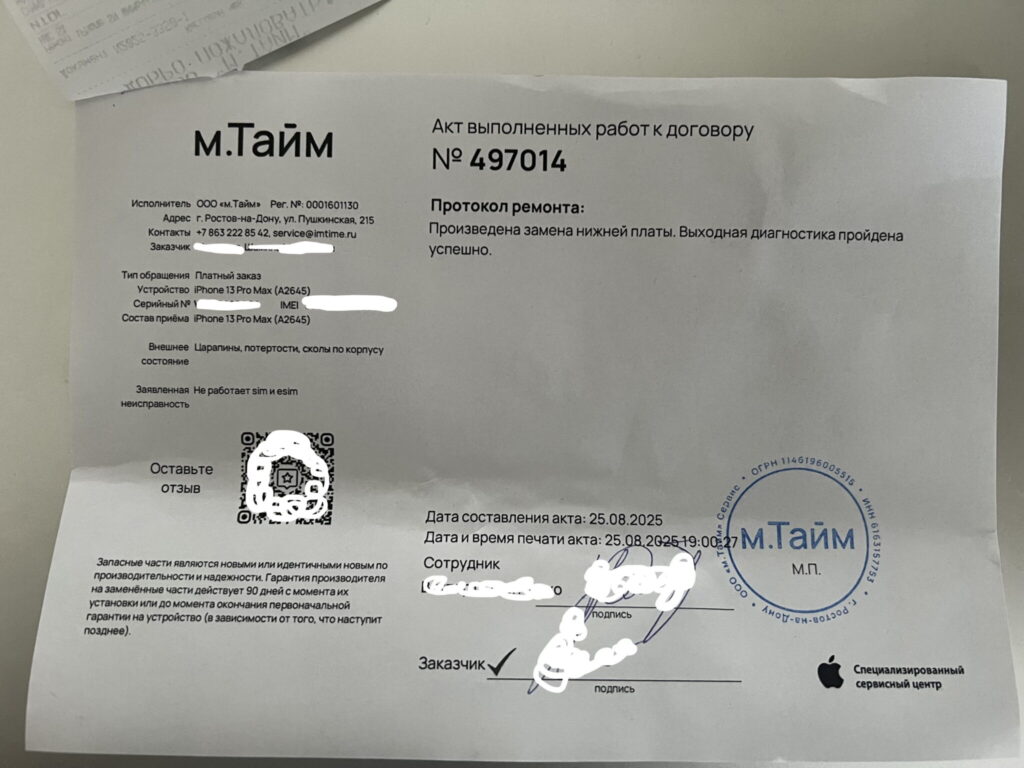
This repair cost 14 thousand rubles. And this is an iPhone 13 Pro Max — an older model. Image: vc.ru
Then comes the most controversial part. In affected users’ chat groups, people wrote that “T-Mobile” compensates repair costs, and many took this as an indirect admission of guilt by the carrier. Support asked the affected user to record a video showing that the phone can’t pick up a network and doesn’t work with a SIM card. He recorded the video, took the device to a repair shop, and then received a rejection: allegedly the recording didn’t show the actual process of removing the SIM card.
The reasoning seems odd, since earlier the same employees said it was enough to demonstrate the inability to delete or add a profile. That’s exactly what was shown in the video. Result: the repair costs were not reimbursed, and the question of who is responsible for the malfunction remains unanswered.
What to Choose After This Problem — eSIM or SIM
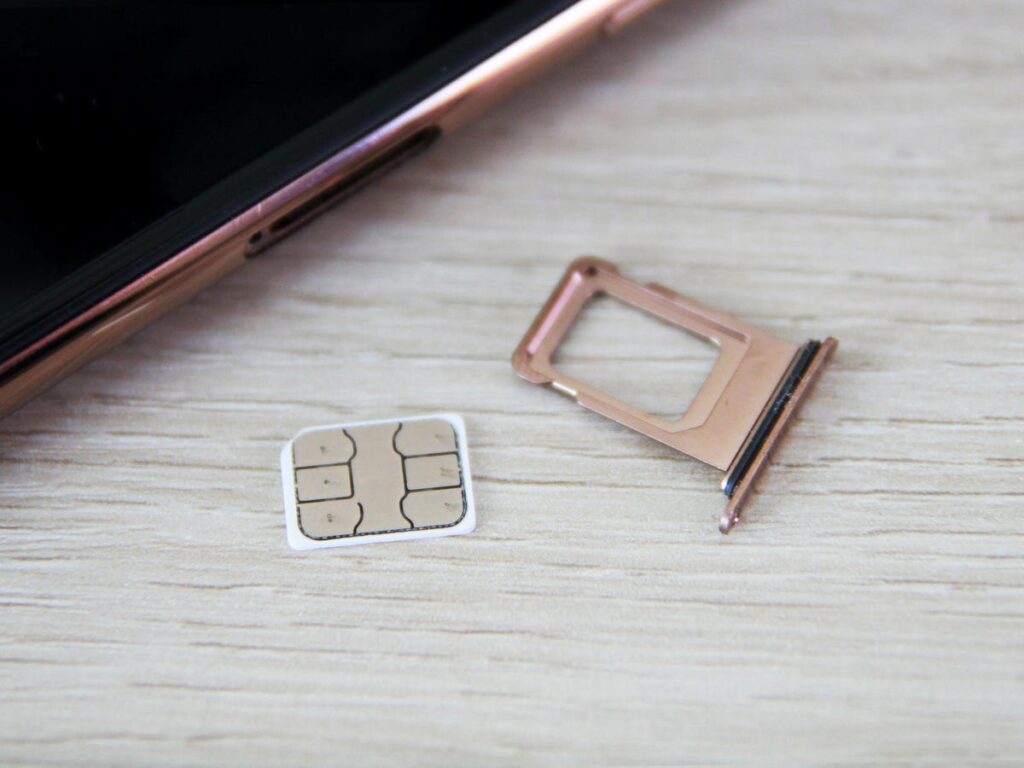
Note that having a physical SIM card doesn’t guarantee the absence of failures
There’s no need to panic yet. The number of confirmed cases is measured in dozens across the entire country, meaning the risk remains low. Most iPhone owners use digital profiles for years without encountering anything like this, and in newer models without a SIM tray, there’s simply no alternative.
But it’s worth drawing some conclusions. If you have an iPhone with a physical SIM tray and one primary number, keeping it on a plastic SIM is currently the safer choice. If your device only supports eSIM, it’s worth saving your profile recovery data in advance, not deleting the profile unnecessarily, and not experimenting with transferring it to another device before an important trip.
And most importantly: at the first signs of a malfunction, don’t delay contacting your carrier, and document everything on video from the very beginning. It’s precisely the evidence where attempts to get compensation tend to fall apart.