Starting April 1, 2026, topping up your Apple ID balance through a mobile carrier account is no longer possible — MTS and Beeline disabled this option simultaneously at the direction of the Ministry of Digital Development. At the same time, the familiar section with Russian Apple gift cards disappeared from Sberbank Online. It seemed like that was it — the channel was closed. But don’t rush to delete Apple Music or say goodbye to iCloud+. The Sber app still has a working method to top up your Apple ID account that many people don’t even know about. Here’s how to use it and what pitfalls to watch out for.
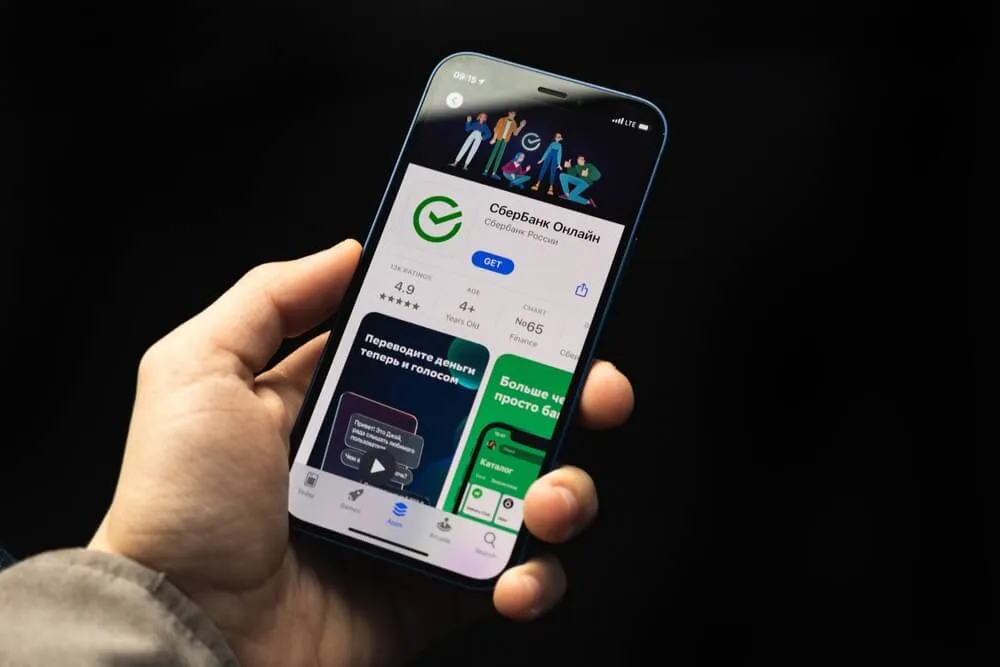
You can top up foreign Apple IDs through Sberbank Online. Image: it-world.ru
Why Russian Apple Cards Are No Longer Sold
Until April 2026, the process was embarrassingly simple: you’d go into Sberbank Online, buy an App Store gift card in rubles, activate the code in Apple ID settings — and immediately spend the money on subscriptions and apps. No region change, no address generators, no jumping through hoops.
Now the “Apple Card Russia” section in the Sber app shows a message about technical maintenance and won’t let you buy a single code. Essentially, Russian Apple gift cards as a product have ceased to exist — the bank no longer sells them, and the remaining stock that appears on marketplaces goes for two to four times the face value. Buying such cards is a sure way to lose money.
But Sberbank Online still has another section that continues to work — with foreign Apple Cards. And this is a legitimate working method to keep using Apple services in 2026.
Which Apple Gift Cards Can You Buy at Sber
The Sberbank Online app offers Apple gift cards for five regions:
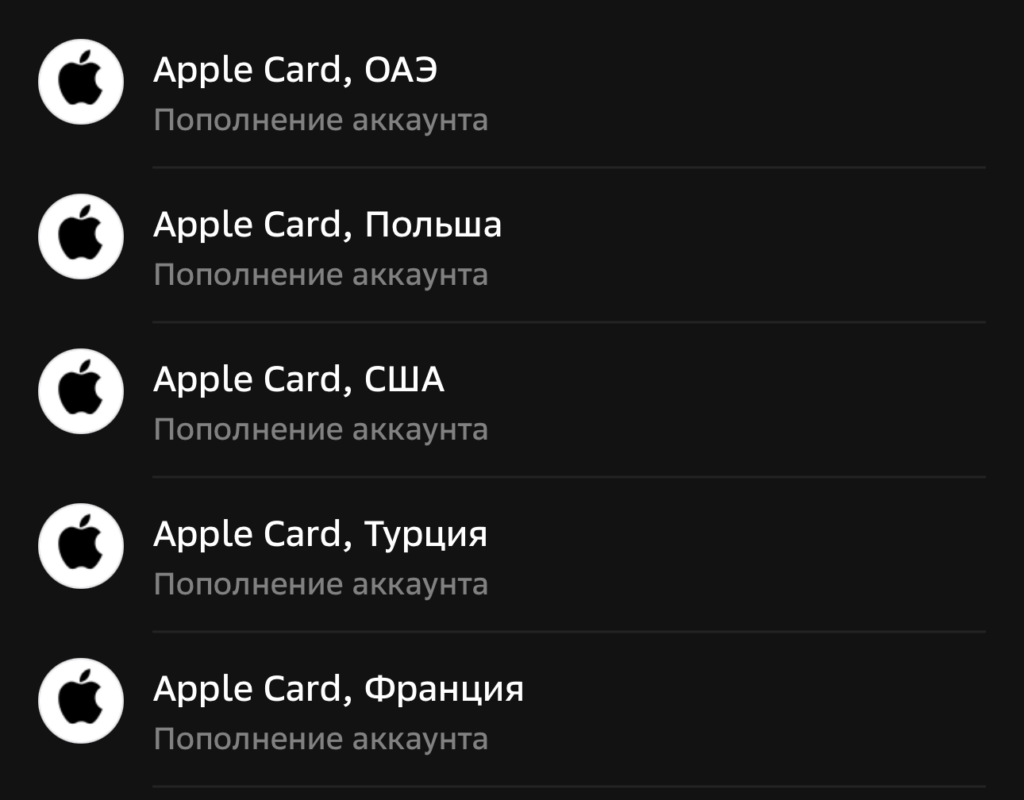
Here are all the countries you can top up through Sber
- USA — the most popular option, maximum app and service catalog
- UAE — full catalog, convenient for Russian-speaking audiences
- Poland — suitable if you need European content
- Turkey — historically the lowest prices on subscriptions and in-app purchases
- France — European catalog with its own specifics
Denominations for American cards range from 2 to 500 dollars. This means you can get a card for just 2 dollars to renew 50 GB of iCloud+ without overpaying. At the time of publication, a $20 voucher at Sber costs about 1,622 rubles. That means one dollar costs 81.1 rubles — which is very close to the exchange rate of 77.33 rubles.
An important nuance: the gift card code is strictly tied to a region. A dollar-denominated voucher can only be activated on an account with the US region. This means you need to change the country in your Apple ID settings before purchasing — without this step, the code simply won’t work.
How to Buy an Apple Gift Card in Sberbank Online
The process takes a couple of minutes and works the same way in both the mobile app and the web version. Here’s what to do:
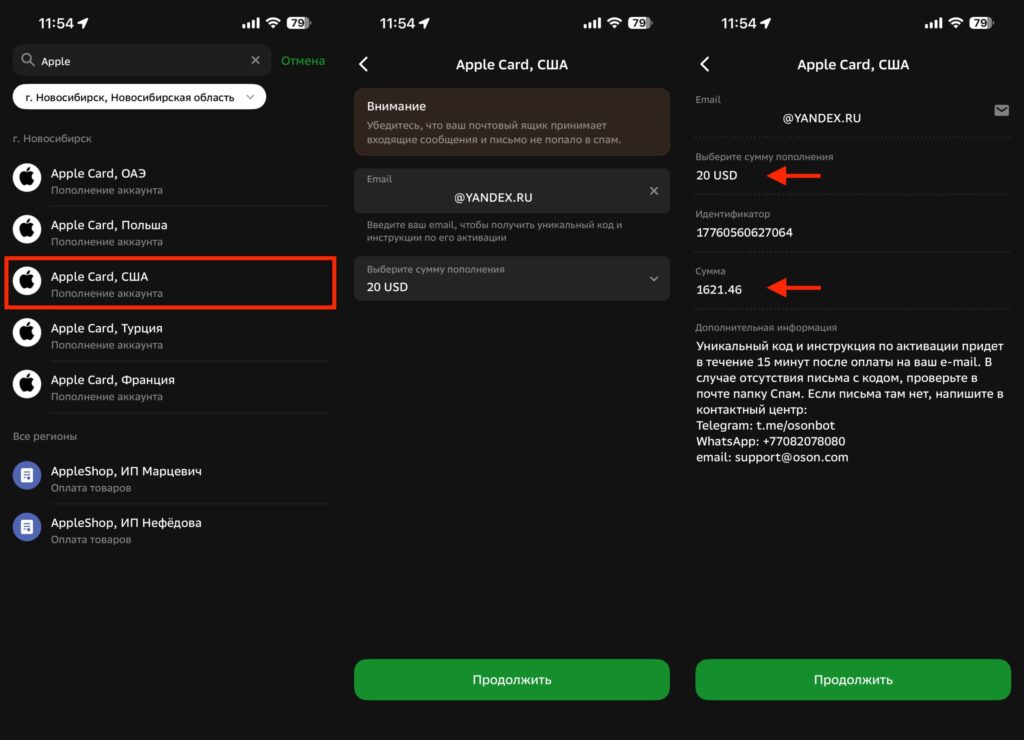
The card is purchased in a couple of taps. But keep in mind that some denominations may not be available
- Open the Sberbank Online app on your iPhone or go to the web version on your computer
- In the bottom menu, go to the “Payments” tab
- Scroll down to the “Leisure and Entertainment” section and select the “Games” category
- In the list or through the search bar, find Apple
- Select the region that matches your account — for example, USA
- Choose the voucher denomination: 2, 5, 10, 20, 25, 50, 75, 100, 200, 300, 400, or 500 dollars
- Enter a valid email address — the code will be sent there
- Check the final price in rubles, select the payment account, and tap “Pay”
The gift card code arrives by email almost instantly — usually within a minute. If you don’t see the email, check your Spam folder and make sure you entered the correct address.
Changing Your Apple ID Region Before Topping Up
This is the key step without which the whole scheme won’t work. If you have a Russian Apple ID account and you bought a US card, the code won’t activate — Apple will display a region mismatch error. So first, we switch the account to the required country.
Before changing the region, make sure to zero out your Apple ID balance — if there’s even one ruble left on the account, the system won’t let you switch to another country. Spend the remaining balance on any subscription or app. You also need to cancel all active subscriptions — otherwise Apple will block the transition as well.
Then proceed as follows:
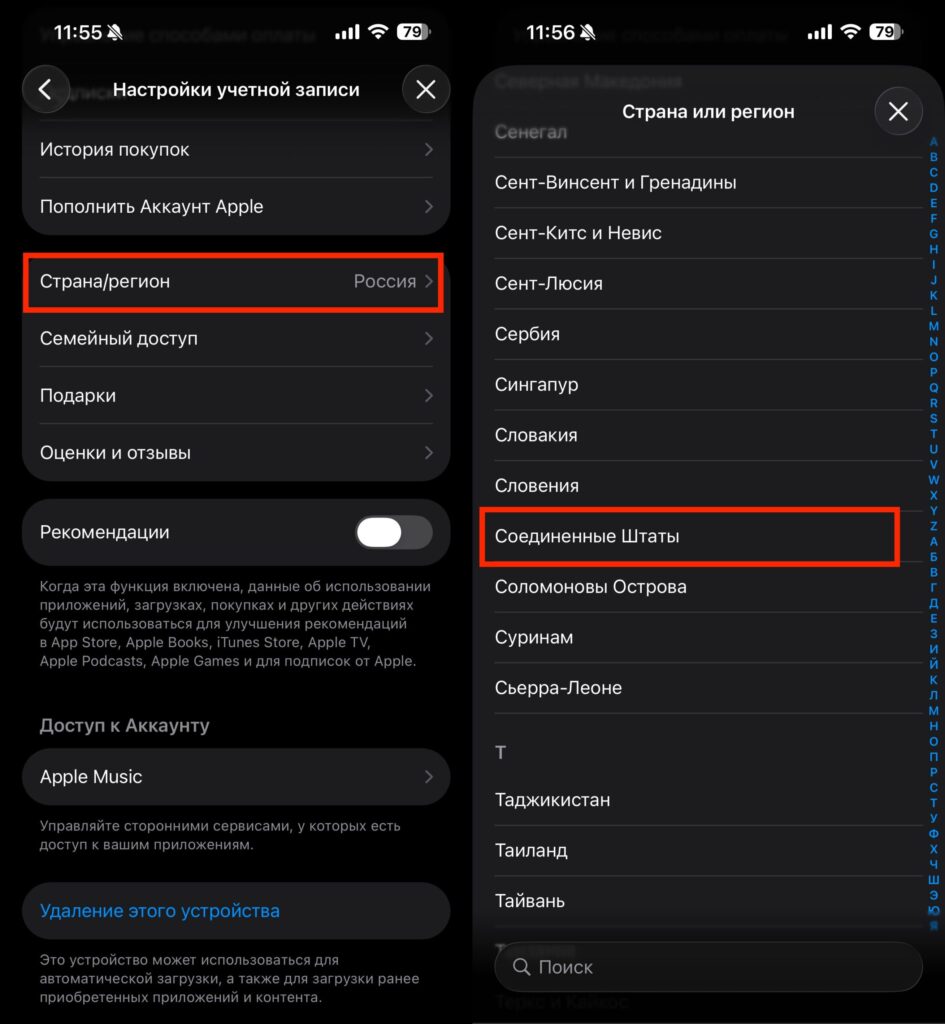
Don’t forget to change the region
- Open “Settings” on your iPhone or iPad and tap your name at the very top
- Go to the “Media & Purchases” section and select “View Account”
- Tap “Country/Region”, then “Change Country or Region”
- Select the desired country — for example, United States
- Accept the terms of service
- In the payment method field, select “None”
- Fill in the billing address — any real address from a US address generator will work
A tip from personal experience: for the US, choose addresses in states without sales tax — Delaware, Oregon, Montana, New Hampshire. Otherwise, with every purchase beyond the code’s value, you’ll be charged an additional percentage.
How to Activate an Apple Gift Card Code
After changing the region, the last step remains — activating the purchased voucher. Open the App Store, tap your avatar in the upper right corner, and select “Redeem Gift Card or Code”. You can scan the code with your camera or enter it manually — the system accepts both options.
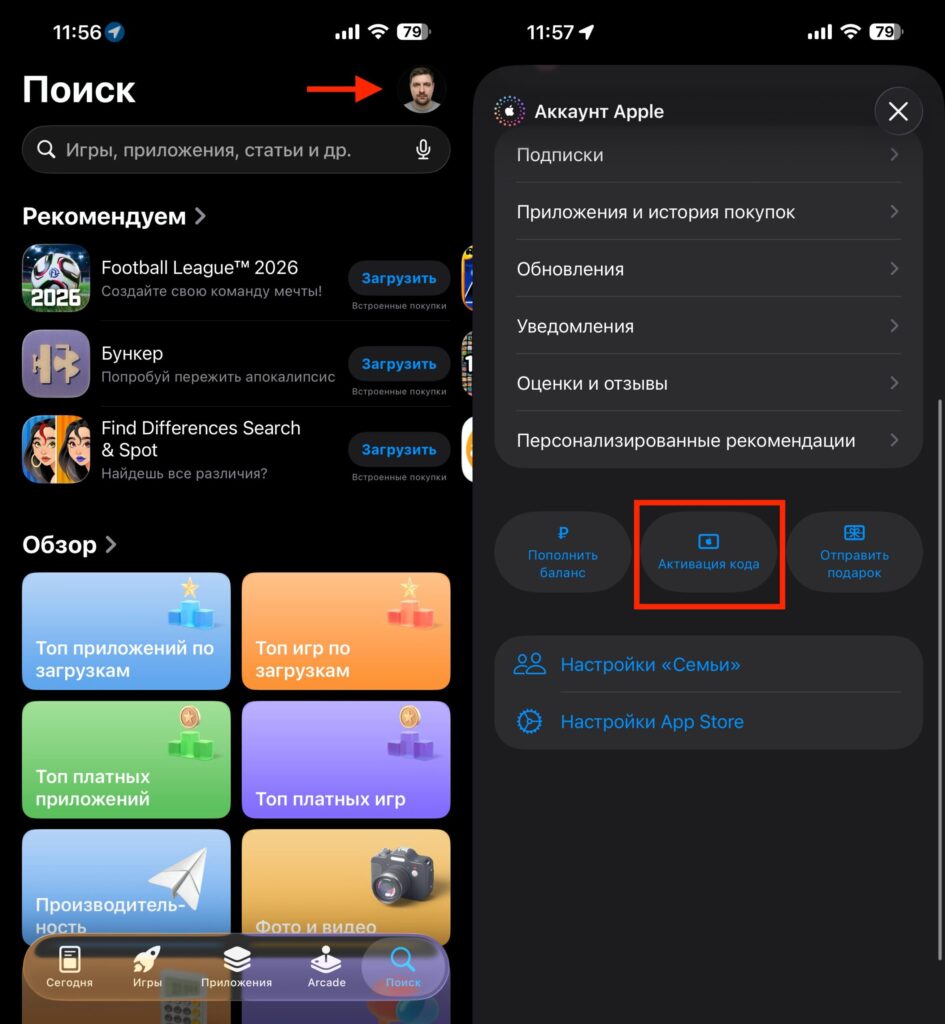
The code is also very easy to activate
The funds are credited to your account balance instantly. You can then spend them on anything within the Apple ecosystem: iCloud+, Apple Music, Apple TV+, subscriptions within third-party apps, purchasing paid software, in-app purchases in mobile games. When subscribing, the system will first deduct money from your Apple ID balance, and only when it runs out will it ask you to link a card.
Pros and Cons of Topping Up Apple ID via Sber
The main advantage is the reliability of the code purchase. You’re buying a code directly from Russia’s largest bank, without intermediaries, without the risk of running into scammers on marketplaces or in Telegram chats. Payment is processed in rubles from your account, the card arrives instantly, and support is available 24/7.
There are downsides too, and it’s worth knowing about them in advance. First, the mandatory region change means you effectively lose access to the Russian App Store.