Spotted a cool item in a photo and want to buy one just like it? You no longer need to manually describe the product in a marketplace search bar. The Ozon and Wildberries apps have added quick search buttons right in the iPhone Share menu. You select a photo, tap “Share,” tap the icon of the store you need, and the app immediately shows similar products. It’s even more convenient than searching by image on iPhone through a browser.

WB and Ozon add a very convenient search button right into iOS
How to Enable Photo Search on iPhone
By default, the Ozon and Wildberries buttons may not appear in the Share menu. You need to activate them manually. This only needs to be done once, after which the buttons will always be available.
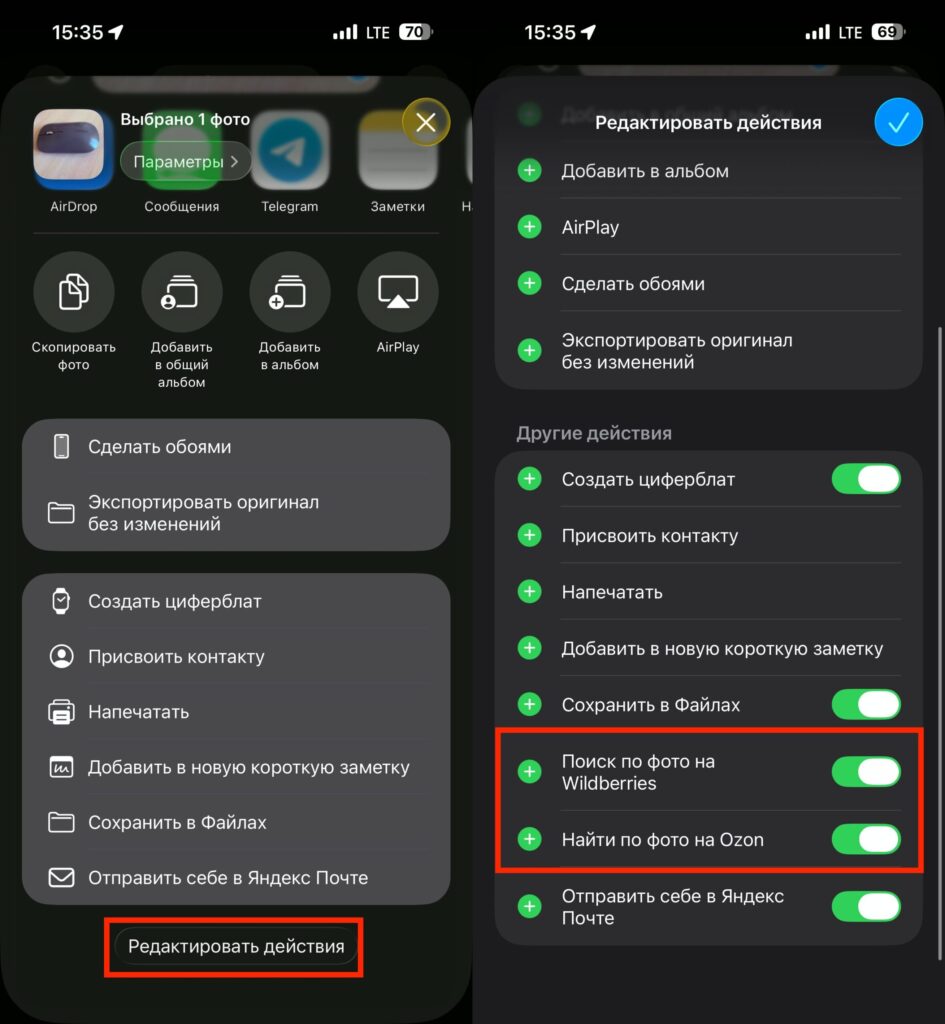
The buttons may be hidden, so you need to activate them first
- Open the Photos app on your iPhone and select any image.
- Tap the Share button in the bottom-left corner of the screen.
- Scroll down to the bottom of the actions list.
- Tap “Edit Actions.”
- Find “Search by photo on Ozon” and “Photo search on Wildberries” in the list.
- Toggle on the switches next to both apps.
- Tap “Done.”
Now both buttons will appear in the standard Share menu. This works not only in the Photos app. You can send an image for search from Safari, Telegram, any messenger, or gallery. The principle is the same: tap Share, select the marketplace, view the results. No additional steps are required.
Please note: for this feature to work, the Ozon and Wildberries apps must be installed on your iPhone. If one of them is missing, the corresponding button simply won’t appear in the actions list.
Searching for Products by Photo on Wildberries
Wildberries takes a more serious approach to photo search. When you send an image through the Share menu, the app analyzes the photo and identifies all items in it. If there are multiple items in the photo, the marketplace will show a list of them and let you choose a specific one. For example, if the photo shows a person wearing a jacket, sneakers, and carrying a backpack, Wildberries will highlight each item separately, and you tap exactly the one you want to find. The search will focus on that item.
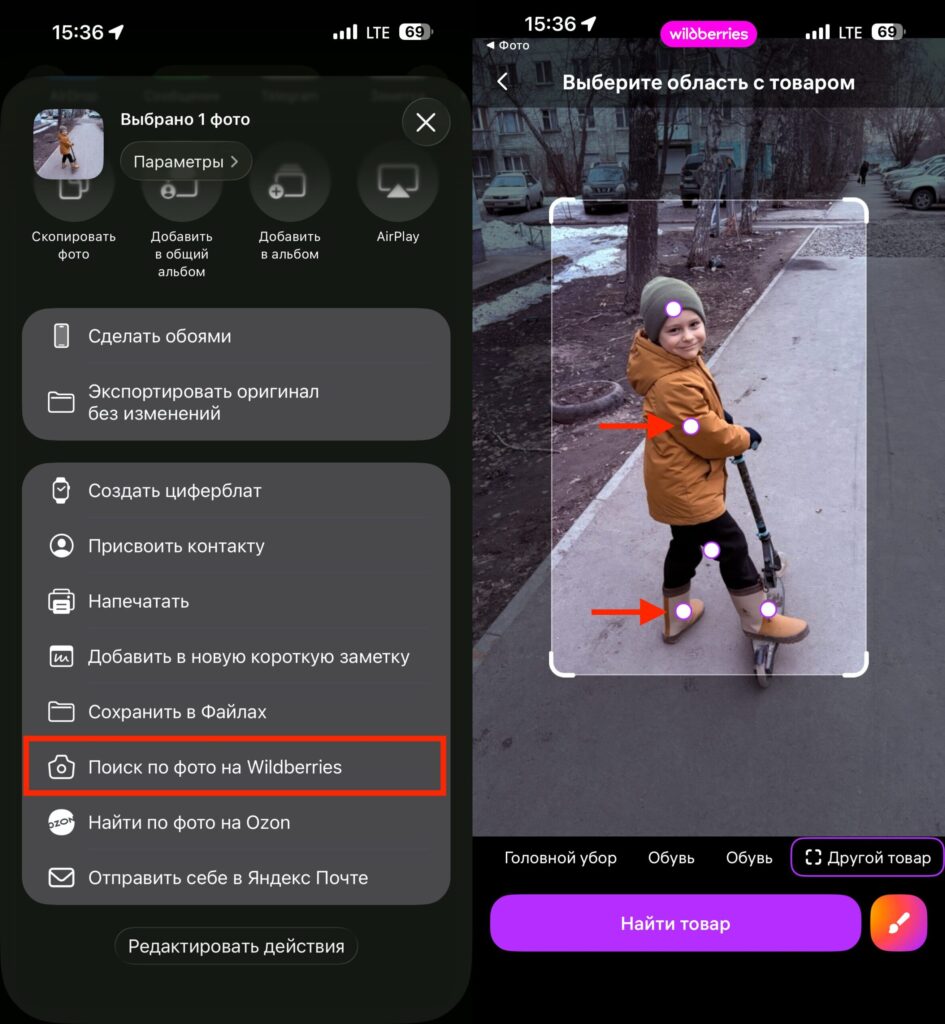
WB highlights all recognized items and you can choose what you want to search for
Another useful detail: you can add a text clarification to the photo. For example, you sent a photo of a T-shirt, and in the search bar you added “with long sleeves” or “without a print.” The algorithm will take into account both the visual characteristics of the image and your text. This is convenient when you need to find not an exact copy of an item, but a similar option with different details. You can even type “the same but in blue,” and the system will try to find suitable options.
According to Wildberries itself, 1.7 million people use photo search daily. Over the past year, the monthly audience of this feature has more than doubled. The combined photo-and-text search feature is still being tested but is already available to most users.
Searching for Products by Photo on Ozon
Ozon also has a button in the Share menu, but its approach to recognition is fundamentally different. The marketplace decides on its own which item in the photo you’re looking for. You can’t select a specific object like on Wildberries. Sometimes this leads to amusing results.
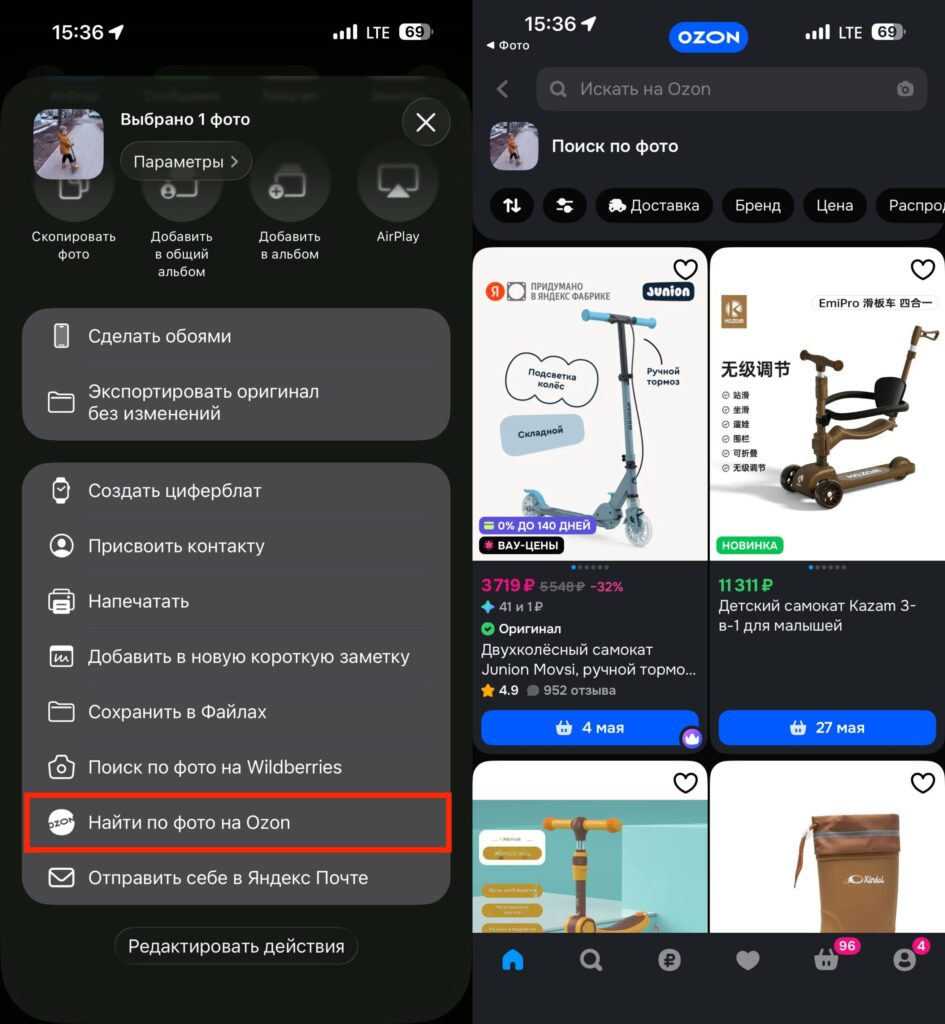
Ozon tries to determine what you want to find on its own and dumps everything into one search feed
Let’s say you photographed a child in a jacket on a scooter. You need the jacket, but Ozon decides you’re looking for a scooter. And it shows scooters. You can’t convince the algorithm otherwise: there’s no text clarification here. The only way out is to crop the photo so that only the item you need remains, and send it for search again.
However, for simple cases, Ozon works fast. One tap in the Share menu, and a second later you’re already browsing products. When the photo has one item without extra background, the results usually hit the mark. The search works especially well with electronics, kitchenware, and other items with distinctive shapes. It’s trickier with clothing: the algorithm may latch onto the color or fabric texture and show something completely different.
If you use both marketplaces, it makes sense to send the photo to both. Results often differ, and the item you need may only be found on one of the platforms.
Differences Between Photo Search on Ozon and Wildberries
The main difference: Wildberries gives you control. It identifies items in the photo, lets you choose the one you need, and refine your query with text. Ozon works on autopilot: it selects the object itself and launches the search. You can’t influence its decision.
For simple photos with a single item, both marketplaces perform equally well. The difference becomes noticeable with complex shots containing multiple objects. In such situations, Wildberries is more convenient because you don’t have to crop the image manually.
In any case, it’s worth activating both buttons in the Share menu. It takes a minute but will save you a lot of time in the future. You see an item in a social media feed, in a chat photo, or in a product listing on another website — one tap, and you already know how much it costs on the marketplace.


