If you are chronically five minutes late, watchOS has a built-in fix: you can set the Apple Watch face to run a few minutes ahead of the real time without touching the device’s actual clock. The setting lives in Settings > Clock on the watch itself, takes under a minute to configure, and, according to the source author, works better than it sounds because your brain reacts to the number on the screen rather than the time you know it to be. Alarms and timers are unaffected, because the offset changes only what the watch face displays.
What you need to know
- The time offset is an official watchOS feature found in Settings > Clock; you tap the “+0 min” item and turn the Digital Crown to choose how many minutes ahead the face should run.
- The offset only changes the displayed time; alarms and timers still fire at the real time you set.
- The source author recommends starting with three to five minutes and not exceeding ten, since a large offset is easy to mentally subtract and causes confusion with the iPhone, which keeps the true time.
- Turning off automatic date and time to set the clock ahead manually is not recommended: the watch may drift unpredictably and will not switch to or from daylight saving time on its own.
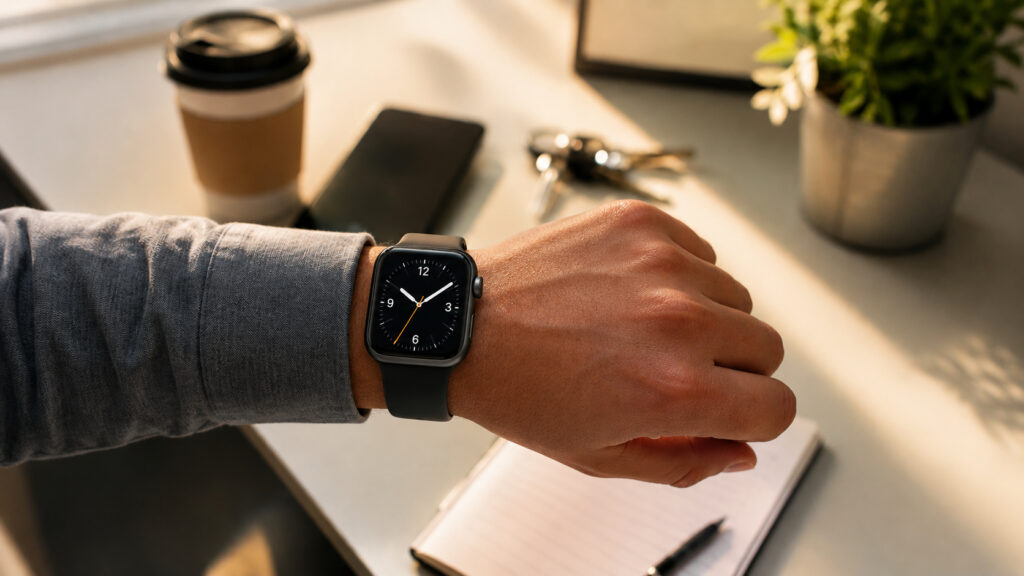
An Apple Watch can help cure chronic lateness
How to set the Apple Watch a few minutes ahead
The source author describes being late almost everywhere, to meetings, trains and calls, and says the simple trick of a watch that runs slightly fast solved the problem. On Apple Watch this is an official watchOS feature, not a third-party workaround with side effects. The watch continues to know the exact time from the internet and simply displays it with your chosen correction added on top.
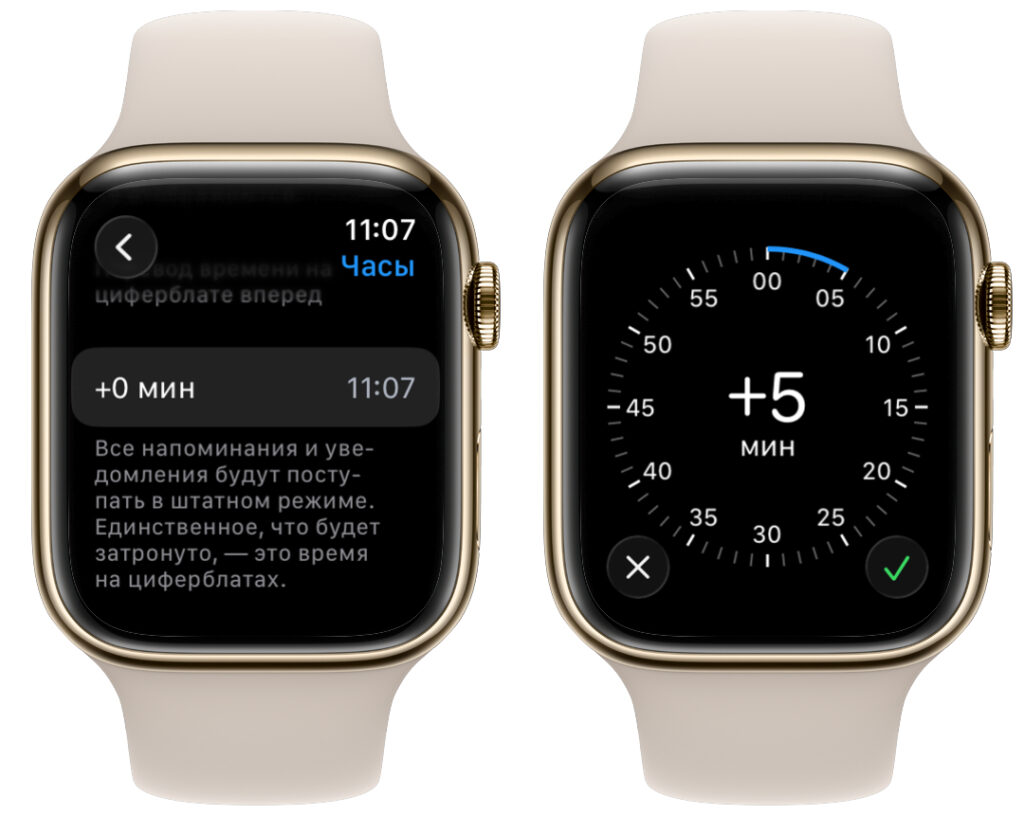
Add as much time as you need
- Open the Settings app on the Apple Watch and scroll down to the Clock section. It sits fairly deep in the list.
- Tap the “+0 min” item.
- Turn the Digital Crown (the wheel on the side of the watch) to choose how many minutes ahead the watch should run.
- Tap the checkmark to save.
The source author advises keeping the correction small and not going beyond ten minutes. If the gap is too large, you start getting confused between the Apple Watch and the iPhone, which continues to show the real time, and constant confusion over the numbers is more annoying than the occasional late arrival. The suggested starting point is three to five minutes; the offset can always be increased later.
There is a useful side effect of how the feature is implemented: the correction changes only what the watch face shows. Internally the device keeps the true time, so alarms and timers go off at exactly the moment you set them. The watch nudges you every time you glance at it, while important reminders stay accurate to the second.
Why a watch that runs slightly fast helps
The logic is straightforward. When you look at the face and see a time a few minutes later than reality, your brain subconsciously starts to hurry. You get ready a little faster, leave a little earlier and arrive on time. The source author calls it a small anti-procrastination trick rather than magic. To make glancing at the time easier, the author also suggests deciding whether to enable the Always-On Display, which keeps the face visible without raising your wrist.
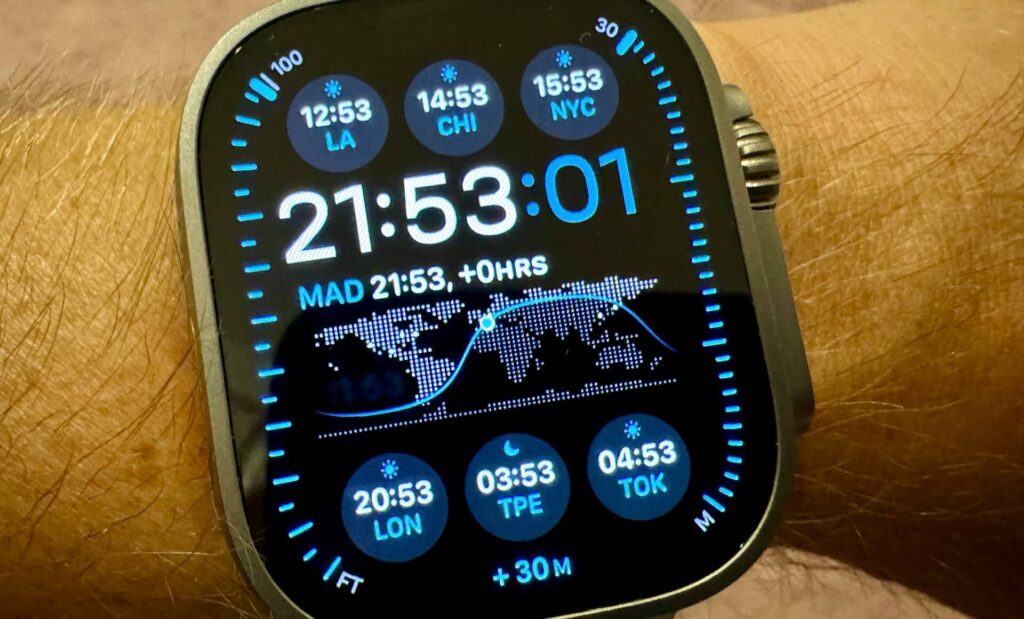
The time offset feature works on all Apple Watch models and applies to every watch face
According to the source author, the trick works better than expected because you gradually stop remembering exactly how far ahead the watch is set. The brain forgets the real figure and reacts only to what is on the screen, and even knowing about the deception you still speed up a little. In the author’s experience, a couple of spare minutes is enough to avoid running for the elevator and to walk calmly to the car.
The effect is said to be most noticeable for people who habitually underestimate travel time. The author counts himself among them: a trip that feels like ten minutes turns out to take twenty. A watch that runs fast compensates for this optimist’s error and stops you from planning around a too-rosy scenario.
One caveat: do not overdo the difference. If the watch is set too far ahead, the effect disappears, because you simply memorize the exact offset and start subtracting it in your head.
Do not turn off automatic time instead
Many people are tempted to take a different route: disable automatic date and time and then manually set the clock ahead. The source author advises against this. The minute offset exists precisely so you do not have to do that, and there is no reason to break the system settings of an expensive device for the sake of a couple of minutes.
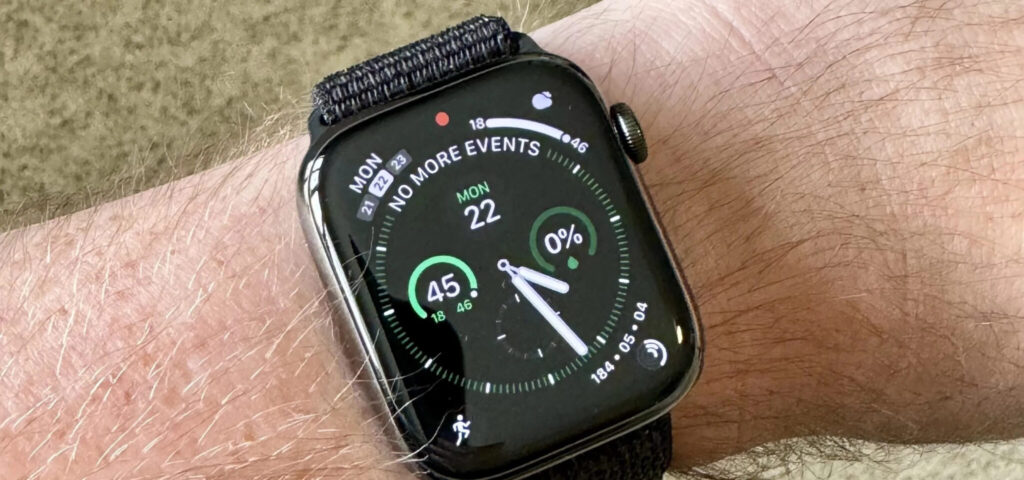
Do not disable time synchronization; it is a very useful feature
With synchronization enabled, the Apple Watch constantly checks itself against accurate network time and only adds your offset on top. Turn synchronization off and the watch is left alone with its internal timer. Over time it will start running fast or slow without your knowledge, and the offset stops being predictable: you will think the watch is exactly five minutes off when the real gap is something else entirely.
There is a second drawback. Without automatic time, the watch will not switch to or from daylight saving time by itself in regions that observe it. You would have to remember to change the clock manually, which is one more way to turn up at the wrong hour.
Two more settings that fight lateness
Setting the watch ahead is not the only tool. The same Clock section of the Apple Watch settings contains two more features that stop time from slipping away unnoticed. They are especially useful for people who get absorbed in work and lose track of the hours.
The first is Chimes. Turn it on and the watch gives a light tap on the wrist every hour. Despite the name, there is no sound if Silent Mode is on, which the source author says should be the default anyway; it is just a quiet vibration reminding you that another hour has passed.
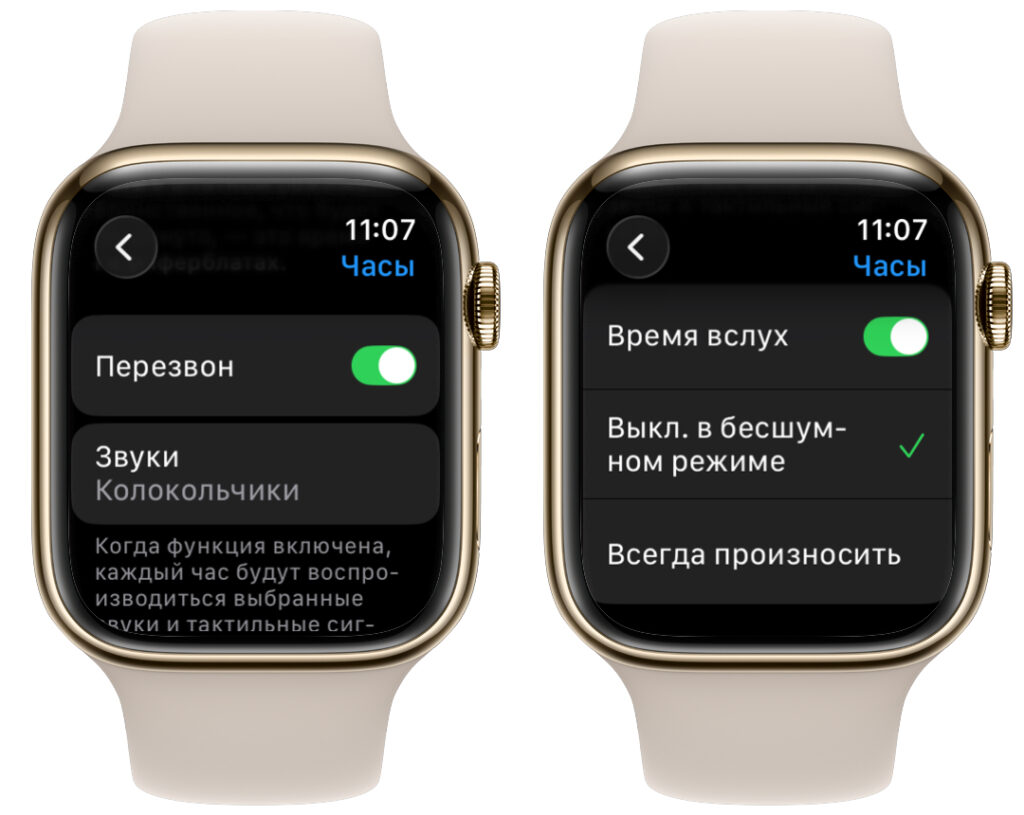
Two additional features you will also find a use for
The second is Speak Time. If the hourly vibration blends in with ordinary notifications and you stop noticing it, this option makes the watch announce the time out loud. It has two modes:
- Off in Silent Mode: the watch stays quiet while in Silent Mode and speaks the time in all other cases.
- Always Speak: the watch announces the time in any situation, even in Silent Mode.
With these settings in place, the source author says, you will arrive on time and occasionally early, and a spare couple of minutes is never hard to fill.