In Russia, access to online services is being systematically restricted: internet whitelists have already become a reality in several regions. But while the global network is still somewhat functional, it makes sense to get familiar with tools that truly change the Android experience. Gemini in Russia is one of those tools. It’s Google’s neural network that replaces Google Assistant and can do significantly more. Here’s how to get it and set it up.
Everything about setting up Gemini for proper operation in Russia
Does Gemini Work in Russia
Officially — no. Russia is not on the list of countries where the Gemini neural network is supported by Google. If you simply download the app and launch it without additional settings, you’ll see the message “This country is not supported”, and that’s as far as you’ll get.
Russia is not on the list of supported countries, but that's not a death sentence.
But that doesn’t mean the path is closed. The very fact that there are working methods to get access to Gemini in Russia shows that Google’s technical restrictions are not absolute. This is a regional restriction at the level of determining your location by IP address. That’s exactly why there are workarounds, and they work without a VPN. But more on that later.
How to Get Gemini in Russia
On most modern Android smartphones, the Gemini app is already preinstalled, especially on devices from 2024-2026. For example, Samsung Galaxy S26 ships with Gemini as the default assistant. On many other smartphones with up-to-date Google Play Services, the app is also present — you just might not have noticed it yet.
If the app isn’t there, you’ll need to install it yourself. A standard Russian Google Play account won’t let you do this: you can’t download Gemini in Russia through it, since the app simply won’t appear in search results. There are two options here.
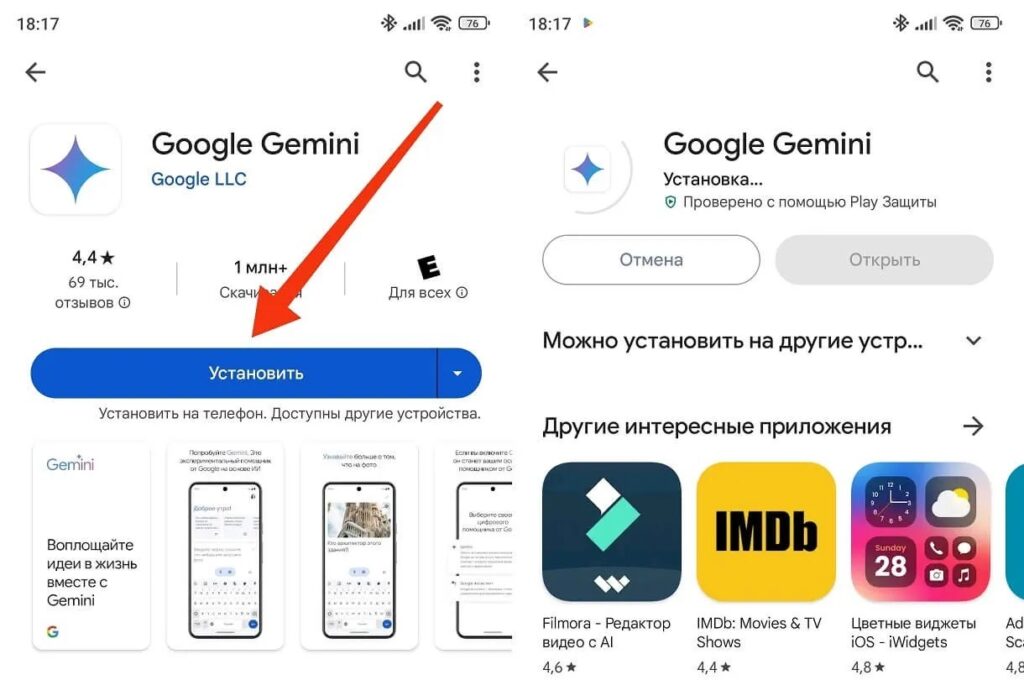
Gemini can be downloaded through Google Play, but only with a foreign account
Option 1 — a foreign Google account. If you have a Google account with a foreign region, simply log into Google Play with it and install Gemini. I wrote separately about how to create a foreign Google account. It takes 15-20 minutes.
Option 2 — APK file. Download the APK from a trusted source — for example, apkpure.com — and install it manually by allowing installation from unknown sources in Android settings. This is faster but requires care when choosing a source.
System requirements for installing Gemini in Russia: Android 10 or newer, at least 2 GB of RAM, up-to-date Google Play Services.
How to Enable Gemini on Android
After installing the app, you need to make Gemini the default assistant, otherwise the “OK Google” command will open the old Google Assistant.
Switching the assistant:
- Open “Settings” on Android.
- Go to “Apps” and find “Default apps” or “Standard apps.”
- Select “Assistant app” or “Digital assistants.”
- Choose Gemini instead of Google from the list.
- Confirm your selection.
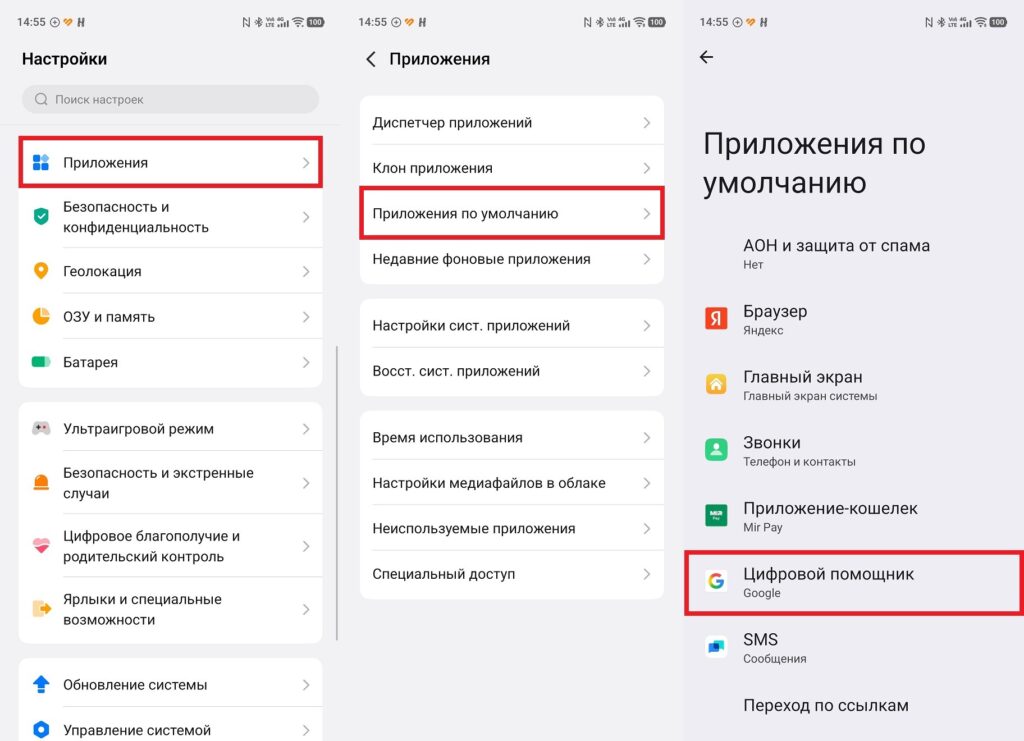
Don’t forget to switch the assistant if a different one is selected by default
Setting up voice activation:
- Open the Google app.
- Go to “Settings — Google Assistant.”
- Activate the “OK Google” command in the Voice Match tab.
- Add English (United States) in addition to Russian (this is needed for stable operation).
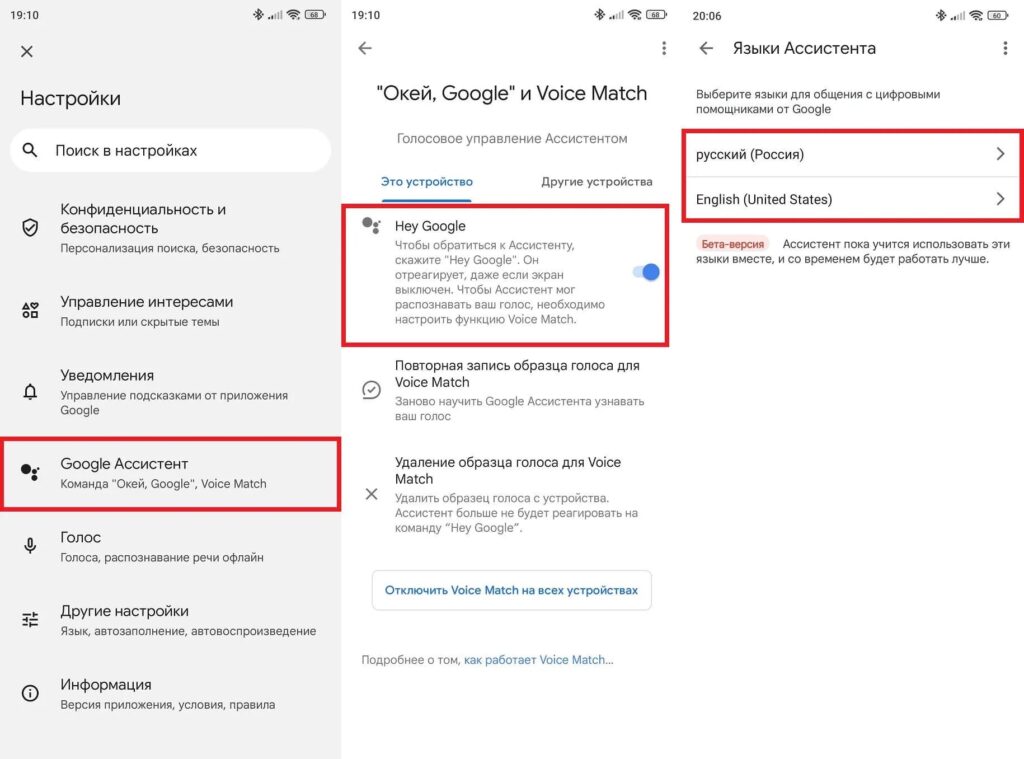
It’s a good idea to set up the voice activation command as well
After this, Gemini can be summoned by saying “OK Google” from any screen (even the lock screen). This is one of its main advantages over other neural networks: you don’t need to open an app, a voice command is enough. For details on what Gemini can do on Android, check out a separate article.
“This Country Is Not Supported” in Gemini — What to Do
If after installation and launch you see the message “This country is not supported,” it means Gemini won’t open in Russia because your IP address is identified as Russian. This is not an app error or a phone problem — it’s simply a geo-restriction.
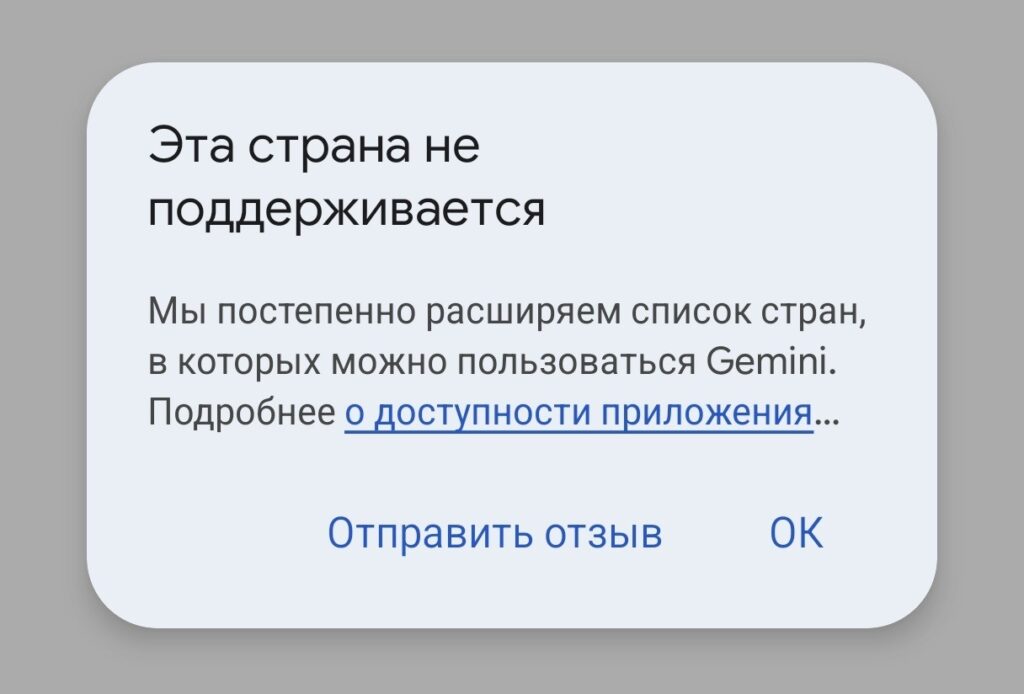
The error that appears when using Gemini in Russia
This is solved by changing the DNS server to one that spoofs your IP to that of a supported country. No VPN is needed — just one settings change on your phone is enough. Among free neural networks that work in Russia without a VPN, Gemini with the right DNS is one of the most convenient options specifically thanks to its deep integration into Android.
DNS for Gemini in Russia — Setup
This is the key step. DNS for Gemini in Russia is a special server that, when accessing Google services, spoofs your Russian IP with the IP of a supported country. It only works for specific services, unlike a VPN which redirects all traffic. Setting up Private DNS on Android:
- Open “Settings” on your smartphone.
- In the search bar, type “DNS” and find the “Private DNS server” section (on some devices it’s called “DNS settings” or “Private DNS”).
- Select “DNS provider hostname.”
- Enter the address: dns.comss.one (alternative option: comss.dns.controld.com).
- Tap Save.


