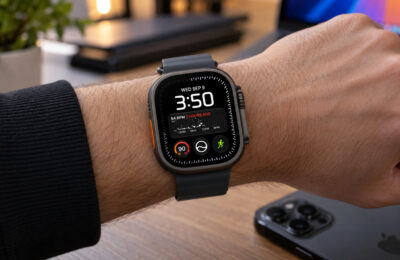
Apple Watch offers dozens of built-in watch faces, yet most people stick with the same one for years. Changing your watch face is not just cosmetic — different faces suit different situations. One screen works best for workouts, another displays two time zones at once, and a third is optimized for sleep. Apple Watch lets you keep several presets ready and switch between them with a single swipe on the screen. Here is a practical breakdown of the most useful built-in faces, how to set them up, and how to turn your own photos into watch faces.
What you need to know
- You can add and customize watch faces directly on the Apple Watch — no iPhone required.
- The Infograph face supports up to eight complications on a single screen; according to Cult of Mac, Apple CEO Tim Cook reportedly uses it.
- Wayfinder is exclusive to Apple Watch Ultra and can display compass coordinates, altitude, and incline.
- You can create a photo-based watch face in seconds via the Share menu in the iPhone Photos app.
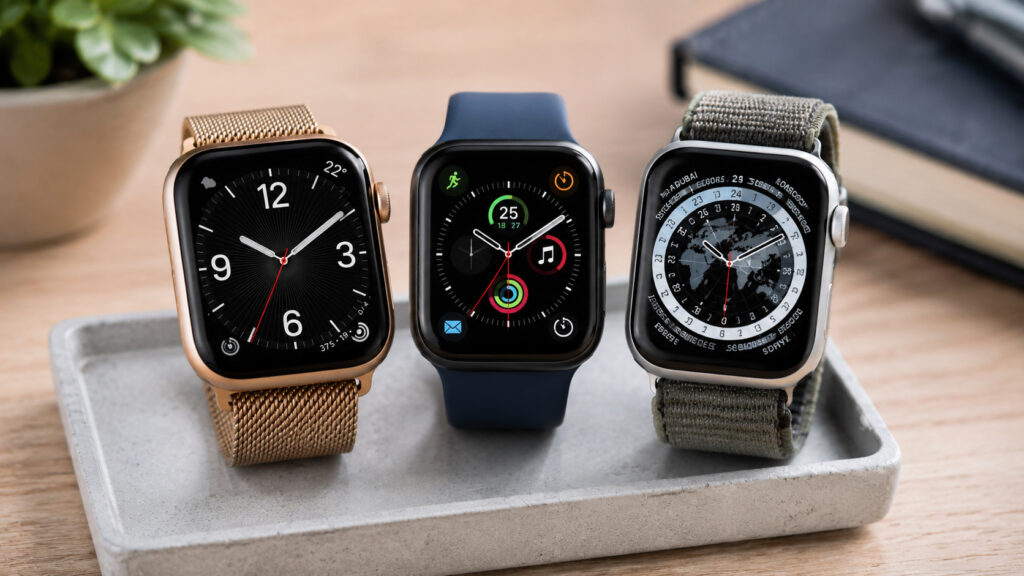
Apple Watch faces can be customized to suit your needs
How to Add and Customize a Watch Face on Apple Watch
Adding a new watch face is simpler than it might seem. Everything is done directly on the watch — no iPhone is needed. Here is how:
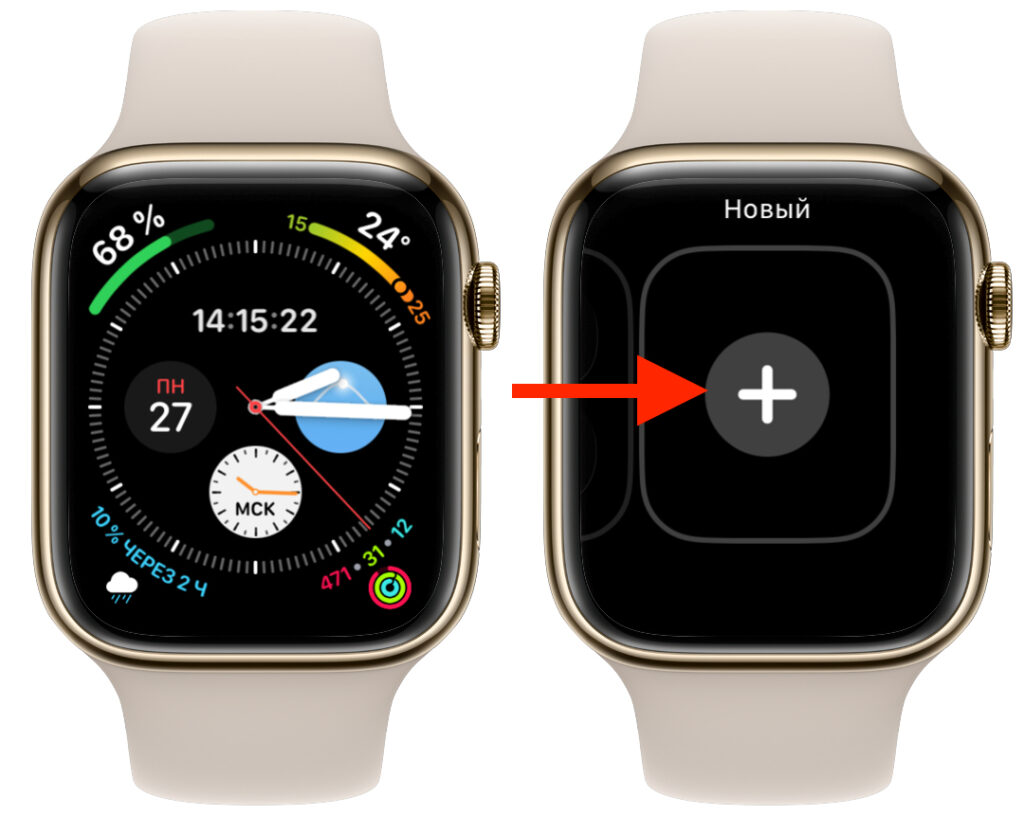
You can set up a watch face directly on Apple Watch
- Press and hold on the current watch face.
- Scroll to the end of the installed faces and tap the large plus icon on the “New” screen.
- Browse the gallery, choose a face you like, and tap “Add.”
To customize the appearance, press and hold on the face again and tap “Edit.” On most faces, the Digital Crown changes the style or color. Swiping left opens the complication editor — small information blocks. Tap any block to swap it for another: weather, heart rate, calendar, timer, and more.
A useful habit is to prepare several presets for different scenarios — for example, one face for workouts, another for the workday, and a third for sleep. After that, switching takes just one swipe across the screen.
Best Built-in Apple Watch Faces
Among the built-in faces, there is an option for almost any task. Here are the standouts:
Activity — Best for Fitness
Available in three versions (two analog, one digital), the Activity face puts the Move, Exercise, and Stand rings front and center while leaving room for three complications. The defaults are weather, workout, and heart rate. Having the rings constantly visible makes it much harder to forget to close them.
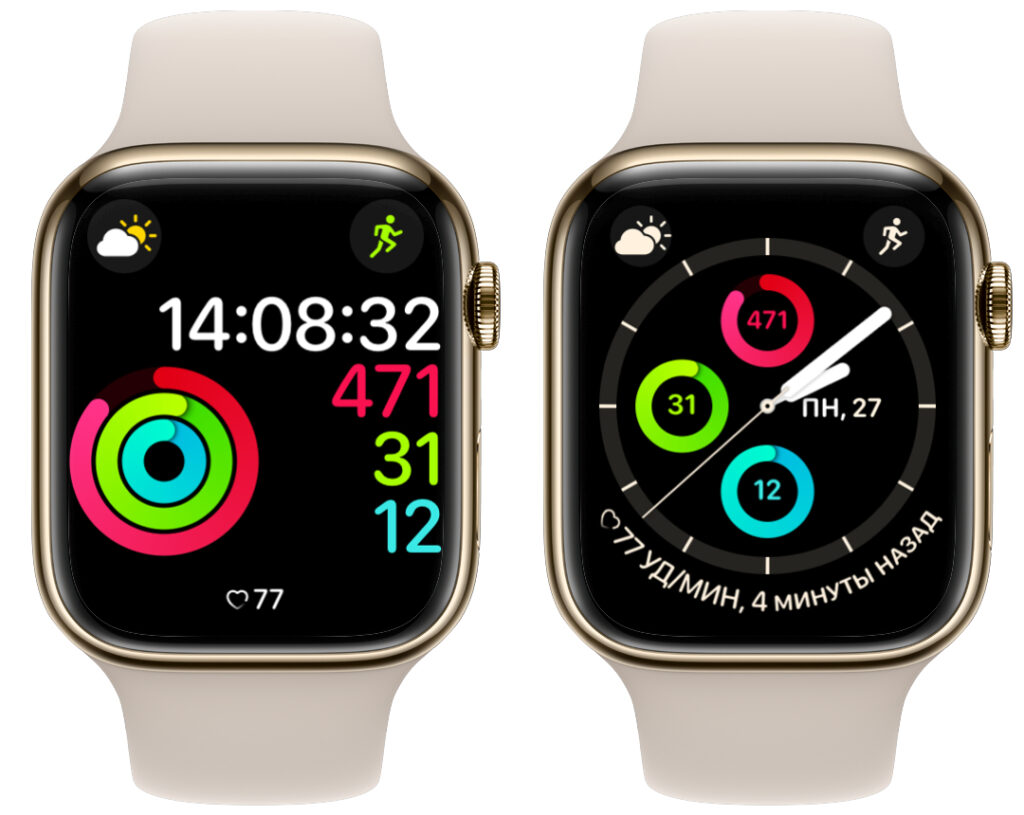
Activity-related watch faces for Apple Watch
Wayfinder — Best for Hiking (Apple Watch Ultra Only)
Exclusive to Apple Watch Ultra, Wayfinder supports up to eight complications — from weather to GPS coordinates. Tapping the outer edge of the screen turns the face into a compass showing current latitude and longitude; alternatively, you can display altitude and incline. A night mode preserves your vision in the dark.
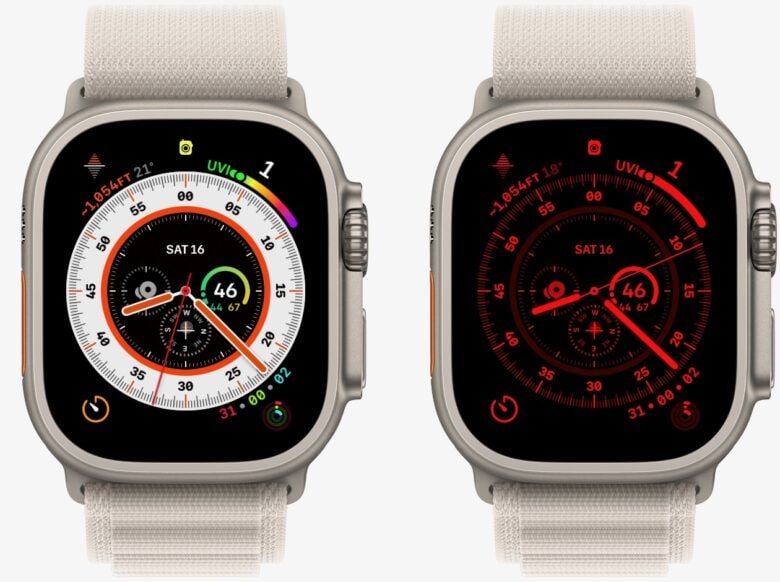
An Apple Watch Ultra exclusive
Breathe — Best for Relaxation
A simple analog face with a calming animation that serves as a gentle reminder to slow down. It offers three complication slots; by default these are a shortcut to the Mindfulness app, weather, and heart rate.
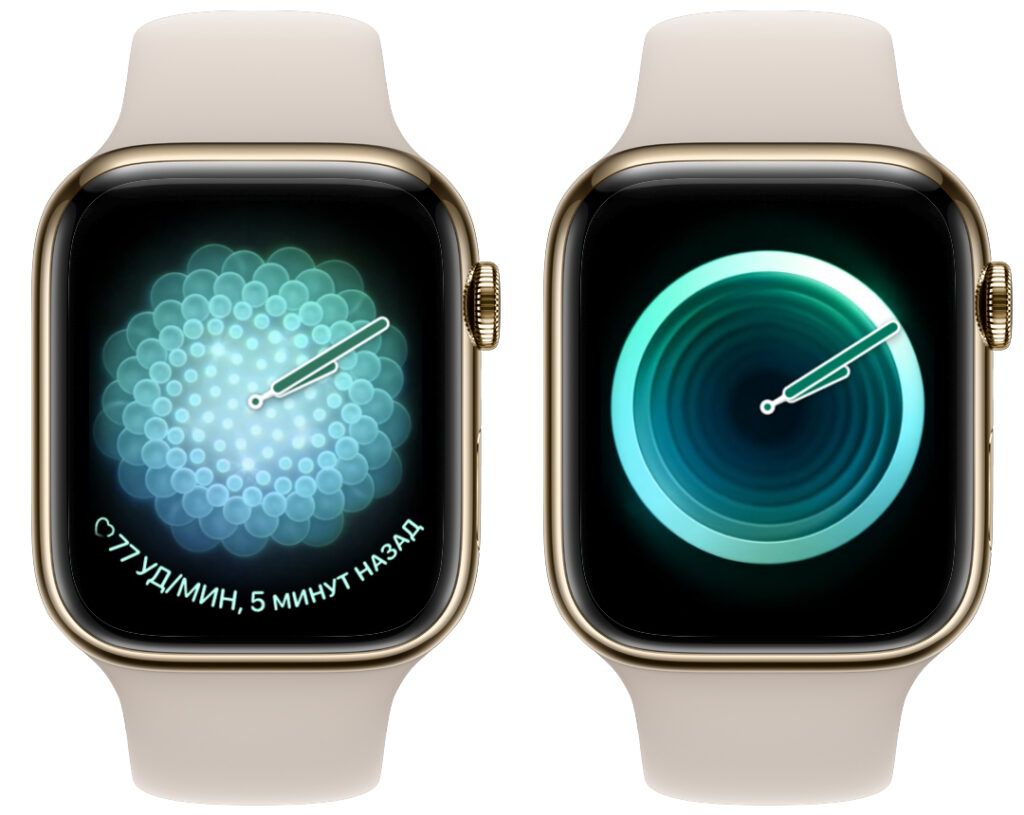
The Breathe face also looks great
Modular Duo — Best for Busy Schedules
The time is pushed to the top, leaving room below for two large complications such as calendar and activity — ideal for people with packed schedules, such as healthcare workers, who need to keep their timetable in view at a glance.
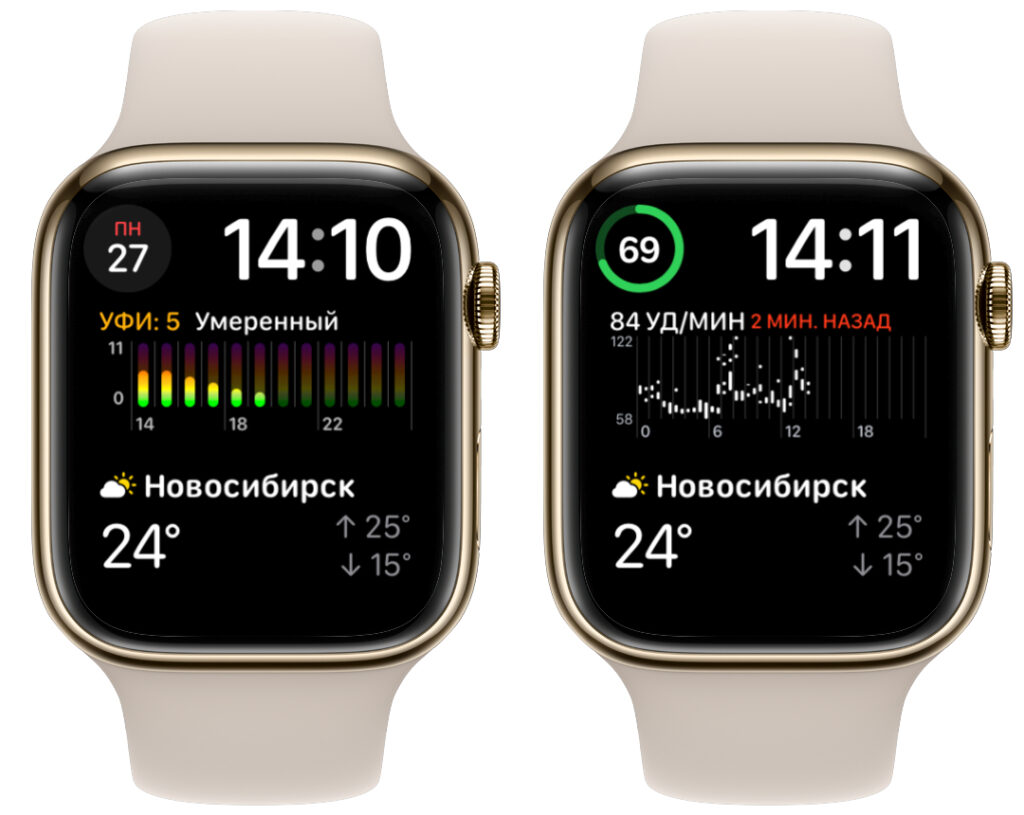
Modular Duo can fit a lot of information
GMT — Best for Two Time Zones
The hands show your local time, while a 24-hour ring around the edge displays a second time zone of your choice. Tap the screen to select a city from the list or from the Clock app.
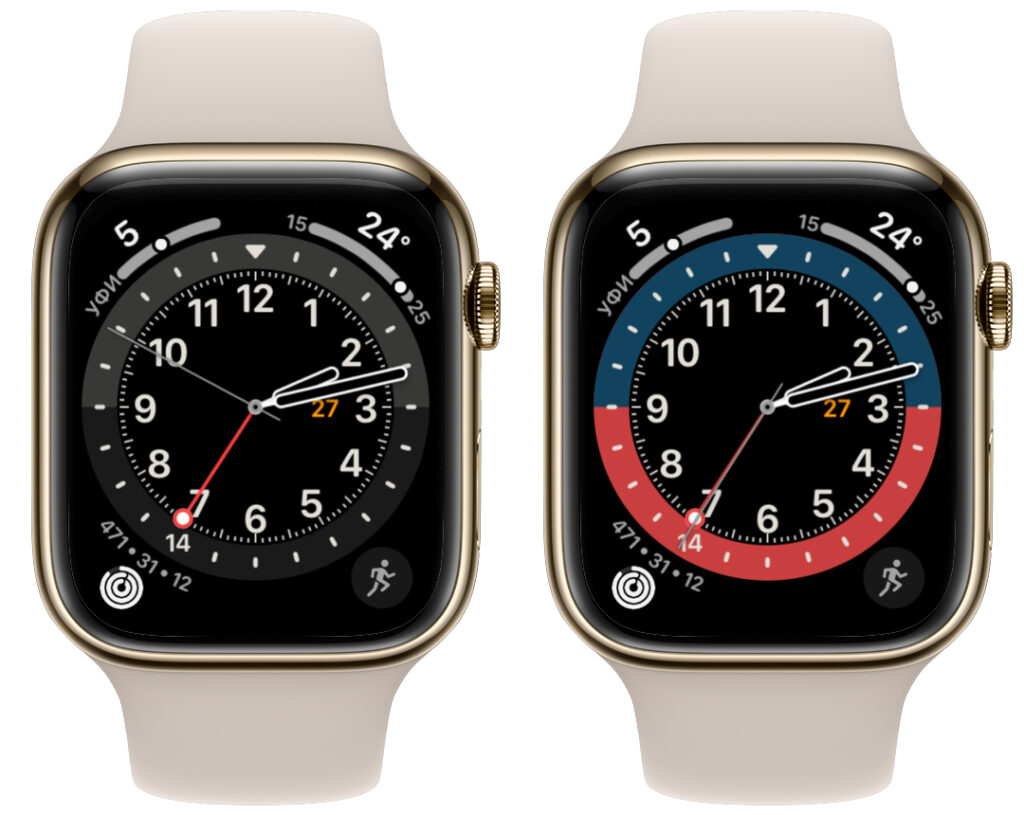
A handy face that also looks great
Infograph — Most Complications on One Screen
Infograph holds the record with eight complications on a single screen — four in the corners and four in the center — while remaining readable. According to Cult of Mac, Apple CEO Tim Cook reportedly uses this face.
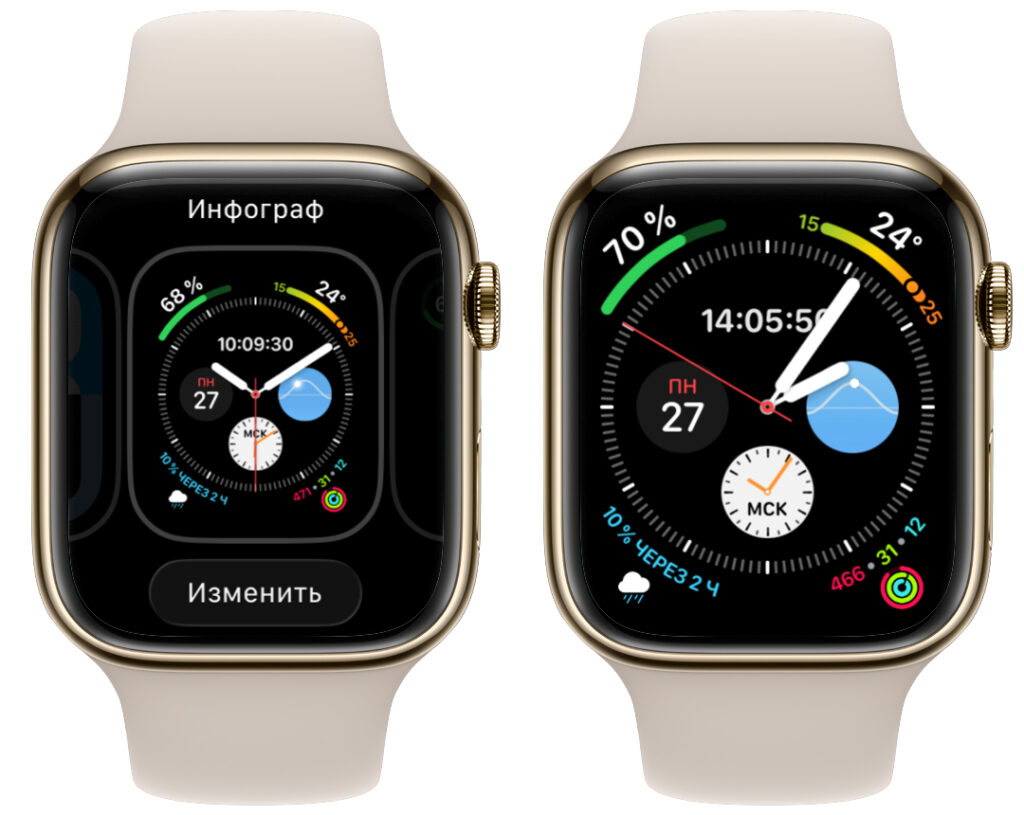
The author’s daily driver watch face
Honorable Mentions
Numerals Duo is well-suited for sleep: its large digits are easy to read when you wake in the middle of the night. Setting the color to red is recommended, as it is gentler on the eyes in the dark. X-Large displays one big complication across the entire screen — useful, for example, for monitoring glucose levels via Dexcom, which would be hard to read in a smaller block.
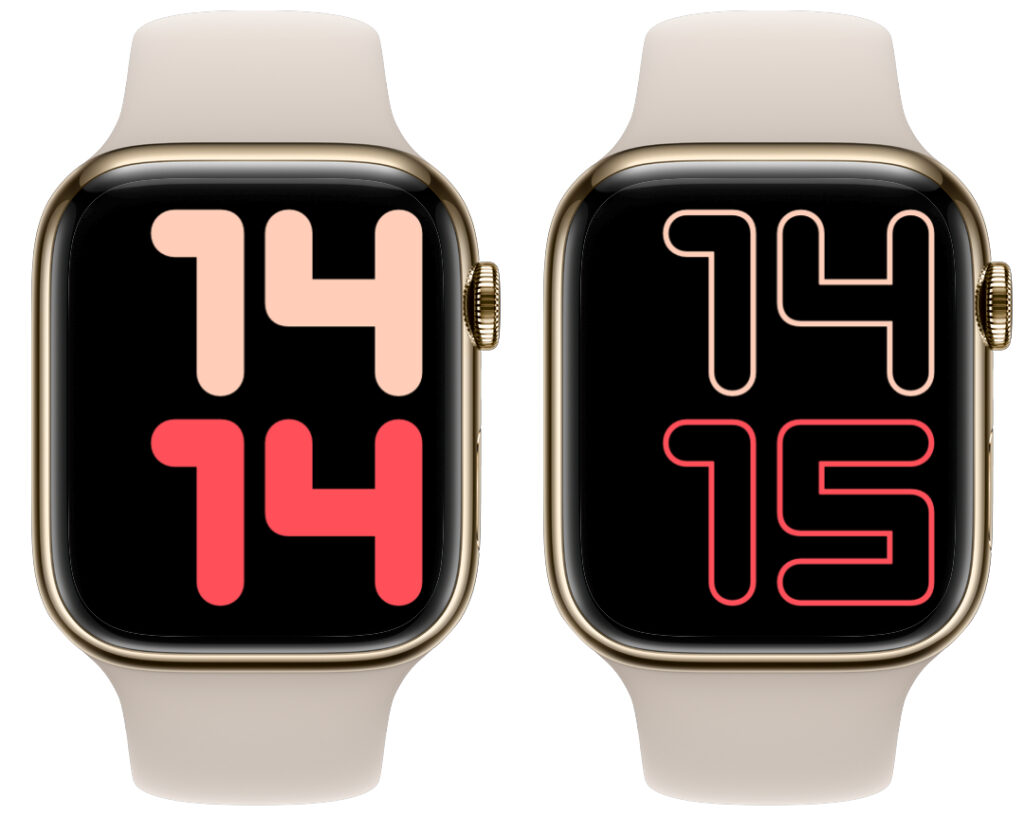
Another interesting format
Style enthusiasts may appreciate Chronograph Pro, which evokes a classic racing chronograph in the spirit of Paul Newman’s famous watch. Tapping the outer ring turns it into a stopwatch with a tachymeter scale for measuring speed. Frequent travelers may prefer World Time, which shows the time across all time zones on a 24-hour ring while still leaving room for complications like calendar, weather, and messages.
How to Set Up Complications on Apple Watch
The real power of Apple Watch lies not in the face design itself but in complications — small blocks that display useful information and launch apps with a single tap. The more complication slots a face offers, the faster you can reach what you need.
To keep complications always visible, consider whether to enable Always On Display. This mode is convenient but noticeably affects battery life.
To add or replace a complication:
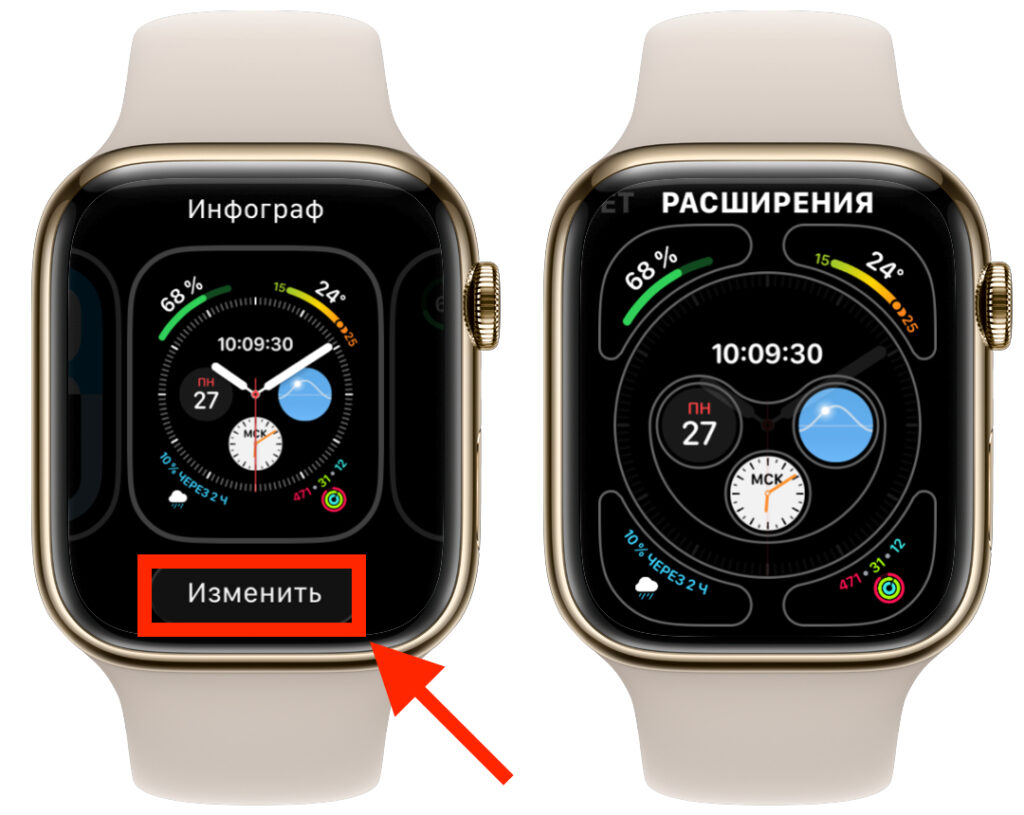
Complications can also be configured directly on the watch
- Press and hold on the watch face, then tap “Edit.”
- Swipe left until you reach the complications screen.
- Tap the desired slot and use the Digital Crown to choose what it displays.
- Press the Digital Crown to save, then tap the face to apply.
Different faces offer different numbers of complication slots. Breathe and Activity have three, GMT has four around the edge, and Infograph holds eight. A practical combination for most users includes calendar or next appointment, weather, heart rate, and messages. On Infograph, placing the “Your Schedule” complication in the top slot is a useful trick: it shows both the date and the next calendar event simultaneously.
How to Create a Photo Watch Face
Beyond the built-in options, Apple Watch can turn your own photograph into a watch face. This is the most personal way to customize your watch: a favorite photo appears on screen with the time neatly overlaid. The easiest method is to create a photo face via iPhone:
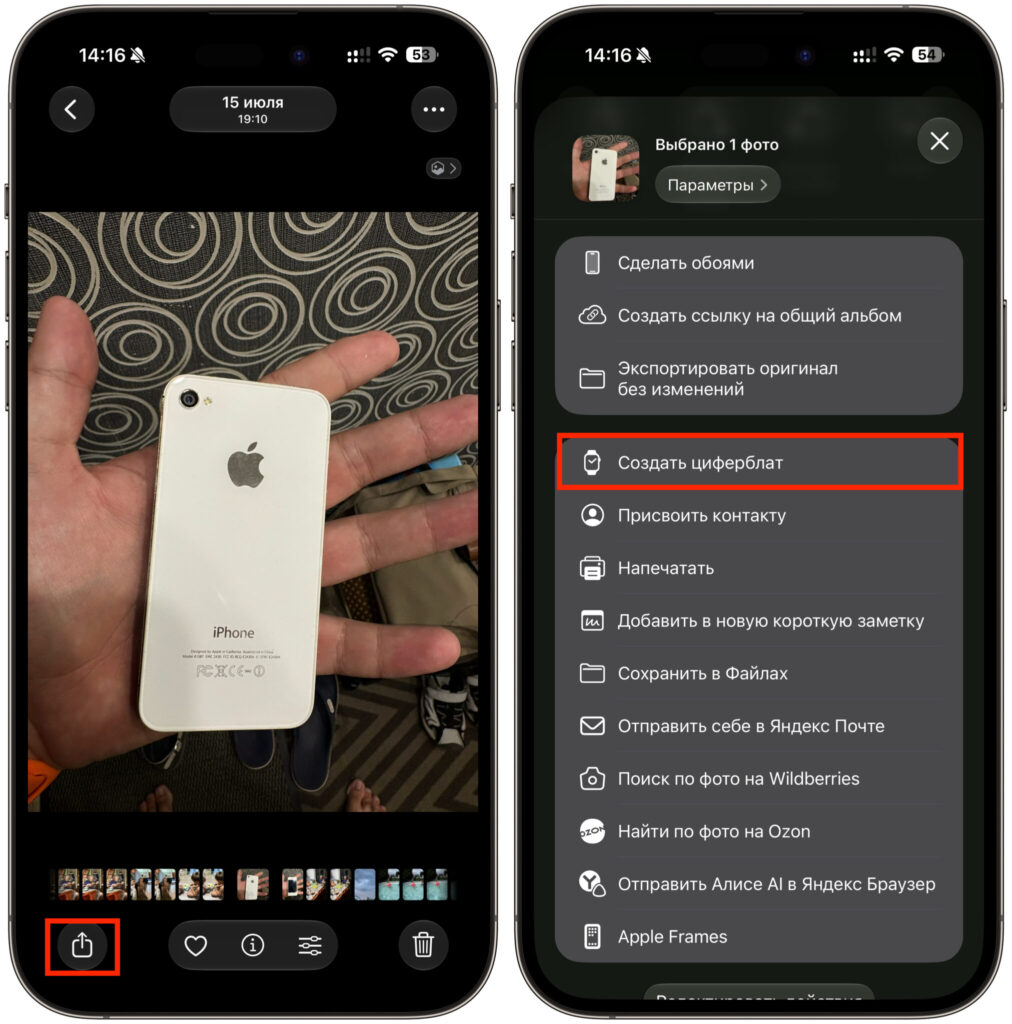
Any photo can be turned into a watch face in a couple of taps
- Open the Photos app on your iPhone and select the desired image.
- Tap the Share button.
- In the list of actions, find “Create Watch Face.”
- Choose the face type and confirm — it will appear on your watch.
To share a finished watch face, press and hold on it, tap “Share,” and send it via Messages or Mail. The recipient simply opens the link on their iPhone and adds the face to their collection. This is a convenient way to pass along a well-configured setup with all complications already arranged, without having to rebuild everything from scratch.
Putting It All Together
The key takeaway is straightforward: build several presets for your daily scenarios — workout, work, sleep — and configure the right complications on each. Use Activity for fitness, GMT for dual time zones, Infograph for maximum information density, and a photo face for personal style. Switching between them takes a single swipe, so there is no reason not to keep multiple faces ready and change them as the situation demands.