The better you know the capabilities of the Camera app, the higher the quality of your shots — even without choosing between multiple lenses. If you’ve recently started shooting on iPhone more intentionally, it’s time to figure out how to open the camera faster, which modes are truly useful, and which settings are worth setting as defaults. We’ve prepared a handy guide to the Camera app on iPhone that will help you learn all the secrets of iPhone photography.
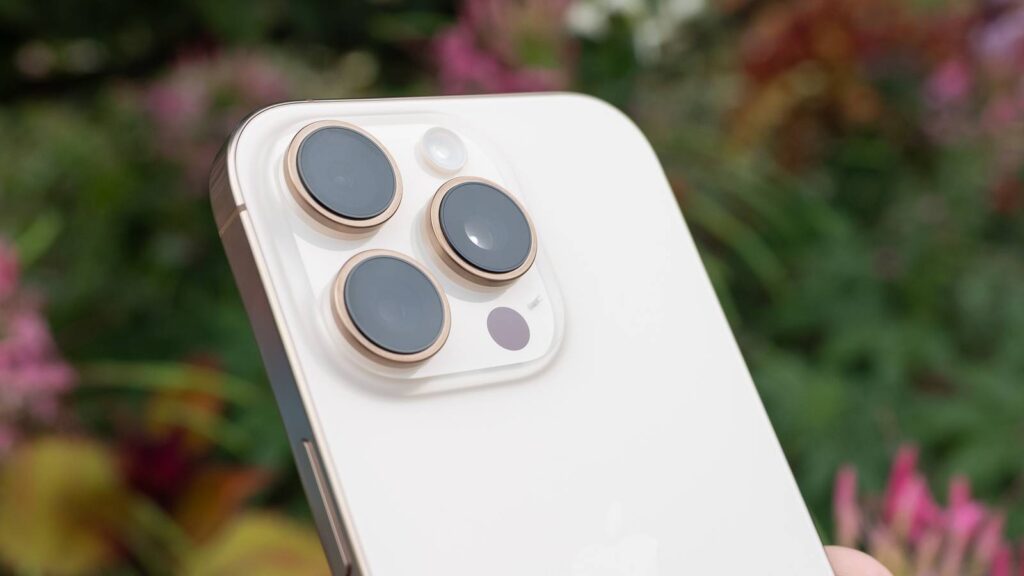
Many people don’t know all the secrets of the iPhone camera
How to Quickly Open the Camera on iPhone
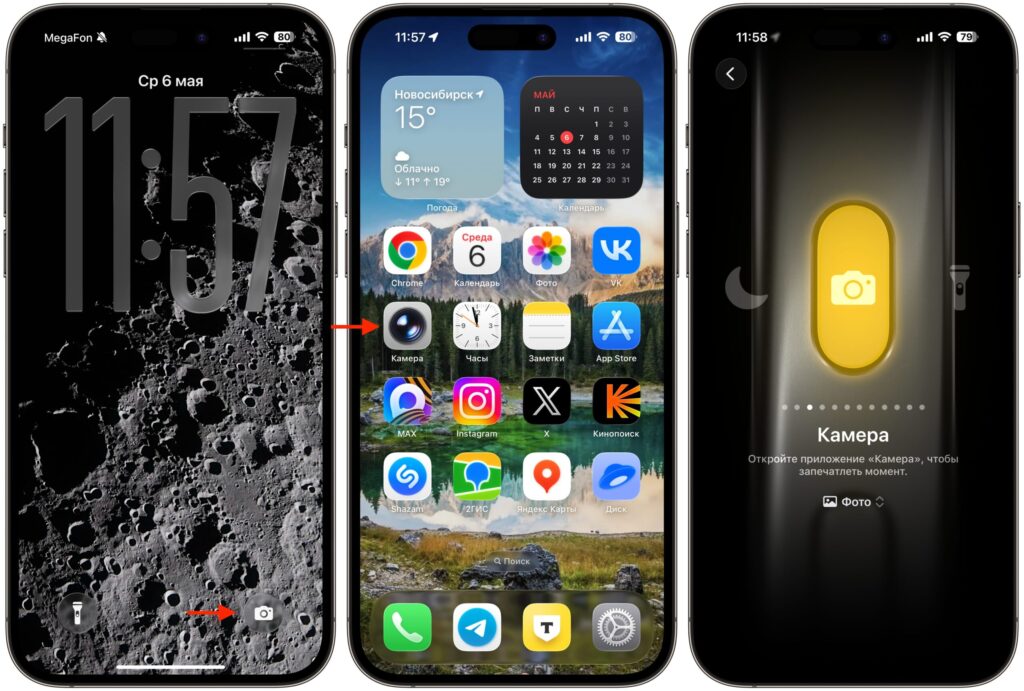
The iPhone has at least six ways to launch the Camera app. It sounds excessive, but in reality it lets you pick a convenient method for yourself:
There are really many ways to open the camera on iPhone
- swipe left on the lock screen — the oldest method
- shortcut in the bottom-right corner of the lock screen (it can be replaced with any other)
- Action Button on the upper-left edge — in settings it can be assigned to launch the camera or a third-party app
- Camera Control button on the lower-right edge — pressing it opens the camera
- app icon on the home screen (long press gives shortcuts for selfie and portrait)
- through widgets and shortcuts
In iOS 26.1, an option to disable the left swipe from the lock screen appeared — previously the camera often launched accidentally in a pocket. You can find the toggle at Settings — Camera — “Launch Camera by Swiping on Lock Screen.” There’s also a fine-tuning option for Camera Control: you can require the screen to be active, or enable a double press to launch. This reduces the number of accidental activations.
How to Quickly Take a Photo or Video on iPhone
The on-screen shutter button isn’t the only option. Camera Control is the fastest way to take a photo: one press opens the app, the second takes the shot, and your finger is already in the right position when the phone is raised to your eyes.
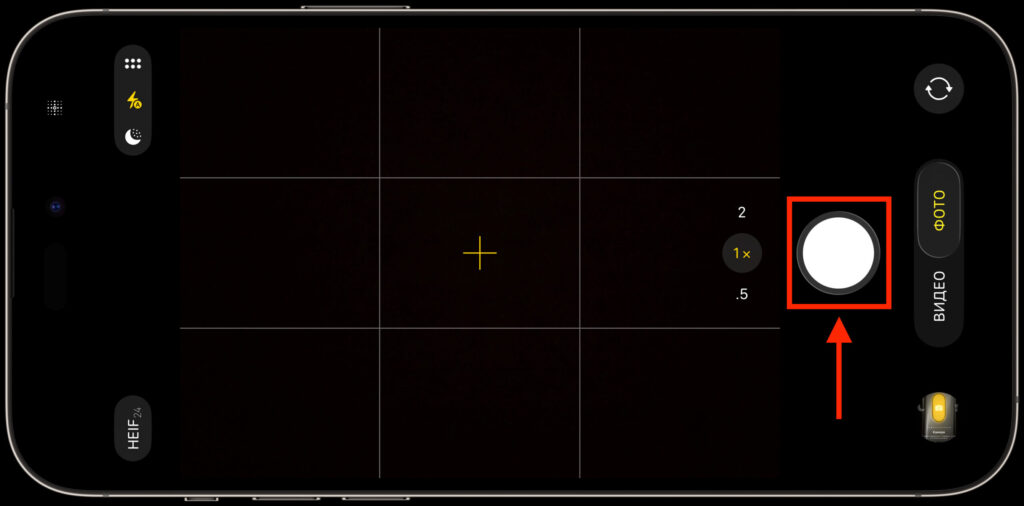
The most convenient way to shoot is right from the screen
The volume buttons also work as a shutter. By default, a single press of either takes a photo, holding “volume down” starts video recording, and holding “volume up” starts burst shooting. In settings, this behavior can be changed — for example, you can assign both buttons to video recording.
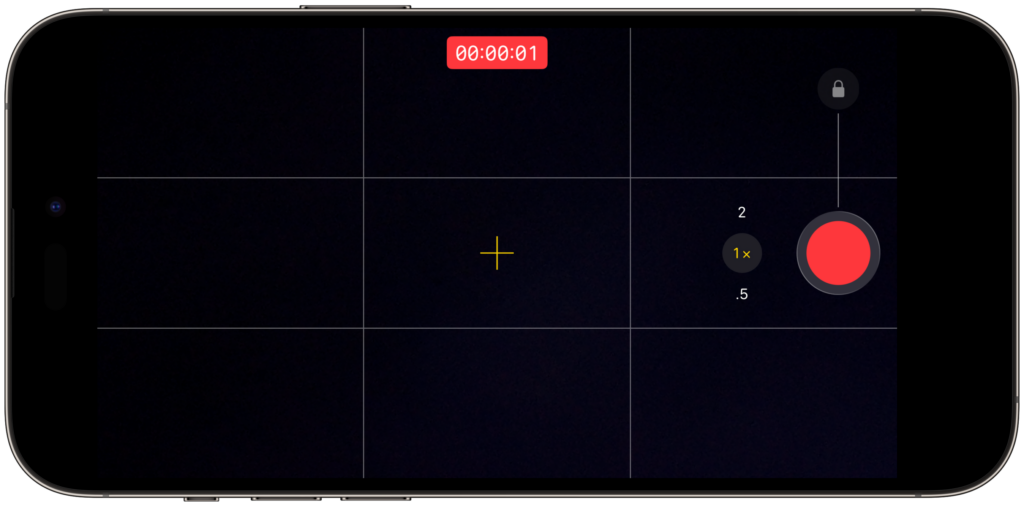
You can hold the photo button and video recording will start
There’s also the QuickTake function on the on-screen button itself. If you press and hold it, video recording begins; release it — recording stops. To lock the recording without keeping your finger on it, slide the button to the right. If you immediately drag the button to the left, burst shooting activates — until you let go.
iPhone Camera Zoom: How to Zoom In on Photos and Videos Properly
Pinching the screen with two fingers for zoom works, but it’s not the best option: your fingers move the phone itself, and the video comes out shaky. It’s more convenient to use the “1x” and “2x” switches right above the shutter button — one tap jumps between levels.
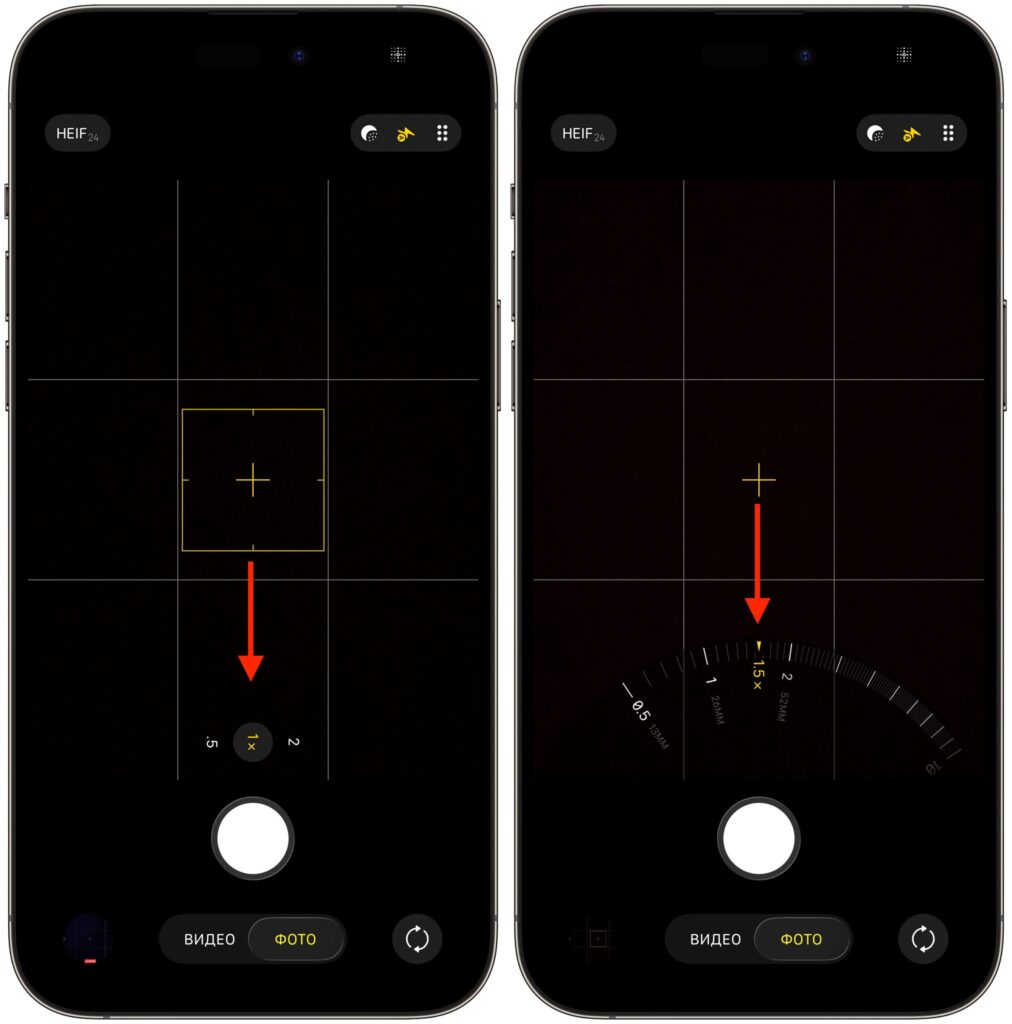
Switch zoom using numbers and the wheel
For smooth zoom, press the number and, without releasing, slide your finger left or right — a precision adjustment wheel will appear. When you’re done, you can simply lift your finger or pull down to hide the wheel.
iPhone Camera Settings: Where to Find Them and What’s Available
Modes are switched by swiping left and right: photo modes are to the right of the standard one, video modes are to the left. Tapping on the screen sets the focus and exposure point, a long tap locks them. When the lock is active, moving your finger changes the exposure up or down — faster than going into a separate adjuster.
The button with six circles in the upper-right corner opens a slide-out panel with advanced settings. Some parameters are duplicated at the top, but in the panel they have more options. For example, the flash at the top can only be set to “auto” or “off,” while the panel adds a forced “on” option.
Inside the panel you’ll find:
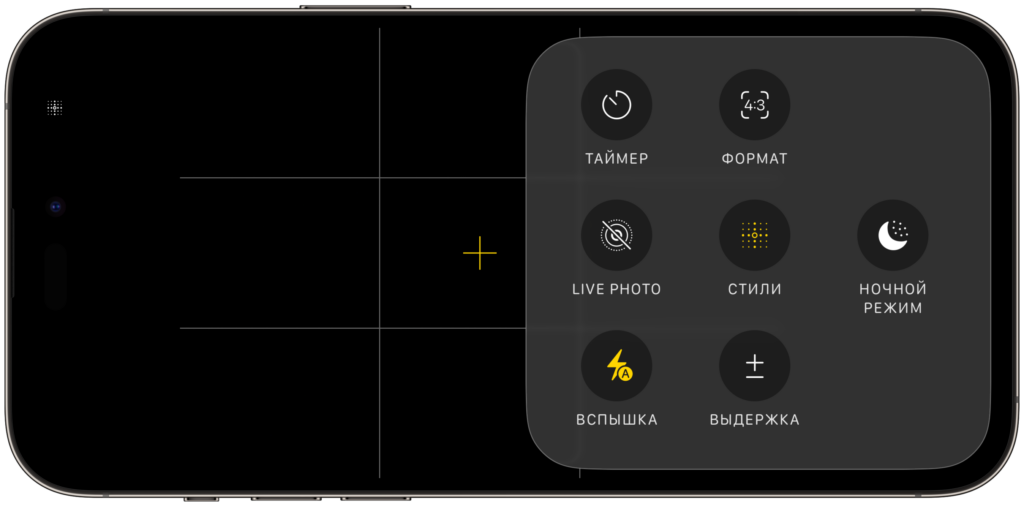
Quick settings will always be at your fingertips
- Live Photos — auto, on, off
- timer for 3, 5, or 10 seconds
- exposure slider up and down
- Photographic Styles — styles applied right during shooting that work more subtly than regular filters
- aspect ratios 4:3, 16:9, and square 1:1
- Night mode with different shutter speed intervals
Camera Button on iPhone: What It Can Do Besides Taking Photos
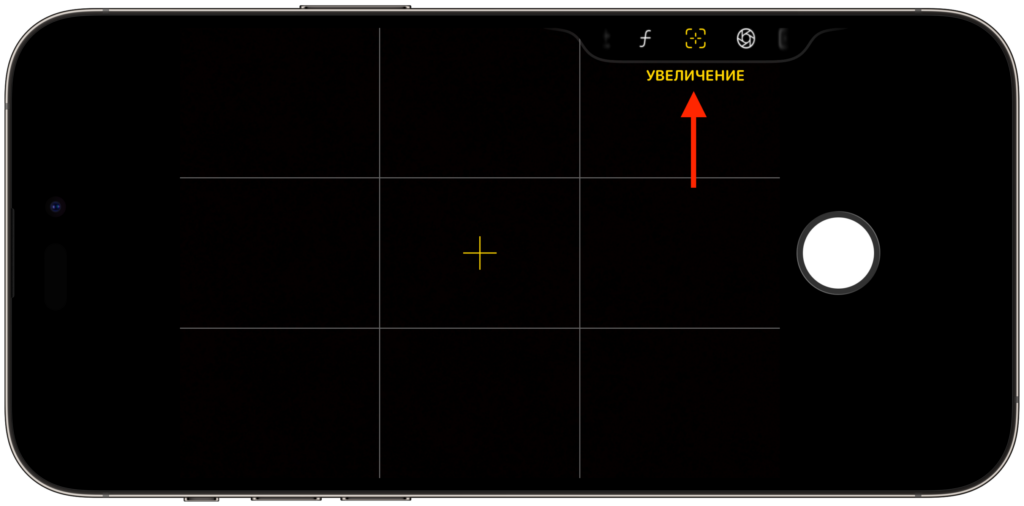
The camera button not only lets you shoot and zoom, but also adjust other parameters
Camera Control is a touch-sensitive surface, not just a button. A light half-press opens adjustments, a double half-press switches between them.


