It seems like what Android users have been waiting for years has finally happened: you can listen to YouTube videos in the background for free. You minimize the app, turn off the screen — and the audio keeps playing. An important feature that used to cost money. Google has also opened up the picture-in-picture function for everyone — it was previously tied to a subscription as well. It looks like YouTube decided that hogging 7 GB of RAM in browsers wasn’t enough, and now it’s giving away paid features for free.
Premium subscription no longer needed: YouTube now offers background playback for free
YouTube Background Playback on Android — What Is It
Previously, everything was painfully predictable: you’d start a video, minimize the app — and a couple of seconds later the audio cuts off. To keep listening to YouTube with the screen off, you either had to keep YouTube in the foreground at all times or pay for a Premium subscription. Google left no other options.
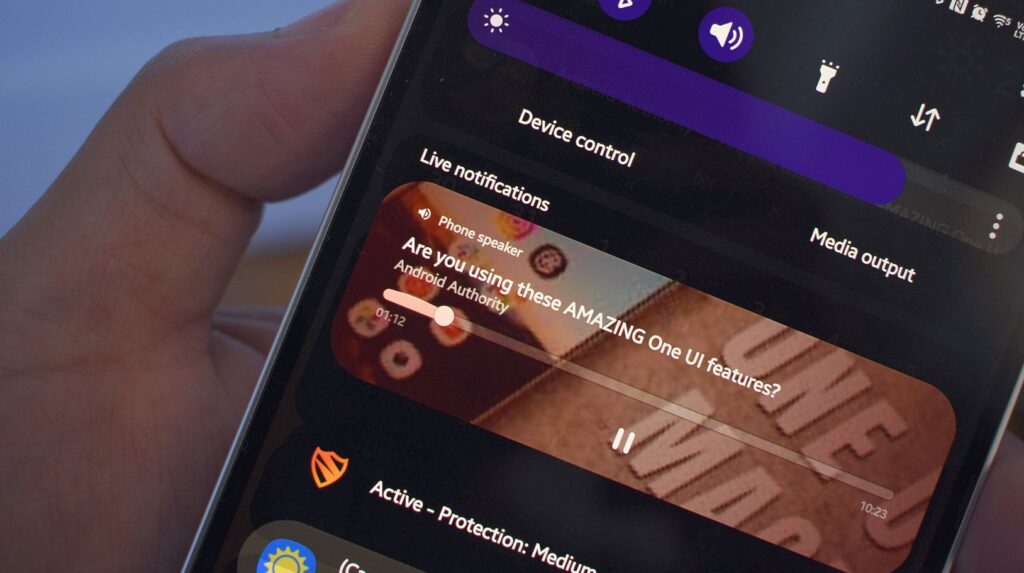
Background playback on YouTube is now available for free
Now the scenario is completely different: YouTube works with the screen off! Start any video, press the Home button or use the swipe-to-minimize gesture — the audio keeps playing. Lock the screen — the audio still plays. A full player card with buttons and a cover preview appears on the lock screen. The same set of controls is duplicated in the notification shade, so you can switch videos or pause without unlocking your phone.
Most importantly — no subscription is required for this. The feature has become free for all Android users, regardless of region or account.
How to Enable YouTube Background Playback on Android
The main news is that you don’t need to activate anything in the app. No hidden settings, toggles, or developer modes to search for. If you have the latest version installed, you can listen to YouTube in the background without any configuration. Almost. The instructions are extremely simple:
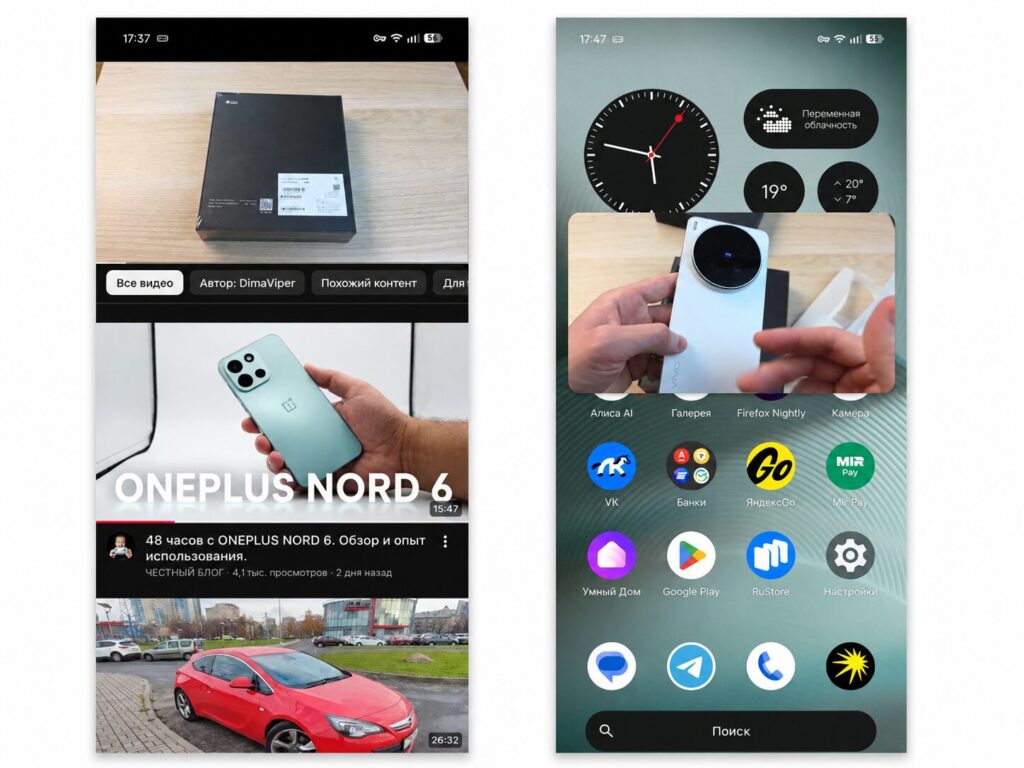
You just need to minimize the app and turn off the screen
- Open the YouTube app on Android;
- Start any video;
- Minimize the app with the Home button or a swipe-up gesture;
- Turn off the screen — the audio will keep playing.
If after these steps the YouTube background audio on Android still cuts out, you’re not alone. And there’s an explanation — not everyone has been lucky so far.
What to Do If YouTube Doesn’t Work with the Screen Off
If the audio still cuts off after pressing the Home button, you most likely have an old version of the app. Go to Google Play, find YouTube in the list of installed apps, and tap “Update”.
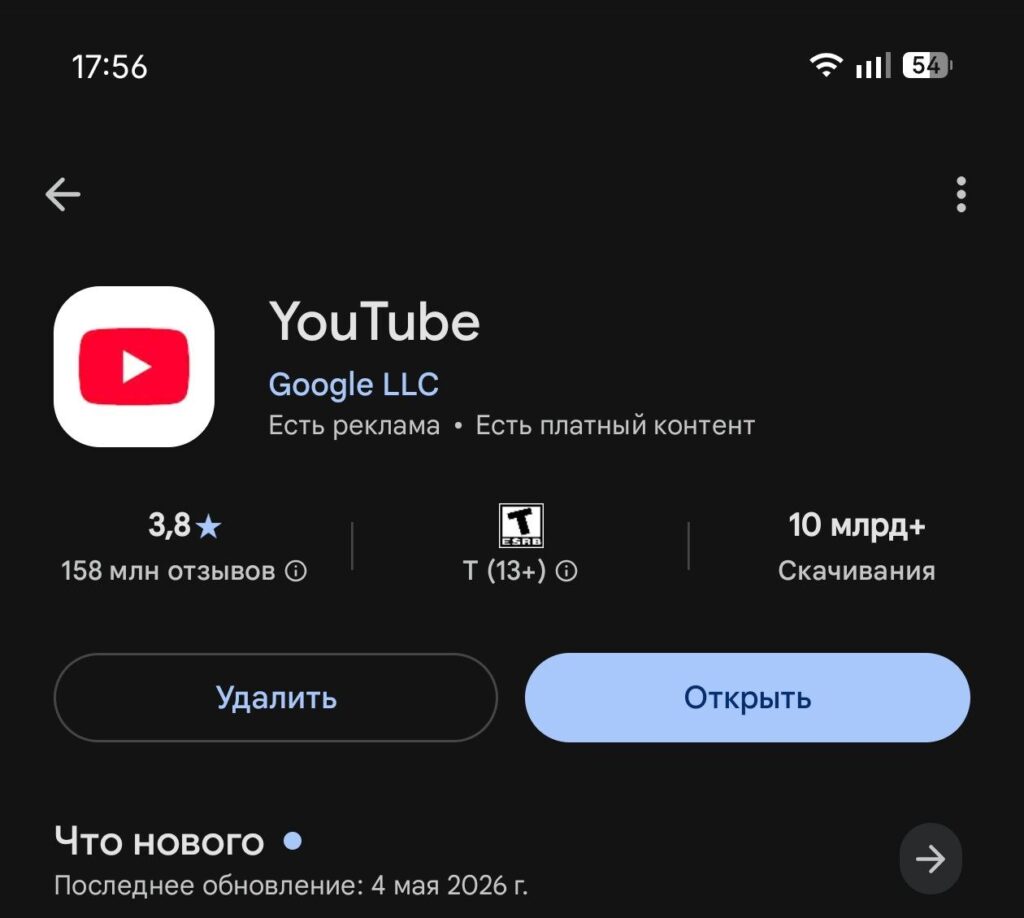
Check if you have the latest version of YouTube installed
Also, don’t forget to enable the “Display over other apps” option. Before launching YouTube in the background, the app will request it itself, but it’s better to take care of it in advance.
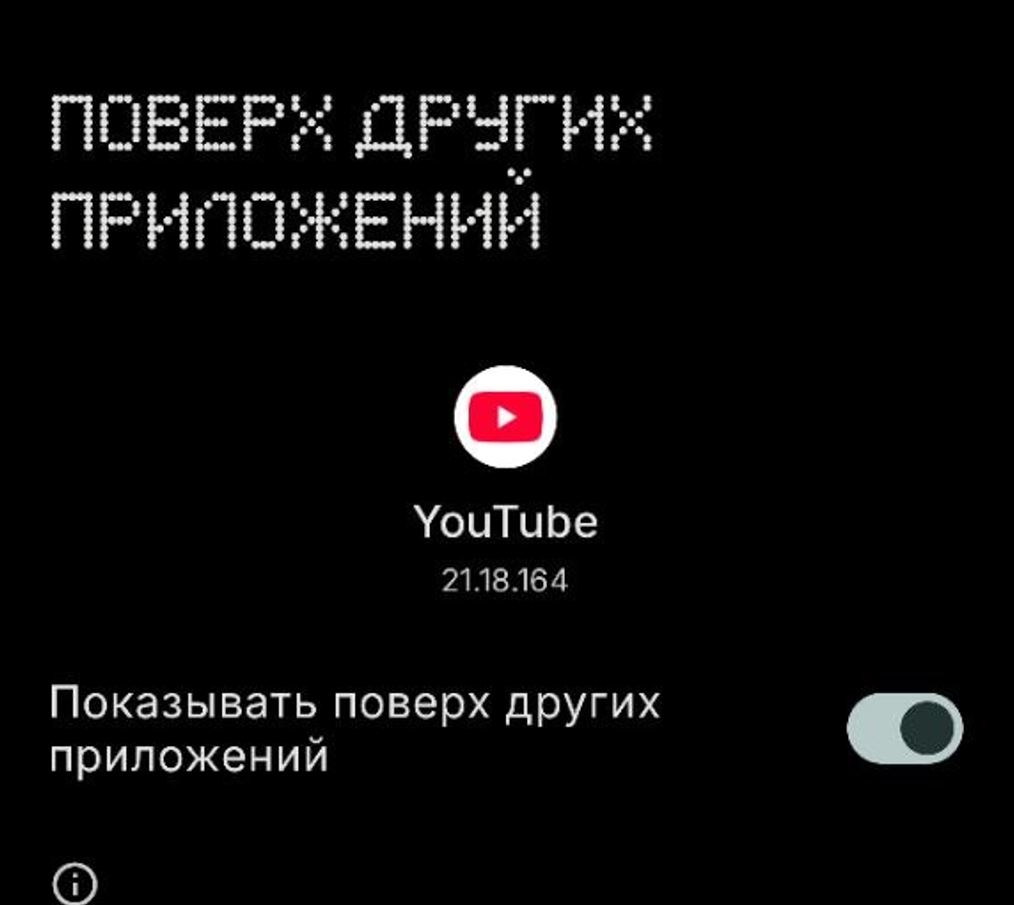
Enable “Display over other apps” in advance
- Go to Settings — “Apps”.
- Find YouTube.
- At the very bottom, select “Display over other apps” and toggle it on.
And if you’ve configured everything and updated to the latest version but background playback still doesn’t work — just wait a little. Google is rolling out the feature gradually, in waves, and it doesn’t reach all users at the same time. In our editorial team, for example, not everyone got it on the first try either: on one smartphone background playback worked right after the update, while on another we had to wait a couple of days. No cache clearing, reinstallations, or other workarounds are needed — sooner or later the feature will reach your account on its own.
Picture-in-Picture on YouTube — How to Enable It for Free
The second piece of good news: YouTube’s picture-in-picture mode (PiP) also no longer requires Premium. This is when a video shrinks into a small floating window on top of other apps — you can scroll through your Telegram feed, reply to messages, check email, and simultaneously keep an eye on the video.
It’s convenient, especially for tutorials and streams where both the picture and the ability to multitask matter. To enable picture-in-picture on YouTube for Android, do the following.
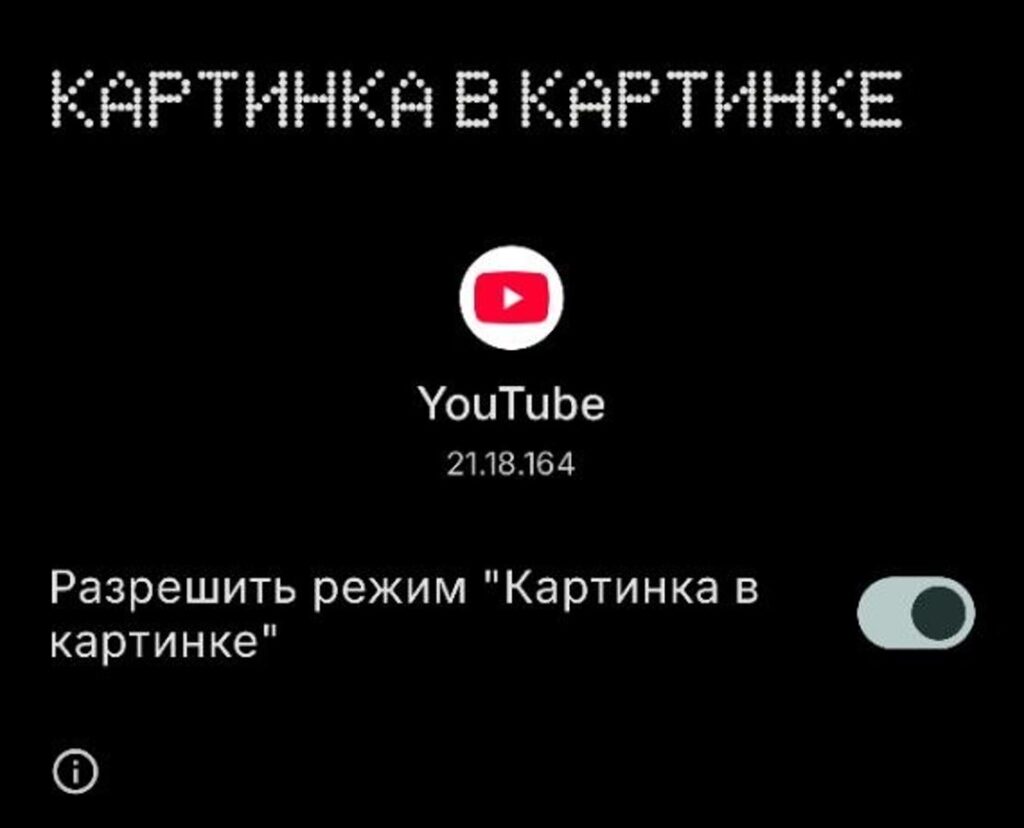
Enabling picture-in-picture is also done through permission settings
- Open the system “Settings” on your smartphone;
- Go to the “Apps” section and select YouTube;
- Find the “Picture-in-picture” option;
- Toggle the “Allow” switch on.
After this, when you minimize the app during video playback, the video will automatically move into a floating window — you can drag it around the screen with your finger, move it to any corner, enlarge it, and return to full-screen mode with a single tap. On some Android skins — MIUI, HyperOS, One UI — the menu item may be named slightly differently, but the logic is the same.


