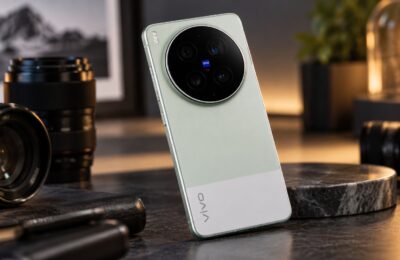
If your new Bluetooth earbuds sound thin, distant or “like they are playing from a tin can,” the earbuds themselves are rarely the culprit. In most cases the cause is a poor ear-tip seal, stacked equalizer settings, a stray “sound enhancer” profile, Spatial Audio left on for stereo music, a fallback codec, or a clogged mesh grille. The source author reports hitting exactly this problem after pairing a set of realme Buds Air8 Pro (ANC, LDAC support) with a vivo X300: the bass vanished and vocals sounded far away. Half an hour of troubleshooting turned up a whole list of causes, most of which take only a few minutes to fix. Here is the checklist, in order.
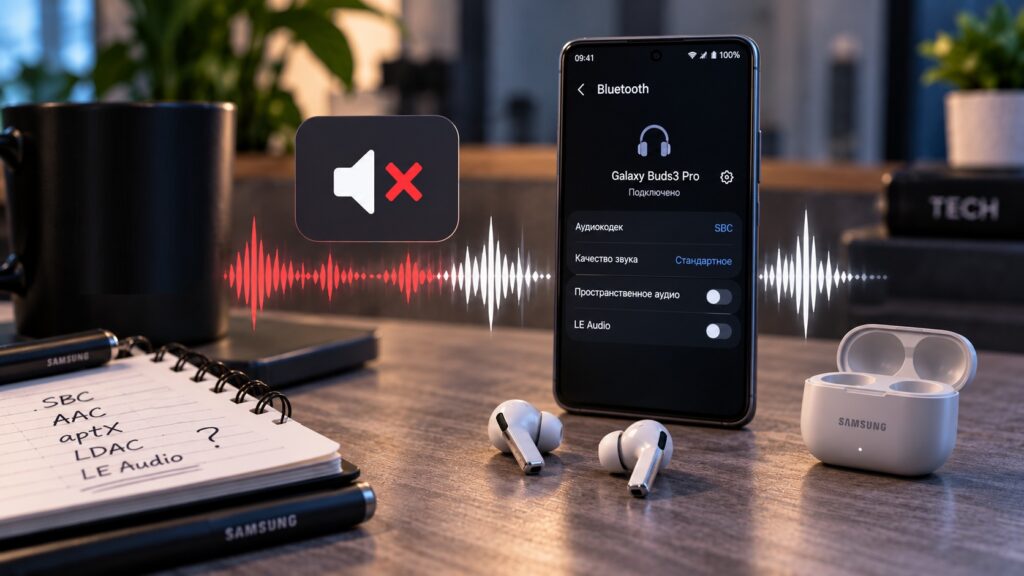
Common causes of poor sound from Bluetooth earbuds
What you need to know
- A loose ear-tip seal is the most common and most underrated cause of missing bass in true wireless earbuds; pressing an earbud gently into your ear while listening is a quick way to test it.
- Equalizers can be active in several places at once (system settings, the earbuds’ app, the music player, third-party audio apps), and their effects stack, producing muddy, overloaded sound.
- You can see which Bluetooth codec is actually in use through Android’s Developer options; if SBC is active even though your earbuds support LDAC or aptX, try selecting the codec manually.
- Firmware updates mostly fix bugs and connection stability rather than transforming sound quality, but they can help if sound degraded after an Android update.
Start with the fit
For true wireless (TWS) earbuds this is the most frequent cause of bad sound and the most underestimated one. If the ear tips do not sit snugly, an air gap forms between the earbud and the ear canal. The result is an almost complete loss of bass and weaker noise cancellation.
 Quick test: gently press the earbud into your ear with a finger while music is playing. If the bass suddenly appears, the problem is the seal.
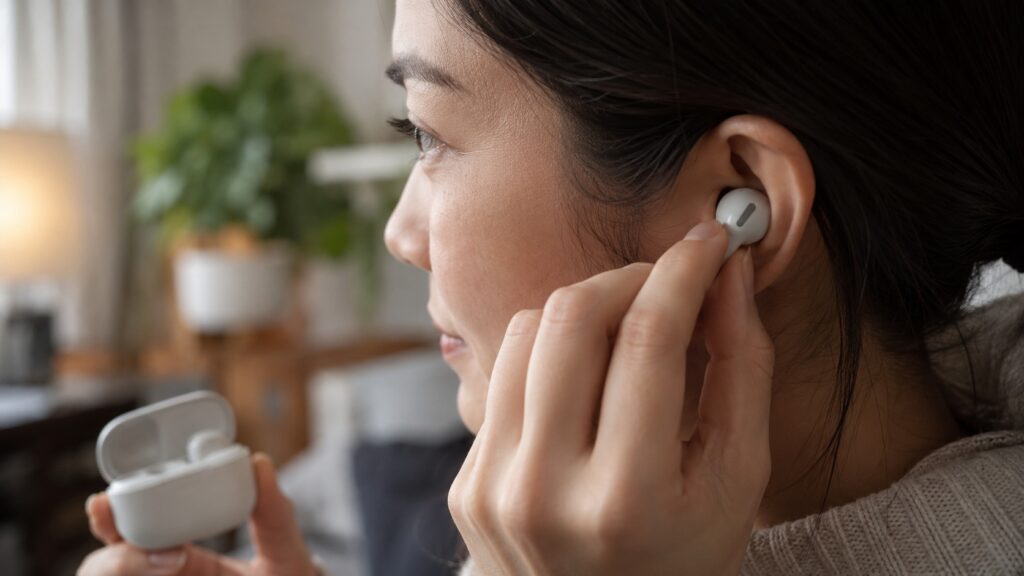
Checking the fit of wireless earbuds
What to try:
- Take the earbud out and try all three ear-tip sizes from the box, even if the current ones feel comfortable.
- Rotate the earbud slightly in your ear; a different angle sometimes gives a better seal.
- If none of the stock tips work, third-party foam tips generally seal better than silicone ones.
Tips that are too small leak air and kill the bass. Tips that are too large press on the ear, become tiring quickly and also spoil the fit. The right size is the one where the earbud stays in place on its own, without effort, and you hear pronounced bass.
One earbud is quieter than the other
This is a classic problem that many people put up with for weeks. There are several possible causes, each with its own fix. The most common:
- a clogged protective mesh — it can look clean while being partially blocked;
- a shifted ear tip covering part of the mesh;
- an off-center channel balance in the system or in an app;
- one earbud sitting worse in the ear, which creates the impression of uneven volume;
- a problem with the specific recording — some tracks are simply mixed off-center.
To check the channel balance on Android, go to Settings → Accessibility → Audio balance. The slider should be at 0 in the center; if it has moved, drag it back to the middle. On Samsung phones this item is called Left/right sound balance.
Update the earbuds’ firmware
Modern TWS earbuds run their own firmware, which affects not only Bluetooth stability but also sound. Manufacturers use updates to change how the equalizer, ANC, codecs and channel balance behave. A firmware update can fix:
- sound that is too quiet, or different volume in the left and right earbuds;
- connection drops and stuttering audio;
- problems with LDAC, aptX or AAC;
- incorrect noise-cancellation behavior;
- audio delay in games and videos;
- odd touch-sensor behavior after an Android update.
Where to check depends on the brand: Galaxy Wearable for Samsung, Xiaomi Earbuds for Xiaomi, Nothing X for Nothing, Sony Sound Connect, JBL Headphones — every manufacturer has its own app. Open it and look for a section such as “Firmware” or “Update.”
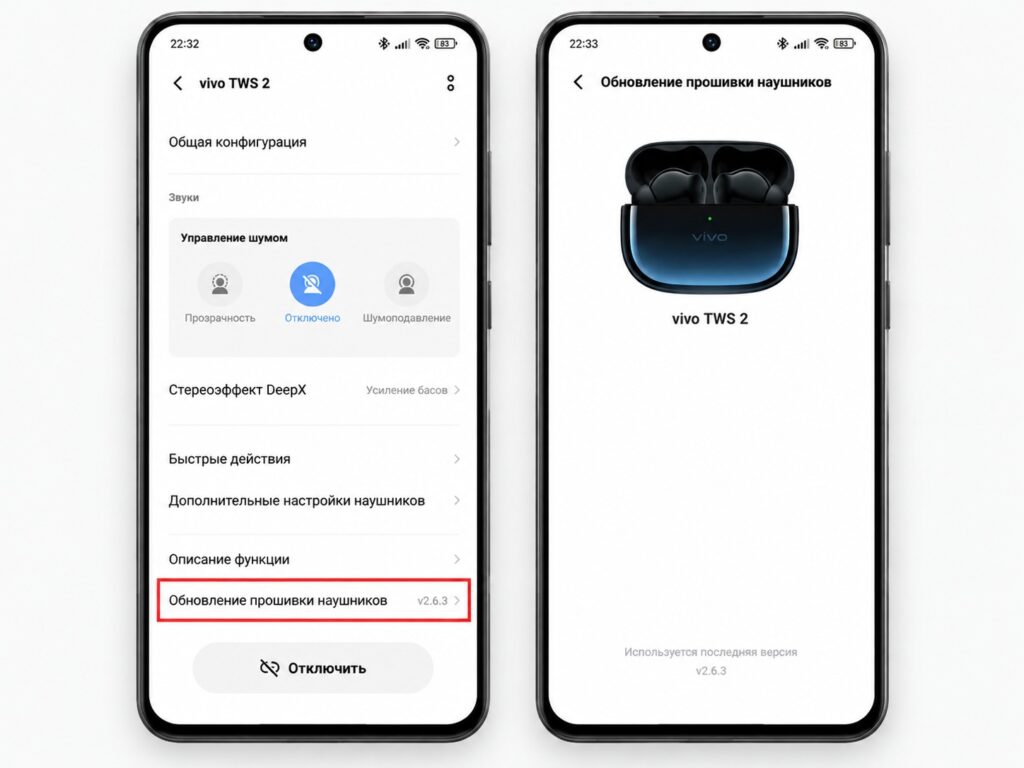
Updating Bluetooth earbuds firmware in the companion app
An important caveat: a firmware update is not a universal way to improve sound quality. Most updates fix bugs and connection stability. But if the sound suddenly got worse after an Android update, updating the earbuds’ firmware may help.
Check the equalizer everywhere at once
This is where the source author’s own problem with the Buds Air8 Pro turned out to be. On a modern Android phone the equalizer can be active in several places simultaneously:
- in the phone’s system settings (Sound → Sound enhancement → Equalizer);
- in the earbuds’ companion app;
- in Spotify or another music player;
- in a third-party audio app.
These settings stack on top of each other. If you boost the bass in the earbuds’ app and also enable “Bass boost” in the player, you get mush and overloaded sound instead of powerful bass — which is exactly what the author reports hearing at first. The correct approach: turn off every equalizer at once, listen to the sound “as is” to establish a baseline, and then adjust only one EQ to taste, leaving the others alone.
Turn off all sound enhancers
Phones ship with a whole zoo of software audio processors: Dolby Atmos, Dirac, DTS, Spatial Audio, adaptive sound, surround sound, bass boost, speech enhancement. They do not necessarily make things sound better. A typical scenario: a “Movie” or “Voice” profile is accidentally left on while listening to music, producing a strangely wide soundstage, hollowed-out bass or overly bright vocals.
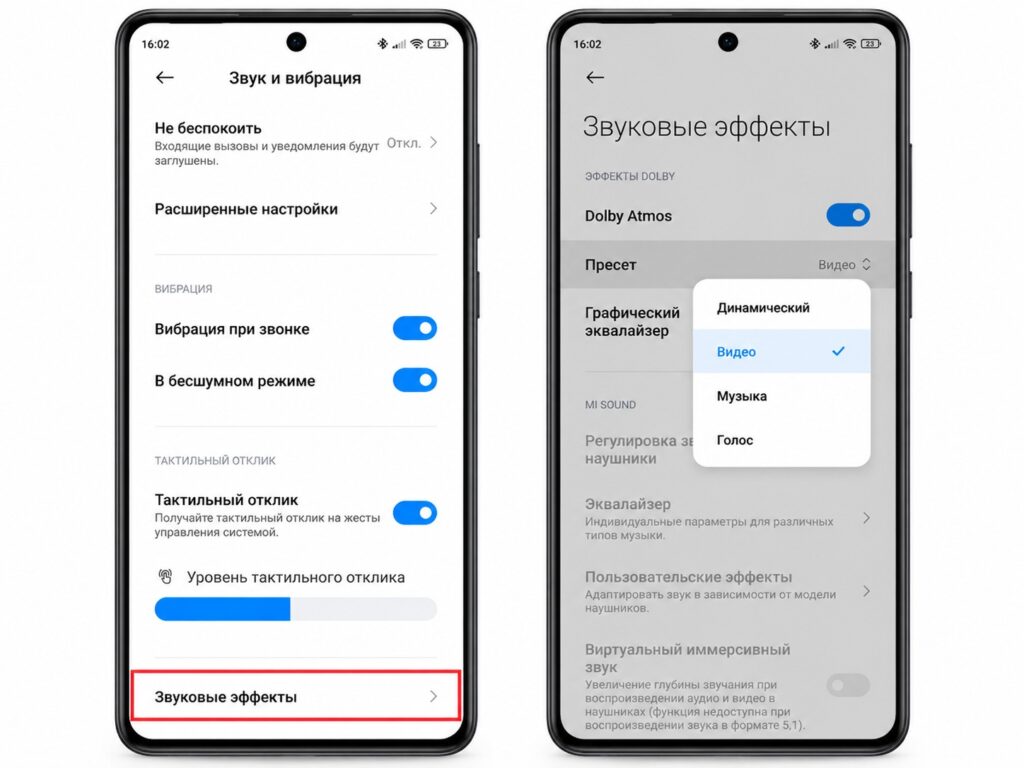
Dolby Atmos settings on Xiaomi smartphones
How to switch them off on different Android skins (menu names may vary slightly by software version):
- Samsung: Settings → Sound → Sound quality and effects — disable Dolby Atmos and all additional effects.
- Xiaomi/REDMI/POCO: Settings → Sound → Sound enhancement — turn everything off.
- vivo: Settings → Audio → Hi-Fi and sound effects — disable.
- HONOR and Huawei: Settings → Sound → Sound effects — set to Off.
If the sound improves after everything is disabled, the enhancers were the cause. Re-enable them one at a time to find the culprit.
Check the Bluetooth codec
The audio chain works like this: the phone compresses the audio → sends it over Bluetooth → the earbuds decode and play it. The codec is the compression standard; the better the codec, the less is lost in transmission.
 Main codecs from worst to best: SBC → AAC → aptX → aptX Adaptive → LDAC.
But do not fall into the “LDAC is always better” trap. A few nuances:
- both the phone and the earbuds must support the codec, otherwise the default SBC is used;
- with a weak Bluetooth signal, a heavier codec such as LDAC can be unstable and cause dropouts;
- AAC on Android behaves differently from device to device, and on some phones its implementation leaves much to be desired;
- the phone may automatically lower the LDAC bitrate when the connection is unstable.
You can check the active codec through Developer options: go to Settings → About phone and tap Build number seven times to unlock Developer mode, then open Settings → Developer options → Bluetooth audio codec.
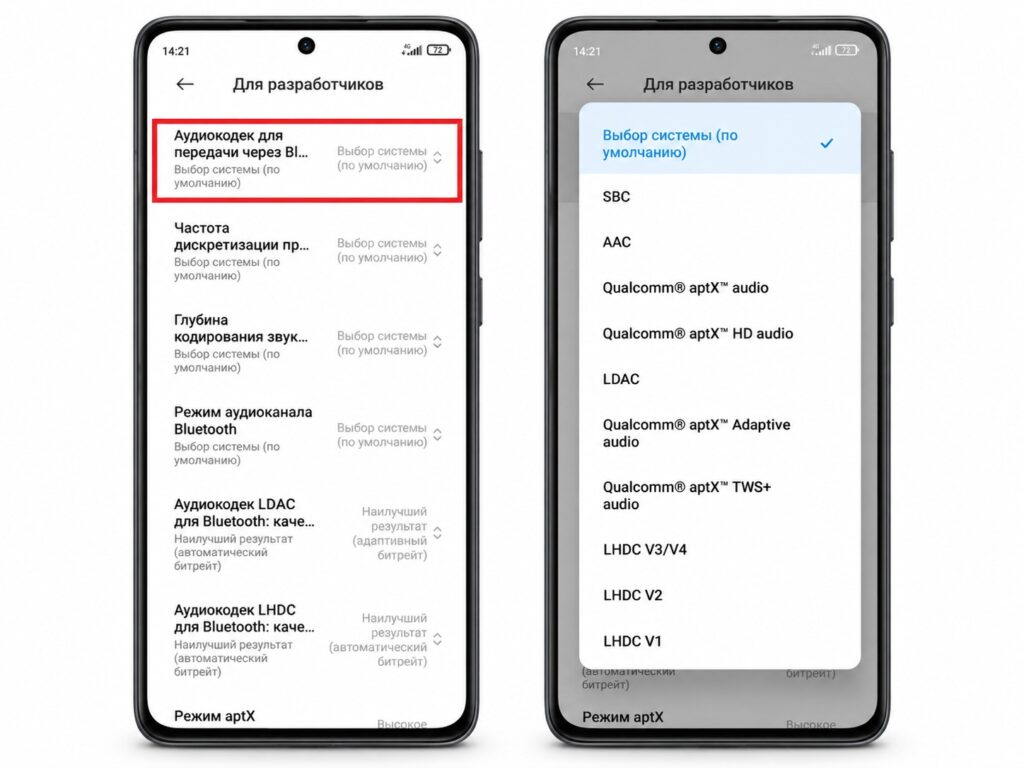
Checking the codec in Developer options
If SBC is active even though your earbuds support LDAC, try forcing the codec you want from that menu.
Turn off Spatial Audio
Spatial Audio is a separate story from ordinary enhancers. It creates the impression of a wider soundstage and works reasonably well for films and games. With regular stereo music, however, the result can be unexpected.
Symptoms of Spatial Audio being on during music:
- vocals sound distant or smeared;
- less bass than expected;
- odd instrument placement — guitar “on the right,” bass “in the center,” the voice somewhere “out in front”;
- a slight echo effect.
 If expensive earbuds make vocals sound far away, disable Spatial Audio first. It is usually found in the Bluetooth device settings or in the earbuds' companion app.
Compare ANC, transparency and no processing
Few people realize that active noise cancellation changes not only how much outside noise you hear but also the character of the sound itself. On some earbuds, bass and overall brightness shift slightly between modes.
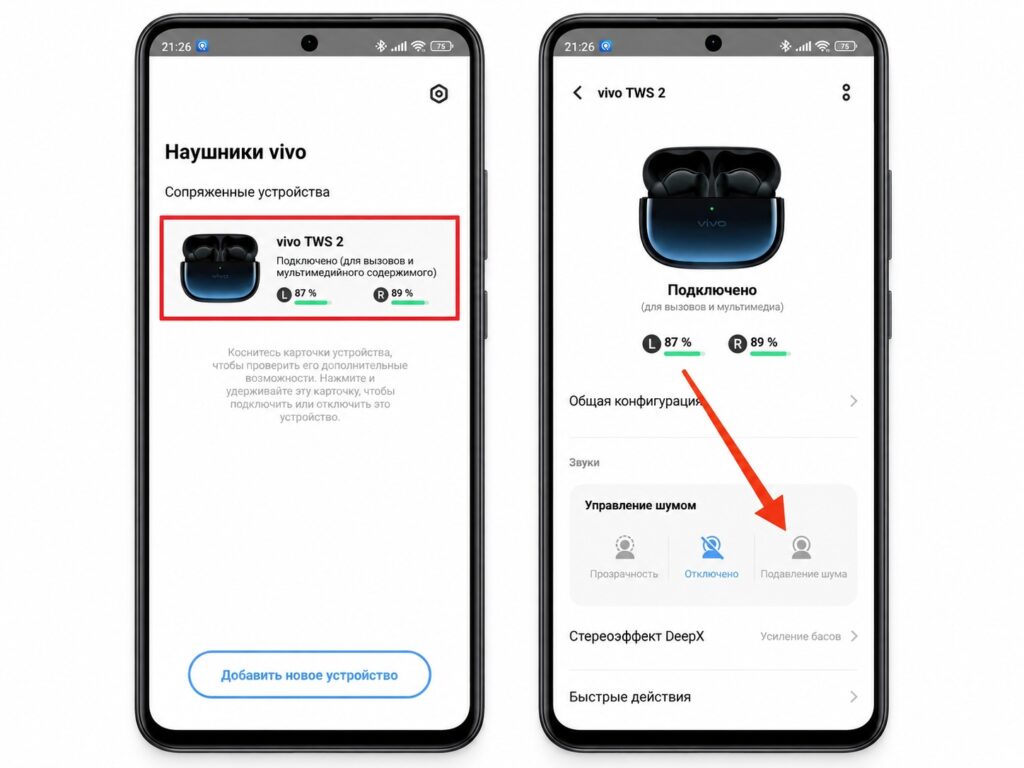
Noise cancellation settings in an earbuds companion app
Play the same track in three modes, one after another:
- ANC on.
- Transparency mode.
- ANC and transparency both off.
If one mode sounds noticeably better, use it for music. Also keep in mind that a poor seal combined with ANC can make it feel as if noise cancellation is “squashing” the sound and making it dull — in which case the problem is back to the ear tips.
Why the sound is bad in only one app
If one streaming app sounds fine and another sounds poor, the cause is almost always not the earbuds. Possible explanations:
- different equalizer settings in different players;
- volume normalization — Spotify and other services may reduce the volume of loud tracks;
- source file quality — 128 kbps and 320 kbps sound different;
- quirks of the system mixer, where some apps bypass the system audio mixer;
- third-party enhancers that work only for certain apps.
The right way to compare is to play the same track or video in different apps, not different songs. Otherwise you are comparing recordings, not apps.
Clean the earbuds
The protective mesh can look clean and still be partially blocked. High frequencies usually suffer first — they disappear and the sound starts to seem “dull.” One earbud begins to sound quieter than the other.
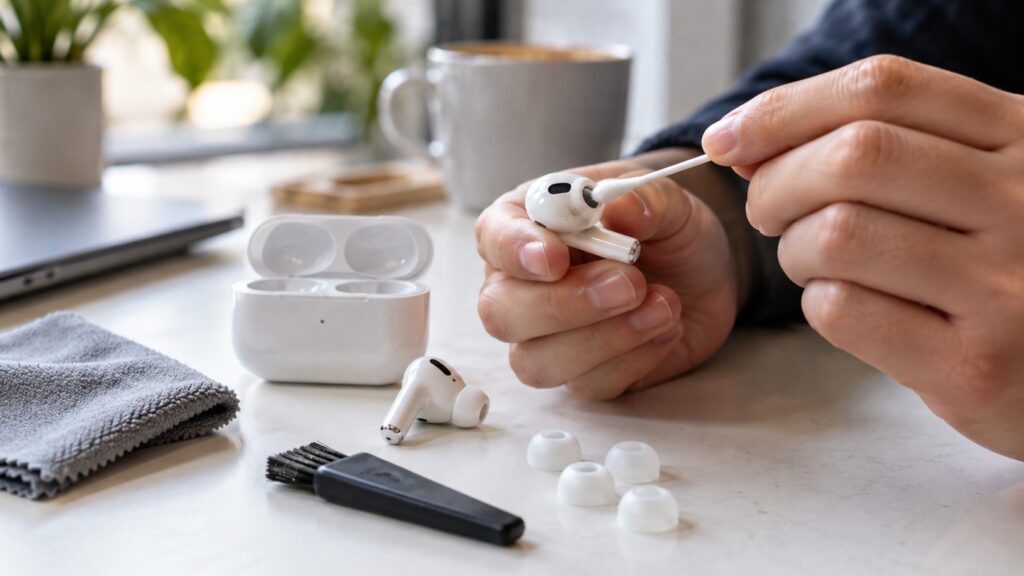
Cleaning wireless earbuds
How to clean them properly:
- Remove the ear tips.
- Gently brush the outside of the mesh with a soft, dry toothbrush, working from the center outward.
- You can also use dedicated earbud cleaning loops or a soft cotton swab, without applying pressure.
- Check the sound after cleaning.
The main rule: never push debris inward with a needle or any sharp object. That will damage the mesh or force the dirt straight into the driver.
Reset the earbuds and pair them again
If the sound deteriorated suddenly, try a full reset. This is especially relevant after Android system updates or after switching phones:
- Open Settings → Bluetooth on the phone.
- Find your earbuds and tap “Unpair” or “Forget.”
- Reset the earbuds themselves (the method depends on the model — usually holding a button for 10–15 seconds or pressing it several times in a row).
- Put the earbuds in the case and close the lid for 30 seconds.
- Open the case and pair the earbuds again as a new device.
Afterward, check for a firmware update in the companion app: sometimes a reset unlocks an update that for some reason would not install before.