WhatsApp not updating on iPhone is one of the most common reasons why the messenger stops working. You open the app, and a message appears on the screen saying that the version is outdated and you need to update. In this article, we’ll explore why this happens, how to update WhatsApp manually and automatically, what to do if the update won’t install, and on which iPhones the messenger will no longer launch.
Due to an update failure, WhatsApp may stop working on iPhone
Why WhatsApp Says the Version Is Outdated
WhatsApp developers regularly release updates to fix vulnerabilities, add new features, and support current server protocols. If you haven’t updated the app for a long time, it may completely block access to chats and calls — this is done primarily for security reasons.
Older versions of the messenger may contain serious vulnerabilities that put your account at risk. Additionally, WhatsApp needs to correctly interact with its servers, and an outdated client isn’t always able to do so. That’s why the messenger sometimes forcefully blocks operation until a fresh version is installed — simply displaying a warning isn’t enough.
On iPhone, automatic app updates are enabled by default, but in practice they may install with a delay of several days or even weeks. Auto-updating happens in the background when the device is connected to Wi-Fi and charging, so if you rarely leave your iPhone charging with Wi-Fi — updates may be postponed.
Update WhatsApp on iPhone via App Store
If WhatsApp shows a message about the need to update, the fastest way is to update the app through the App Store. Here are step-by-step instructions:
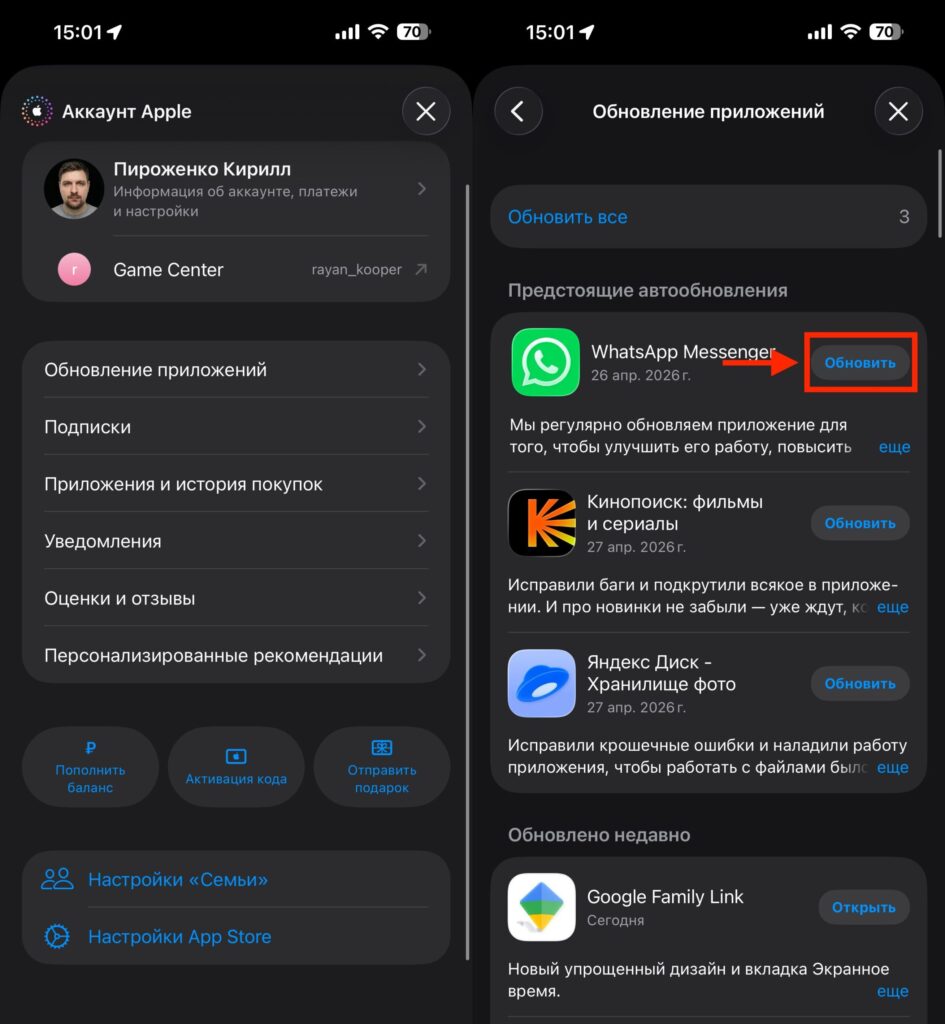
It’s basic, but start with updating. Most often this helps
- Open the App Store app on your iPhone.
- Tap on your profile icon (avatar) in the upper right corner of the screen.
- Scroll down to the “Available Updates” section. Pull the screen down to refresh the list.
- Find WhatsApp in the list and tap the “Update” button next to it. If you want to update all apps at once — tap “Update All.”
- Wait for the download and installation to complete, then open WhatsApp.
Sometimes inside the blocked WhatsApp there is a button or link that leads directly to the app’s page in the App Store. In this case, tap on it — you’ll go straight to the update without extra steps.
If WhatsApp doesn’t appear in the list of available updates, try finding it through search in the App Store. Open the app’s page: if instead of the “Open” button you see an “Update” button — tap it.
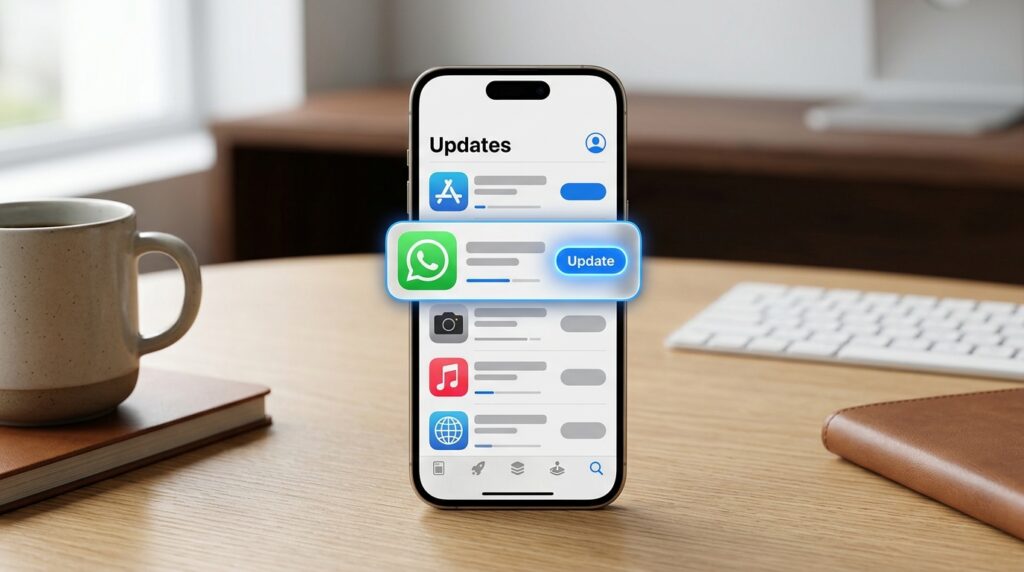
Updating WhatsApp through the “Available Updates” section in the App Store
Auto-Update WhatsApp on iPhone
To ensure WhatsApp updates automatically and similar situations don’t recur, make sure that automatic app updates are enabled:
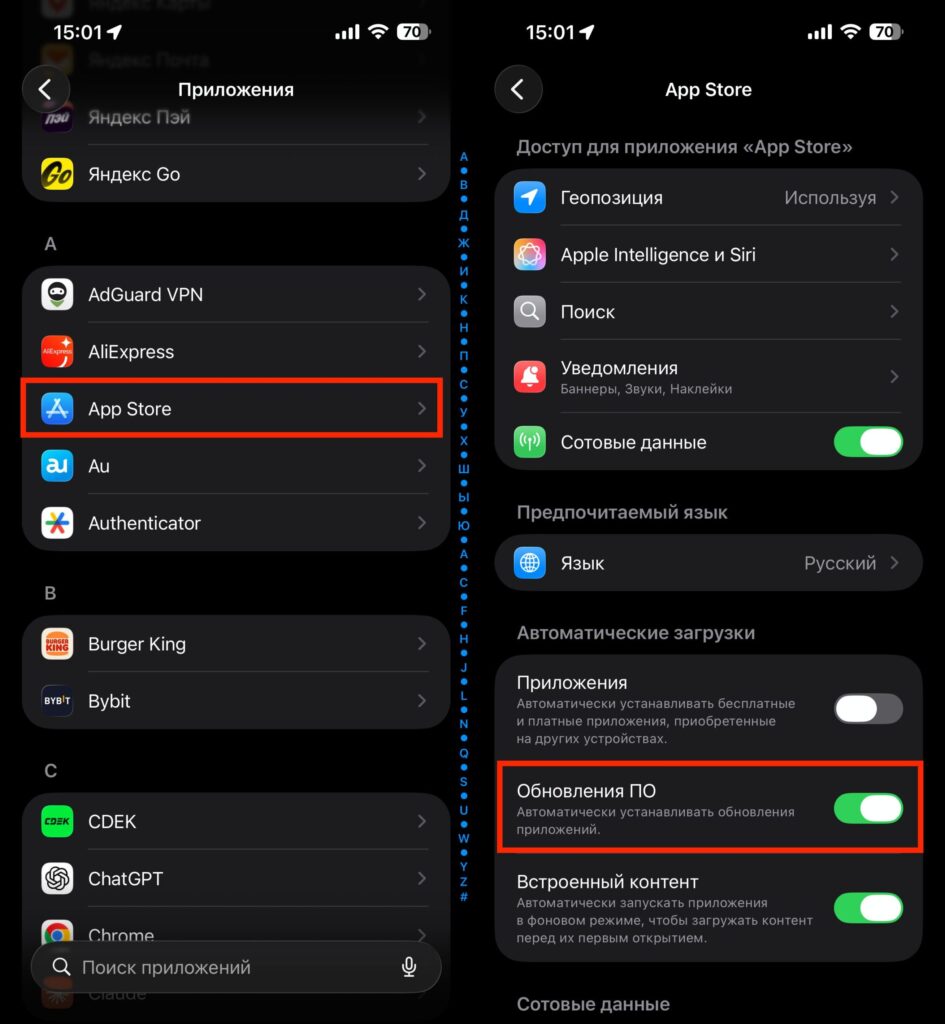
You can enable auto-update. This will be even easier
- Open “Settings” on your iPhone.
- Go to the “App Store” section.
- Enable the “App Updates” toggle.
After this, your iPhone will automatically download app updates when the device is connected to Wi-Fi and charging. If you want updates to download even over mobile data — enable the “Cellular Data” toggle on the same screen under the “Automatic Downloads” section. But keep in mind that this may increase data usage.
WhatsApp Won’t Update in App Store: Main Reasons
If you found the update in the App Store, tapped “Update,” but nothing happened or an error appeared — the problem can be solved in several ways.
Check free space on your iPhone. Updating WhatsApp requires free storage space on your device. Open “Settings” — “General” — “iPhone Storage” and check how much space is available. If storage is low — delete unnecessary apps, photos, or videos. Transfer files to iCloud or a computer before deleting.
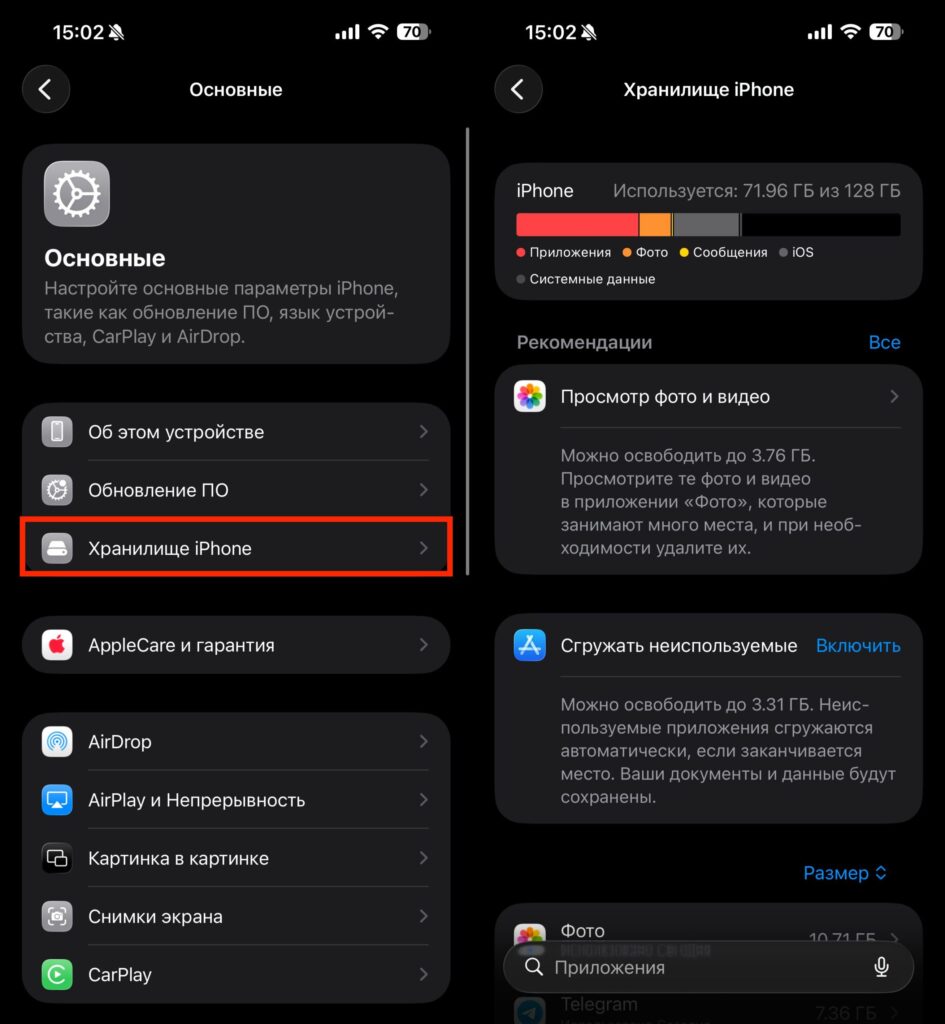
Check if there’s space in your iPhone’s memory
Check your internet connection. Updating requires a stable connection. Try connecting to Wi-Fi — it’s faster and more reliable than mobile data. If Wi-Fi is working but the update won’t proceed, toggle airplane mode on and off — this will help refresh the network connection.
If the basic steps didn’t help, here are additional actions:
- Restart your iPhone. A simple restart clears temporary files and fixes minor software glitches that may be preventing the update.
- Sign out of Apple ID and sign back in. Open “Settings” — tap your name at the top of the screen — “Sign Out.” Then sign in again. This helps with App Store authorization errors.
- Reset network settings. Go to “Settings” — “General” — “Transfer or Reset iPhone” — “Reset” — “Reset Network Settings.” After this, you’ll need to re-enter Wi-Fi passwords, but network issues are usually resolved.
- Delete and reinstall WhatsApp. If the update still won’t install, delete the app and download it again from the App Store. Before deleting, be sure to make a backup of your chats: open WhatsApp — “Settings” — “Chats
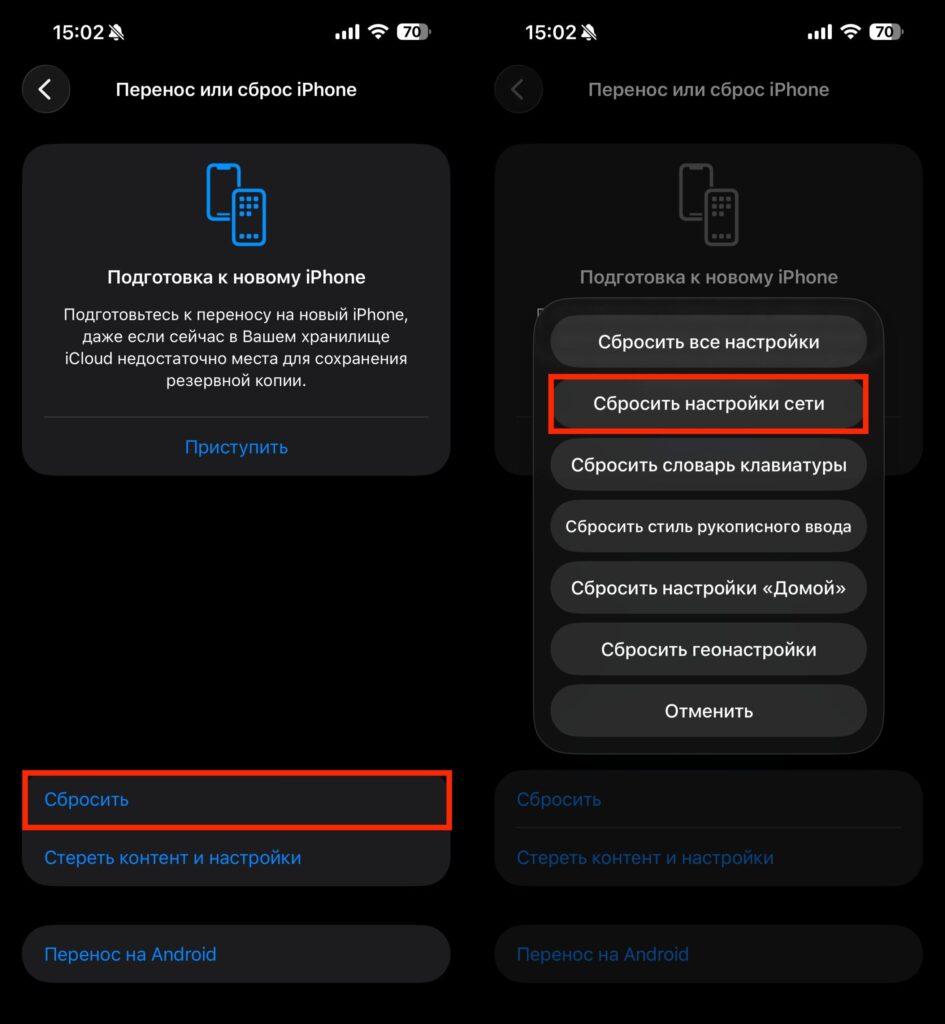
Resetting network settings also helps


