If you have a MagSafe charger and a USB-C power source both connected to your MacBook — perhaps a dedicated charger plus a monitor delivering power — the laptop will not combine their wattages. According to Apple’s own support documentation, a MacBook draws power from only one port at a time, always choosing the most powerful source available. Plugging in a 140 W MagSafe adapter alongside a 96 W USB-C block will not give you 236 W of charging; the MacBook will simply use the 140 W MagSafe connection and ignore the other for power delivery purposes.
What you need to know
- A MacBook always selects the single most powerful connected charger — connection order does not matter.
- Wattages from multiple chargers are never combined; charging speed is determined solely by the chosen source.
- Connecting two or more chargers simultaneously is safe and will not damage the battery or overheat the laptop.
- The unused port still carries data and video — only power delivery is ignored on that port.
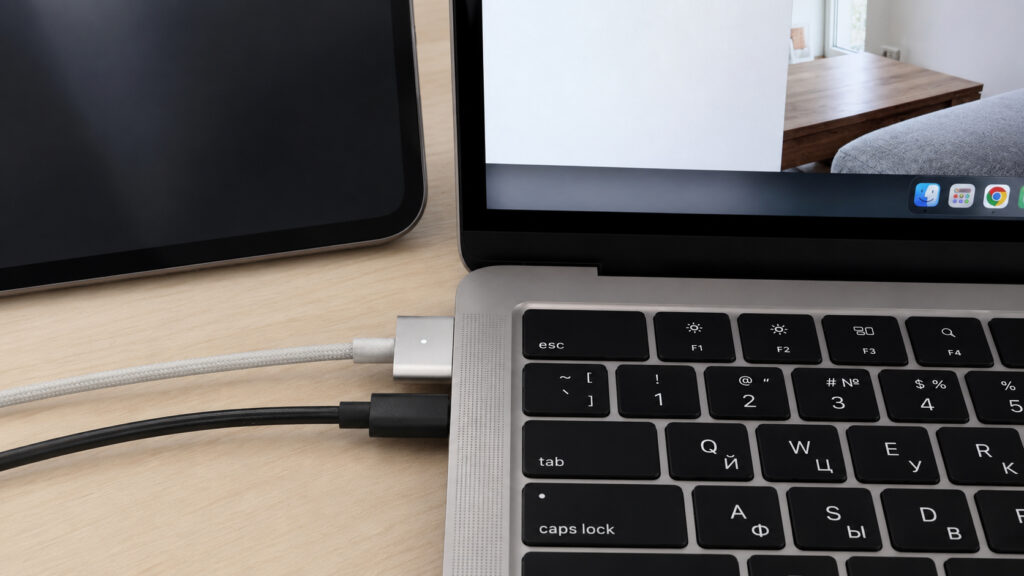
Two cables plugged into a MacBook at the same time — what happens?
Why the wattages don’t add up
The MacBook’s power management is designed to accept current from exactly one port at a time. Even with three cables connected, the laptop negotiates with each source via the USB Power Delivery protocol and selects the one offering the highest wattage. The remaining sources are effectively sidelined for charging purposes, though they continue to function normally for data transfer and display output. This is Apple’s official position, stated directly on their support page.
Consider a concrete example: a 140 W MagSafe adapter and a 96 W USB-C block are both plugged in. The MacBook will draw its full charge from the 140 W MagSafe connection. The 96 W block sits idle as far as power is concerned. Charging speed remains exactly the same as if only the MagSafe cable were connected.
How the MacBook picks its power source
The selection rule is straightforward: the highest-wattage source always wins. It does not matter which cable was plugged in first, and MagSafe does not receive automatic priority over USB-C. If you connect a weaker charger first and then attach a more powerful one, the MacBook silently switches to the stronger source.
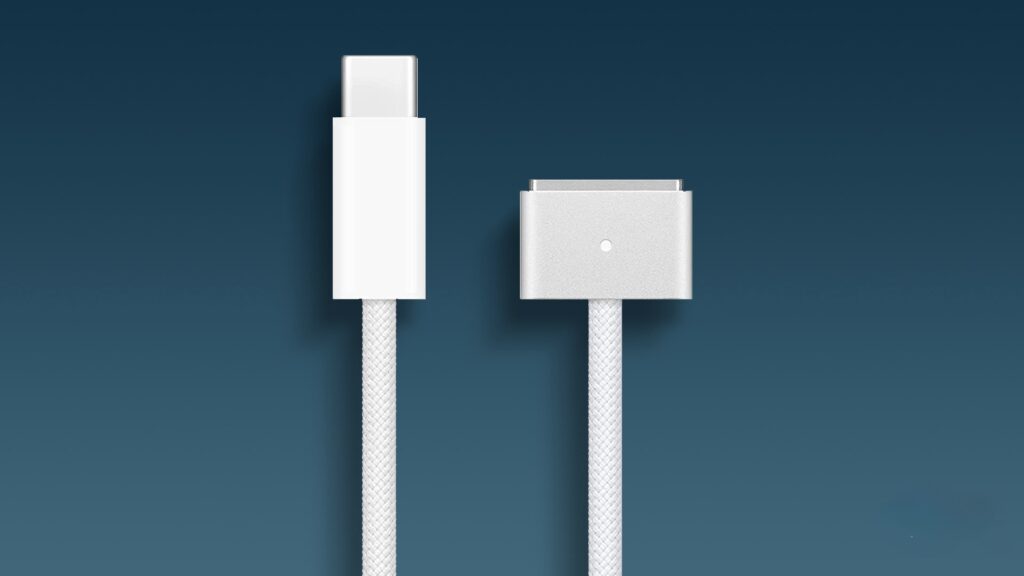
The system decides which cable to charge from. It never draws charge from two sources simultaneously.
A few more examples to illustrate: if a MacBook has a 140 W MagSafe and a monitor delivering 90 W connected, it will charge from MagSafe. If a 96 W USB-C block and a 60 W monitor are connected, the 96 W block wins.
MagSafe is essentially USB Power Delivery with a magnetic connector. On older MacBook Pro models, MagSafe could deliver more power than Thunderbolt 4 USB-C ports, which were capped at 100 W. On newer models equipped with Thunderbolt 5, that gap has closed, and full charging speed is available through either connector type.
Is it safe for the battery?
Connecting two chargers simultaneously is completely safe. USB-C charging relies on the Power Delivery protocol, under which the charger and laptop negotiate a safe voltage before any current flows. A more powerful adapter cannot force extra watts into the machine — the MacBook requests only what it needs. A 140 W charger can safely charge even a MacBook Air, which will draw only its required 30–70 W.
Because wattages are not combined, there is no risk of overloading the laptop with dual chargers. The idle port generates no extra heat. The only battery-health concern worth noting is unrelated to dual charging: keeping the battery at 100 % for extended periods can accelerate wear. Recent macOS versions include a battery charge limit feature to address this.
How to check which charger your MacBook is using
You can verify the active power source and its wattage in macOS in just a few seconds:
- Hold the Option key and click the Apple menu in the top-left corner of the screen.
- Select System Information.
- Open the Power section.
- Look at the power adapter block for the wattage figure.
This screen also shows which source the MacBook currently considers its primary charger.
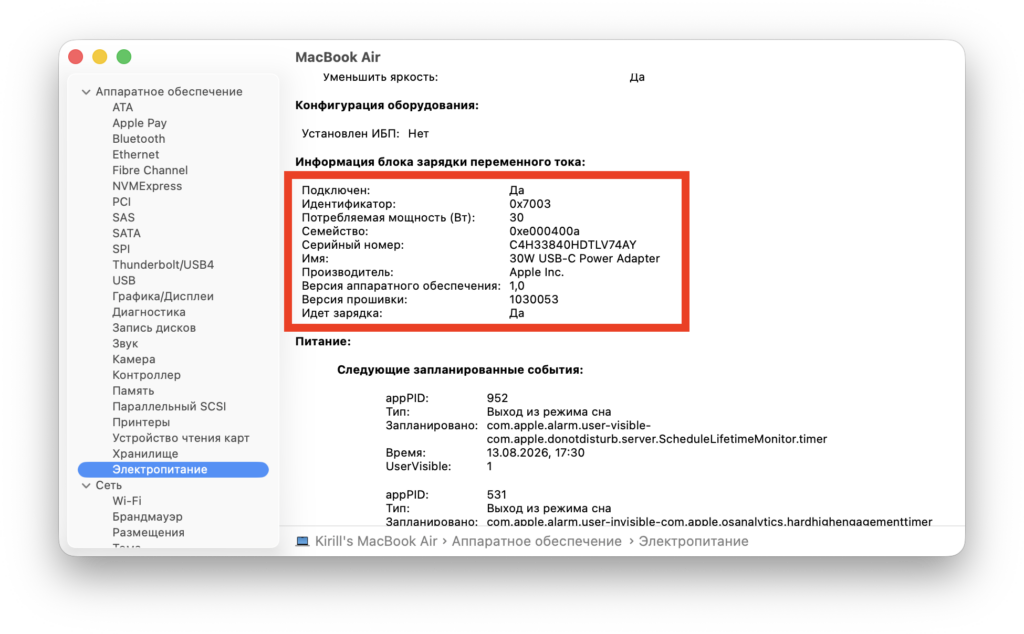
System Information display when charging via MagSafe
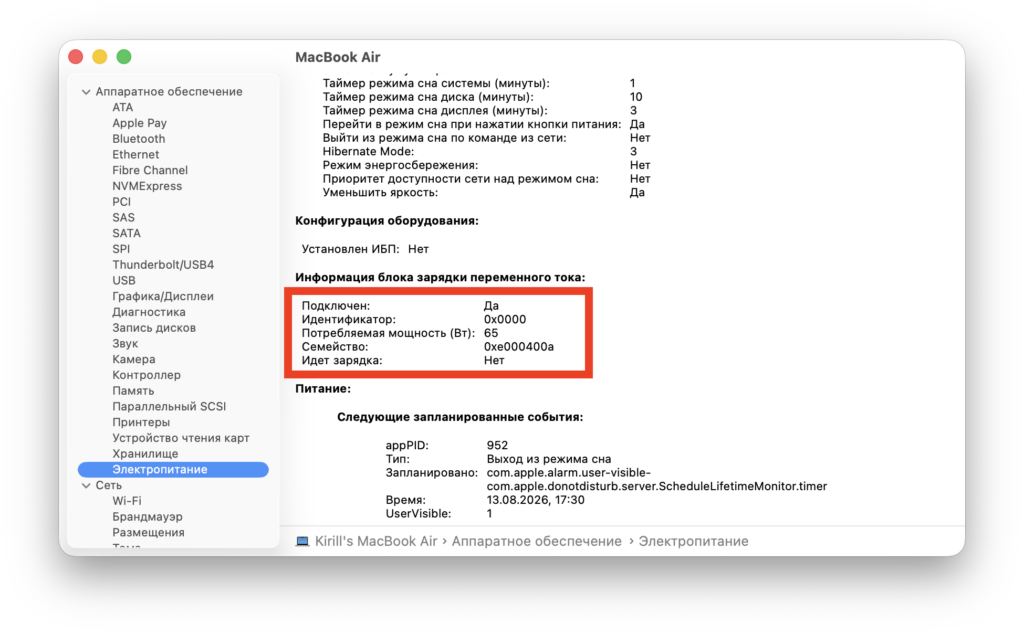
System Information display when charging via USB-C from a Huawei power adapter — the difference is visible
Practical takeaway
There is nothing to configure. The MacBook handles multiple connected chargers automatically and safely. If both MagSafe and USB-C chargers are available, using MagSafe for power is the more practical choice: it frees up USB-C ports for peripherals, monitors, or docking stations, and the magnetic connector detaches cleanly if someone trips over the cable.