You can run an iPhone’s Personal Hotspot around the clock. As a permanent replacement for a home router, however, it has real drawbacks. According to the source, the main threat to the battery is not charging itself. It is the combination of a charge held near 100% and the heat the phone generates while working as a modem. Connections can also drop, and an iPhone lacks basic router features. The source suggests using an iPhone this way only as a temporary fix, ideally with a spare phone, a charge limit and good cooling.
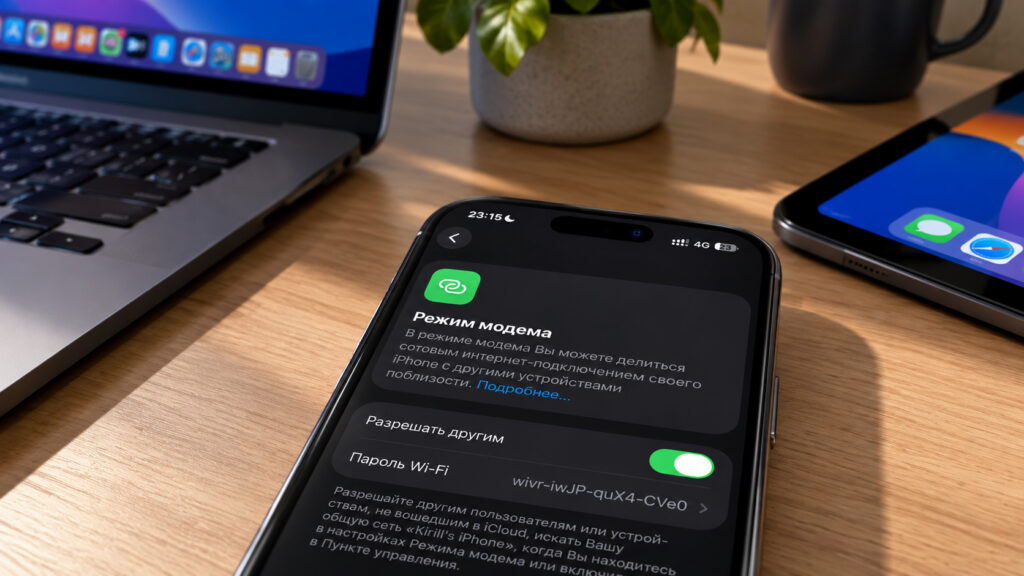
Personal Hotspot running on an iPhone
What you need to know
- According to the source, a battery held constantly at 100% plus heat from hotspot use wears faster, even when the charge cycle count stays low.
- On iPhone 15 and later, you can cap charging under Settings > Battery > Charging. Limits are available from 80% to 100% in 5% steps.
- USB tethering produces less heat and holds a steadier connection than Wi-Fi, but it serves only one connected device.
- The source advises unplugging the phone immediately and taking it for service if the battery appears swollen, for example if a gap opens at the screen edge.
Where the iPhone-as-router idea hits its limits
Technically, nothing stops you from sharing a connection for days on end once Personal Hotspot is working. If the option does not appear in Settings, you will need to set it up first.
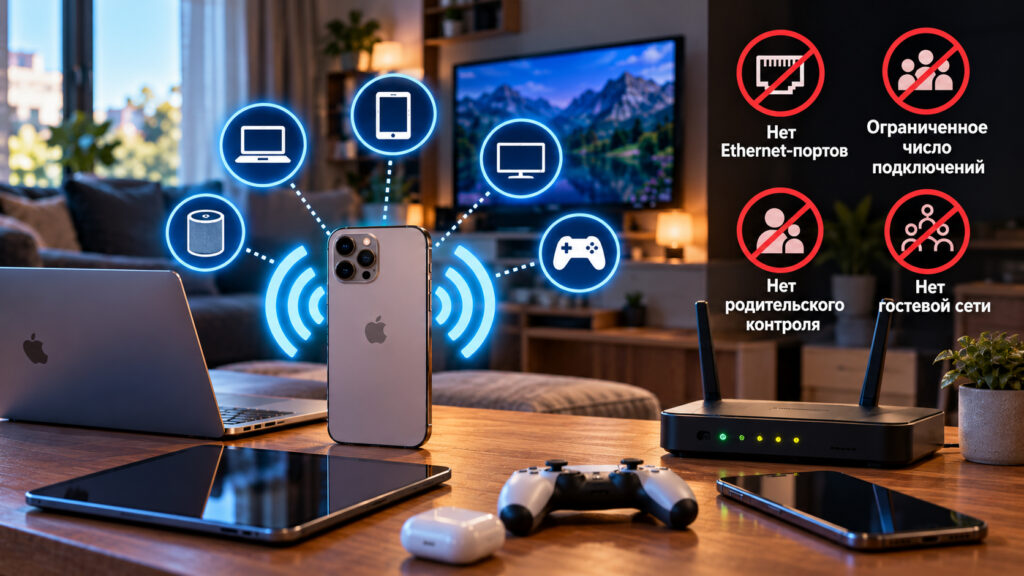
Downsides of using an iPhone as a modem
The bigger issue is design intent. The source explains that the iOS hotspot is built for short sessions, such as connecting a laptop in a café, sending a file or giving a tablet internet access while travelling. If no device is connected for a while, iOS stops broadcasting the hotspot to save power. That matters little for a laptop. However, a smart speaker, camera or TV that needs a constant connection will drop off periodically and may not reconnect on its own.
An iPhone also lacks features found on even the cheapest router. It has no Ethernet ports, no guest network and no proper parental controls, and the number of simultaneous connections is limited. The source author therefore recommends treating an iPhone as a temporary router replacement: for a summer cottage, a rental for a couple of months, or a backup link when your home broadband goes down. For a family of four with a smart TV and a couple of laptops, the author recommends an LTE router that takes a SIM card instead.
What happens to the battery when it is always charging
The source identifies three things that wear out a lithium-ion battery:
- charge cycles;
- long periods at a high state of charge;
- heat.
Cycles are less of a concern than many people assume. Once an iPhone is fully charged, it stops adding charge and runs mostly from the adapter, topping up only occasionally. Under this pattern, the cycle count rises slowly.
The other two factors, however, work against the battery around the clock. A plugged-in phone sits at or near 100% almost all the time, which the source describes as the most stressful state for a battery. Add heat from hotspot use, and the battery ages faster even if the cycle counter shows few cycles. In the source’s view, it is the constant 100% charge combined with heat, not charging itself, that eats into battery life.
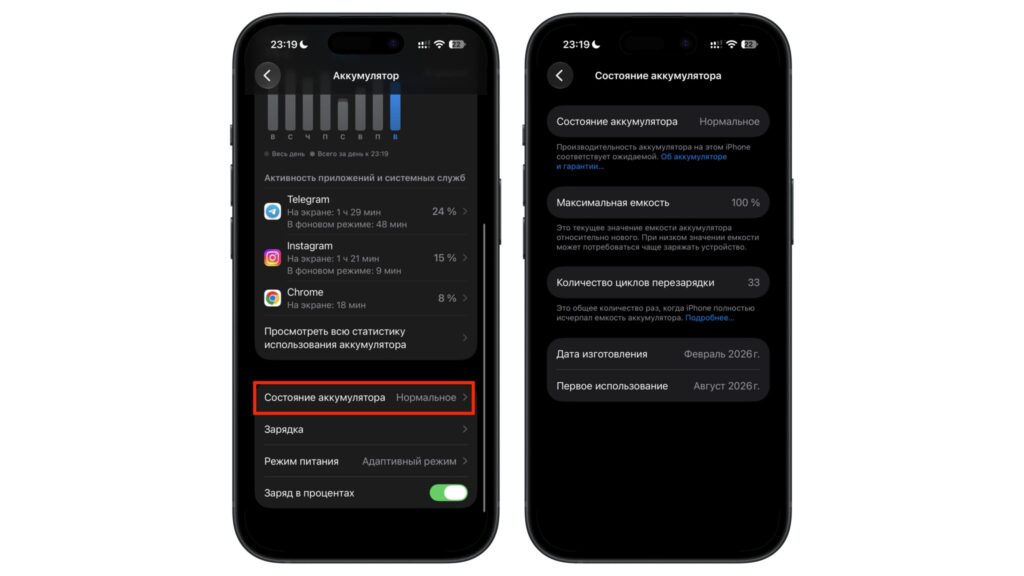
Battery menu showing remaining maximum capacity
For reference, the source states that Apple rates iPhone 15 and newer batteries to retain 80% of their capacity after 1,000 cycles, while older models reach that threshold after 500. Those figures describe normal use, however, not a phone left hot on a charger for months. In that scenario, Battery Health may decline noticeably faster.
Watch for a swollen battery
The source also advises keeping an eye on the phone’s body. A swollen battery starts pushing the screen out. Signs include a gap along the edge, a phone that no longer lies flat on a table, or a case that will not fit fully. If you notice anything like this, the source says to unplug the iPhone immediately and take it to a repair service. It should not continue to be used as a hotspot in that condition.
Why heat is a bigger risk than it seems
In hotspot mode, an iPhone heats up from three sources at once:
- the cellular modem working at full capacity;
- Wi-Fi constantly broadcasting a network;
- the power controller maintaining the charge.
Each process is harmless on its own. Together, they turn the phone into a warm slab. The source notes that Apple considers an ambient temperature of 0 to 35 °C (32 to 95 °F) comfortable for an iPhone, a limit easily exceeded near a window in summer.
When an iPhone gets too hot, it protects itself. It pauses charging at 80% and displays a notice on the Lock Screen. If it overheats badly, it may throttle network speeds or show a warning that the device needs to cool down. Internet sharing slows noticeably during these episodes.
Simple ways to keep the temperature down
The source recommends a few simple rules:
- Remove the case, especially a leather or thick silicone one.
- Do not leave the phone on a sofa or pillow, or on a windowsill in direct sunlight. Keep it away from radiators.
- Charge by cable rather than wirelessly. According to the source, induction and MagSafe charging heat the iPhone more, which matters when sharing over Wi-Fi.
- If 5G reception is poor, switch to LTE. On a weak signal, the modem works at its limit and runs hotter.
- Keep the screen off. The hotspot keeps working while the iPhone is locked.
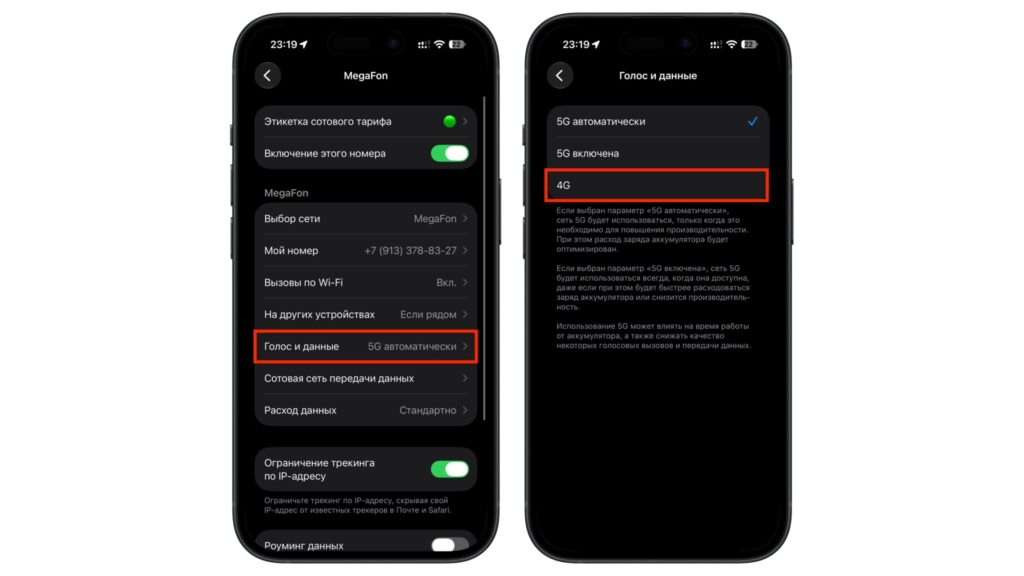
Switching from 5G to 4G
The source suggests standing the iPhone upright on a stand. That keeps the back panel off the table so it can shed heat properly. Some stands include a built-in fan.
Wi-Fi or USB: which sharing method is gentler
These options are usually compared on speed. For round-the-clock use, the source argues that other factors matter more: how many devices you can connect, how hot the iPhone gets and where it draws power from. Each method suits a different scenario.
| Parameter | Over Wi-Fi | Over USB |
|---|---|---|
| Number of devices | Several at once | Only the one connected by cable |
| iPhone heat | Higher, because the Wi-Fi module is also working | Lower, because Wi-Fi is not used |
| Power | Needs a separate adapter | iPhone draws power from the same port |
| Stability | May switch off when no device is connected | Stays up as long as the cable is plugged in |
| Best for | An apartment or cottage with several gadgets | A single laptop, or a router with a USB port |
If only one computer needs internet access, the source says the cable wins on every count: less heat, a steadier connection and no separate adapter. On a Mac, it works straight away. On Windows, you need the Apple Devices app or iTunes, or the computer will not recognize the iPhone as a modem.
Combining both methods
According to the source, the most convenient home setup combines both methods. Some routers with a USB port, such as Keenetic models, can use an iPhone as a USB modem. The iPhone supplies internet over the cable, and the router with a USB port handles Wi-Fi for all devices. The phone runs cooler, and you get a full-featured network.
Before buying, check the manufacturer’s list of compatible modems. Bear in mind that a router’s USB port supplies only limited current, so the iPhone’s charge may slowly drop under load.
Should you limit charging to 80%?
The source author describes the benefit of a charge limit as debatable in everyday use. In a year-long experiment the source previously reported, the gain was modest. An iPhone used as a permanent hotspot, however, is one of the rare cases where a limit makes sense. The phone stays in one place and does not need the extra 20% of capacity.
On iPhone 15 and later, go to Settings > Battery > Charging and choose a limit. Values run from 80% to 100% in 5% steps. The iPhone charges to roughly the selected level, stops adding charge and then runs from the adapter. For round-the-clock hotspot use, the source author recommends an 80% limit. That keeps the battery in a less stressful range while leaving enough reserve in case of a power cut.
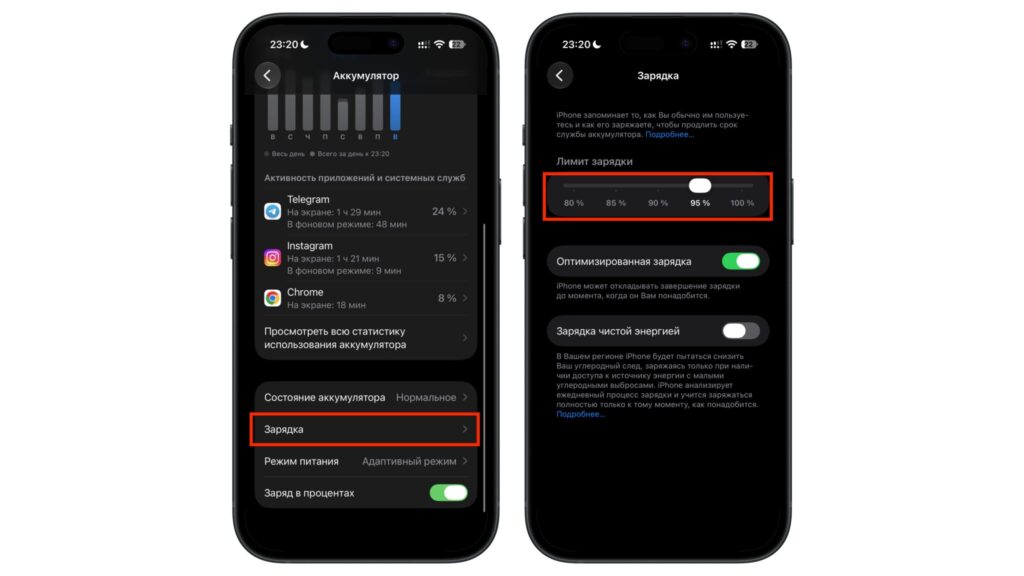
Activating the iPhone charging limit
Options for iPhone 14 and older
Older models are trickier. They offer only Optimized Battery Charging, which learns your routine and holds the charge at 80% when it expects the phone to stay plugged in for a long time. With constant power it often kicks in, but there is no guarantee.
The source suggests a more reliable approach: a smart plug combined with an automation in the Shortcuts app. The plug switches off when the battery reaches 80% and switches back on when it falls to 40–50%.
What to check before leaving an iPhone on hotspot duty
When a phone works as a modem for weeks, data disappears faster than you might expect. A TV downloads updates, and a laptop syncs to the cloud. Starting with iOS 26.4, you can see data usage per connected device directly in the hotspot settings. The source recommends checking this first, a couple of days after you start.
The rest of the checklist is short:
- Check your plan’s terms. On many unlimited plans, hotspot use is capped by volume, throttled or charged separately.
- Change the hotspot password to something long and non-standard, especially in an apartment building.
- Turn on Maximize Compatibility only if older devices cannot see the network. It moves the hotspot to 2.4 GHz, which is slower.
- Once a week, check Battery Health and inspect the phone’s body.
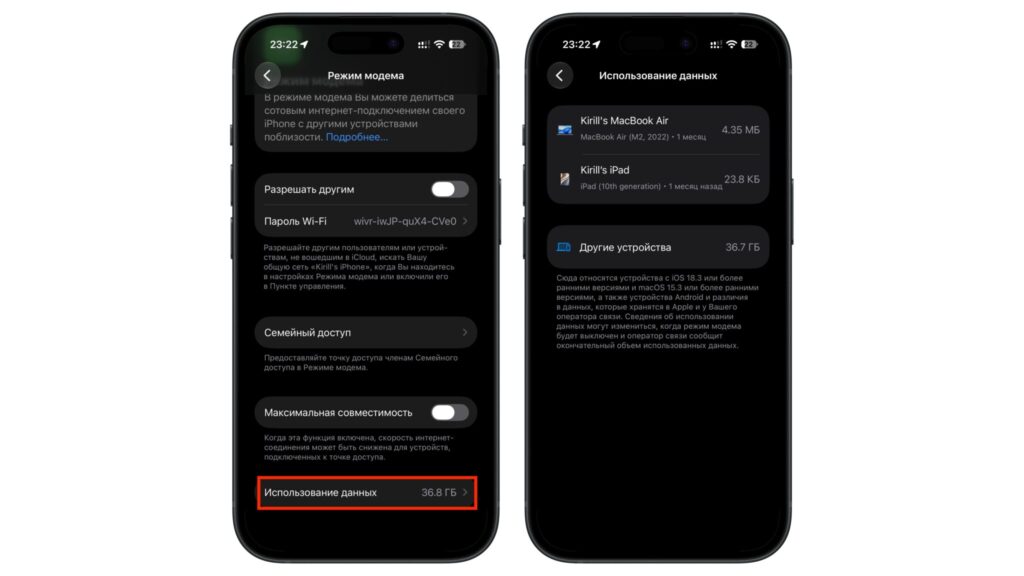
Personal Hotspot data usage on iPhone
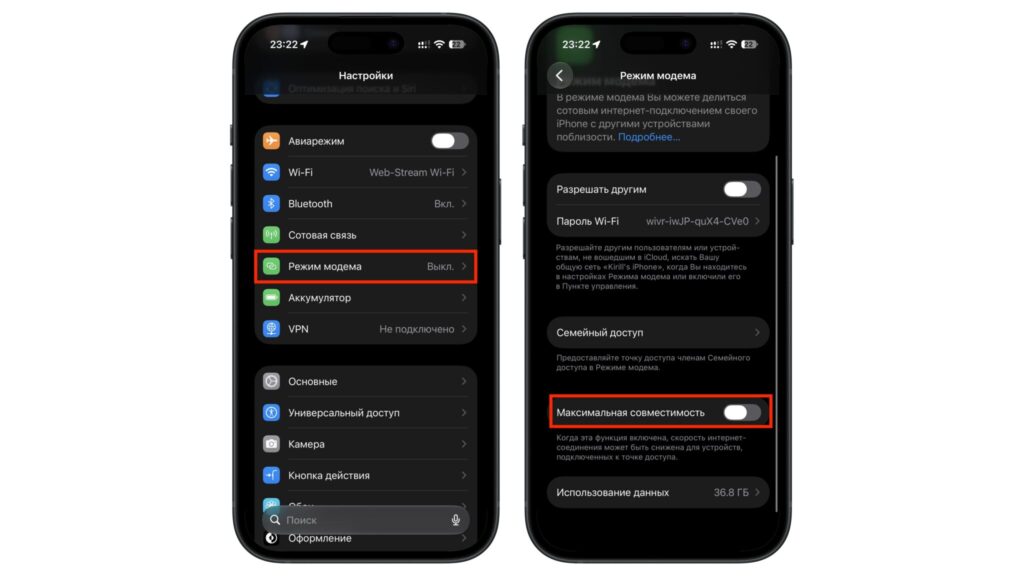
Maximize Compatibility option when enabling Personal Hotspot
The bottom line: a spare iPhone, not your main one
According to the source, the answer depends on which iPhone you leave plugged in. A spare phone dedicated to modem duty can run for months with a charge limit, no case and a stand. Even if its battery degrades over time, the phone itself is no great loss.
The source author advises against using your main iPhone as a permanent hotspot. The money you save on a router would be paid for in battery capacity, which you rely on every day.


