In iOS 26.4, finding the app updates section in the App Store turned out to be not as easy as before. Apple made the path somewhat longer and more convoluted. If you’re used to checking for updates manually, this can be annoying — but there’s a quick way to bypass the extra tap that we’re about to tell you about, and you’ll definitely want to use it all the time.
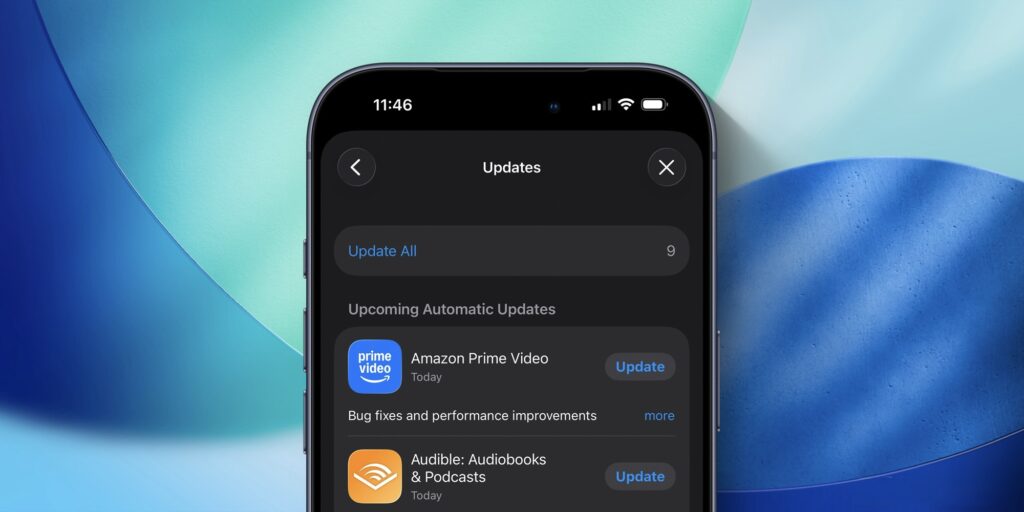
App updates on iPhone are now a bit harder to find
App Updates in the App Store in iOS 26.4
In previous versions of iOS 26, the app updates list was easy to open: you’d go to the App Store and tap the profile avatar in the upper right corner. Updates were right there, without any intermediate steps — just one tap. By the way, in iOS 26.4.1, which I installed on my iPhone, this wasn’t rolled back.
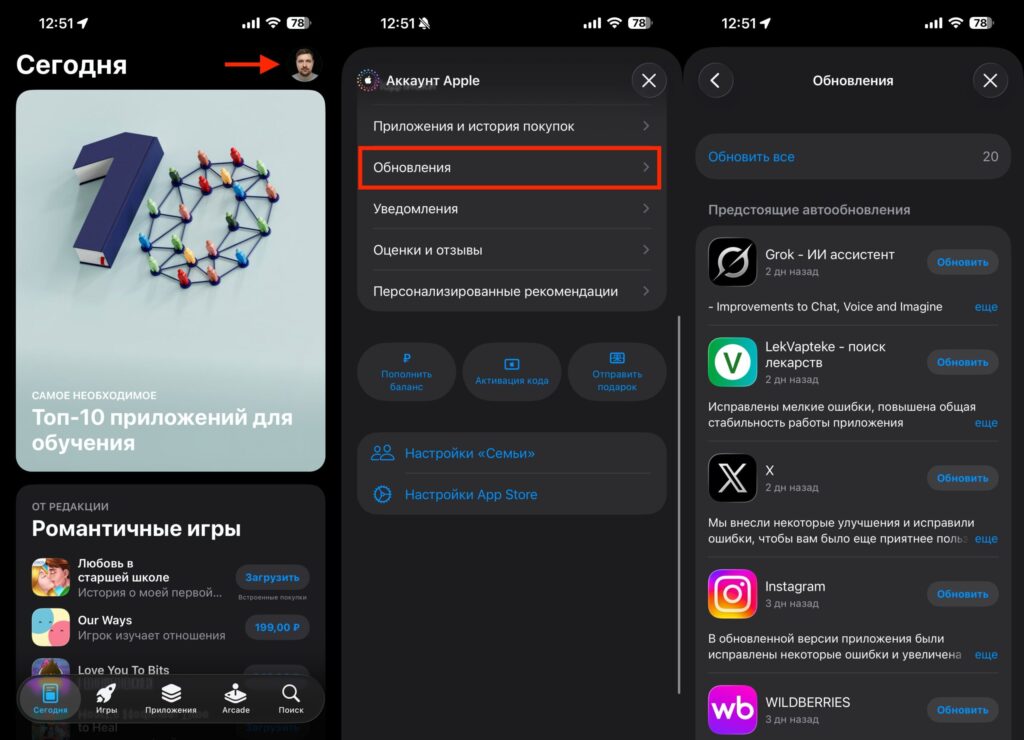
To manually get to updates, you’ll need to tap the screen one more time
Now in iOS 26.4, after tapping the avatar, an additional menu item has appeared — “Updates.” This means one more tap has been added to reach the updates list, making the path slightly longer. Apple apparently decided to restructure the profile menu and move updates to a separate section — possibly to free up space for other items or to make the interface more consistent.
For most people who never even look at the updates section, this changes nothing: their apps update automatically, and they never encounter this menu. But if you’re someone who regularly checks what’s been updated, reads changelists, and decides when to update each specific app, the extra step can get annoying pretty quickly.
Quick Way to Open App Store Updates on iPhone and iPad
iOS has long had a way to get to the updates section, bypassing all intermediate screens. It works in iOS 26.4 as well, and it appeared long before this update — it’s just that there wasn’t such a need for it before.
Here’s what you need to do:
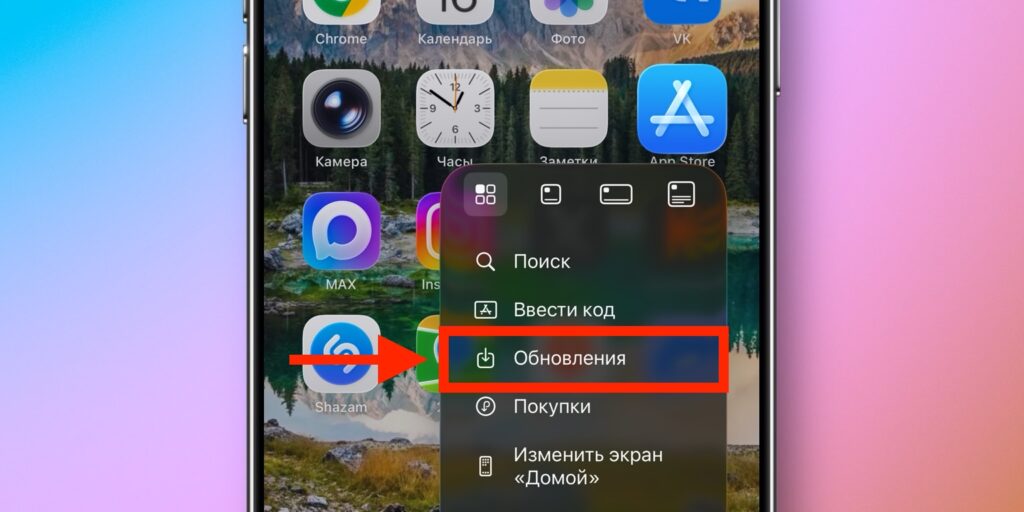
Long press the icon — and you’re already in updates
- Find the App Store icon on your iPhone or iPad home screen.
- Press and hold it — after a second, a context menu with quick actions will appear.
- Select the “Updates” option.
The App Store will open directly to the updates screen — without needing to go to your profile, scroll through the menu, or search for the right option. It’s faster than going through the avatar, and it works equally well on both iPhone and iPad. The long-press gesture also doesn’t require any additional settings — it’s available on any device running iOS 13 and later.
It’s important to note that the context menu only appears with a long press directly on the App Store icon. If you hold the icon while in home screen editing mode (when icons start jiggling), the quick actions menu won’t appear — you need a short hold without entering editing mode.
Automatic App Updates on iPhone
Most iPhone owners don’t even open the App Store for updates — apps update automatically in the background thanks to the auto-update feature, which is enabled by default. If you have auto-updates turned on and don’t follow changelogs, this news won’t affect you at all: everything works the same as before.
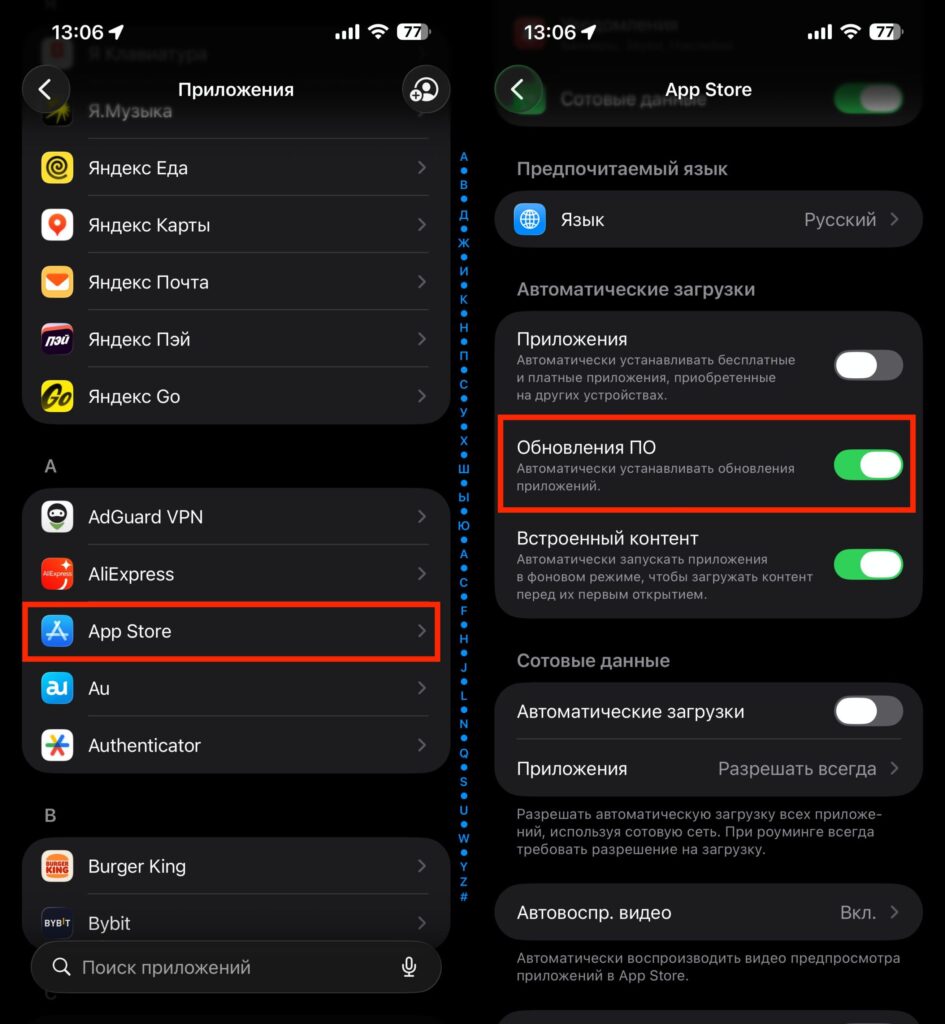
If this toggle is activated, apps will update on their own
You can check the auto-update status in Settings — Apps — App Store, “App Updates.” If the toggle is on, apps update on their own as soon as a new version is released — usually at night or when the device is connected to Wi-Fi and charging.
However, if you prefer to update apps manually, read change descriptions before each update, or simply want to control what and when gets installed on your iPhone, the habit of long-pressing the App Store icon instead of opening the app through the main menu will save you a couple of seconds each time. Over time, this will become a reflexive action, and the new menu structure will no longer feel like an obstacle.
The change is minor, but for those who use this section daily, the difference is noticeable. Remember one gesture — and the updated App Store in iOS 26.4 won’t cause you any inconvenience.