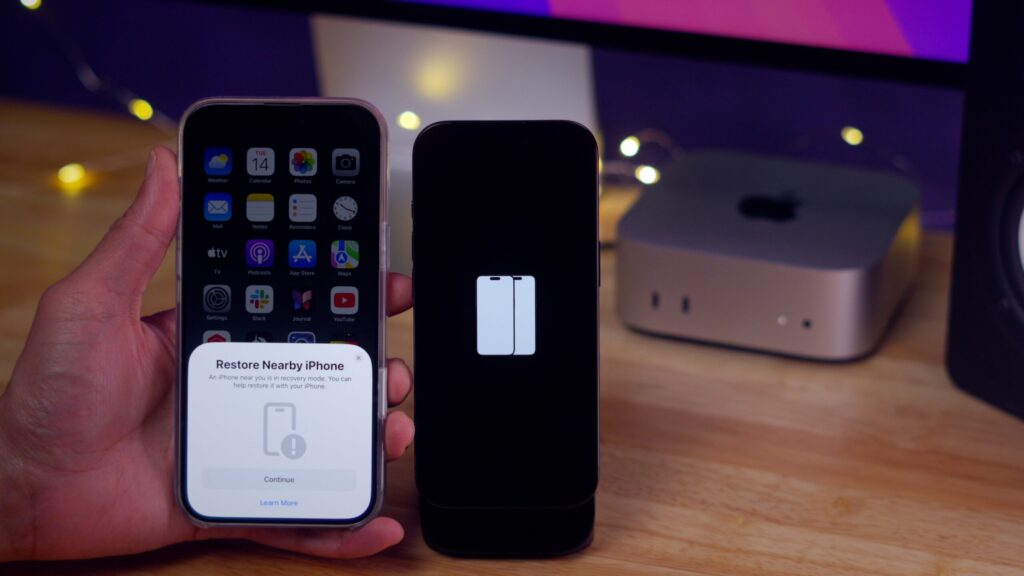
You pick up your iPhone, and on the screen — two white smartphones on a black background. The phone won’t boot, it doesn’t respond to presses, and you have no idea what to do. The situation is common: on Reddit and Apple forums there are dozens of threads with the same question. Sometimes the problem is related to Wi-Fi dropping during an update, causing the process to be interrupted. Here’s what this animation means and how to get your iPhone back to working condition.
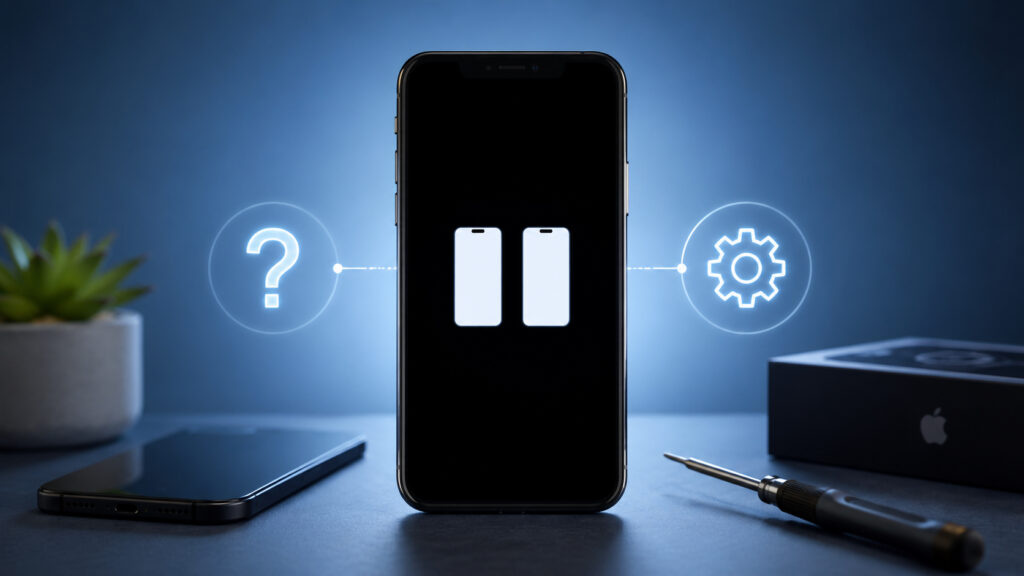
No one is immune from this situation
What the Screen with Two iPhones Means
Two white smartphone silhouettes on a black background — this is the Restore with Nearby Device screen. Apple added this feature in iOS 18 for situations when an iPhone enters recovery mode and cannot boot on its own.
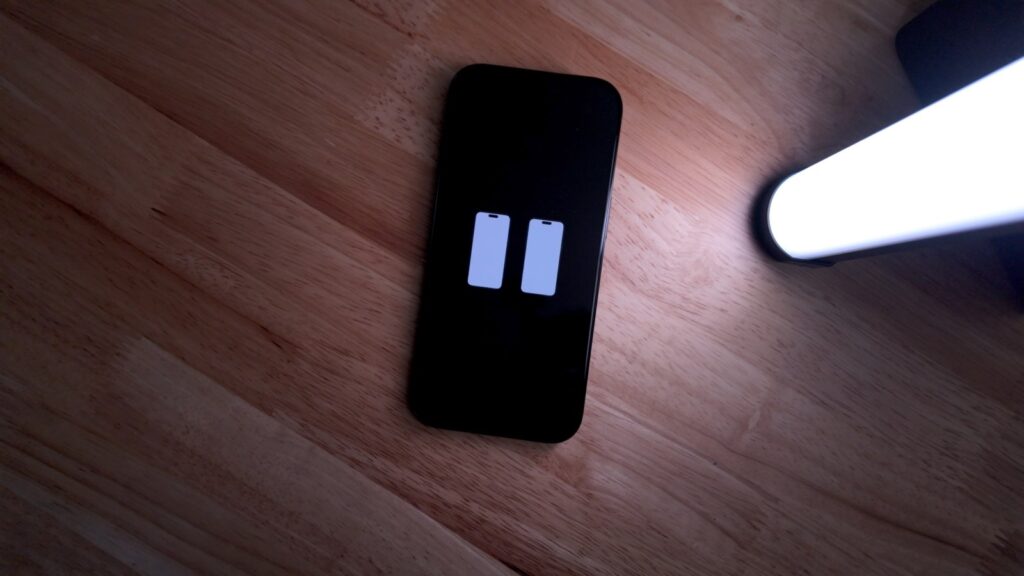
The iPhone will prompt you to bring another smartphone close to it
The animation with two devices means one thing: your iPhone got stuck during an iOS update and is offering to restore itself by bringing another iPhone or iPad nearby. Essentially, the phone is saying: “I need help — bring a working device close, and I can fix myself.”
It’s important not to confuse this screen with the Quick Start feature, which appears when setting up a new device. The recovery screen appears on an already activated iPhone due to problems during an update. If the phone was working fine before and suddenly showed two silhouettes — this is specifically recovery mode.
Why iPhone Is Stuck on the Screen with Two Devices
Apple directly states on its support page: this screen can appear during a wireless iOS update. But in practice, there are several reasons.
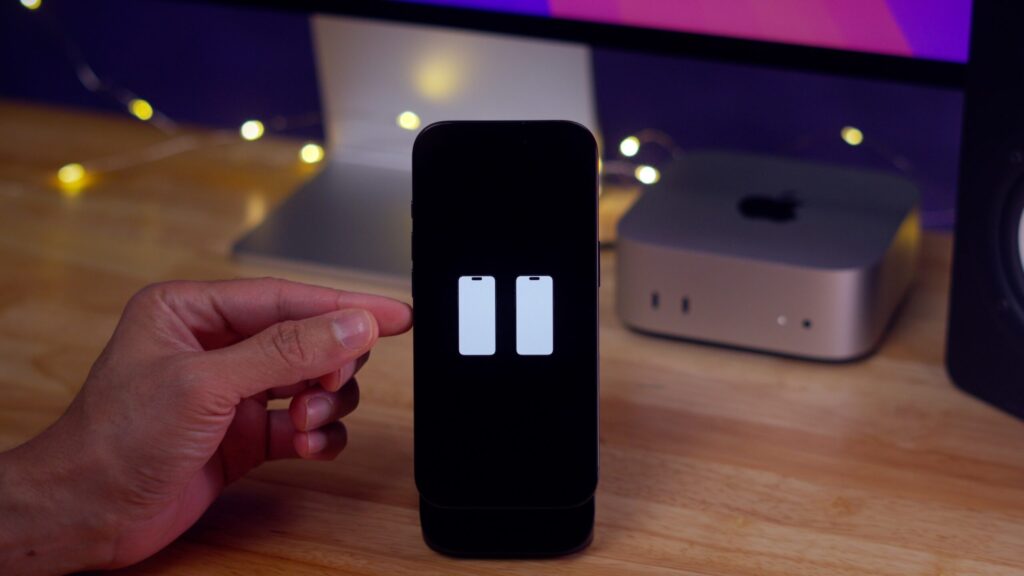
This situation can occur for several reasons
- Interrupted iOS update. The most common reason. During an over-the-air update installation, Wi-Fi dropped, the battery died, or a software glitch occurred — and the iPhone couldn’t complete the process. The system entered recovery mode and showed the animation with two devices. On forums, users complain about this especially often after major updates.
- Complete discharge during an update. One Reddit user reported that their iPhone 17 Pro showed the screen with two iPhones after the battery completely died. The update was running in the background, the phone discharged to zero — and when turned on, instead of the home screen, the recovery screen appeared.
- Software glitch during reboot. Sometimes an iPhone enters recovery mode after a forced restart or system freeze. If at the moment of the glitch there was writing to the system partition — for example, a background update — the phone may fail to boot and show the recovery screen.
The main thing: the appearance of this screen does not mean that your data has been deleted. The iPhone simply cannot load the system and is asking for help. Data on the device is preserved until you perform a full restore with content deletion.
iPhones That Support Recovery Without a Computer
The wireless recovery feature doesn’t work on all iPhones. According to Apple, it’s available on the following devices:
- iPhone 17 (all models)
- iPhone Air
- iPhone 16 (all models)
- iPhone 16e
- iPhone 15 Pro and iPhone 15 Pro Max
The second device (the one you bring close for recovery) must be running iOS 18 or later. This can be any iPhone or iPad with a compatible system version — the model doesn’t matter. The important thing is that it’s unlocked and connected to Wi-Fi.
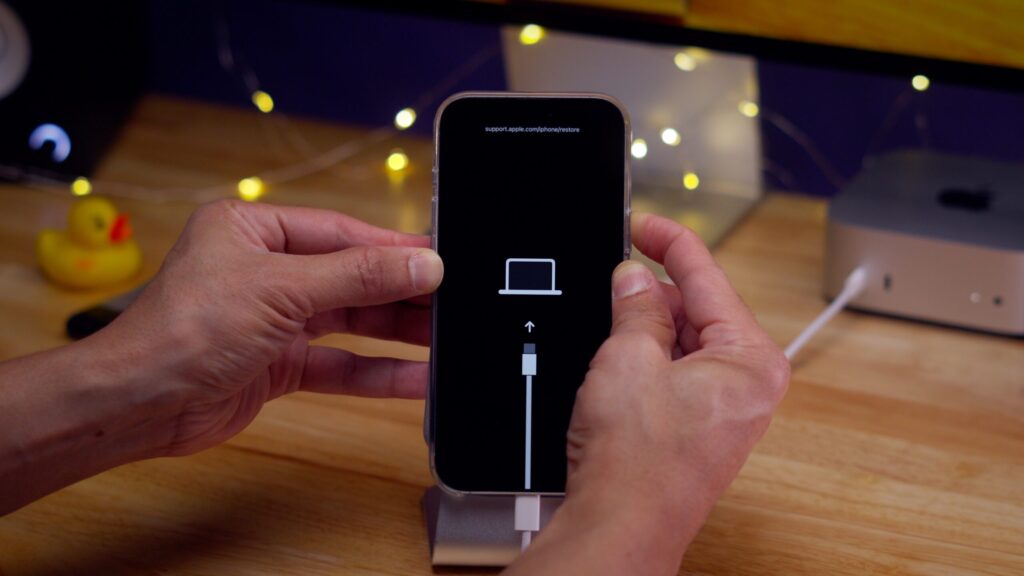
Older iPhones will display a prompt to connect them to a computer
If you have an older iPhone model (15, 14, 13, and so on), this screen should not appear on it. In case of an update problem, older models show the classic recovery mode screen with an image of a cable and computer.
Exit Recovery Mode on iPhone Without Data Loss
Proceed step by step — from simple to complex. In most cases, the problem is resolved at the first or second step.
Step 1: Plug your iPhone into a charger. The simplest advice that actually works. If the screen appeared after the battery died, connect the phone to a charger and leave it for 15-20 minutes. The author of a popular Reddit thread solved the problem exactly this way — simply put the iPhone on charge, and the phone rebooted into normal mode on its own.
Step 2: Force restart. If charging didn’t help, try a hard restart of the iPhone. On all iPhones with Face ID, the sequence is the same: press and release the volume up button, then press and release the volume down button, then press and hold the side button until the Apple logo appears. After the iPhone restarts, it may boot in normal mode or return to the initial setup screen — in this case, go through activation, sign in with your Apple ID, and the data will be restored.
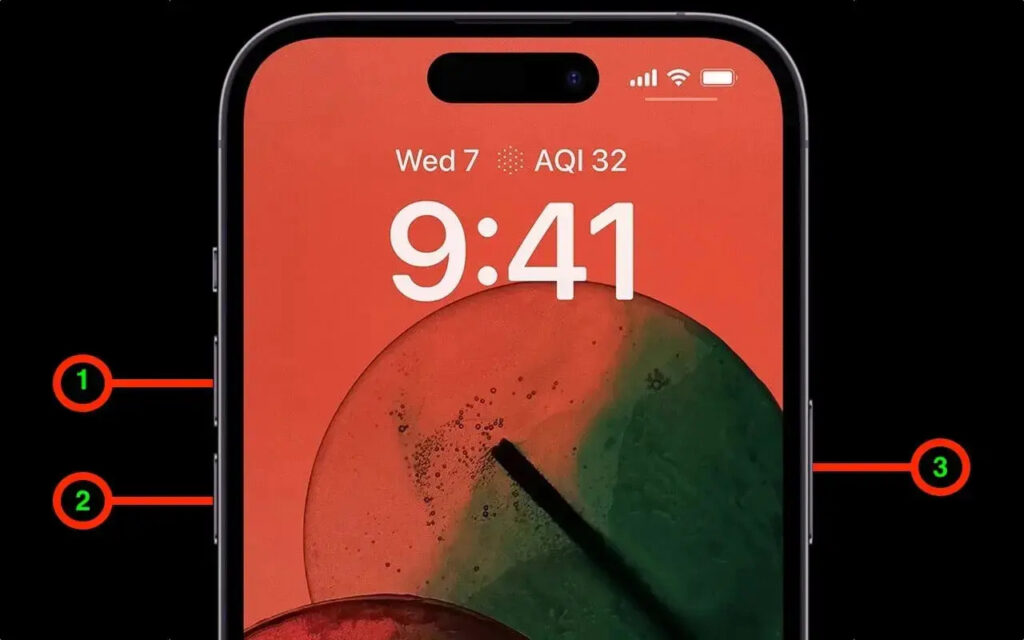
Start with a force restart
Step 3: Recovery through another iPhone. If a force restart didn’t help — use the very feature that the iPhone is prompting you to use. To do this:
- Connect the problematic iPhone to a charger.
- Bring another unlocked iPhone or iPad running iOS 18 or later, connected to Wi-Fi, close to it.
- On the working device, a message “Restore Nearby iPhone” will appear. Tap “Continue.”