A situation familiar to many: you press the power button on your MacBook, and in response — silence. Or even better: the Apple logo lights up, the loading bar freezes halfway, and nothing else happens. Your first thought is to take it to a service center. But don’t rush: in most cases, you can revive your Mac yourself in 10–15 minutes, without opening the case or spending money on diagnostics.

Imagine you opened your MacBook lid and it doesn’t respond
Let’s go through it step by step: what to check first, how to enter safe mode on Apple Silicon and Intel, how SMC reset differs from NVRAM reset, and at what point it’s really time to see a specialist.
Why MacBook Won’t Turn On: Main Causes
Before panicking and googling “how much does a motherboard replacement cost,” it’s worth understanding what you’re dealing with. There aren’t that many reasons why a Mac refuses to start, and most of them are software-related, not hardware.
- Dead battery. It’s obvious, but this is reason #1. Especially if the MacBook has been sitting idle for a long time.
- Crash after a macOS update. The installation went wrong, the system freezes on the logo or goes into an endless reboot loop.
- Corrupted cache or system files. Accumulated over years of use, and at some point the boot process simply stops completing.
- Conflict with third-party software. Most often — antivirus programs, VPN clients, screen recording utilities, third-party device drivers.
- Corrupted NVRAM settings. Brightness, sound, startup disk selection settings — if they’ve gone haywire, the Mac can freeze before even entering the system.
- Hardware problems. Spilled liquid on the keyboard, damaged display cable, dead battery. This is already a job for professionals.
If you have a black screen but can hear the fan and startup sound — most likely the problem is with the display, not the computer itself. This is important: the following steps with safe mode won’t help in this situation.
How to Force Restart a Mac
Let’s start with the simplest thing. Connect your MacBook to a charger using the original cable and adapter and leave it for at least 15–20 minutes. If the battery was deeply discharged, the charging indicator may not light up immediately — this is normal. During this time, the battery will gain the minimum charge needed to start.
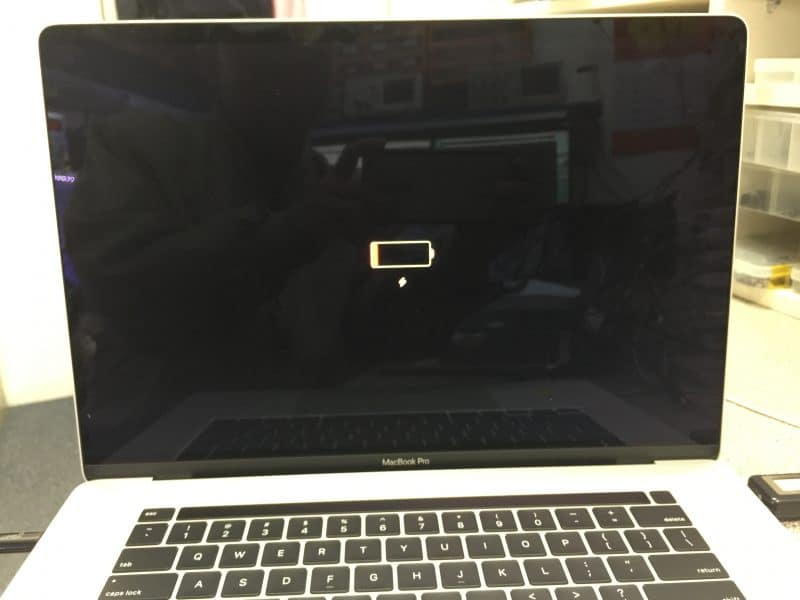
First of all, always check the charger
Check the cable and adapter themselves: a broken charger masquerades as a broken laptop more often than you’d think. If possible — try a different power adapter. USB-C cables from iPads or Android smartphones will also work for MacBook Pro and Air, as long as they deliver sufficient power.
If there’s power but the Mac still won’t start, perform a hard restart. On modern MacBooks with Apple Silicon chips (M1, M2, M3, M4, M5), the procedure is as simple as possible: press and hold the power button for 10 seconds, then release and press again. That’s it. No key combinations — Apple Silicon automatically resets the necessary controllers during a long press.
On older Intel MacBooks, the procedure is different: press Control + Command + power button simultaneously and hold until the screen goes dark. After a couple of seconds, turn it on the usual way.
Safe Mode on Mac: How to Start
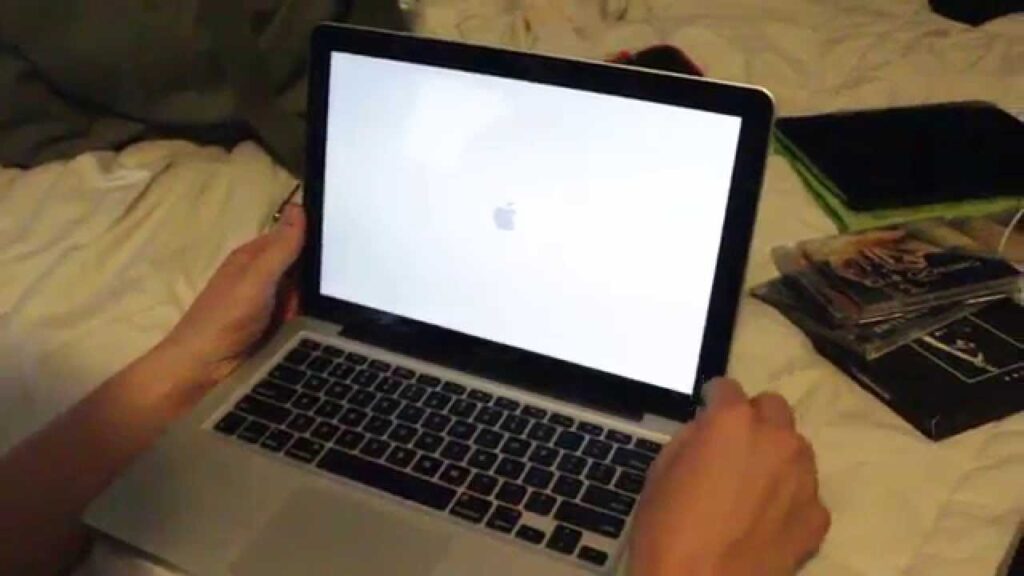
The computer may start but freeze on the Apple logo
If a hard restart didn’t help or the Mac starts but freezes on the Apple logo, it’s time to go into safe mode. This is a special way to boot macOS where the system loads only critically important components, disables third-party software, and automatically checks the startup disk for errors. Often this is enough for the boot to complete normally.
On Mac with Apple Silicon, the procedure is as follows:
- Completely shut down the Mac (by holding the power button).
- Press and hold the power button until you see “Loading startup options.”
- Select the startup disk (usually Macintosh HD).
- Hold down the Shift key and click “Continue in Safe Mode.”
- Release Shift and log into the system. If FileVault is enabled, you’ll need to enter your password twice.
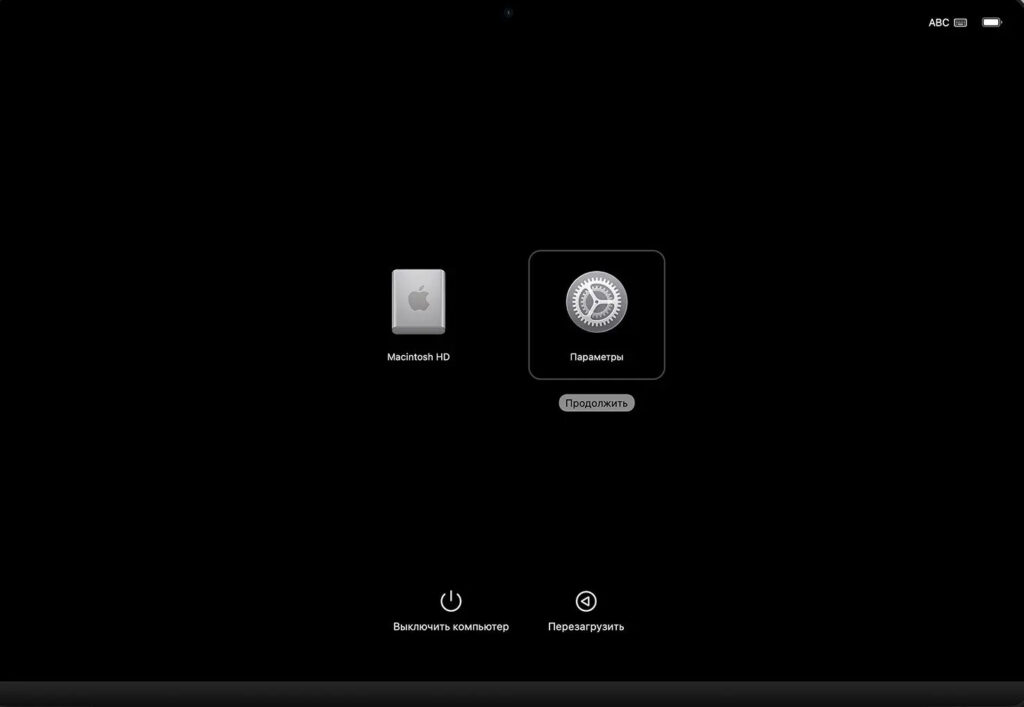
On this screen you need to select the startup disk
On Intel Macs, it’s even simpler: turn on the Mac and immediately hold down Shift, keep holding until the login window appears. You can verify that you’re actually in safe mode by looking at the upper right corner of the screen — there will be a red text label saying “Safe Boot.”
If the Mac works normally in safe mode — the cause is third-party software or cache. Simply restart in normal mode, and the system will automatically rebuild caches and restore functionality during this time. If the problem returns — remove recently installed applications and kernel extensions.
When You Need to Reset SMC and NVRAM
Here’s an important point that many people don’t mention. On Apple Silicon, SMC reset is not needed — there is no physical SMC controller in these chips; its functions are built into the processor itself. The long press of the power button that we already discussed automatically resets all the necessary parameters.
If you still have an Intel MacBook — the SMC reset procedure is relevant. On models with a T2 security chip: shut down the Mac, hold left Control + left Option + right Shift and hold for 7 seconds. Without releasing the keys, additionally press the power button and hold for another 7 seconds. Release everything, wait a couple of seconds, and turn on the Mac normally.
NVRAM reset (basic parameter memory — brightness, sound, startup disk) only works on Intel Macs. Turn on the Mac and immediately hold Option + Command + P + R. Hold for about 20 seconds until the Mac restarts. On Apple Silicon, this memory is reset automatically at every startup — no key combinations are provided there. If after all these steps the Mac still won’t boot — it’s time to bring out the heavy artillery.
How to Launch macOS Recovery Mode
Recovery mode is a built-in macOS emergency tool that allows you to check and repair the disk, restore the system from a Time Machine backup, or completely reinstall macOS while preserving your data. This is the last thing to try before visiting a service center.
On Apple Silicon: completely shut down the Mac, press and hold the power button until the startup options window appears, select “Options” and click “Continue.” On Intel: turn on the Mac and immediately hold Command + R, keep holding until the Apple logo or spinning globe appears.
In the utilities window that opens, first launch Disk Utility and run “First Aid” on the startup disk. This will check the file system for errors and attempt to fix them. In most cases, this is exactly what brings the Mac back to life.
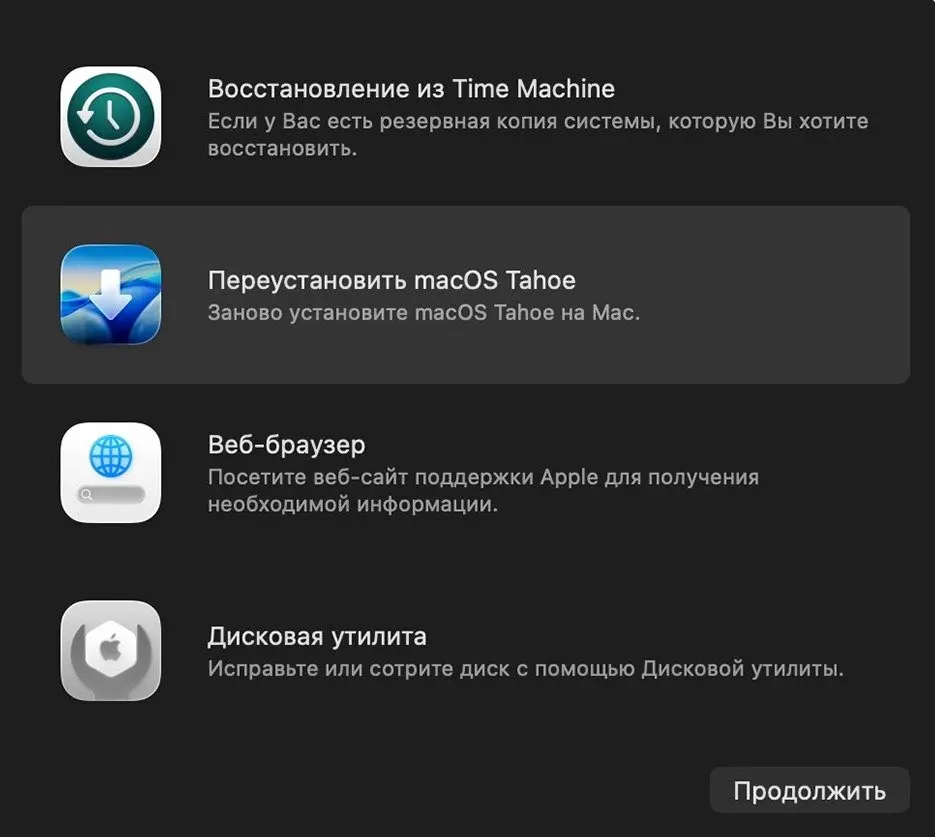
Reinstalling macOS is one way to revive your computer