If the MAX messenger shows “Too many attempts” while you are trying to log in, your profile has not been blocked. According to MAX’s help documentation, the message is a protective limit. It is triggered when the same action is repeated many times in a row. MAX recommends waiting 5 minutes and then tapping “Try again.” That timing is documented for its verification-code chatbot, and MAX publishes no exact time for the login screen. Tapping repeatedly only delays your login, because frequent code requests can further delay delivery of the code.
What you need to know
- MAX’s help documentation describes “Too many attempts” as a security limit, not an account block. It is usually triggered by repeated code requests, wrong codes or several login attempts in quick succession.
- MAX recommends waiting 5 minutes before trying again. It also warns that frequent code requests can increase delivery delays.
- Login codes may go to a “Verification codes” chatbot on another device before arriving by SMS. That can make it look as if no code was sent.
- Profile recovery has its own limit. If you run out of recovery attempts, MAX advises trying again the next day. If that fails, it advises contacting support.
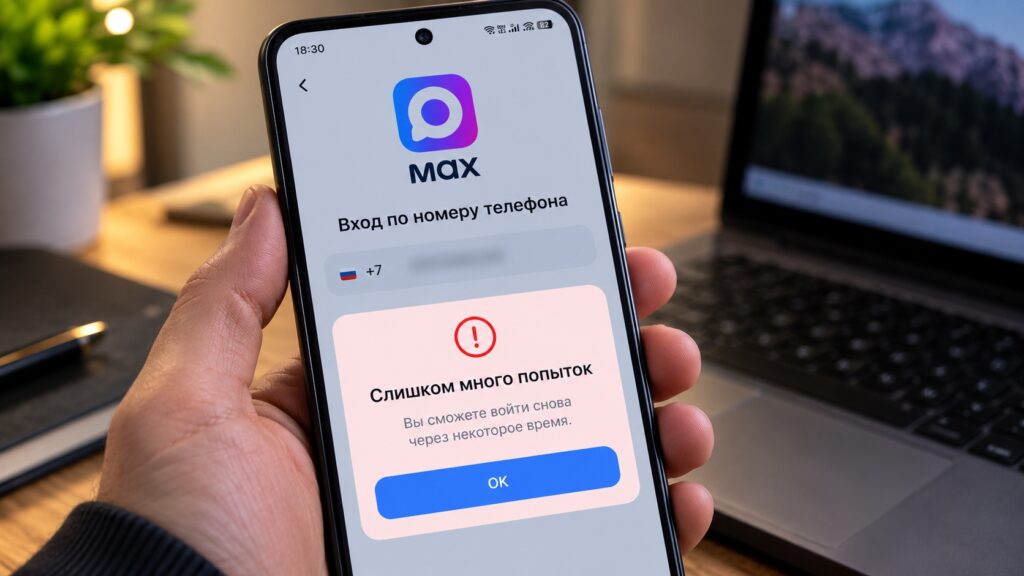
A login error in the MAX messenger on Android
What “Too many attempts” means in MAX
The message is a protective limit, not a profile block. MAX’s help documentation says the error appears when the same action is performed many times in a row. Most often, that means one of three things:
- requesting a code again and again;
- entering an incorrect code;
- making several login attempts one after another.
Officially, the error is documented for the “Verification codes” chatbot. This chatbot receives codes for logging in to MAX, to Russia’s Gosuslugi government services portal and to banking apps.
The original article’s author notes that, judging by user questions, the same message also appears on the messenger’s own login screen. MAX’s help pages have no separate article about the error in that context. The guidance below is therefore based on what MAX says about codes and logging in generally.
The error should not be confused with an actual block. If MAX says your profile has been blocked or deleted, that is a different situation with a different solution.
How long to wait before trying again
According to MAX’s help documentation, you should wait 5 minutes and then tap “Try again.” MAX frames this as a recommendation made “for security reasons.” The limit lifts on its own, and you do not need to do anything else.
MAX does not publish an exact waiting time for the login screen. The original article’s author suggests waiting the same 5 minutes in that case too. If the error comes back, the author suggests taking a longer break.

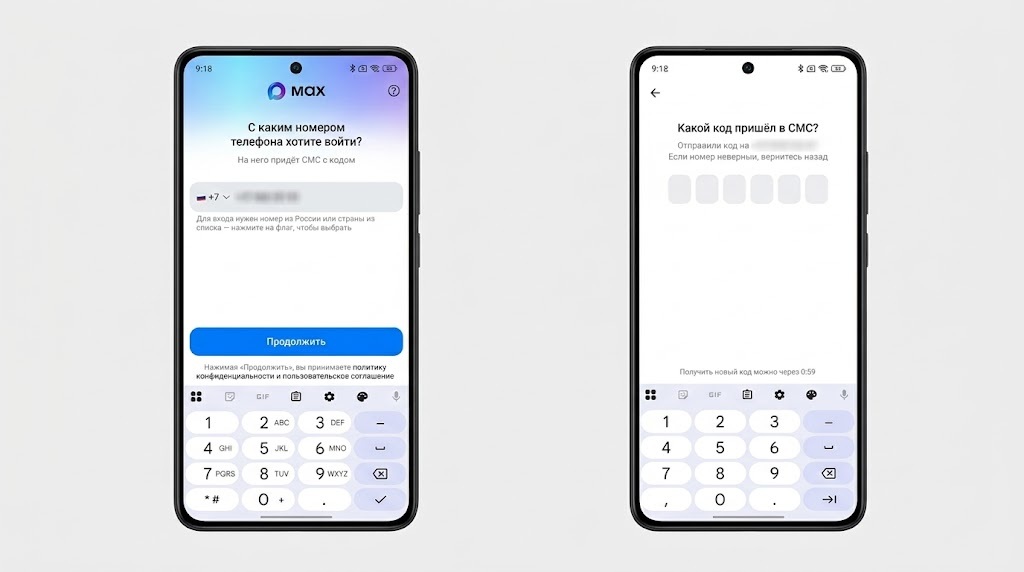
Logging in to the MAX messenger again on Android
The help documentation includes another important warning: frequent repeated requests for a code can increase the delay before it arrives. Every extra tap works against you.
Profile recovery has a separate limit. If you are restoring access and run out of attempts, MAX’s help documentation advises trying again the next day. The recovery section below covers this in more detail.
Why the code seems not to arrive
In many cases, “Too many attempts” is a side effect of another problem. The code did arrive, just not where the user expected it. According to MAX’s help documentation, login codes are delivered in different ways:
- To the chatbot on another device if the profile is already open on another phone and a login password has been set there.
- To the chatbot first, then by SMS if you used MAX less than an hour ago. In this case, the code is duplicated by SMS after 5 minutes.
- Directly by SMS if you have not used MAX for more than an hour or there are no active sessions.
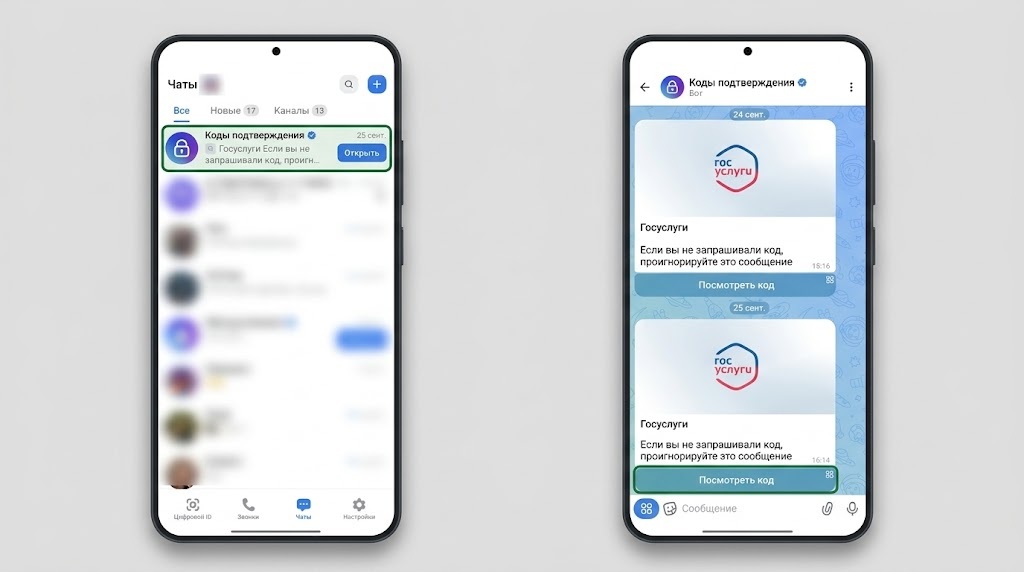
Verification codes in a dedicated MAX chatbot
This means that for the first five minutes, the code may be sitting in the chatbot on your old phone while the SMS has not yet arrived. A user who assumes nothing is working may keep tapping “Send code” over and over, which can trigger the limit.
There is a separate case to watch for. If the profile is open on another device that has no password set, MAX will not allow a login on a new device until a password is set on the existing one.
What to do before your next attempt
The original article’s author suggests using the waiting period to prepare your phone so the next code arrives on the first try. The suggested order is:

- Do not tap anything in MAX for at least 5 minutes.
- Check the “Verification codes” chatbot on any other phone or tablet where MAX is already open.
- Open your SMS messages on the phone that uses the number linked to your MAX profile.
- Turn off any VPN you are using.
- Make sure your internet connection works and that your phone number’s account balance is not zero.
- Request a code once and wait for it to arrive.
The VPN step is there for a reason. MAX’s help documentation states that VPNs and other IP-changing apps can block the delivery of codes. Setting names can differ between smartphone brands, so the relevant option may be labelled differently on your device.
There is one more possible cause that is easy to overlook. MAX’s help documentation warns that a mobile operator may restrict data transmission for up to 24 hours in two cases: if you have recently returned from abroad, or if the SIM card has not been used for a long time. This is sometimes called a SIM card “cooling-off period.” During that time, an SMS with a code may not arrive no matter how many times you try.
If you have run out of recovery attempts
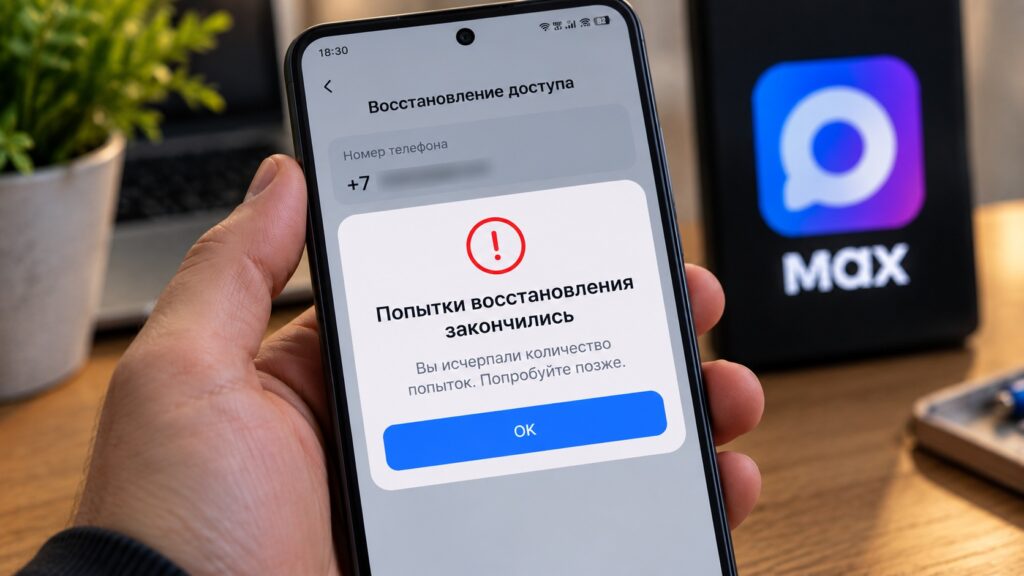
Running out of recovery attempts in MAX
Sometimes the old phone with MAX is no longer available. In that case, users restore access through the “No access to device” button or a self-recovery link. This verification also has a limit. For it to succeed on the first try, MAX’s help documentation says the phone must be prepared as follows:
- Turn off VPN and Wi-Fi.
- Turn on mobile data. It must run through the SIM card with the number linked to your profile.
- Select the correct SIM card for mobile data if your phone has two, or temporarily leave only that SIM active.
If MAX says verification failed at this step, check these three conditions first, because the help documentation describes them as mandatory.
If you have used up your recovery attempts, MAX advises trying again the next day. If that also fails, the next step is to contact support and describe the situation in detail. The self-recovery link and all the steps are listed in MAX’s help article on logging in to an existing profile.
A security warning about unexpected codes
MAX’s help documentation explains what it means if you receive an SMS with a login code you did not request. Someone has entered your phone number, either by mistake or in an attempt to take over your profile.
Login codes must not be shared with anyone. According to MAX, no one can log in to your profile without the code.


