Samsung’s One UI 9 includes a little-known built-in tool, AI Network Guard, that can cut selected apps off from the internet. Because most in-app ads are downloaded from the network, apps that work offline, such as file managers, calculators and offline games, stop showing banners and video ads once they lose access. The tool requires no third-party ad blocker and no DNS changes. However, it sits in a hidden experimental menu, it does not block ads in browsers or in apps that need the internet, and Samsung may change or remove it in future versions. Below is how it works, where to find it, and when it gets in the way.
What you need to know
- AI Network Guard blocks internet access for chosen apps while the rest of the phone keeps working normally. It also offers a schedule and a single toggle to block all browsers or all games.
- The feature was first spotted in the One UI 9 beta on the Galaxy S26, S25 and S24. It lives in a hidden experimental menu called Connectivity Labs.
- Restrictions are protected by a PIN. Without that PIN, the restrictions cannot be removed.
- It is not a full ad blocker. It cannot remove ads from apps that need the internet, and it does not affect ads inside browsers.
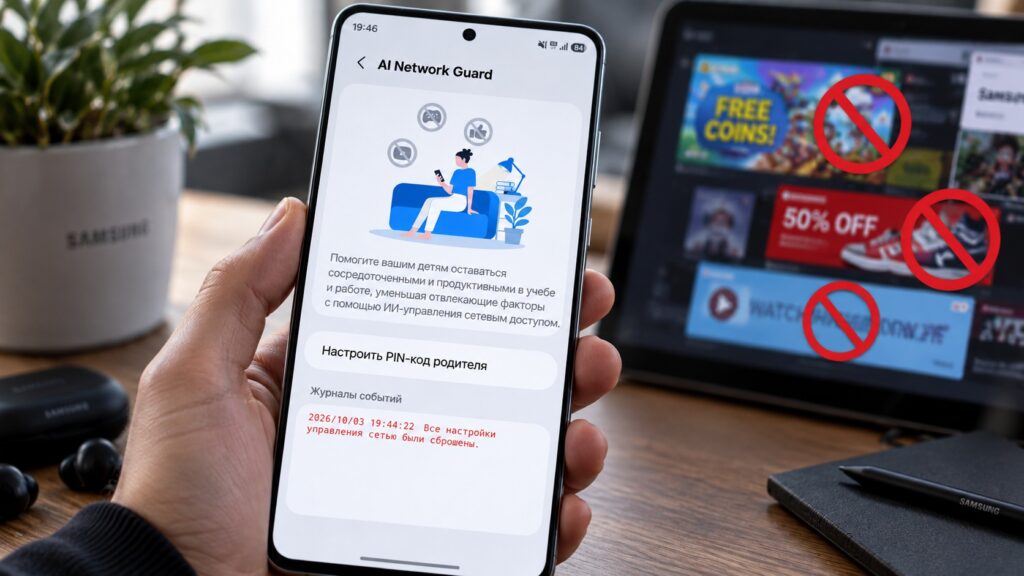
The One UI 9 feature that can help switch off in-app ads
Why free apps show so many ads
Almost all in-app advertising comes from the internet. An app contacts an ad server, downloads a banner or video and displays it on top of the screen. Some apps fetch ads in advance, in the background, so the ad can appear instantly.
That leads to a simple idea. If an app has no network access, its ads have nowhere to come from. Samsung’s new feature is built on this principle.
What AI Network Guard does
AI Network Guard prevents selected apps from going online, while everything else on the smartphone works as usual. When you open a restricted app, the system shows a notification that its network access is limited.
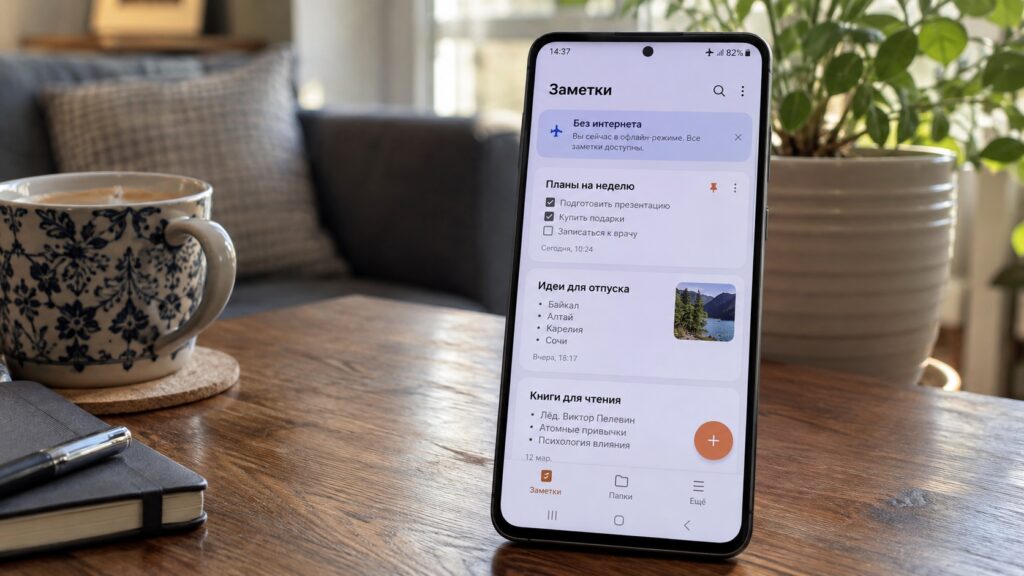
An app running without internet access on a Samsung phone

The feature includes several controls:
- A schedule that cuts internet access for selected apps during set hours.
- A single toggle that blocks network access for all browsers or all games at once.
The same tool also has a less obvious use: it can remove ads from apps without any third-party blocker.
Which apps don’t really need the internet
In the source author’s view, the feature hits the target because many apps need a network connection only to serve ads. The author suggests cutting these off first:
- file managers, if you don’t use cloud storage;
- calculators, unit converters and flashlight apps from Google Play;
- video players used for films already stored on the device;
- offline games, especially ones downloaded by children;
- document scanners and simple photo editors.
According to the source, such apps keep working without the internet; they simply stop showing banners and video ads. They also can no longer send data about you anywhere.
Test first: before restricting an app, try it in airplane mode. If it opens and works normally, it is a good candidate for the list.
This approach will not work with messaging apps, maps, banking apps, online video services or music streaming. Those apps need the network to function. If you block them, you lose the messages, routes and music along with the ads.

Which Samsung phones have the feature
AI Network Guard arrived with One UI 9. It was first spotted in the beta on the Galaxy S26, S25 and S24. According to the source, this means it is worth looking for on any smartphone that has already been updated to this version of One UI.
Important caveat: the feature is hidden in an experimental section, so Samsung may change or remove it from one version to the next. If the relevant options are missing from your firmware, you cannot break anything by looking. The method is simply not available to you yet.
How to unlock the hidden Connectivity Labs menu
AI Network Guard is located in Connectivity Labs, a hidden menu with Wi-Fi diagnostic tools and experimental features. The menu is not visible by default, so you need to enable it first:
- Open Settings and go to Connections.
- Tap Wi-Fi.
- Tap the three-dot menu in the top-right corner.
- Select Intelligent Wi-Fi.
- Tap the Intelligent Wi-Fi heading seven times in a row.
- Go back. A new Connectivity Labs entry should appear in the list.
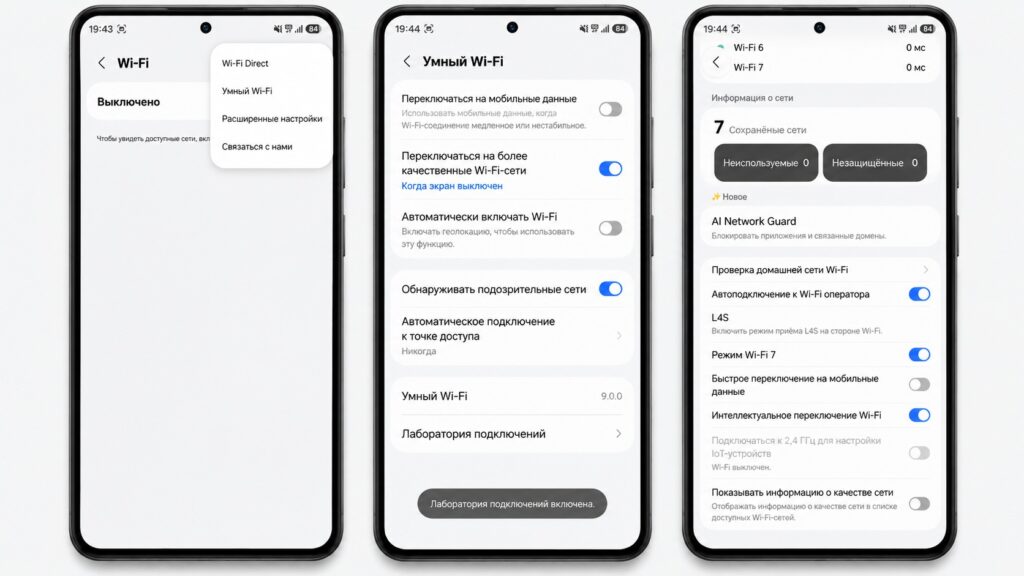
Accessing AI Network Guard settings
On some builds the menu unlocks after only five taps, so if nothing happens at first, keep tapping. Menu labels may differ slightly depending on your firmware and language.
How to cut an app off from the internet
Once the hidden menu is unlocked, you can choose which apps are not allowed online:

- Open Connectivity Labs and select AI Network Guard.
- Tap the option to set a PIN and create an access code.
- Tap the option to manage restrictions and enter your PIN.
- Select the option to restrict apps.
- Check the apps that should lose internet access.
- Tap Confirm in the top-right corner.
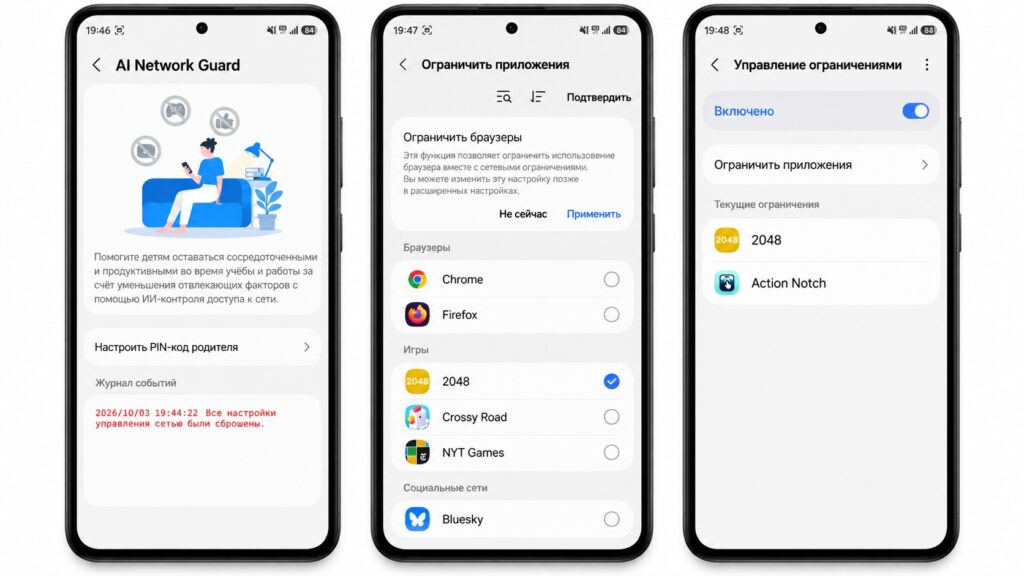
Restricting apps with AI Network Guard
After that, the selected apps lose network access, while all other apps continue to work as before.
Write down your PIN. According to the source, restrictions cannot be removed without it. This is intentional, so that a child cannot switch off the protection on their own.
The source notes that Xiaomi smartphones have long offered a similar way to block internet access for individual apps.
Where the feature gets in the way
AI Network Guard is not a replacement for a full ad blocker. The source lists several limitations:
- It cannot remove ads from apps that need the internet.
- It does not affect ads inside a browser.
- There is only one schedule for every day of the week, so you cannot set different rules for weekdays and weekends.
- During the beta, users complained that the restriction notification popped up every 30 seconds.
The bottom line
Even with these limitations, the source author calls this the simplest method they know of for this specific task. It requires no third-party apps, no DNS changes and no third-party access to your traffic. The author recommends going through your app list and cutting internet access for anything that works without it, such as file managers, calculators, media players and offline games, so that ads in those apps stop appearing. Keep in mind that the feature remains experimental, and Samsung may change or remove it.


