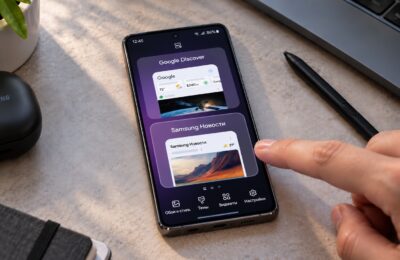
If you own a Samsung Galaxy phone and have noticed storage slowly disappearing with no obvious explanation, a hidden system app called Samsung Language Core may be partly responsible. According to the source author, this app can quietly consume around 3 GB of storage — and it does not appear in the regular app list. Here is what the app does, who needs it, and how to reclaim that space without breaking anything.
What you need to know
- Samsung Language Core is a hidden system app that handles on-device language processing for certain Galaxy AI features — it is not the same as the language packs you download in Settings.
- The source author reports the app occupied roughly 3 GB on a Galaxy Z Flip 5 after about three years of use.
- Because it is a system app, it cannot be fully uninstalled or disabled, but its updates can be removed to roll it back to its minimal factory version.
- The offline AI model is only force-downloaded when the Galaxy AI “process data only on device” setting is enabled; if that setting is off, rolling back the app has minimal impact.
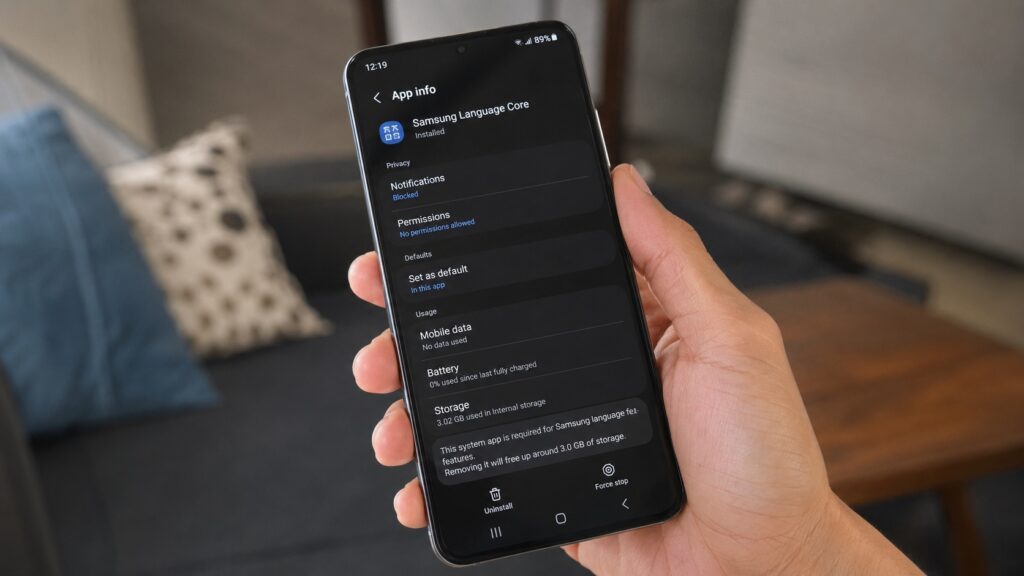
A hidden storage hog found and neutralized
What is Samsung Language Core and why is it hidden?
The source author describes discovering Samsung Language Core on a Galaxy Z Flip 5 that had been in use for about three years. The app did not appear in the regular app drawer; it was only visible after enabling the display of system apps in Settings. Despite its name, Samsung Language Core is not the same as the downloadable language packs used for features like Live Translate. Instead, it handles on-device language processing for specific Galaxy AI features, such as the writing assistant and offline summaries.
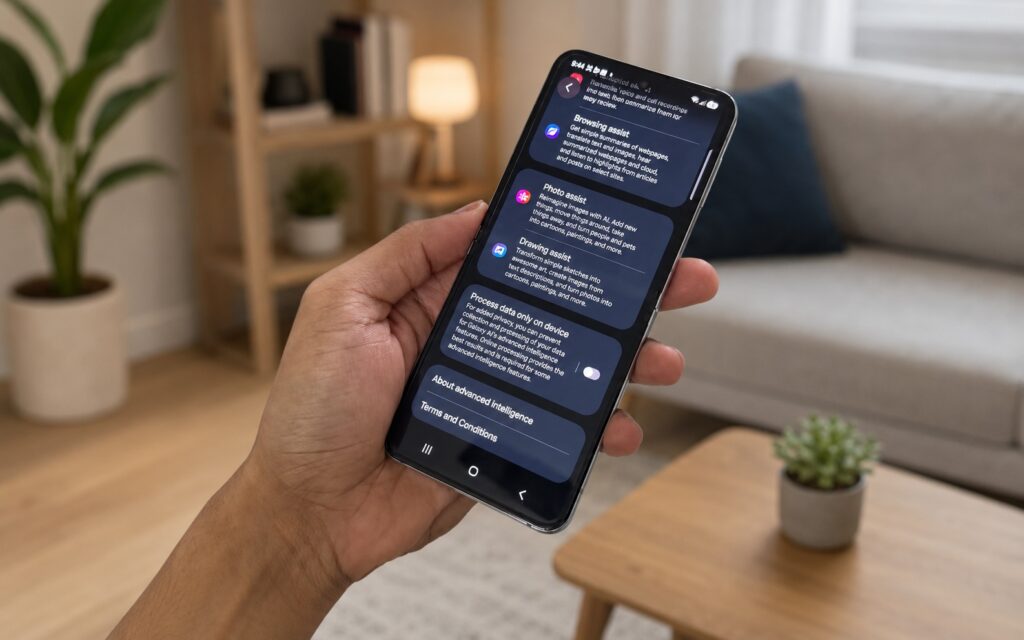
The app powers text-based Galaxy AI features

Who should keep it and who can safely roll it back
According to the source, the decision is straightforward:
- Keep it if you actively use the Galaxy AI writing assistant, offline summaries, or other Galaxy AI text features without an internet connection.
- Consider rolling it back if you do not use those AI features, or if you are fine using their online (cloud-based) versions instead.
An important detail from the source: the offline language model is only force-downloaded when the Galaxy AI setting for processing data exclusively on-device is turned on. If that toggle is off, rolling back the app should have minimal practical consequences.
How to reclaim the storage: step-by-step
Samsung Language Core is a system app, so it cannot be fully uninstalled or disabled through normal means. However, the source describes a workaround — removing the app’s updates to roll it back to its lightweight factory version. According to the source author, this freed approximately 3 GB. Here are the steps as described in the source:
- Open Settings and go to Apps.
- Tap Filter and sort (or the equivalent option) and enable the toggle to show system apps.
- Find Samsung Language Core in the list and tap on it.
- Tap the three-dot menu in the upper-right corner and select Uninstall updates.
- Confirm the action.
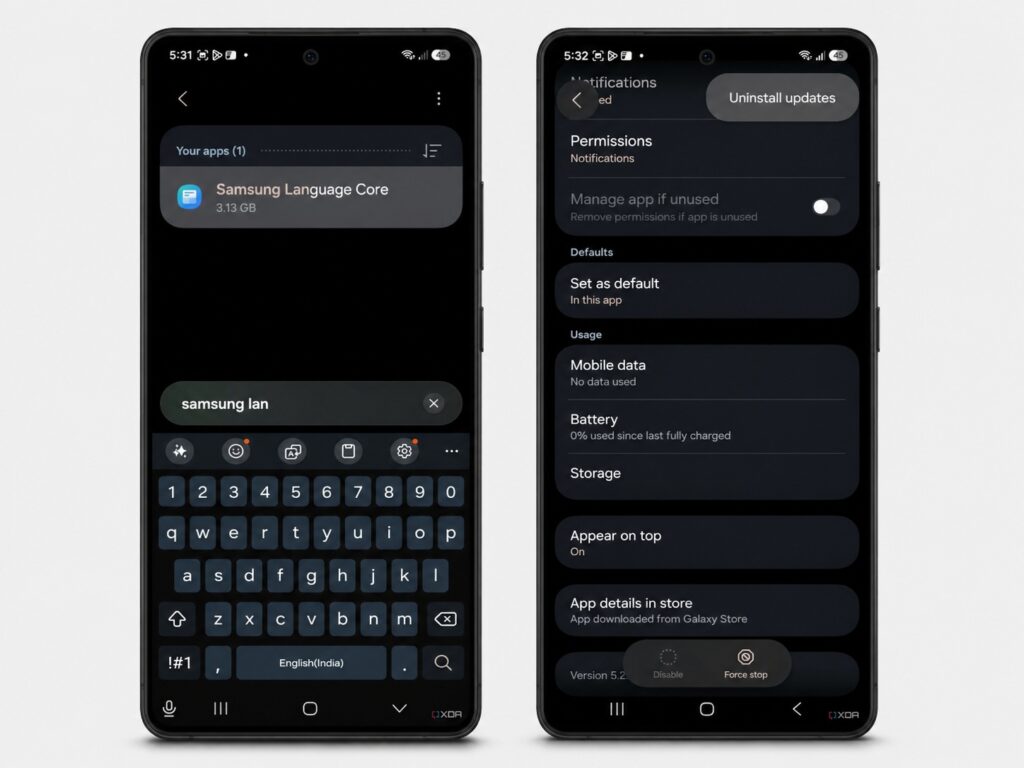
Find the app in Settings and uninstall its updates

After the rollback, the app remains in the system app list but takes up negligible space. The change is not permanent: the source notes that if you later want to use the writing assistant or another offline Galaxy AI text feature, the system will prompt you to re-download the offline model.
What the source author reports losing after the rollback
The source author reports noticing no functional losses in daily use after rolling back Samsung Language Core. Generative photo editing continued to work as before, and no other One UI features were affected. The author notes that the on-device-only data processing mode was not enabled, which likely explains the seamless experience.
It is worth noting that the writing assistant and similar text features can still be used online — the rollback simply removes the locally stored offline model and shifts processing to the cloud. For users who are always connected, this may be an acceptable trade-off for roughly 3 GB of recovered storage.
Caveats
This guidance is based on one user’s experience with a Galaxy Z Flip 5. The exact amount of storage freed may vary depending on your device model, the number of downloaded language models, and your Galaxy AI settings. Rolling back system app updates is a standard Android function, but results and available options can differ across One UI versions.