If your Android phone shows “Emergency calls only” where the carrier name usually appears, it has failed to connect to your carrier’s network. Regular calls, texts and mobile data stop working, but emergency calling remains available. The message can appear while traveling, in a basement or after you move a SIM card to a new phone. In many cases you can restore service yourself by working through a few checks in order: reseat the SIM, confirm it is enabled, choose the network manually, reset network settings, and test the card in another phone before replacing it.
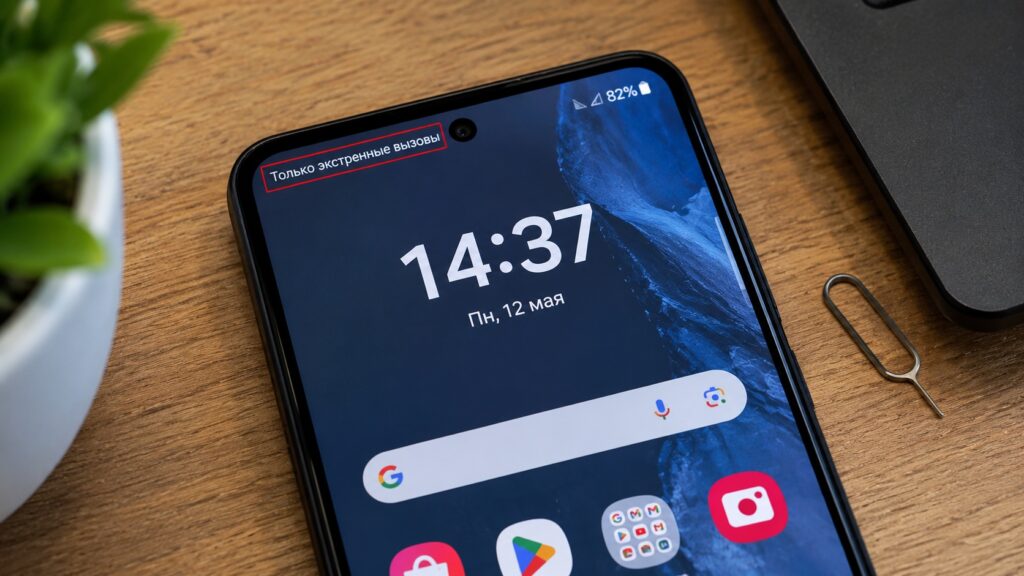
The emergency calls notice on Android
What you need to know
- “Emergency calls only” means the phone could not connect to your carrier’s network. Regular calls, SMS and mobile data are unavailable.
- Common causes include weak signal, a zero account balance, a SIM disabled in dual-SIM settings, a phone glitch or a faulty SIM card.
- A network settings reset deletes saved Wi-Fi networks and passwords, as well as paired Bluetooth devices.
- Testing the SIM in another phone shows whether the problem lies with the carrier or with your handset.
What “Emergency calls only” means
The message means the phone could not connect to your carrier’s network. Ordinary calls, texts and mobile internet are unavailable, but the emergency number still works. Russia’s Emergencies Ministry states that 112 can be dialed with no money on the account and even without a SIM card. It also says that when a phone is outside its own network, it automatically searches for available networks run by other operators. This guidance comes from a Russian authority, so emergency-calling rules elsewhere may differ.
Carriers cite the same set of reasons a SIM card fails to connect:
- Weak signal: you are outside a city, in a basement or in an area with dense buildings.
- Zero balance: Russian carriers MegaFon and MTS explicitly list this as a cause.
- A disabled SIM card: on dual-SIM phones, a card can be turned off in settings.
- A phone glitch: a restart and a network settings reset can help.
- A faulty SIM card: it will need to be replaced.
If calls go through and only mobile data and SMS have stopped working, you are dealing with a different problem.
Step 1: Reseat the SIM card
First, make sure airplane mode is off. If there is no airplane icon in the notification shade, reseat the SIM card:
- Turn off the phone.
- Eject the SIM tray with a paper clip.
- Remove the SIM card and put it back in the same orientation.
- Reinsert the tray and turn the phone back on.
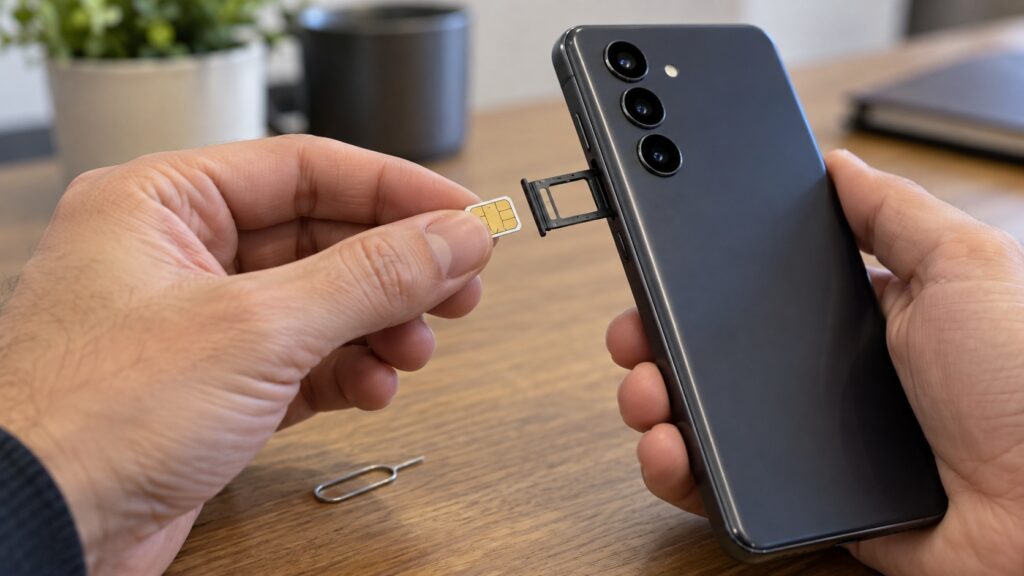
Reseating a smartphone’s SIM card
After the phone powers on, wait a little while, because it needs time to find the network. If the phone does not detect the SIM at all and reports that no SIM card is inserted, that is a different fault from “Emergency calls only.”
Step 2: Check that the SIM is enabled in settings
On dual-SIM smartphones, you can disable one card without removing it from the tray and then forget you did so. It is worth checking the toggle in the SIM manager. On most Android phones, the steps are:
- Open Settings.
- Go to Connections > SIM manager on Samsung phones, or Network & internet > SIMs on other phones.
- Select the SIM card with the number you need.
- Turn on the toggle next to it.
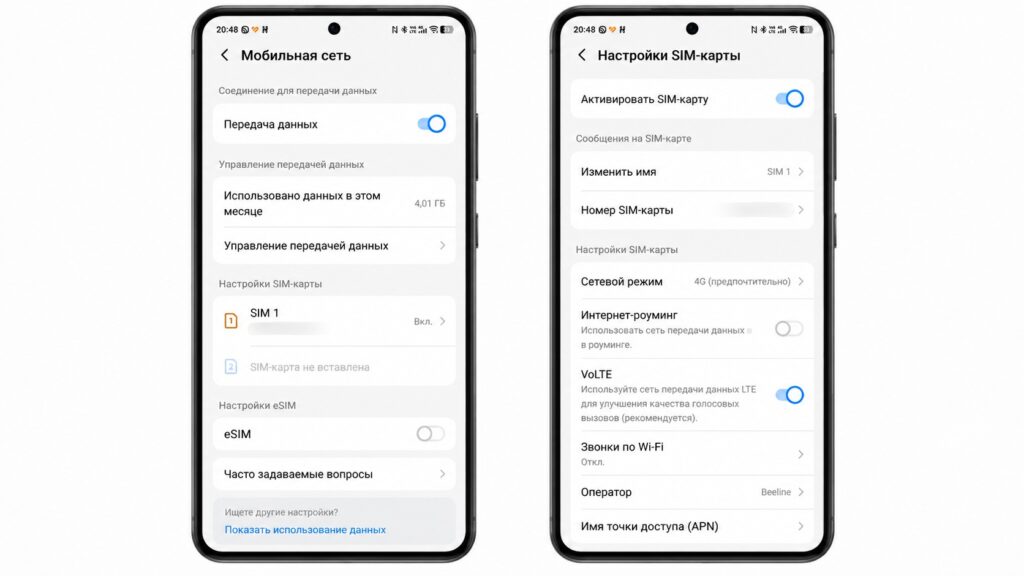
Checking SIM activation in Android settings
Menu names on Xiaomi, HONOR, realme, TECNO, Infinix and other brands may differ. Look for a section with “SIM cards” or “Mobile network” in its name. If the toggle is already on, turn the SIM card off and then back on.

Step 3: Select your carrier’s network manually
Sometimes the phone cannot select the right network on its own. Russian carriers MegaFon, Beeline and MTS recommend choosing the carrier’s network manually in that case. Menu names vary between phones:
- Open Settings > Mobile network, or Connections > Mobile networks.
- Tap Network operators or Search networks.
- Turn off automatic selection and wait for the list of networks to appear.
- Select your carrier’s network from the list.
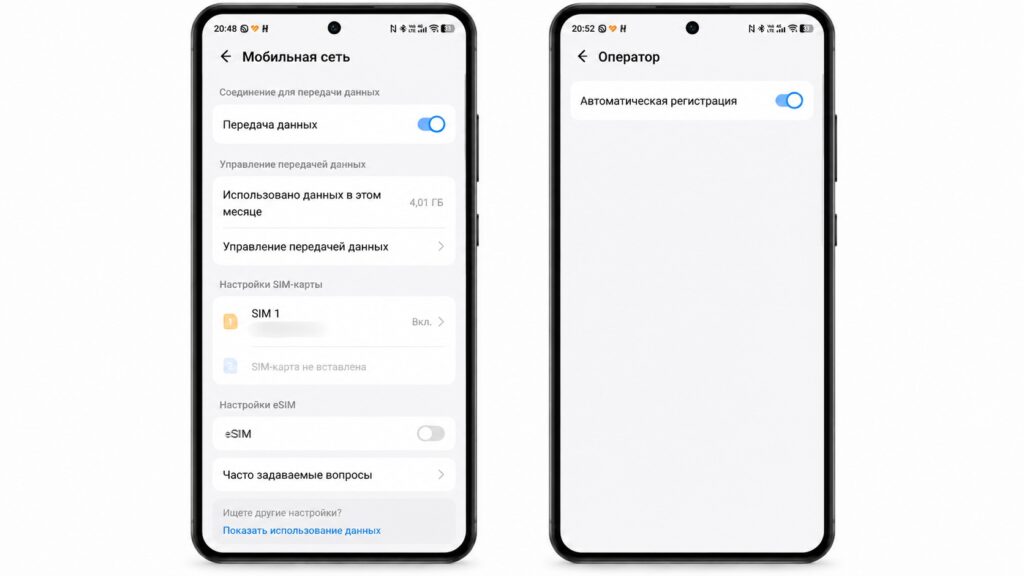
Turning off automatic network registration
If your carrier’s network does not appear in the list, the problem is most likely coverage rather than the SIM card. Samsung advises moving to a different location and checking again. Once service returns, turn automatic network selection back on. Otherwise, the phone may fail to switch networks by itself when you are somewhere else.
Step 4: Reset network settings
If the phone can see your carrier’s network but cannot connect to it, the cause may be a fault in the network settings. In that case, reset them:
- Open Settings.
- Go to General > Reset.
- Choose Reset network settings.
- Confirm the reset and restart the phone.
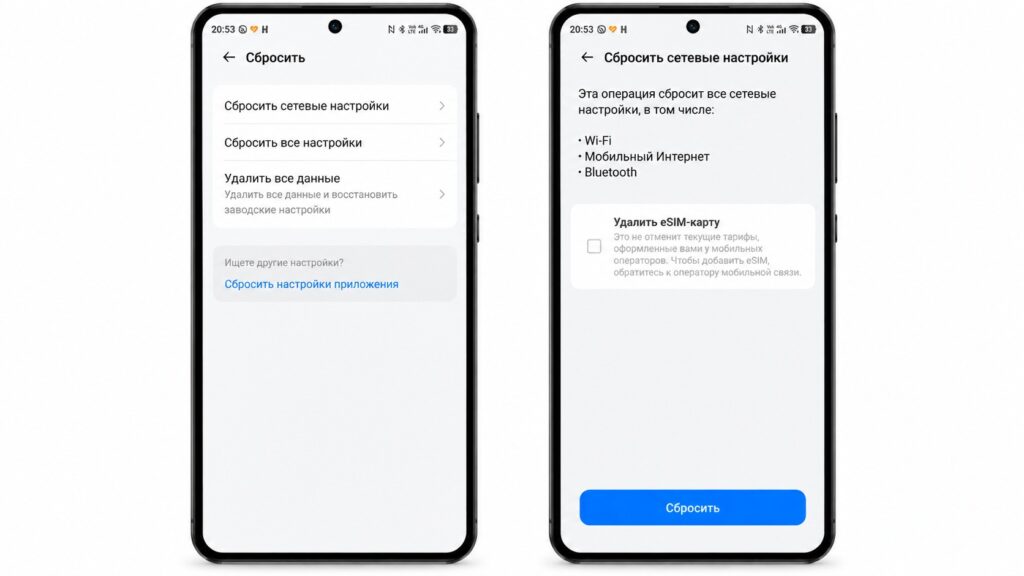
Resetting network settings on Android
Only network settings are reset. However, the reset deletes saved Wi-Fi networks and their passwords, along with paired Bluetooth devices. On other brands, look for the option under System > Reset or in Advanced settings. Menu names may differ.
Step 5: Test the SIM in another phone, then replace it if needed
The most reliable way to find the cause is to put your SIM card in another smartphone. If service does not appear on the other device either, the problem is on the carrier’s side. If everything works in the other phone, the problem is with your smartphone.
If the SIM card is old, scratched or bent, replacing it is the simpler option. Your phone number stays the same. As an example, Russian carrier MTS describes its replacement terms in its help pages: the SIM can be replaced through the carrier’s app or in a store, and the customer’s plan and services stay the same. MTS also says that for the first 24 hours after a SIM replacement it may restrict sending and receiving SMS, as well as payments and transfers from the account balance, as protection against fraud. Replacement terms and safeguards vary by carrier, so check with your own provider.
Work from simple to complex
“Emergency calls only” can be alarming, but it is most often a temporary network registration glitch. To save time, go from the simplest checks to the more involved ones:
- Check your account balance and make sure airplane mode is off.
- Reseat the SIM card and confirm it is enabled in settings.
- Select the network manually, then reset network settings if needed.
- Test the SIM card in another phone before replacing it.
If nothing helps, contact your carrier’s support team through its app over Wi-Fi and describe the steps you have already tried.


