Some Samsung Galaxy owners who install One UI 9, based on Android 17, report that their phones get stuck on the post-update welcome screen with an XML error reading Access Denied. According to Android Insider, the phone is not broken, and owners can recover it themselves. The workaround users have shared does not involve wiping the device. It works by keeping the phone offline at the moment it would contact Samsung’s servers after the update. The report also advises against an immediate factory reset, which is the step many people would try first. Samsung has not officially explained the problem.
What you need to know
- Complaints began on October 12, first on Reddit and X. Owners describe an XML “Access Denied” error on the post-update welcome screen that blocks access to the home screen.
- Reports cover the Galaxy S24, S25, S26, Galaxy A57 and some foldable Galaxy Z models. Many other users updated without problems.
- Samsung has not commented. One insider suggests a server-side change meant to fight firmware leaks, but this is unconfirmed.
- The user-reported workaround relies on Airplane mode, either during installation or after booting into Safe mode. It does not require a factory reset.
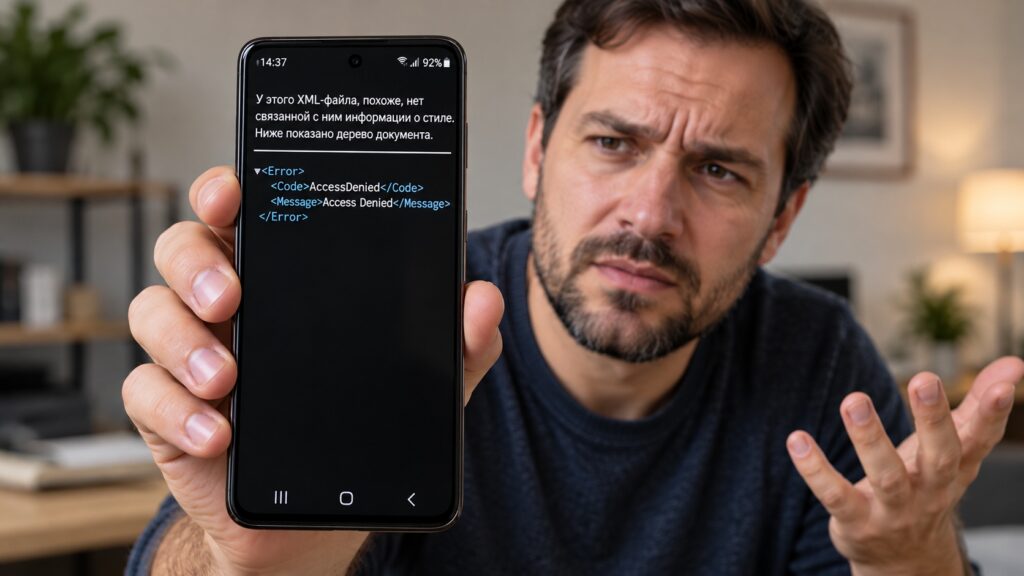
Error after updating a Samsung phone to One UI 9
What affected Galaxy owners are seeing
At first the update looks normal. The phone downloads One UI 9, installs it and restarts. As after any major update, the system then shows a welcome screen. When the user taps it, an XML error with the text Access Denied appears instead of the usual list of changes.
The window cannot be closed, and the user cannot move past it. The phone stays stuck in initial setup and never reaches the home screen. A normal restart does not help, because the same screen returns after the phone boots again.
Which models are affected
One UI 9 is rolling out worldwide in waves, with new models receiving it each day.
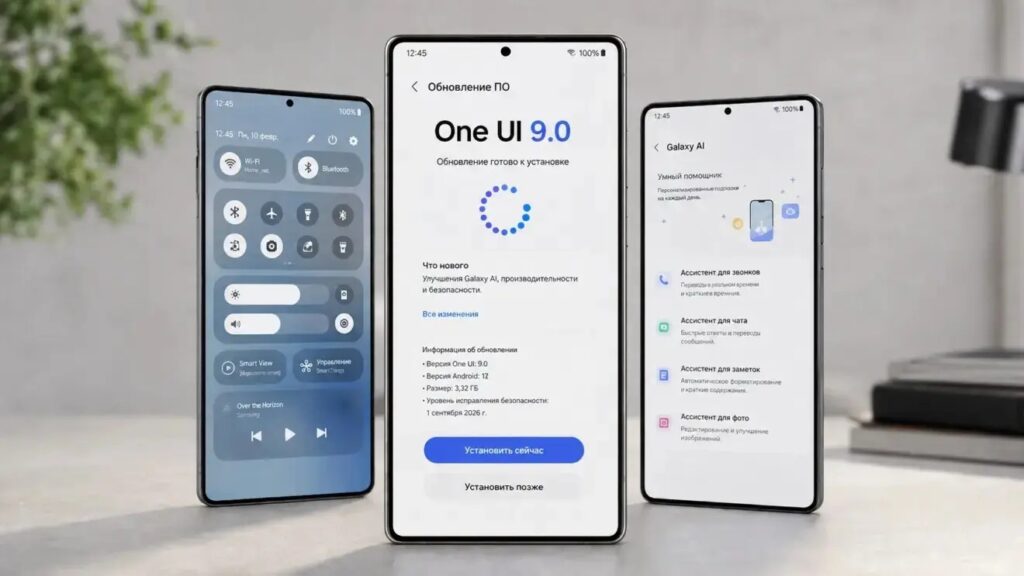
Samsung smartphones with the One UI 9 update

Based on user complaints, the problem has so far affected owners of these models:
- Galaxy S24
- Galaxy S25
- Galaxy S26
- Galaxy A57
- some foldable Galaxy Z models
The issue spans several generations and includes both flagship and mid-range phones. However, it does not affect everyone, and many owners have updated without problems. There is no way to predict in advance whether a given phone will be affected, so it is worth knowing the workaround before installing.
Why it may be happening
Samsung has not officially named a cause or responded to the complaints. The only explanation reported so far comes from insider Fahad Ali Javed. He believes Samsung changed something on its servers to fight firmware leaks. In his view, this caused the check a phone runs immediately after an update to fail and effectively lock the phone out.
This theory has not been confirmed. Android Insider notes, however, that it fits what users are seeing. On this reading, the problem lies neither in a corrupted update file nor in the individual phone. Instead, the phone contacts a Samsung server after installation and is refused. That is why the reported workaround is to make sure the phone cannot get online at that moment.
Don’t rush into a factory reset
When a phone will not get past the setup screen, many people’s first instinct is to perform a factory reset from the recovery menu. Android Insider advises against this. A reset will erase anything that has not already been backed up to the cloud, and it probably will not fix the problem. If the cause really is server-side, the phone would likely end up on the same screen after the reset.

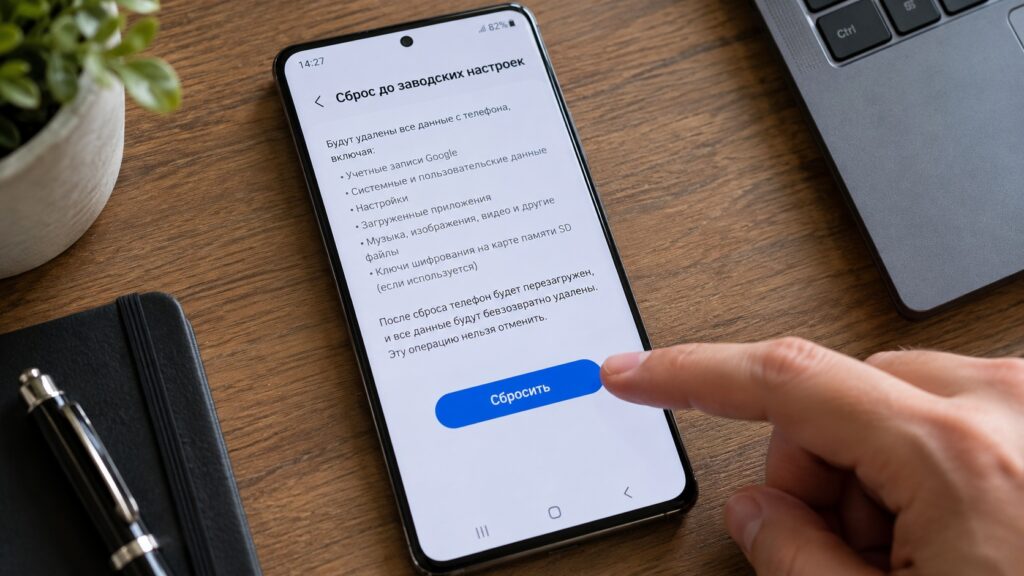
A person preparing to factory reset a Samsung phone
The workaround does not require erasing personal data, so photos, messages and apps stay in place. According to the report, a trip to a repair centre should not be necessary for this specific error. Android Insider describes the fix as something owners can do at home in about five minutes.
How to update without getting stuck
If you have not received the update yet, or are delaying it, Android Insider says you can avoid the freeze in advance. The failure happens when the phone goes online after installation, so keeping it offline for a few minutes should be enough. The recommended sequence is:
- Download the update from Settings → Software update → Download and install, but do not install it yet.
- When the download finishes, turn on Airplane mode and make sure Wi-Fi is also off.
- Start the installation and wait for the phone to restart.
- Go through the welcome screen and wait for the home screen to appear.
- Only then turn Airplane mode off.
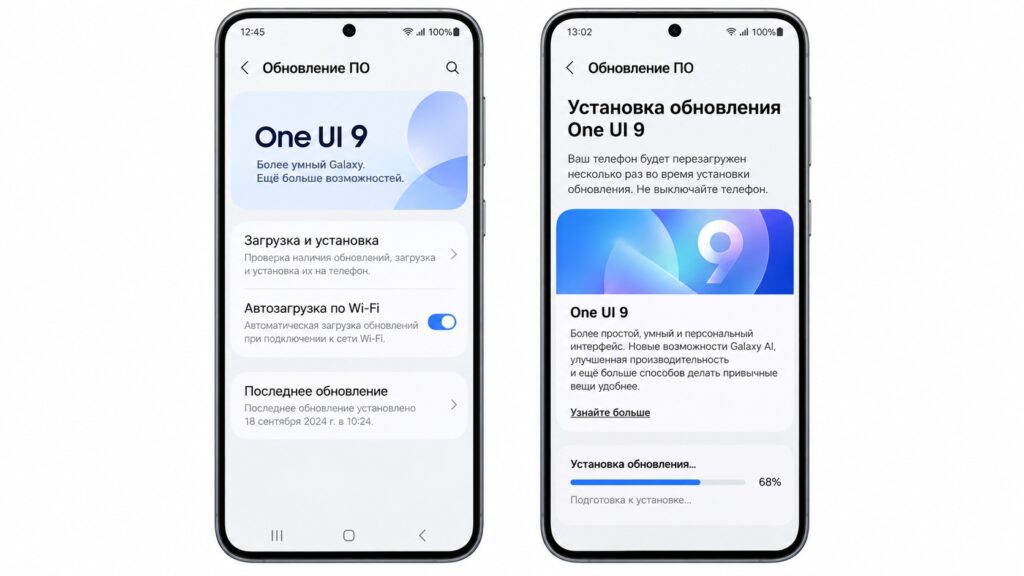
Installing One UI 9 on a Samsung phone
It is also worth making a backup before any major update, so photos and contacts in the cloud stay safe whatever happens to the firmware. Charge the phone to at least 50% so the installation is not interrupted partway through.
How to recover a phone that is already stuck
If your phone is already showing the Access Denied error, Reddit users have shared a similarly simple workaround. Boot into Safe mode, cut the phone off from the internet, then restart it. This is a user-reported fix, not an official Samsung procedure. The steps are:

- Press and hold the volume down and power buttons together until the screen goes dark. This forces a restart.
- As soon as the Samsung logo appears, release the power button and press and hold volume down. Keep holding it until the phone finishes booting. “Safe mode” should appear at the bottom of the screen.
- Swipe down from the top of the screen and turn on Airplane mode. Check that Wi-Fi and mobile data are both off.
- Restart the phone normally. Either hold the power button together with volume down, or hold just the power button, then choose Restart.
- Wait for the home screen. After this normal restart, the phone should boot in regular mode.
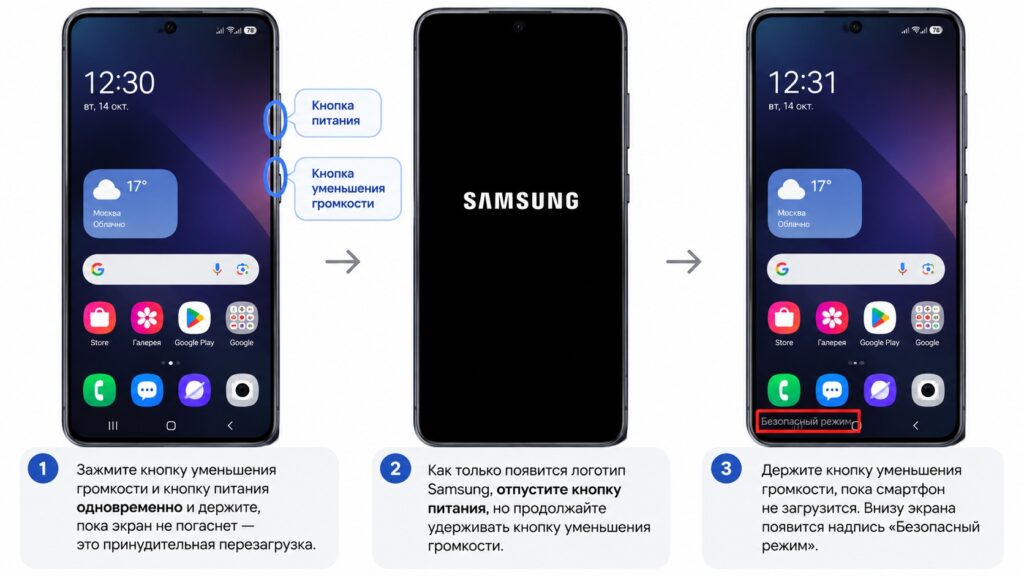
Putting a Samsung phone into Safe mode
Once the home screen appears, give the phone a couple of minutes and check that everything opens. Only then turn Airplane mode off. If the “Safe mode” label is still on screen, you will need to exit Safe mode before using the phone normally.
Some users found that an even simpler step was enough: disconnect the phone from all networks and restart it once.
If nothing works
If neither method helps, Android Insider advises waiting for a fix from Samsung rather than doing a factory reset. The problem appears to be server-side, so the fix would likely come from Samsung’s side too.
The freeze appears to be a server-related failure rather than hardware damage, so it should not require a repair. However, Samsung has not confirmed the cause or endorsed these workarounds, and results reported by users may vary.


