Updating iOS is usually a simple and painless process. But sometimes things go wrong: the progress bar freezes, the screen goes dark, and the iPhone refuses to show any signs of life. Recently, iPhone owners encountered this issue while installing iOS 26.4.1 — but the problem is actually universal and can occur with any version. Here’s how to pull your smartphone out of this state without losing your data.
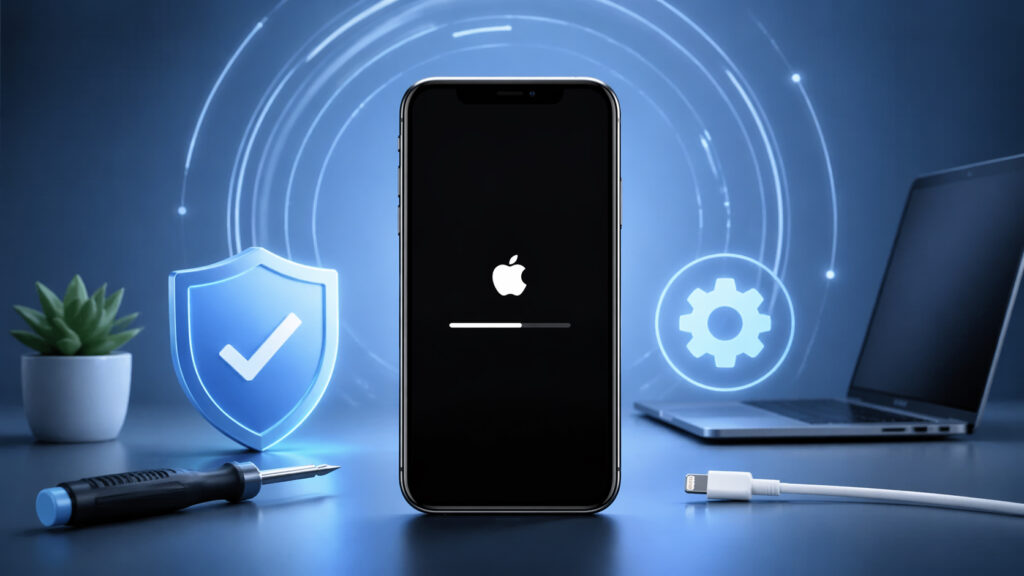
Updates can freeze, and no one is immune to this
Why iPhone Freezes During an Update
There can be several reasons. Most often, updates freeze due to insufficient free space on the device — the system simply has nowhere to unpack the firmware files. The second common scenario is an unstable internet connection, which causes the downloaded file to become corrupted. Less commonly, iOS software glitches or even hardware issues with the storage are to blame.
A separate case is when the iPhone freezes specifically on the Apple logo with a progress bar. This means the installation has already started but for some reason cannot complete. Simply waiting in this case is pointless: if progress hasn’t moved for 20–30 minutes, it’s time to take action.
Force Restarting iPhone After a Freeze
Don’t confuse this with a regular shutdown. A force restart (Force Restart) is a hardware reset that doesn’t affect your data. On all iPhones starting from iPhone 8, the sequence is the same:
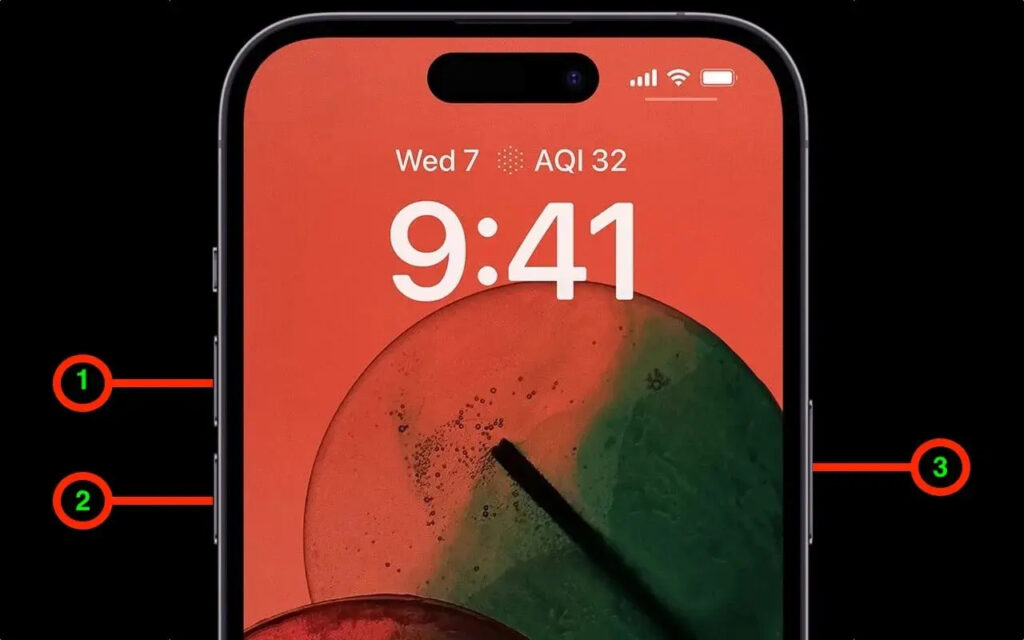
Start with a force restart — it may solve your problem
- Press and quickly release the volume up button
- Press and quickly release the volume down button
- Press and hold the side button until the Apple logo appears
Important: the buttons must be pressed sequentially, not simultaneously. If done correctly, the iPhone will restart. In most cases, the system will either continue the update or revert to the previous version of iOS.
Updating iPhone via Computer
If a force restart didn’t help and the iPhone freezes again, try updating via computer. You’ll need a Mac or a Windows PC for this.
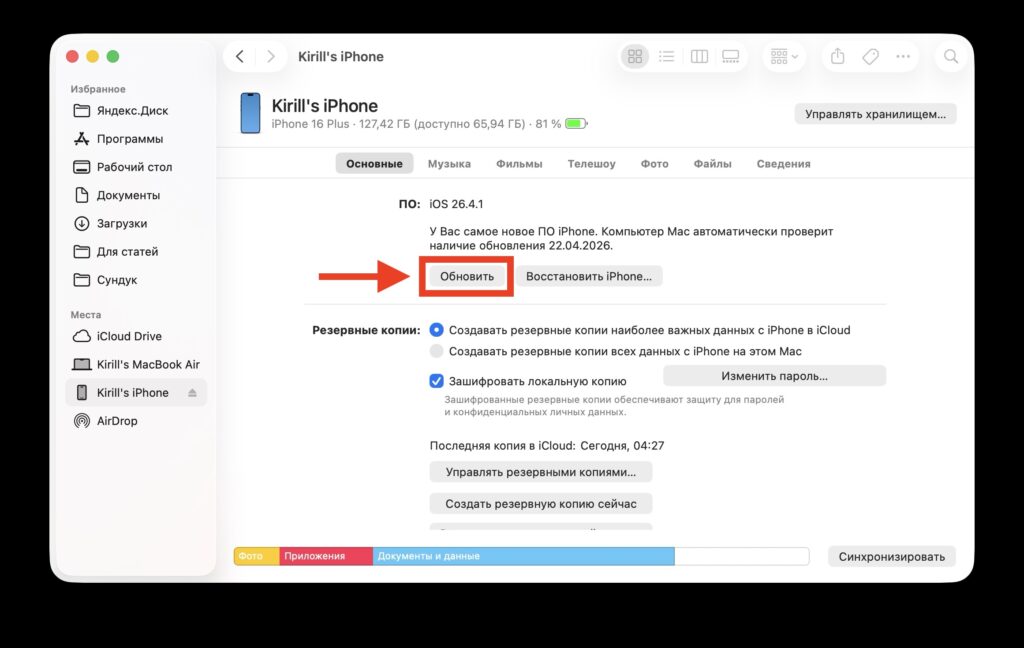
The situation may not be that bad yet, and you might be able to update from a computer
On a Mac, open Finder (on macOS Catalina and later) or iTunes. On Windows — iTunes. Connect your iPhone to the computer with a cable. If the smartphone is detected, click “Update.” The computer will download the latest firmware and install it, keeping your data intact.
This method is great because the firmware file is downloaded to a computer with a fast and stable internet connection, rather than over Wi-Fi. This reduces the chance of file corruption.
iPhone in Recovery Mode
If the iPhone doesn’t respond at all or isn’t detected by the computer, you’ll need to enter Recovery Mode. It sounds scary, but it actually takes just a couple of minutes.
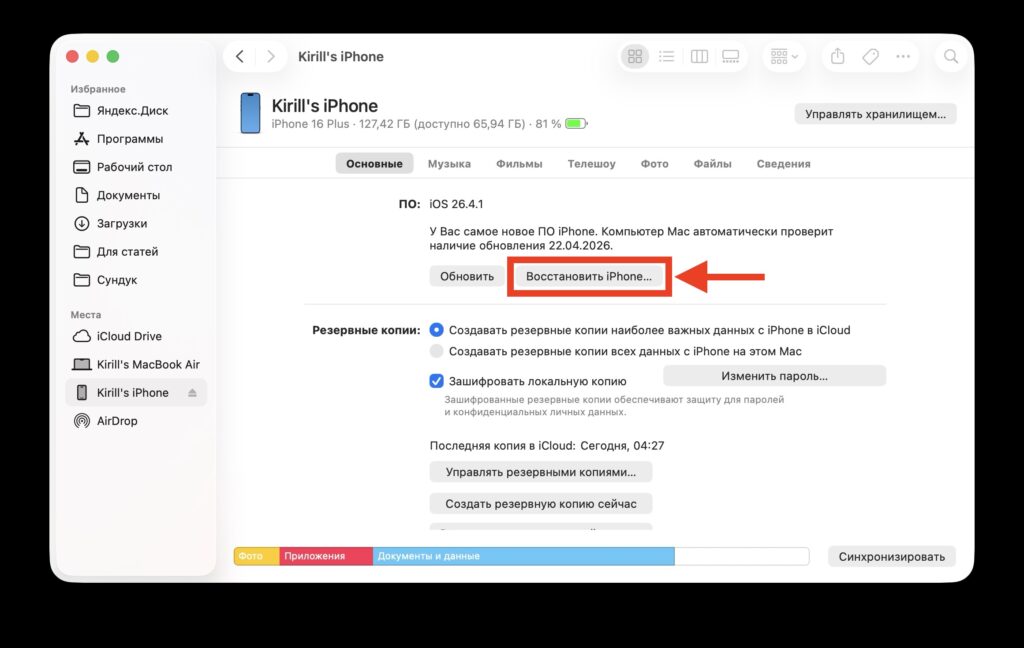
After entering recovery mode, you’ll need to restore your smartphone with all data erased
Connect the iPhone to the computer with a cable. Open Finder or iTunes. Then on the smartphone, perform the same combination: quickly press volume up, quickly press volume down, then press and hold the side button — but don’t release it when the Apple logo appears. Keep holding until the cable and computer icon appears on the iPhone screen. That’s Recovery Mode.
The computer will detect the iPhone in recovery mode, and here you should choose “Restore.” This will erase all data on the device, but it will guaranteed bring the iPhone back to life.
iPhone Freezes During iOS 26.4.1 Installation
Just recently, a wave of complaints rolled in after the release of iOS 26.4.1. Some users’ iPhones froze completely during installation. The situation is standard — the same troubleshooting methods work here too. If you encounter this, don’t panic: a force restart or recovery via computer will solve the problem. By the way, this issue doesn’t appear on the iOS 26.5 beta.
The problem appeared recently on iOS 26.4.1
It’s possible that Apple will soon release iOS 26.4.2 specifically because of this issue. However, the company hasn’t pulled iOS 26.4.1, which means the reason for the upcoming update likely lies elsewhere.
Recovering Data After an iPhone Update Failure
If it comes down to a full restore, data on the iPhone will be erased. But that doesn’t mean everything is lost. If you had iCloud backup enabled or a backup on your computer via Finder/iTunes, after the restore you’ll be able to get everything back — apps, photos, contacts, conversations.
Even if there’s no backup, enter your Apple ID during setup — and your contacts, notes, photos, and other data that were synced with iCloud will return. The takeaway is simple: make a backup before every update. Yes, it’s obvious advice, and yes, everyone ignores it. Until the first time something goes wrong.
How to Avoid iPhone Freezing During the Next iOS Update
A few simple rules that will reduce the risk of freezing during an update:
- Make sure your iPhone has at least 5–6 GB of free space before updating, and ideally always keep 10% of your iPhone’s storage free
- Connect to a stable Wi-Fi network. Updating over mobile data is a gamble
- Charge your iPhone to at least 50% or keep it plugged in during the update
- Don’t restart your iPhone during the update. The progress bar may stay still for several minutes — that’s normal
Follow these simple rules, and even if problems arise, don’t panic. An iPhone can be brought back to life fairly easily, even though you may need to spend some time restoring your apps.