Leaving Always On Display switched on costs an iPhone about half a percent of battery per hour, according to a two-week test by the author of the original report. On an iPhone 17 running iOS 27, the always-on lock screen added about 12% of extra drain over a full day. However, the author’s day-to-day usage habits affected battery life more than the feature did. The author also describes a settings change that should reduce the drain further without turning the feature off.
What you need to know
- With Always On Display enabled, the test iPhone 17 averaged 4.27% battery drain per hour over 24 hours, compared with 3.75% with the feature disabled. That is a difference of about 0.52 percentage points.
- That adds up to roughly 12% of charge per day, or about 7–8% between 8:00 and 23:00.
- The author reports that a statistical test put the difference between the two test weeks within normal variation.
- All supported models use a ProMotion display that drops to 1 Hz on the lock screen. The iPhone 16e and iPhone 17e run at 60 Hz and do not offer the feature.
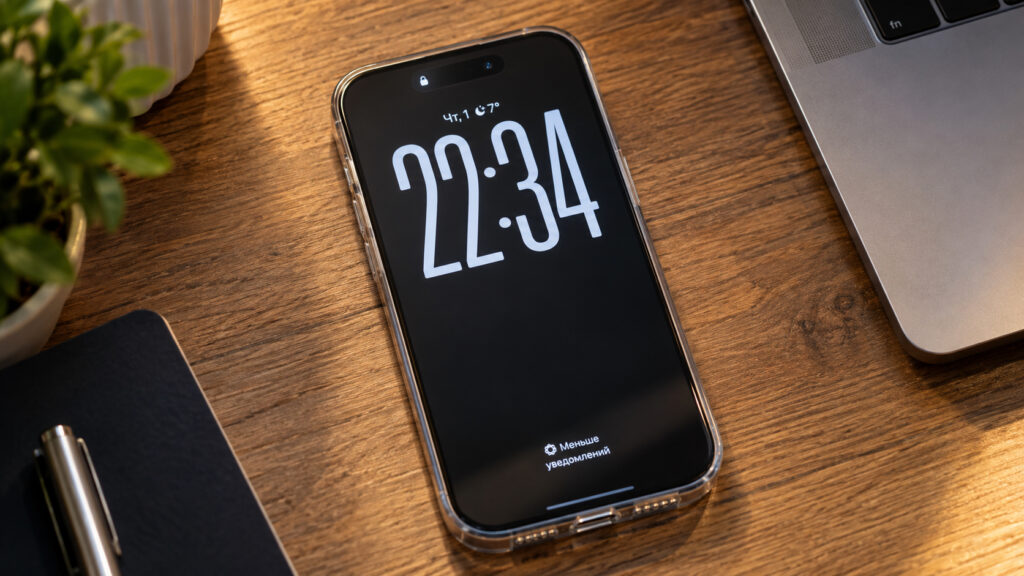
An iPhone on a table with Always On Display enabled
Which iPhones support Always On Display
Always On Display arrived on the iPhone in autumn 2022 with the iPhone 14 Pro. For a long time it was limited to Pro models. According to the source, Apple added it to the base model last year. The source lists these supported models:
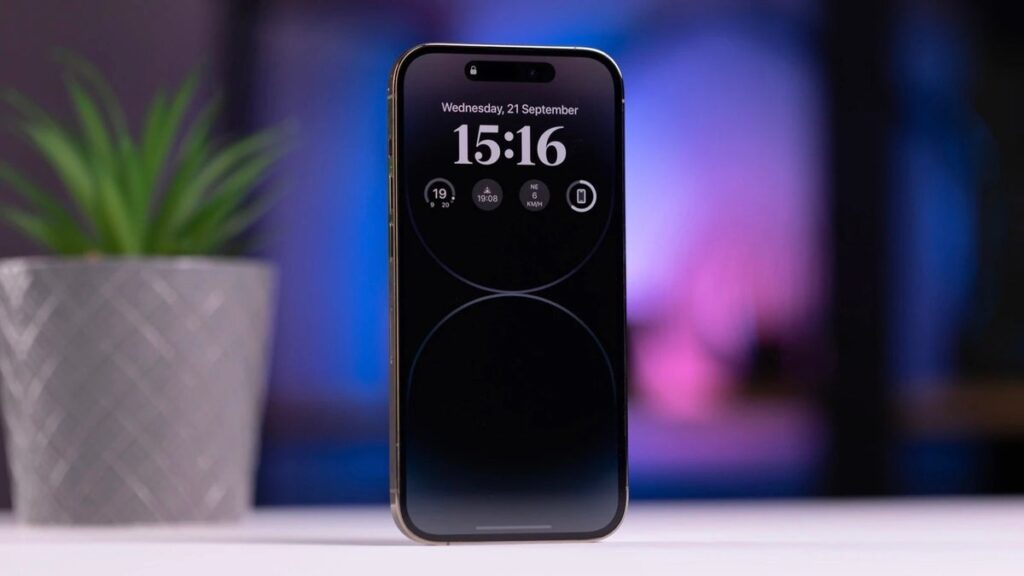
An iPhone 14 Pro with Always On Display activated
- iPhone 14 Pro and iPhone 14 Pro Max
- iPhone 15 Pro and iPhone 15 Pro Max
- iPhone 16 Pro and iPhone 16 Pro Max
- iPhone 17
- iPhone Air
- iPhone 17 Pro and iPhone 17 Pro Max
- iPhone 18 Pro and iPhone 18 Pro Max
- The foldable iPhone Duo (on both screens)
All of these models use a ProMotion display with a variable refresh rate. On the lock screen, the display drops to 1 Hz, so the image refreshes only once per second. The source says the iPhone 18 Pro also lowers brightness to 1 nit in this mode. Apple’s claim that the feature barely affects battery life rests on this low-power behavior. The iPhone 16e and iPhone 17e have 60 Hz displays and do not have Always On Display.
How the test was run
The author used a personal iPhone 17 running iOS 27, before the iOS 27.0.1 update. For the first week, Always On Display was enabled. For the second week, it was disabled. The author reports using the phone normally in both weeks, including messaging apps, the browser, music and navigation.
The battery percentage was recorded every 15 minutes, which produced 672 readings per week. The author then calculated the average hourly drain for each week, both for full 24-hour days and for daytime hours from 8:00 to 23:00.
The results
| Mode | 24-hour drain, % per hour | Daytime drain (8:00–23:00), % per hour |
|---|---|---|
| Always On Display enabled | 4.27% | 5.88% |
| Always On Display disabled | 3.75% | 5.37% |
| Difference | 0.52% | 0.51% |
The always-on screen added about half a percent per hour to the drain. Over a full day, that is roughly 12% of charge. Over an active day from 8:00 to 23:00, it is about 7–8%.
Based on those rates, the author estimates that a fully charged iPhone 17 would last about 27 hours with the feature off and about 23 hours with it on. That estimate applies to the author’s usage pattern. The gap is a few hours, but it is spread across the whole day, and the author says it is hardly noticeable in everyday use.
What the test does and does not show
According to the author, the discharge curves for the two weeks ran almost in parallel, with no sharp drops. A statistical test found that the difference between the weeks fell within normal variation. In other words, changes in the author’s own usage from one day to the next affected the battery more than Always On Display did. The author notes that a single evening of YouTube or navigation uses more battery than a full day with the clock showing on the lock screen.
The findings have clear limits. This was one phone, used by one person, over two consecutive weeks, without controlled usage. Results may differ on other models, with other usage habits or with batteries in different condition. Because the difference fell within normal variation, the figure of about 0.5% per hour is best read as a rough estimate, not a precise measurement.
The author says Apple’s 2022 claims about the 1 Hz refresh rate and power savings sounded like marketing at the time, but the test results were consistent with them. In the author’s view, an iPhone that drains too quickly is more likely to have a different cause.
How to make Always On Display use less power
The source suggests a middle option for anyone who wants to save even that half percent per hour: keep Always On Display on but turn off the wallpaper. The lock screen then shows a black background instead of a dimmed image, with the clock, widgets and notifications still visible.
The reasoning comes from how OLED displays work. Each pixel produces its own light, and a black pixel is switched off and uses no power. With only the clock and a few widgets showing, a small share of the pixels is lit. With the wallpaper showing, almost the whole screen glows, although dimly. The author did not measure this setting separately and does not give a figure for the savings.
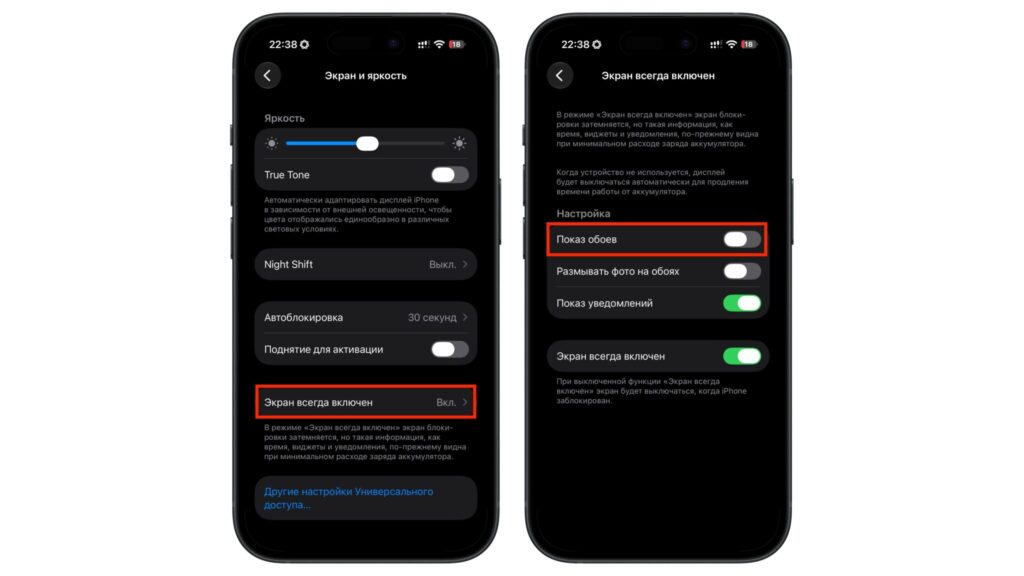
Always On Display settings on an iPhone
The steps described in the source are:
- Open Settings and go to Display & Brightness.
- Scroll down and select Always On Display.
- Turn off Show Wallpaper.
- Optionally, turn off Show Notifications if you only want to see the clock and widgets.
Menu names are translated from the Russian-language source and may differ slightly by iOS version and language. The author keeps notifications on, because seeing them is the main reason to use the feature.
When the iPhone turns the screen off automatically
According to the source, the iPhone already switches the display off completely in several situations:
- when the phone is lying face down or is in a pocket;
- when the Sleep Focus is active;
- when Low Power Mode is on;
- when you walk away from the iPhone while wearing an Apple Watch.
As a result, the screen should not stay lit overnight or inside a bag.
Is it worth keeping Always On Display on?
The author’s answer is yes. After updating to iOS 27.0.1, the author’s iPhone 17 reportedly lasts comfortably until evening. Against that baseline, the author considers half a percent per hour a fair cost for a convenience they use every day.
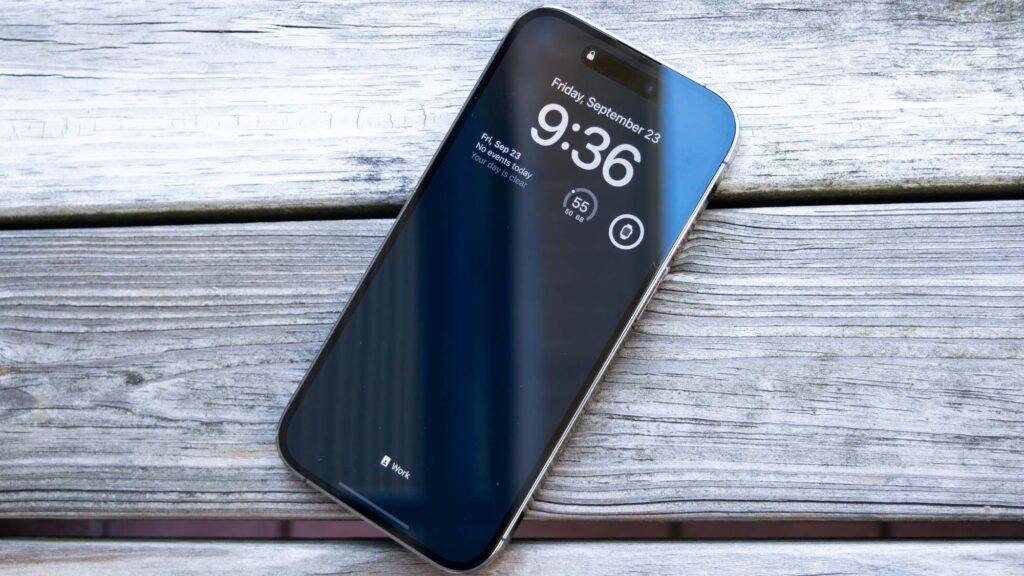
Always On Display on an iPhone without wallpaper, with widgets enabled
The author describes the benefit in practical terms. With the phone lying on a desk, the time, weather and new messages are visible without touching the screen. Missed calls, bank messages or a courier’s arrival can be noticed at a glance. The author reports missing nothing important and also picking up the phone less often, because there is no need to unlock it just to check notifications.
The author sees two main reasons to turn the feature off:
- You have an older iPhone with a heavily worn battery, and every percent of charge matters.
- You simply find the always-lit screen distracting.
In other cases, the author recommends leaving Always On Display on and hiding the wallpaper to reduce power use.