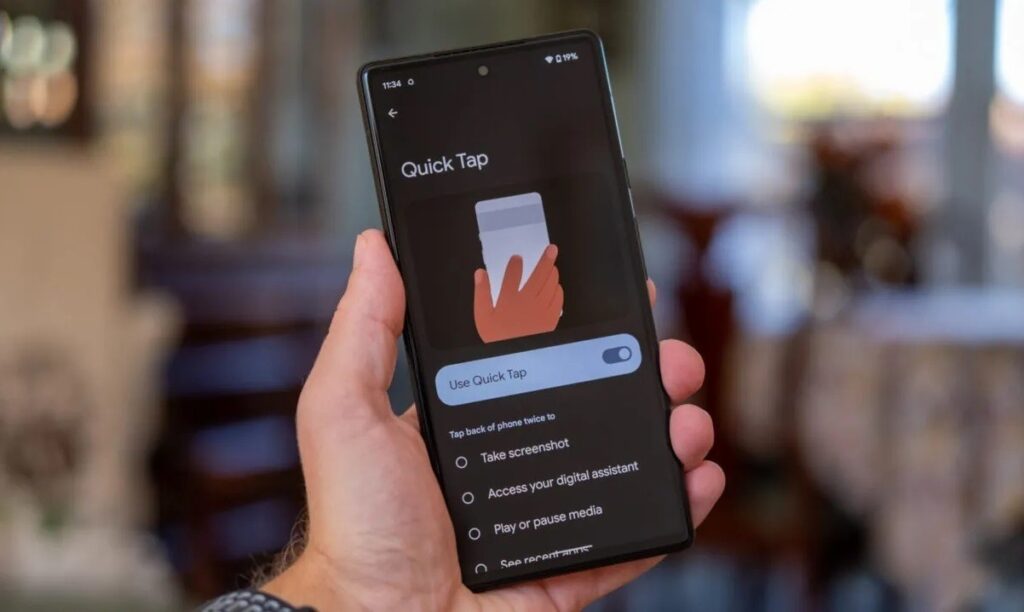
Google Pixel smartphones have a Quick Tap feature — a double tap on the back panel triggers a chosen action. It’s a handy tool for screenshots, turning on the flashlight, or quickly launching apps. The problem is that Quick Tap is a Pixel exclusive, and it’s not available on other Android smartphones. But the free app Tap, Tap solves this problem and even surpasses the original.
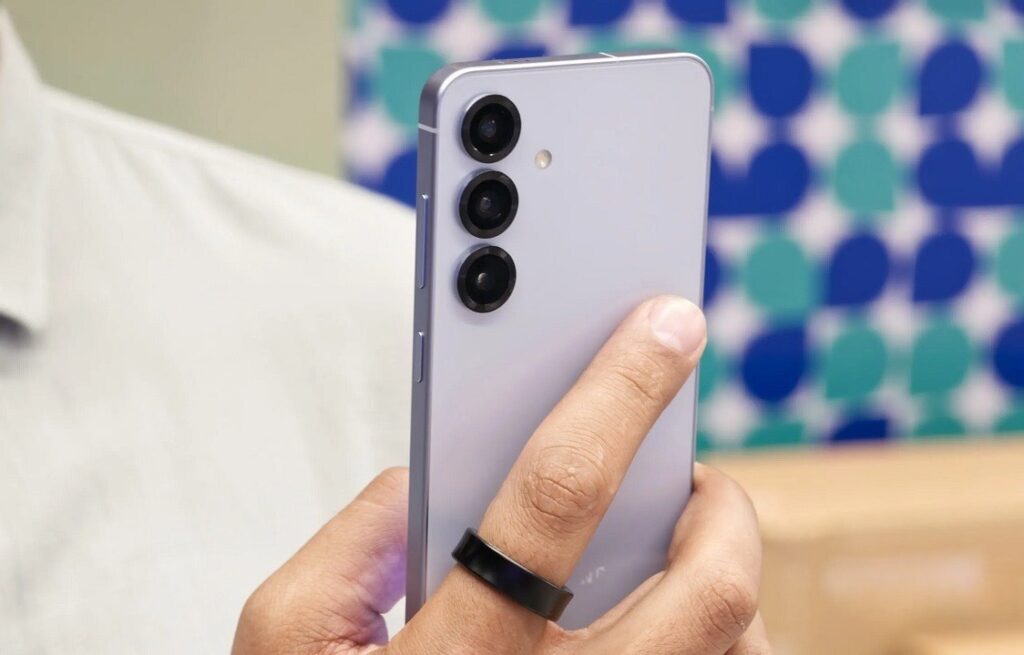
Here’s how to set up a useful Google Pixel feature on any smartphone. Image: androidauthority.com
What Is Quick Tap and Why It’s Not on Your Smartphone
Quick Tap is a built-in Android gesture on Google Pixel smartphones. You double-tap the back of your phone with your finger, and it performs a pre-selected action: takes a screenshot, turns on the flashlight, opens an app, or pauses music. The gesture works using the accelerometer and gyroscope — the sensors recognize the characteristic tapping pattern, distinguishing it from accidental touches in your pocket.
The feature is available starting from the Pixel 4a (5G) and newer. On Samsung, Xiaomi, OnePlus, and other manufacturers, it’s officially not available. Samsung has a similar capability through the RegiStar module from the Good Lock suite, but with limitations.
What the Tap, Tap App Can Do on Android
Tap, Tap is an open-source port of the Quick Tap feature from Android 12 that works on any device running Android 7.0 and newer. The app doesn’t just copy Pixel’s capabilities — it expands them in several important ways.
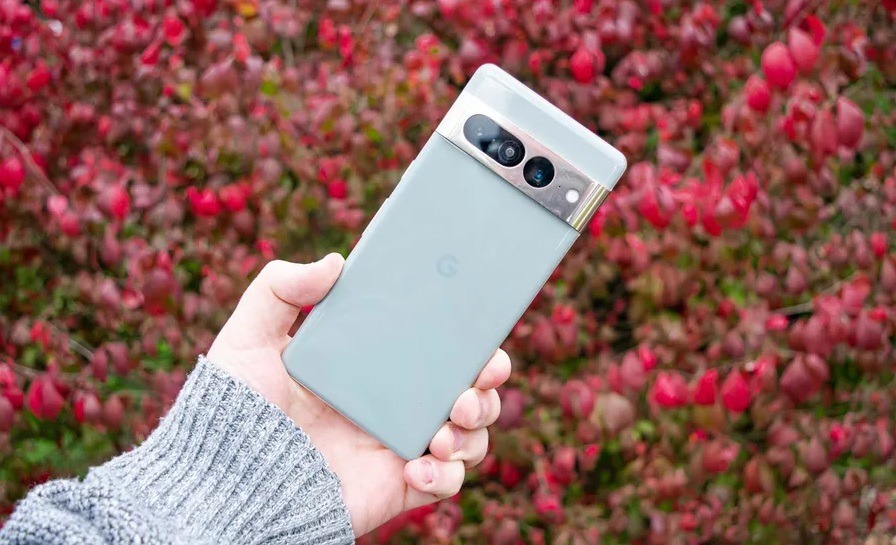
Quick Tap — a useful Google Pixel feature. Image: Tom’s Guide
The main advantage is support for two gestures: double and triple tap. Quick Tap on Pixel only offers a double tap with a single action. In Tap, Tap, you can assign multiple actions to each gesture, and the app will perform the appropriate one depending on conditions. For example:
- Double tap on the lock screen turns on the flashlight
- Double tap during music playback skips to the next track
- Double tap in all other cases takes a screenshot
The app has over 50 actions in total: turning on the flashlight, taking a screenshot, calling the assistant, opening the camera, declining a call, and much more. Additional system-level actions can be unlocked through the Shizuku app or with root access.
The Most Useful Feature of the Tap, Tap App
One of the most useful features of Tap, Tap is the so-called “gates.” These are conditions under which gestures are blocked. If you notice your phone accidentally responding to taps, you can set restrictions: for example, block the gesture when the keyboard is open, when the device is lying on a table, or when the screen is off.
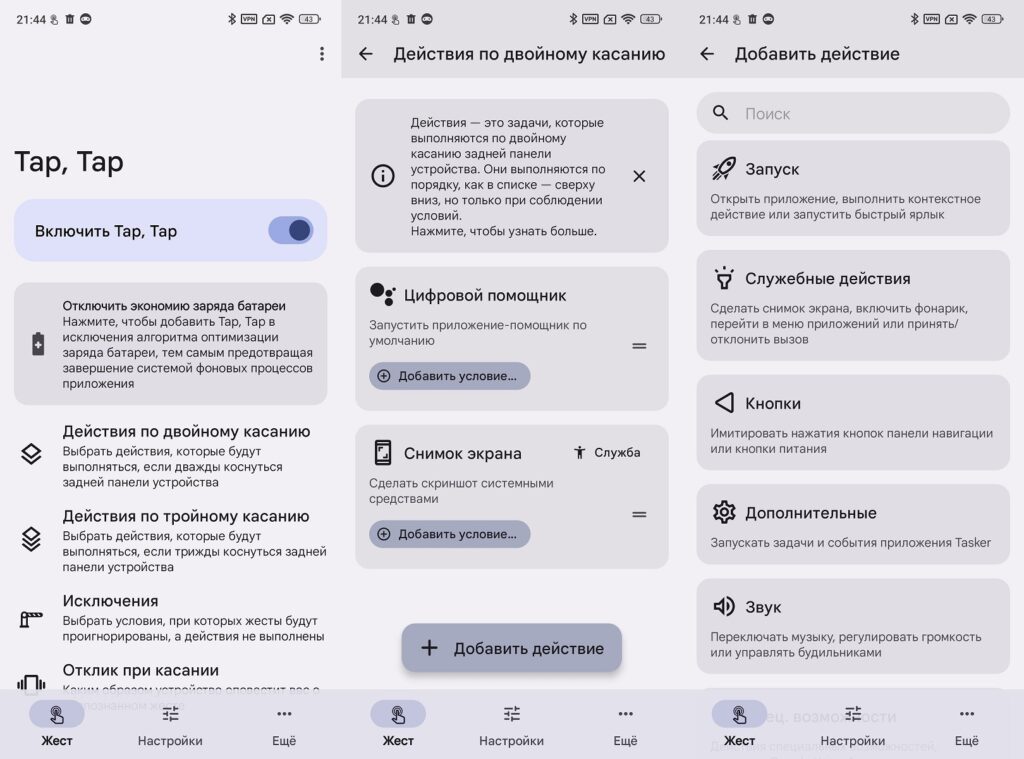
The app is localized and highly customizable
Tap, Tap also lets you adjust tap sensitivity and select device size for more accurate gesture recognition. This is especially useful if you frequently change cases — a thick protective case requires one sensitivity setting, while a thin one or no case at all requires another.
How to Install and Set Up Tap, Tap on Android
The app is not available on Google Play — you need to download it from the developer’s GitHub. Here’s the procedure:
- Go to the Tap, Tap page on GitHub and download the latest APK file from the Releases section
- When prompted for permission to install from unknown sources, open settings and allow the installation
- After installation, open the app and go through the initial setup, granting the necessary permissions
- Double-tap the back panel of your smartphone to activate the gesture
- On the app’s main screen, disable battery optimization for Tap, Tap — otherwise the system may terminate the app in the background
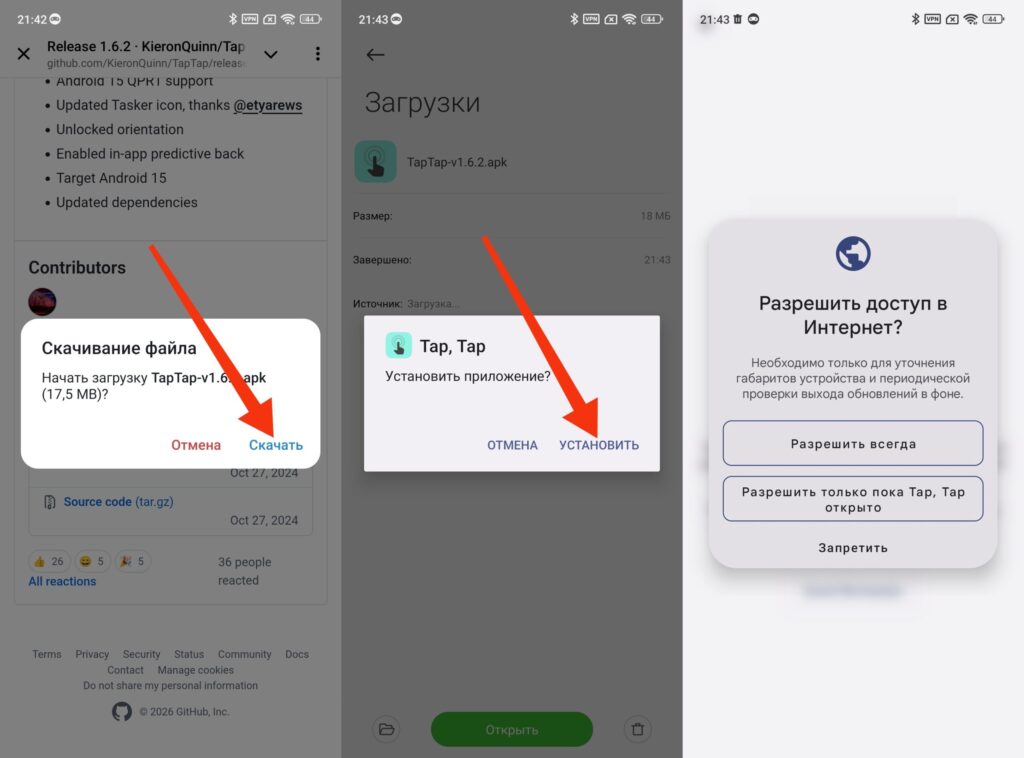
The app needs to be downloaded, installed, and configured
After that, you need to grant two additional permissions:
- Permission to display over other apps: Settings, Apps, Tap, Tap, three-dot menu, Allow restricted settings. Then in the “Advanced” section, enable “Display over other apps.” On Samsung, this option is called “Appear on top”
- Accessibility permissions: Settings, Accessibility, Tap, Tap — enable. Then similarly enable Tap, Tap Secondary Service
When all permissions are granted, return to the app and make sure the Enable Tap, Tap toggle is active. Select Double Tap Actions, add the desired action, and optionally set a condition under which it will trigger. An action without conditions becomes the default action — it executes when none of the conditions of other actions are met. The order of actions in the list matters: the action without conditions should be last. For triple tap, repeat the same steps in the Triple Tap Actions section.
Double tap:
- On the lock screen — turns on the flashlight
- During music playback — skips to the next track (convenient while jogging without taking the phone out)
- In all other cases — takes a screenshot
Triple tap:
- During music playback — goes back to the previous track
- In all other cases — opens Google Maps with directions home
This combination turns the back panel of your phone into a full-fledged controller for the most frequent actions.
Who Should Download Tap, Tap
The app will be useful in two cases. First: you use a non-Google smartphone and want to get the double-tap gesture that you don’t have. Second: you have a Pixel, but the standard Quick Tap feels too limited: one action per gesture, no conditions, and no triple tap.
The app will be useful for those who want to try the double-tap feature. Image: androidauthority.com
There are a few things to keep in mind. The app is installed not from Google Play but via an APK from GitHub — this requires manual updating in the future.


