Russia’s national messenger MAX can be used on an Android phone without installing the app. According to the source author, opening web.max.ru in a mobile browser loads a full web version rather than a stripped-down mobile page. Chats, file sharing and browser notifications all work. There are trade-offs, though. Video calls are less stable, notifications are less reliable, and the Digital ID feature is not available in the browser version.
What you need to know
- MAX has a web version at web.max.ru. You sign in with the phone number linked to your account and an SMS code.
- The source author reports it works in Yandex Browser on a vivo X300 and expects other Android browsers to work too.
- Chats, groups, channels, file and media sending, voice messages, search, full chat history and browser notifications are available.
- Video calls are unstable, notifications may not wake a sleeping phone, and Digital ID is missing from the browser version.
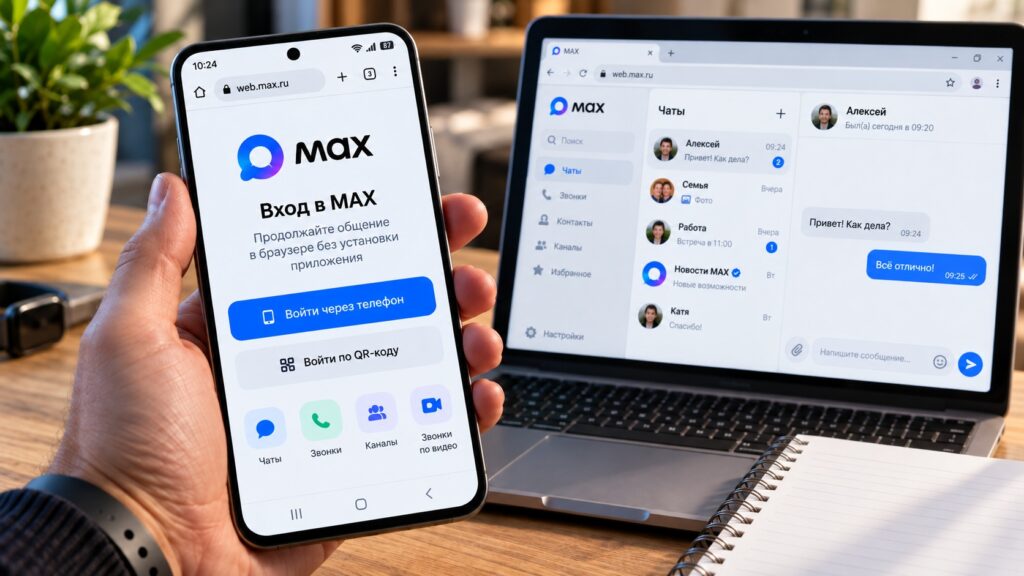
Signing in to MAX through a phone browser
Why use a messenger in a phone browser at all?
Using a browser when an app exists may seem odd. The source describes several practical scenarios:
- The app is hard to obtain. The source says the MAX app has been removed from Google Play and that not everyone knows where else to download it. RuStore is not present on every smartphone, especially devices without Russian services. A browser avoids the need to install anything.
- Secondary devices. On a spare phone, a tablet or any device where you would rather not install extra apps, you can simply open a browser and sign in.
- Corporate phones. Some company security policies block app installation. According to the source, browsers are usually not restricted.
The source also suggests the web version is a way to try MAX before installing it. Using it this way also means the app does not take up storage on the phone.
How to open MAX in an Android browser
The source author reports testing the web version in Yandex Browser on a vivo X300 and says it worked without problems. The author expects other browsers to work as well, but does not report testing them. The steps given are:
- Open any browser on your Android smartphone, such as Chrome, Firefox or the manufacturer’s browser.
- Type web.max.ru into the address bar and go to the site.
- Enter the phone number linked to your MAX account.
- Wait for the SMS code and enter it.
- You are now signed in to MAX in the browser.
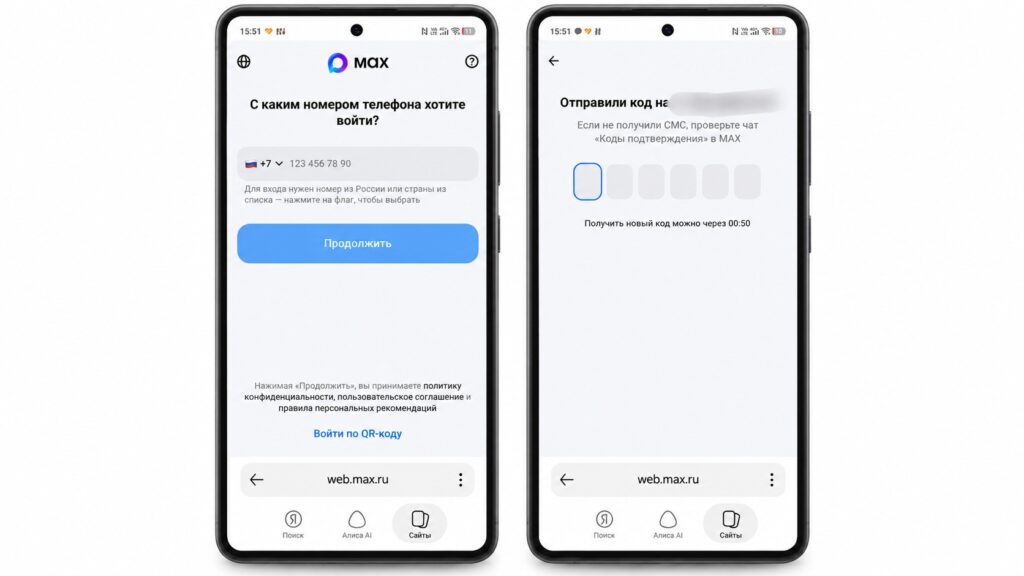
Signing in to MAX Web on an Android phone
The first time you sign in, the browser may ask for permission to show notifications. This is covered in more detail below.
What works in the mobile web version
According to the source author’s check of the main features, the following are available:
- Messaging: private chats, groups and channels are fully available.
- Files, photos and videos: these are sent through the standard Android file picker.
- Voice messages: recording and playback both work.
- Search: you can search chats and messages without restrictions.
- Chat history: the full history loads.
- Browser notifications: these work if you grant permission.
What is missing or works worse
- Video calls: in a mobile browser they are unstable, and quality is lower than in the app.
- Notifications are less reliable: the browser may not wake the phone to deliver a notification while it is asleep.
- No autostart: the app starts with the phone, but a browser tab does not.
- Digital ID: this passport-like feature has been removed from the browser version entirely.
Overall, the source author says MAX is less stable in a browser than in the app, especially when other tabs are open alongside the messenger. Apart from Digital ID, however, the key features are present.

Three tips for making the web version more convenient
The source offers several settings for anyone who uses the web version regularly.
1. Add MAX to your home screen
The source calls this the most important tip:
- Open MAX in the browser and sign in to your account.
- Tap the three-dot menu in the upper-right corner of the browser.
- Choose “Add to Home screen” or “Install app”.
- Confirm, and a MAX icon will appear on your home screen.
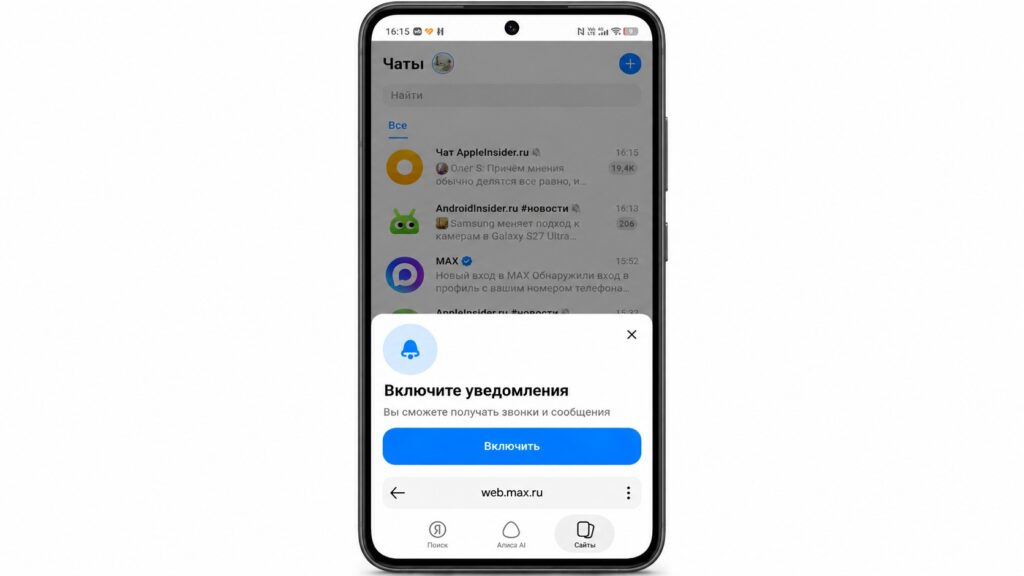
Enabling notifications in MAX Web
2. Allow notifications
The first time you open web.max.ru, the browser will ask whether to allow notifications. The source recommends allowing them. Otherwise, new messages will only appear when you open the browser. Even with permission granted, the source notes that browser notifications may not wake a sleeping phone.
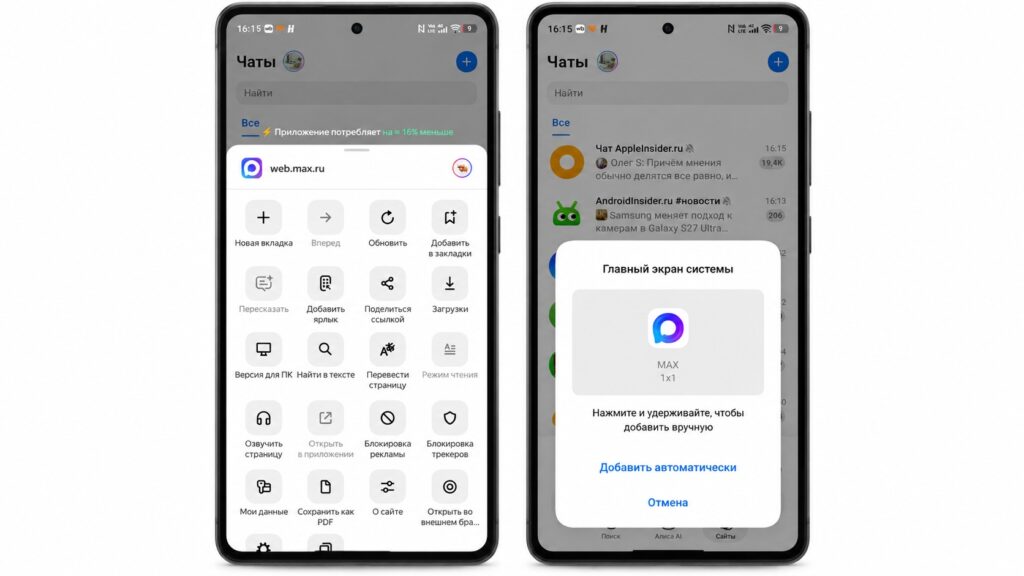
Adding the MAX icon to the Android home screen
3. Pin the tab
According to the source, in Chrome you can long-press a tab to pin it. A pinned tab stays open when the browser restarts and does not get lost among other tabs.
When the app is still the better choice
The source concludes that the web version covers most tasks, but the app is clearly better in several situations:
- Calls: if you rely on voice and video calls, they work worse in the browser.
- Reliable notifications: the app wakes the phone more effectively than a browser does.
- All-day use: if MAX is your main messenger, the app uses fewer resources than a tab that is always open.
- Digital ID: this feature is only available in the app.
For people who do want the app, the source says it is available through RuStore and in the downloads section of max.ru. For occasional use, a second device, or anyone who prefers not to install extra software, the source author judges the browser version good enough to use without frustration.


