To turn off or restart most HONOR smartphones, press and hold the power button until a menu appears, then choose to power off or restart. If the phone is frozen and the screen does not respond, HONOR’s instructions call for a forced restart: hold the power and volume-down buttons together for more than 10 seconds. The usual method does not always work. In newer versions of MagicOS the power button has more jobs, and holding it can launch a voice assistant instead of the power menu. Below are five approaches, including what to do when the screen stops responding entirely.
What you need to know
- On some models, holding the power button for about 3–5 seconds opens Google Assistant or Gemini instead of the power menu. Holding it longer, or pressing power and volume up together, may bring up the menu.
- MagicOS also has a power icon in the quick settings panel. You can use it when the power button is broken or opens the assistant.
- To force-restart a frozen HONOR phone, hold the power and volume-down buttons for more than 10 seconds. On some models, such as the HONOR 50 series, holding only the power button for at least 10 seconds is enough.
- You can schedule the phone to turn off and on automatically under Settings → Accessibility features.
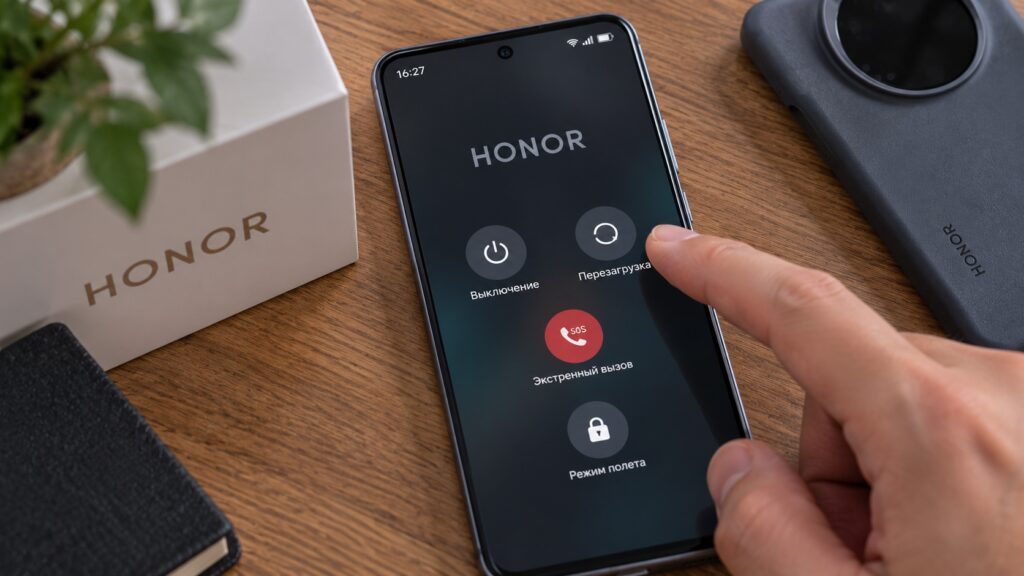
The restart button on a HONOR smartphone
1. Use the power button and the power-off menu
This is the main method, and it works on most HONOR smartphones. To turn the phone off:
- Press and hold the power button for a few seconds.
- When the menu appears on screen, tap Power off.
- Tap it again to confirm.
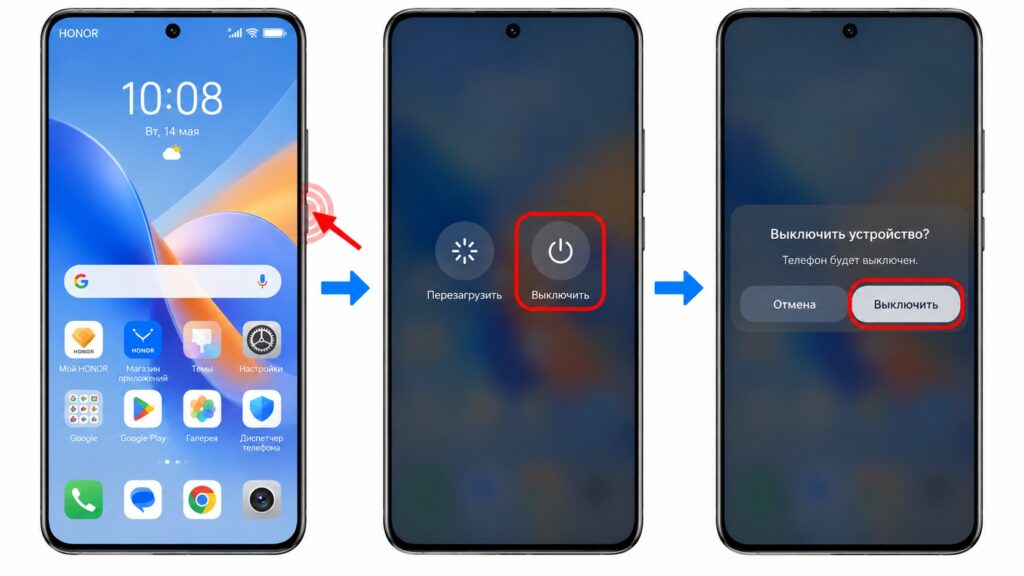
The standard way to turn off a HONOR smartphone
To restart instead, choose Restart in the same menu. The phone will shut down and then turn itself back on. A restart can help when the phone has become sluggish or an app is misbehaving.

2. If the power button opens an assistant instead of the menu
On some models, holding the power button opens Google Assistant or Gemini. The assistant usually appears if you hold the button for 3–5 seconds. In that case, try holding the button longer. On many phones, the power-off menu appears after the assistant.
If that does not work, press the power button and the volume-up button at the same time. On some models, this combination opens the power-off menu.
Tip: To stop the assistant from getting in the way, check your voice assistant and gesture settings. You can turn off launching the assistant with the power button there.
3. Turn the phone off from the notification shade
MagicOS also places a power button in the quick settings panel. This is useful when the power button is broken or keeps opening the assistant:

- Swipe down from the top edge of the screen to open the notification shade.
- If necessary, swipe down again to expand quick settings.
- Tap the power icon.
- Choose Power off or Restart.
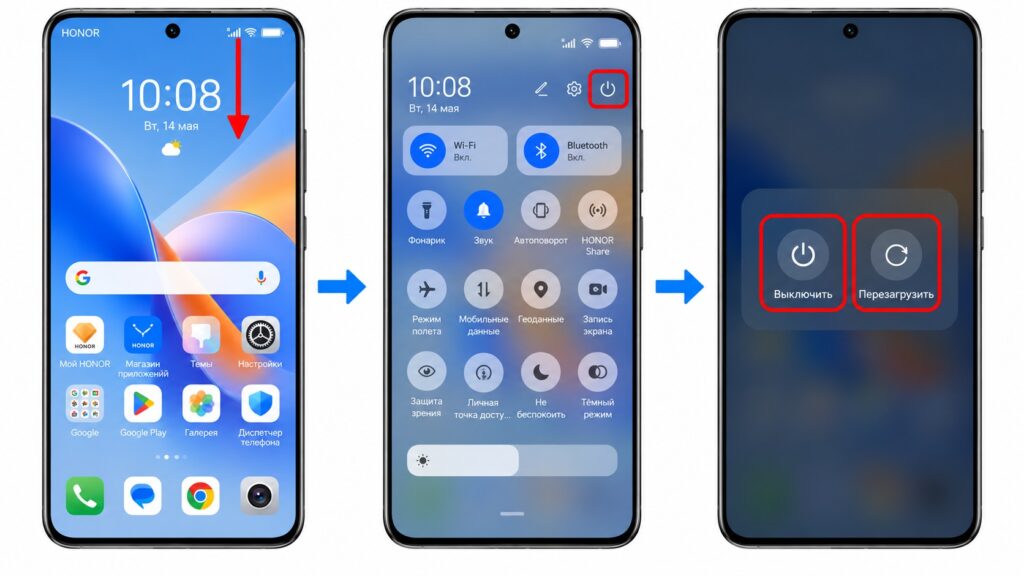
Turning off and restarting a HONOR phone from the notification shade
Caution: If the power button is broken, it will be harder to turn the phone back on after shutting it down this way.
4. Let the phone switch off on a schedule
If you turn your HONOR off at night, the phone can do this for you. Open Settings, go to Accessibility features, and select Scheduled power on/off. There you can set times for the phone to switch off and back on automatically.
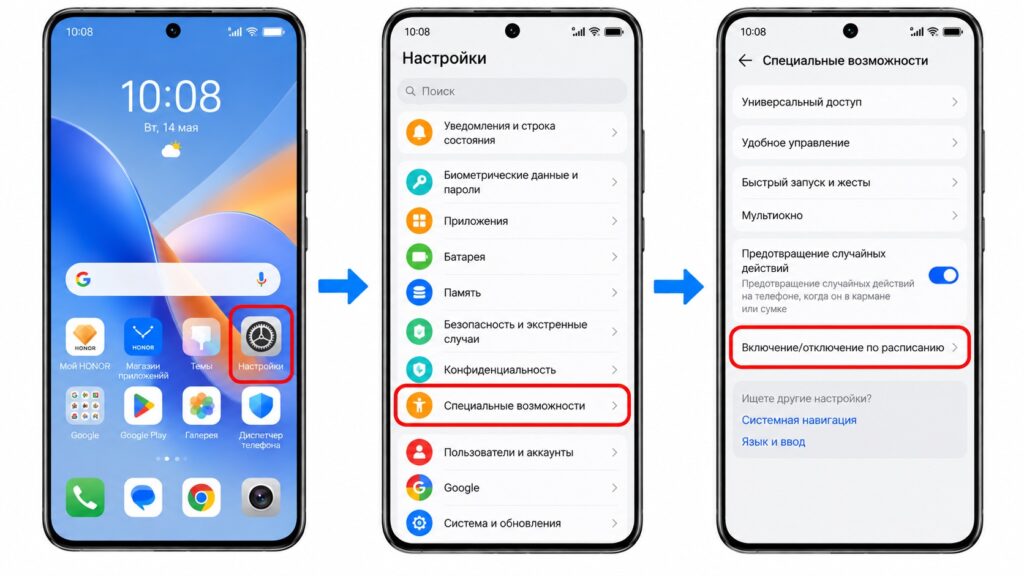
Setting up scheduled power-off on a HONOR phone
This can also help if you want fewer distractions in the evening, because the phone simply switches off at the set time. However, if the phone has frozen and responds to neither the notification shade nor the power button, you will need a different method.

5. Force-restart a frozen HONOR phone
When the screen does not respond to touch, a forced restart can help. According to HONOR’s instructions:
- Press and hold the power button and the volume-down button at the same time.
- Keep holding both buttons for more than 10 seconds.
- Release them when the phone starts to restart.
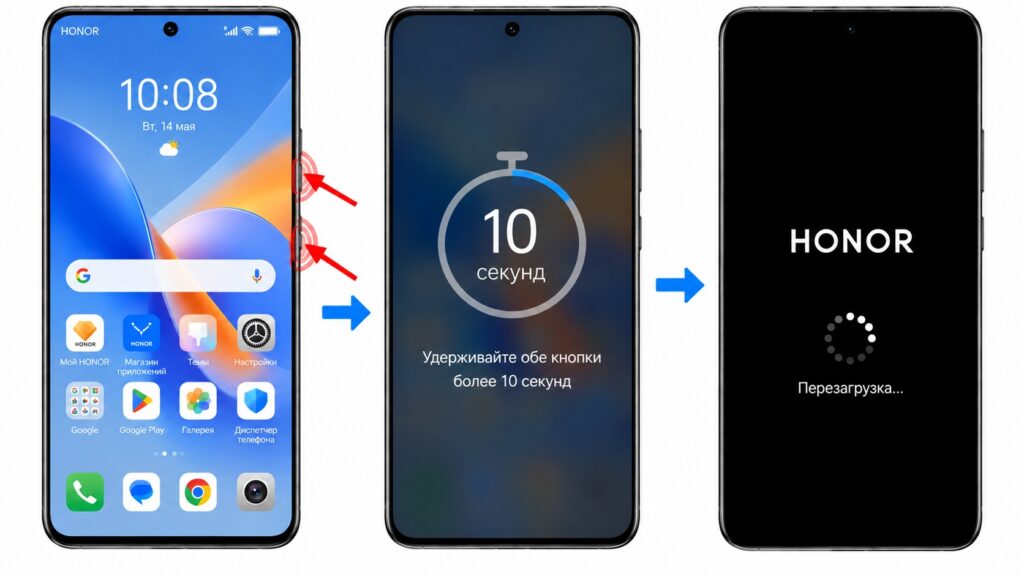
Force-restarting a HONOR smartphone
On some models, such as the HONOR 50 series, it is enough to hold only the power button for at least 10 seconds. A forced restart usually does not affect your data. Even so, HONOR recommends backing up your data beforehand if the phone still turns on.
If the phone keeps freezing on the logo
If the phone freezes on the HONOR logo again after restarting, the problem goes deeper. In that case, only a full factory reset may help, and a factory reset erases all data on the phone.