6 signs that your phone has been hacked
Your smartphone stores your banking information, personal messages, and passwords, which is exactly why it remains a prime target for cybercriminals. The good news: modern Android and iOS have become quite good at defending against direct attacks. The bad news — hackers long ago stopped trying to break the system head-on and instead manipulate the user themselves. Here are six signs that your phone may be compromised, along with instructions on what to do next.
Unfamiliar apps and ads appeared on your phone
If an app you definitely didn’t install appeared on your screen — that’s a reason to be alert. Android, thanks to its open architecture, allows installing programs from any source, not just Google Play. Cybercriminals actively exploit this: they disguise malware as useful utilities or system updates.
The two most common types of mobile malware are adware and trojans. Adware floods your screen with pop-up banners, earning money for the attacker with every impression or accidental click. Using the phone becomes a real ordeal. Trojans operate more quietly but are more dangerous: they can steal passwords, card data, and personal messages. That’s why the old rules of digital security are still relevant.
To check the source of a suspicious app on Android, long-press its icon and go to “App info.” If the “Install source” field shows anything other than Google Play — the app was sideloaded. You should also run the built-in scanner: open the Play Store, tap your profile avatar, select “Play Protect,” and tap “Scan.”
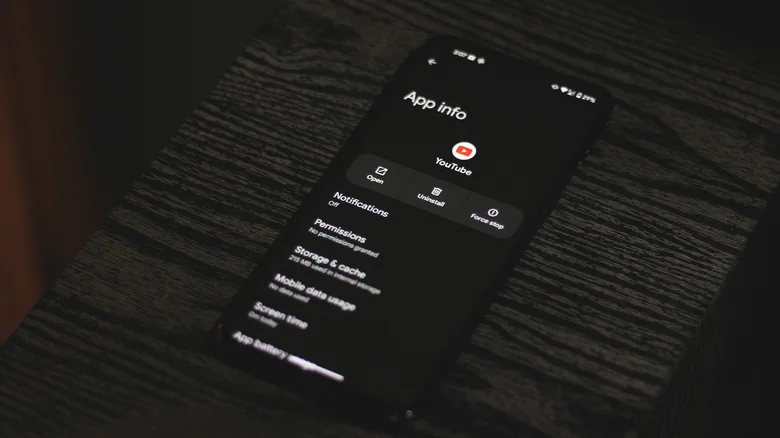
An unknown app or service that you don’t remember installing is an alarming signal you should always pay attention to.
Your phone drains quickly, overheats, and lags
Not all malware announces itself with ads. Some programs run silently in the background — and the only thing you notice is sudden lag and a hot device. One of the growing types of such attacks is cryptojacking: hidden cryptocurrency mining on your device.
The concept is simple: the malware forces your smartphone’s processor to solve mathematical problems to mine cryptocurrency (most often Monero), and the earnings go to the attacker. The phone overheats, lags, and dies in half a day. In some cases, the load is so heavy it can physically damage the battery. However, rapid battery drain alone doesn’t prove a hack: sometimes the culprit is cold weather, an old battery, or poor signal.
Go to “Settings” and open the “Battery” section: there you can see which apps are consuming charge. If the list includes an unfamiliar name consuming a disproportionate amount of energy — that’s a serious reason to investigate.
It’s not just about cryptojacking. Spyware and keyloggers work in a similar way: they also constantly run in the background, increasing battery and data usage. Keyloggers are malicious programs that monitor what you type on your keyboard and can send attackers your passwords, logins, messages, and bank card details.
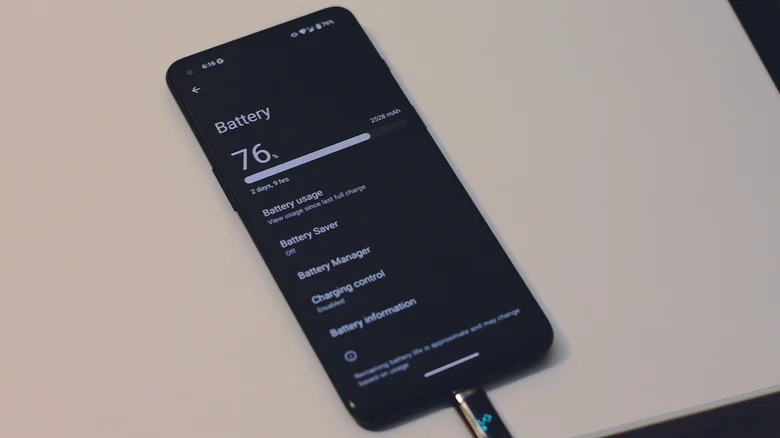
Rapid battery drain and overheating without obvious reasons may indicate background malware activity
Also pay attention to mobile data usage: sudden unexplained spikes in data transfer are another signal that something extra is running on your device.
Strange SMS messages and account login requests
Phishing is one of the most successful types of attacks, and it becomes more sophisticated every year. The essence is that you receive an email or SMS with a link to a website that looks legitimate (a bank, email service, marketplace), and you voluntarily enter your login and password. At this point, your phone isn’t technically infected — but the attacker already has your data.
A separate type is spear phishing, where the attacker addresses you personally, using details from social media or public sources. The message can look as if it was written by a colleague or acquaintance. This dramatically increases the chances of success.
Suspicious messages and account login attempts are one of the signs of a hacking attempt.
What’s important: even two-factor authentication doesn’t always save you. Attackers have learned to request confirmation codes, and some services allow approving a login with a simple “OK” tap — without entering a code. Therefore, any unexpected login confirmation requests are a red flag. Only approve those that you initiated yourself.
A simple rule: don’t click links or open attachments from messages whose source you don’t trust one hundred percent. Gmail and other email services filter spam, but you shouldn’t rely solely on automation.
Why iPhones are harder to hack than Android: protection from hackers
Apple has built a closed ecosystem where installing an app from a third-party source is significantly harder than on Android. This makes the iPhone more secure “out of the box.” On Android, however, third-party apps can be installed in just a couple of taps — and this is the path most often used by attackers.
Google Play Protect — Android’s built-in antivirus — regularly scans the device and warns about potential threats. But if you want more robust protection, it makes sense to install a separate antivirus for Android. Such apps check not only installed programs but also files, SMS, and browser data.
Regardless of the platform, one of the key security rules is to always update your operating system. Older versions of Android and iOS contain known vulnerabilities that have long been documented publicly.
On Android, you can check for updates in “Settings” — “System” — “System update”; on iPhone — in “Settings” — “General” — “Software Update.”
What to do if your phone has actually been hacked
So you’ve noticed one or more warning signs: unexplained battery drain, strange SMS messages, lag, intrusive ads, unfamiliar apps, or suspicious login requests. Don’t wait for it to resolve itself. Start with these basic steps:
- Delete all suspicious apps — especially those whose installation source isn’t Google Play or the App Store.
- Change passwords for key accounts (email, bank, social media) — preferably from a different device.
- Scan the device with the built-in scanner (Play Protect on Android) or a third-party antivirus.
- Update the operating system to the latest version.
- If suspicions remain — perform a full factory reset. This will erase all data and apps but will give you a clean start.
A factory reset is a last resort, but sometimes it’s the only way to guarantee complete removal of malware. Before resetting, make sure your important photos and files are backed up to the cloud or a computer.