The settings that most improve Android gaming are the manufacturer’s game mode, a performance profile suited to how long you play, the display’s highest refresh rate, and in-game graphics tuned for a stable frame rate. Keeping the phone cool matters just as much, because heat is what triggers slowdowns. According to the source author, many popular developer-options tweaks do not help, and some make performance worse.
Even a phone with a flagship chip such as the Snapdragon 8 Elite Gen 5 does not always run games at full capacity. The system may limit performance to control temperature and battery drain, the screen may stay at 60 Hz instead of 120 Hz, and games may choose graphics settings that are too demanding. Settings will not turn a budget phone into a flagship, but they can remove real limits, reduce frame drops and cut heat.
What you need to know
- Maximum performance mode can raise temperatures quickly. The source says throttling can begin after 15 to 20 minutes, so balanced mode is recommended for longer sessions.
- A 120 Hz display does not mean a game runs at 120 FPS. If a game is capped at 60 FPS, the screen shows each frame twice.
- A stable 60 FPS is usually more pleasant than a frame rate that swings between 70 and 100 FPS. Shadows should be reduced first, and textures last.
- Forcing 4x MSAA in developer options adds GPU load and slows games down rather than speeding them up.
The right gaming settings on Android
Prepare the phone before you play
Before changing any settings, the source recommends a few basic steps that people often skip:
- Update the system and the game. Manufacturers regularly release updates with performance optimizations, and game developers release patches that fix frame drops.
- Leave some storage free. If storage is 95% full, the system has little room for temporary files. This can slow loading and cause freezes.
- Restart the phone if it has been running for several days without a reboot. The source says clutter builds up in RAM over time.
- Avoid playing while apps are updating or a backup is running. Both tasks add background load.
- Check battery saver. When it is on, the processor runs at lower clock speeds. The source recommends turning it off for gaming.
There is one important caveat about memory: you do not need to close all background apps by hand. Android manages memory on its own. Aggressively clearing RAM does not add frames and only forces apps to reload the next time you open them.
Turn on game mode first
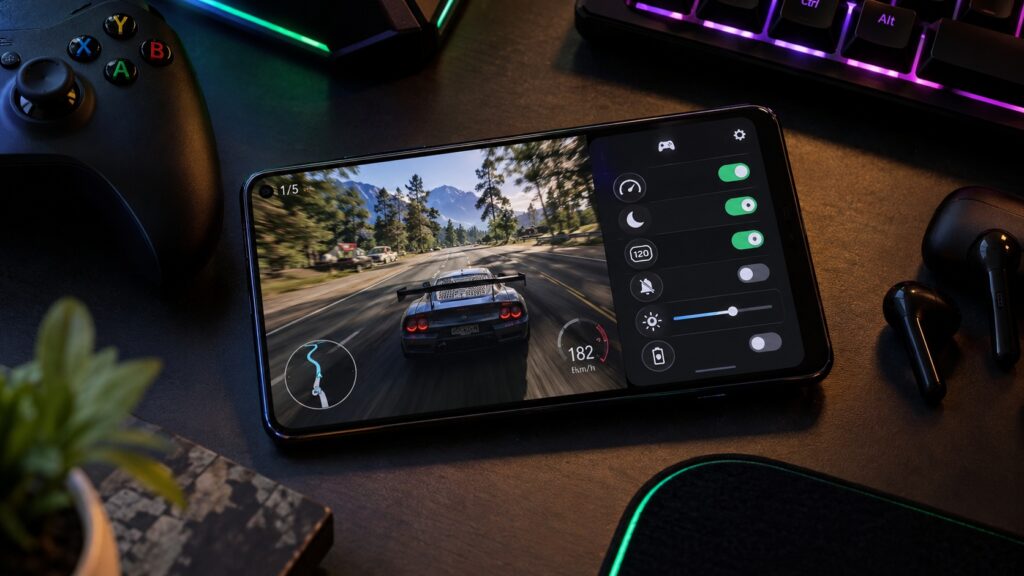
Almost every major manufacturer offers its own game management hub. The source advises starting there: add the game to the system game mode, then adjust everything else. Game mode blocks notifications, optimizes how resources are allocated and gives access to extra performance settings.
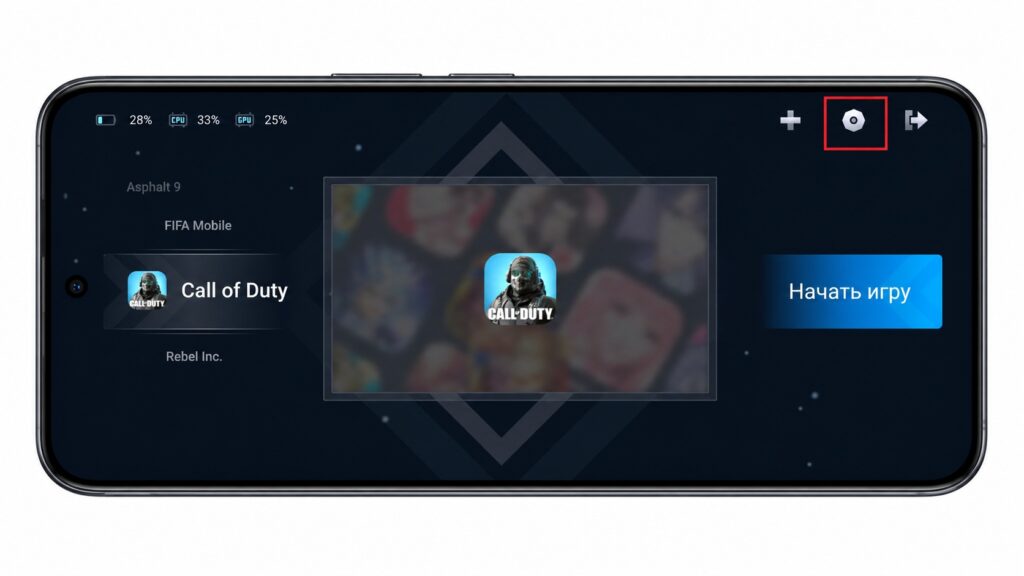
Adding Call of Duty to the game section
Where to find game mode on different Android skins
Names and features vary by manufacturer and model:
- Xiaomi, REDMI, POCO (HyperOS/MIUI): Game Turbo. It changes the performance mode, optimizes Wi-Fi for gaming, and adjusts touch sensitivity and accidental-touch protection. Some models also offer GPU settings.
- Samsung (One UI): Gaming Hub and Game Booster. You can choose a performance mode and set the frame rate, resolution and other options separately for each game.
- HONOR (MagicOS): Game Center. It offers a performance mode, gesture blocking and an in-game control panel.
- realme (realme UI) and OPPO (ColorOS): Game Mode. The feature set is similar: performance settings, notification blocking and touch settings.
- vivo (OriginOS): Ultra Game Mode. It includes network optimization, screen recording and a mode that hides notifications.
Which performance mode to choose
The source highlights a paradox: maximum performance mode does not always deliver the highest average performance over an hour of play. In that mode, the processor runs at peak clock speeds and the phone heats up quickly. After roughly 15 to 20 minutes, the system forcibly lowers clock speeds to cool the chip. This is called throttling. In the source’s example, you get 90 FPS for the first 15 minutes, then 50 FPS and a hot phone.
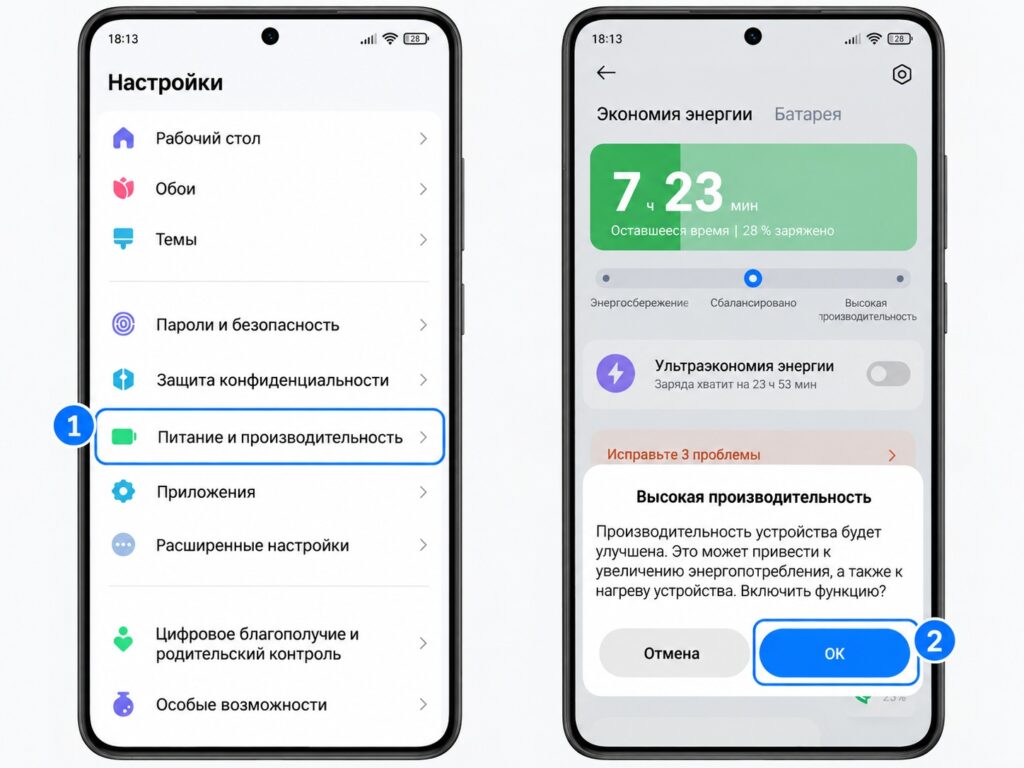
Turning on performance mode on Android
The source suggests matching the mode to the situation:
- Performance mode: for short sessions of up to 20 to 30 minutes, or for flagships with good cooling. You get the highest frame rate at the start, but more heat.
- Balanced mode: the best choice for long sessions. Clock speeds are slightly lower, but throttling starts later and the frame rate stays stable for an hour or more.
- Power-saving mode: only when battery life matters more than frame rate. The source also gives another example: if you are playing while plugged in and the phone has become very hot, switching to this mode will help it cool down.
The source notes that Xiaomi itself warns in its Game Turbo description that the enhanced performance mode increases heat and power consumption. The source reads this as an honest description of the trade-off.

Set the highest screen refresh rate
On most Android phones, the path is Settings > Display > Refresh rate. Choose the highest available value, such as 120 Hz, 144 Hz or 165 Hz, depending on the model. It is important to understand the difference between the display’s refresh rate and the game’s frame rate.
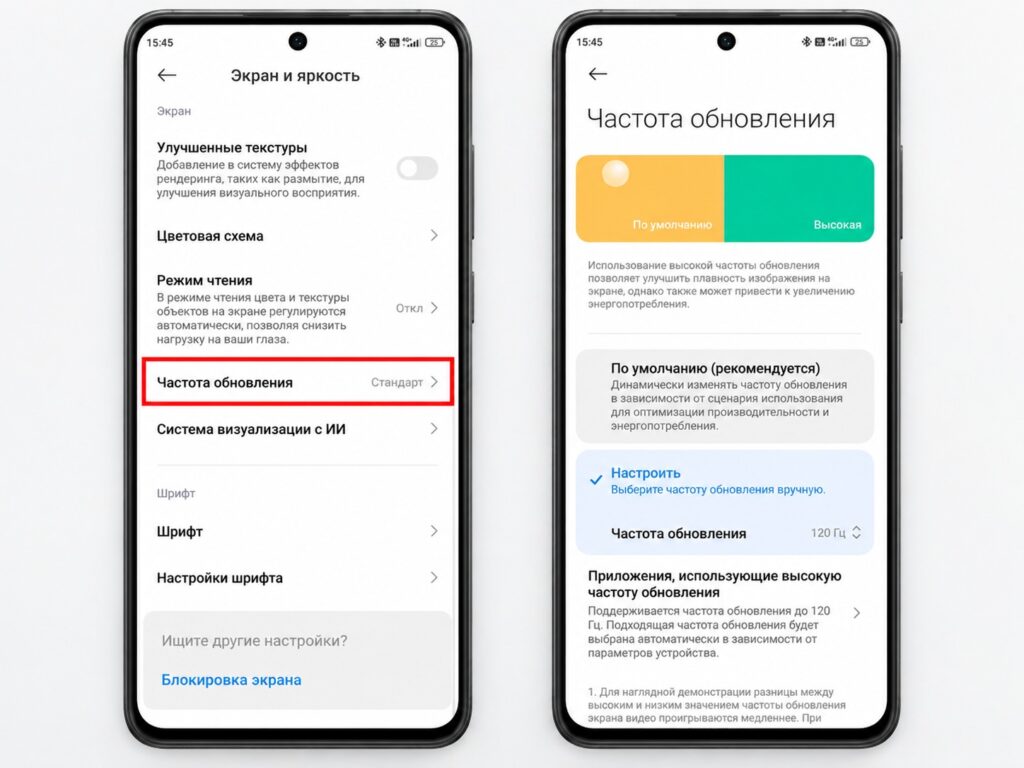
Turning on 120 Hz on an Android phone
A 120 Hz screen does not mean 120 FPS in a game:
- Refresh rate (Hz) is how often the screen updates the image.
- Frame rate (FPS) is how often the game renders a new frame.
If a game is capped at 60 FPS in its own settings, a 120 Hz screen simply shows each frame twice, and motion does not get any smoother.
Some phones also lower the refresh rate automatically in certain games to save power. For that reason, the source suggests checking the refresh rate in two places: in the system settings and inside the manufacturer’s game mode. Game mode sometimes lets you lock the refresh rate for a specific app.
Tune the graphics inside the game
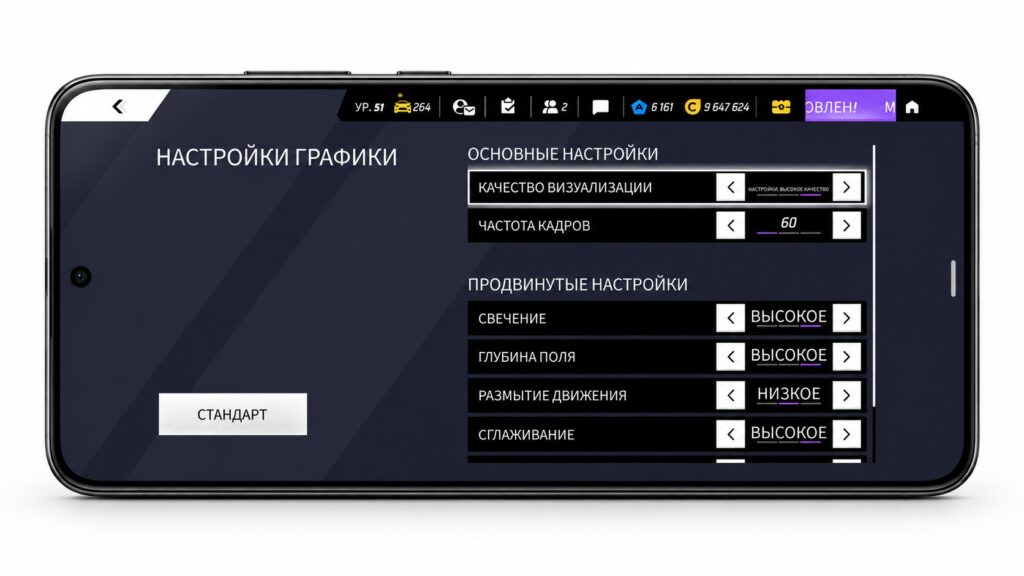
In-game graphics settings on an Android phone
According to the source, in-game settings are the most effective tool, and this is often where you get real performance gains. The recommended priority order is:
FPS → resolution → visual effects
If the phone cannot run a game smoothly, lower settings in this order:
- Turn down shadows first. They put a heavy load on the GPU.
- Turn off motion blur. The visual difference is barely noticeable, but the load drops.
- Remove post-processing and special effects, such as bloom and ambient occlusion.
- Lower water and foliage quality.
- Lower textures last. They affect memory use more than frame rate.
The key rule is that a stable 60 FPS is almost always more pleasant than a frame rate that jumps between 70 and 100 FPS. The source explains that sudden drops feel much worse than a steady image at a lower frame rate. It recommends setting a 60 FPS cap and lowering graphics until the phone holds that number consistently.
Adjust touch sensitivity and accidental-touch protection
This is less obvious but still important, especially for mobile shooters and fighting games. Game Turbo on Xiaomi phones and similar panels from other brands offer these options:
- Touch sensitivity: how quickly touches are registered. You can raise it for fast-paced games.
- Edge touch protection: useful if you hold the phone with both hands and your fingers touch the sides of the screen.
- Navigation gesture lock: prevents you from accidentally leaving the game with a back gesture.
- Three-finger screenshot gesture: worth turning off, because it is easy to take accidental screenshots during intense play.
- Vibration: it does not affect frame rate, but the source says turning it off slightly reduces system load and saves battery.
One caveat: do not simply set sensitivity to the maximum. In shooters, sensitivity that is too high hurts aiming accuracy, because your finger overshoots the target.

Block notifications and accidental gestures during play
These steps do not raise frame rate, but they noticeably improve the experience. An incoming call or notification in the middle of a match can cost you a round.
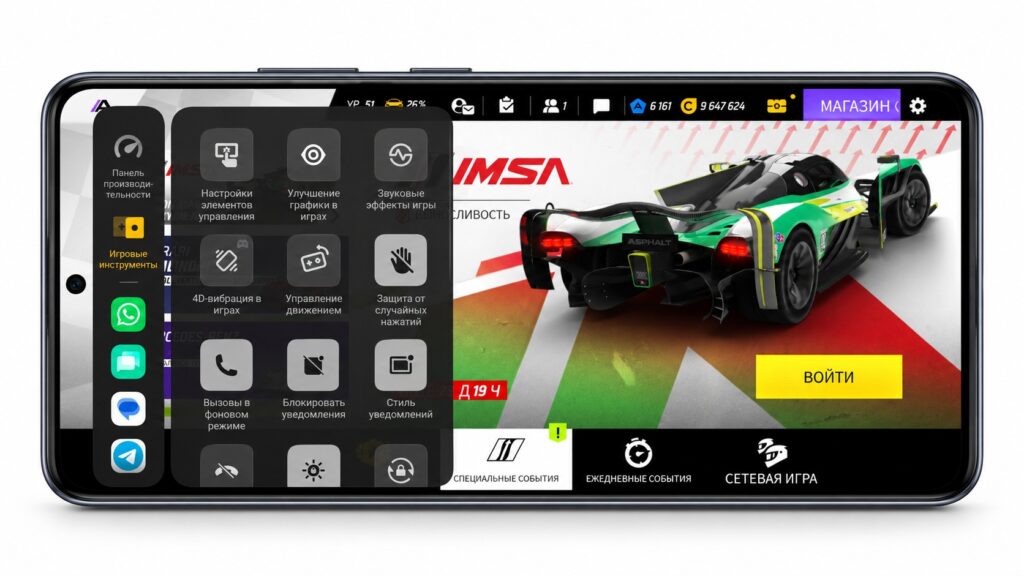
Additional settings in a gaming utility
The source recommends the following:
- Do Not Disturb: set it to turn on automatically when a game starts. Samsung does this itself once Game Booster is configured.
- Hide pop-up notifications: in most manufacturers’ game modes, this is a single checkbox.
- Lock auto-brightness: sudden brightness changes during play are distracting, and the source says they add unnecessary load.
- Lock auto-rotate: useful if you play in a fixed orientation.
- Prevent accidental exits: some phones let you lock the Home button during a gaming session.
How to keep the phone from overheating
The source treats this as one of the most important sections, because heat directly undermines performance. The chain looks like this:
Heat → throttling → lower clock speeds → frame drops
The source’s practical tips:
- Avoid playing in direct sunlight. According to the source, the sun heats the screen from outside, and the phone overheats twice as fast.
- Remove a thick case if it traps heat. The source says thick silicone cases are especially bad at this.
- Do not rest the phone on a blanket or sofa. Soft surfaces block natural airflow around the body.
- If frame drops begin after 15 to 20 minutes, lower the graphics or the performance mode rather than putting up with it.
- Do not combine maximum graphics, maximum frame rate, maximum brightness and a Wi-Fi hotspot at the same time. The source calls this a guaranteed way to overheat.
The source also warns against cooling a phone with ice, ice packs or a freezer. Sudden temperature changes cause condensation inside the phone, which can lead to a short circuit and permanent damage.
Should you play while charging?
The source explains that playing while charging puts a double load on the battery, because it takes in current and supplies it at the same time. With regular use, this speeds up heating and battery wear. The recommended solution is bypass charging, if your phone supports it.
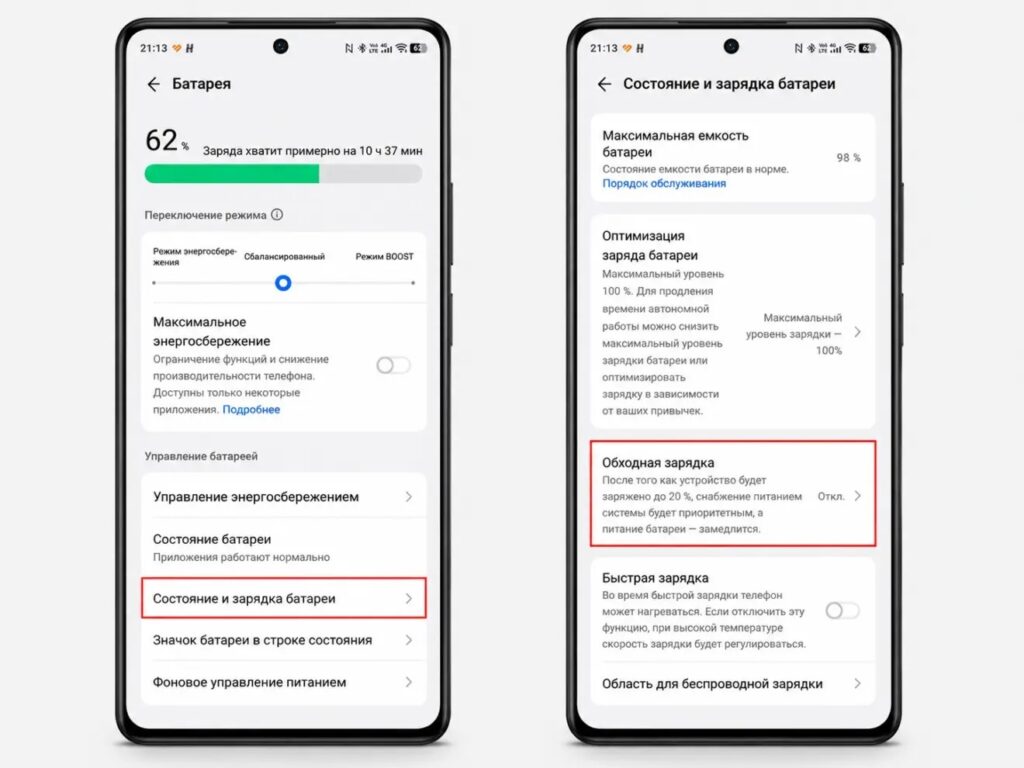
Turning on bypass charging on a vivo phone
In this mode, power goes directly from the adapter to the phone’s components and bypasses the battery. The battery is barely involved, so the source says there is less heat and less wear. If your phone does not offer bypass charging, the source suggests playing on a charge of up to 80-90% and then recharging, rather than playing with the cable connected all the time.
Developer options: what not to change
Online advice often promises that a few developer-option tweaks will make a phone much faster. The source author examines the most popular ones:
- Force 4x MSAA: this slows games down rather than speeding them up. It is an anti-aliasing mode that improves image quality by putting extra load on the GPU. Turning it on means asking the GPU to do more work.
- Force GPU rendering: this does not help 3D games, which already use the GPU by default. The setting affects the system interface, not games.
- Disable hardware overlays: this is not a universal speed boost. It can increase GPU load and power consumption.
- Set animations to 0.5x: the interface does feel faster, but in-game performance does not change. The source describes this as a psychological effect, not a technical one.
Quick reference
| Setting | Recommended value |
|---|---|
| Game mode | On, with the game added |
| Performance mode | Balanced for long sessions, Performance for short ones |
| Screen refresh rate | Highest available |
| In-game FPS | A stable 60, 90 or 120, without swings |
| Shadows and effects | Lower these first if FPS is unstable |
| Battery saver | Off |
| Do Not Disturb | On |
| 4x MSAA | Leave off |
| Bypass charging | On, if available |
Suggested profiles by phone class
- Budget phone: 60 FPS, low or medium graphics, balanced mode, and remove the case during long sessions.
- Mid-range phone: 60 or 90 FPS, medium or medium-high graphics, balanced mode, and watch for heat after 30 minutes.
- Flagship or gaming phone: start with 120 FPS and high graphics. Use Performance mode for short sessions and Balanced for long ones, and use bypass charging when plugged in.
The source’s main rule applies to every phone: remove the real limits, such as game mode settings, the wrong frame rate and excess heat, instead of relying on questionable developer options.